


What You’ll Learn
In this lesson, you will learn how Bash scripts receive information from the command line. These values, called command-line arguments, allow one script to process different log files without changing its source code.
- Understand positional parameters such as
$1and$0. - Check how many arguments a script received with
$#. - Pass a log file name to a reusable Bash script.
- Process multiple command-line arguments with
"$@".
The Concept
A command-line argument is a value written after a command or script name. For example:
./count-errors.sh access.logHere, access.log is an argument passed to count-errors.sh. The script can read that value and use it as the name of the file to process.
Bash stores command-line arguments in special variables called positional parameters:
$0is the name used to run the script.$1is the first argument.$2is the second argument.$#is the number of arguments."$@"represents all arguments, with each argument kept as a separate value.
Arguments make scripts reusable. Instead of creating one script for every log file, you can create one script and provide a different file name each time you run it.
Basic Example
Suppose an access log contains lines like these:
192.168.1.25 - - [18/Aug/2026:10:14:22] "GET / HTTP/1.1" 200 1250
192.168.1.30 - - [18/Aug/2026:10:15:03] "GET /missing.html HTTP/1.1" 404 512
192.168.1.42 - - [18/Aug/2026:10:16:17] "POST /login HTTP/1.1" 200 842
192.168.1.51 - - [18/Aug/2026:10:17:09] "GET /old-page HTTP/1.1" 404 488
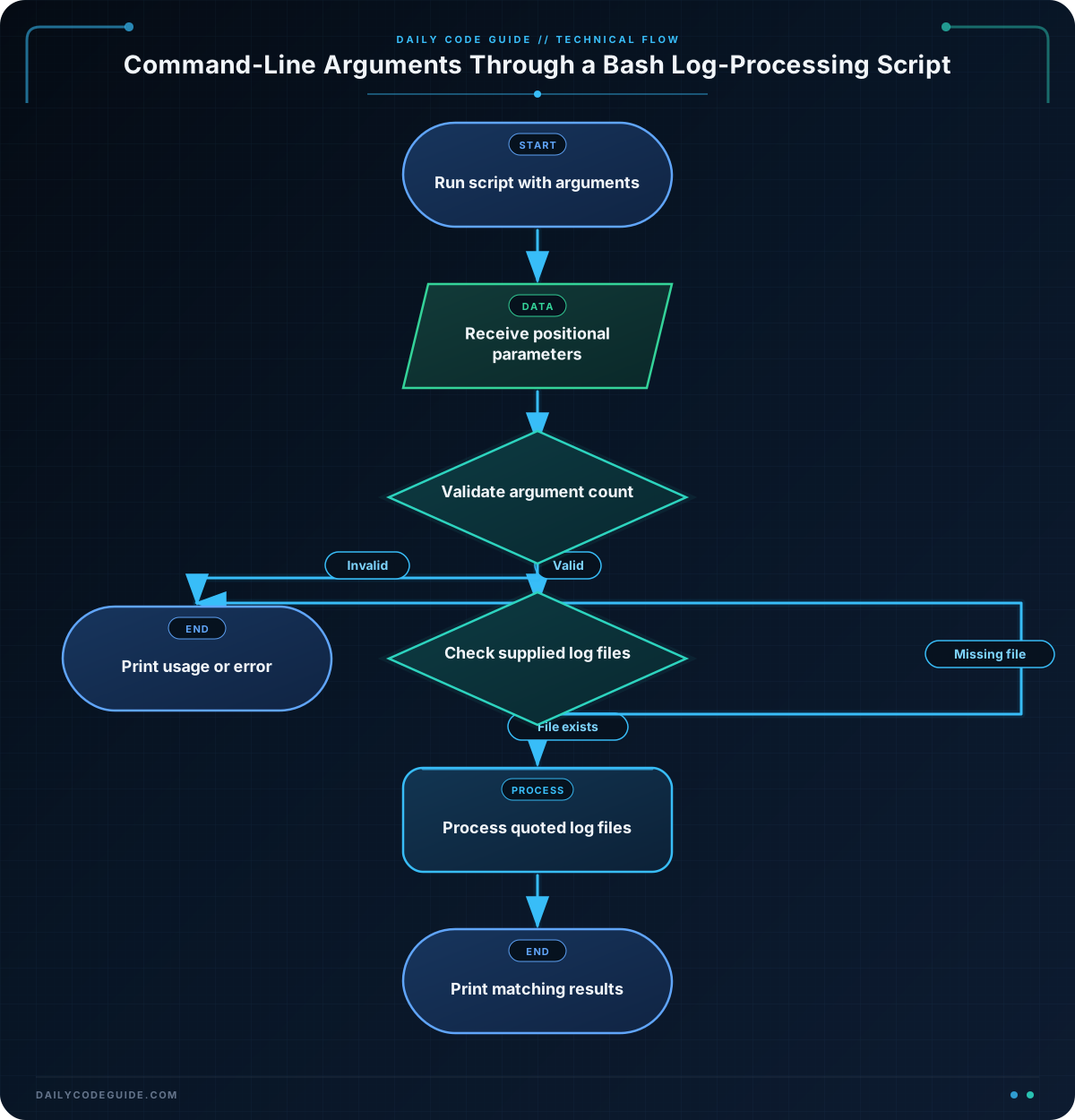
Save this script as count-errors.sh. It expects exactly one argument: the log file to inspect.
#!/usr/bin/env bash

if [[ $# -ne 1 ]]; then
    printf 'Usage: %s LOG_FILE\n' "$0"
    exit 1
fi

log_file=$1

if [[ ! -f "$log_file" ]]; then
    printf 'Error: file not found: %s\n' "$log_file"
    exit 1
fi

error_count=$(grep -c ' 404 ' "$log_file")
printf '404 responses in %s: %s\n' "$log_file" "$error_count"
Make the script executable, then run it with the log file as its argument:
chmod +x count-errors.sh
./count-errors.sh access.log
Expected Output
404 responses in access.log: 2How the Code Works
The first line tells the operating system to use Bash to run the script:
#!/usr/bin/env bashThis check makes sure the user supplied one argument:
if [[ $# -ne 1 ]]; then
    printf 'Usage: %s LOG_FILE\n' "$0"
    exit 1
fi
$# contains the number of arguments. The condition means “if the number of arguments is not equal to one.” The script then prints a usage message and stops with exit 1. The %s placeholder is replaced by $0, which is the script name.
Next, the script saves the first argument in a descriptive variable:
log_file=$1Using a variable such as log_file makes the rest of the script easier to read. The file check prevents grep from trying to process a file that does not exist.
The command substitution stores the result of grep in error_count:
error_count=$(grep -c ' 404 ' "$log_file")The -c option tells grep to count matching lines. The pattern includes spaces around 404 so it looks for the HTTP status field rather than every occurrence of those characters. Quoting "$log_file" helps the script handle file names that contain spaces.
Another Example
A script can accept more than one argument. The special variable "$@" gives you each argument separately, which is useful when checking several log files in one command.
The following script searches each supplied log file for server errors with status code 500:
#!/usr/bin/env bash

if [[ $# -eq 0 ]]; then
    printf 'Usage: %s LOG_FILE [LOG_FILE ...]\n' "$0"
    exit 1
fi

for log_file in "$@"; do
    if [[ ! -f "$log_file" ]]; then
        printf '\nFile not found: %s\n' "$log_file"
        continue
    fi

    printf '\n500 responses in %s:\n' "$log_file"
    grep -n ' 500 ' "$log_file"
done
You could run it with two files:
./find-server-errors.sh access.log archived-access.logThe loop processes the first file, then the second file. Quoting "$@" is important because it preserves each command-line argument as its own value.
Common Mistakes
- Forgetting the argument: Running a script that expects
$1without providing a value can produce confusing results. Check$#before using required arguments. - Using the wrong positional parameter: In
./script.sh access.log,$0is./script.sh, while$1isaccess.log. - Leaving file arguments unquoted: Use
"$log_file"when passing a file variable to a command. Without quotes, a file name containing spaces can be treated as multiple arguments. - Using
$*instead of"$@"for multiple values: For a simple loop over arguments,for log_file in "$@"preserves each original argument separately.
Try It Yourself
Create a script named count-status.sh that accepts one log file and one HTTP status code. It should:
- Print a usage message unless exactly two arguments are provided.
- Store the first argument as the log file name.
- Store the second argument as the status code.
- Count lines containing that status code and print the result.
For example, running ./count-status.sh access.log 200 should report how many successful responses appear in the log.
Challenge
Build a reusable script named show-log-matches.sh. It should accept a log file and a search term as command-line arguments.
- Require exactly two arguments.
- Print a helpful usage message when the arguments are missing or extra.
- Print an error and stop if the log file does not exist.
- Use
grep -nto display matching lines with their line numbers.
For example, ./show-log-matches.sh access.log /login should display log lines containing /login.
Solution
#!/usr/bin/env bash

if [[ $# -ne 2 ]]; then
    printf 'Usage: %s LOG_FILE SEARCH_TERM\n' "$0"
    exit 1
fi

log_file=$1
search_term=$2

if [[ ! -f "$log_file" ]]; then
    printf 'Error: file not found: %s\n' "$log_file"
    exit 1
fi

printf 'Matches for "%s" in %s:\n' "$search_term" "$log_file"
grep -n "$search_term" "$log_file"
The script uses $1 for the log file and $2 for the search term. It validates the argument count before using either value, checks that the requested file exists, and then passes both arguments to grep. The -n option adds line numbers to matching log entries.
Key Takeaways
- Bash places the first command-line argument in
$1, the second in$2, and so on. $#tells a script how many arguments it received.$0is useful for displaying the script’s name in usage messages.- Quote argument variables, such as
"$1"or"$log_file", when passing them to commands. - Use
"$@"to process all command-line arguments while keeping each one separate.

