


What You’ll Learn
In this lesson, you will use the AWS CLI to inspect the network resources involved in an EC2 connectivity problem. You will learn how to find a VPC, list its subnets, inspect route tables and network ACLs, and check whether a subnet automatically assigns public IP addresses.
- Identify a VPC and review its CIDR block.
- List subnets that belong to the VPC.
- Find the route table associated with a subnet.
- Inspect the subnet’s network ACL and public IP setting.
The Concept
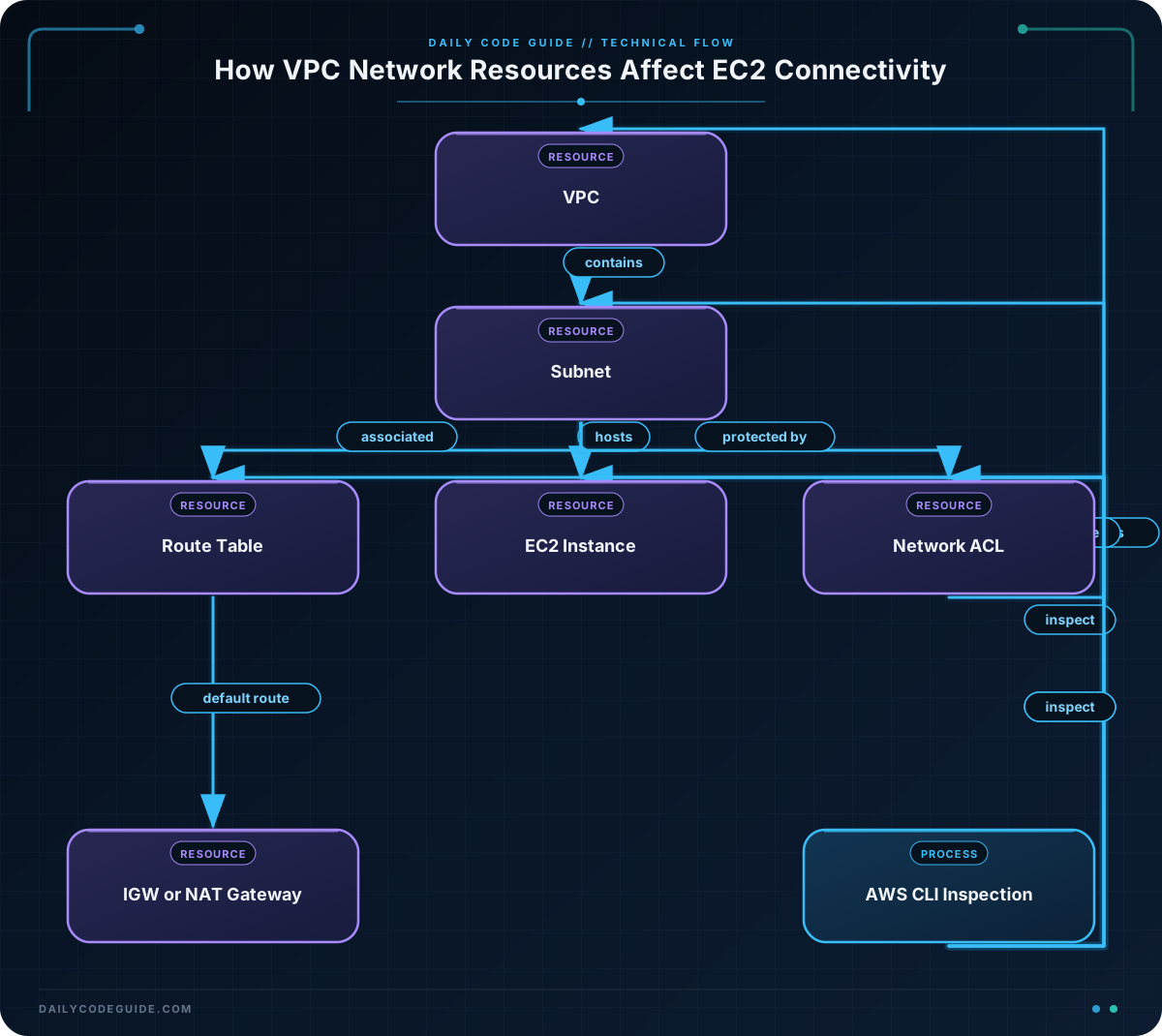
An EC2 instance communicates through several related networking resources:
- VPC: A logically isolated network in AWS.
- Subnet: A smaller range of IP addresses inside a VPC. A subnet exists in one Availability Zone.
- Route table: A set of rules that determines where network traffic goes.
- Network ACL: A stateless firewall that controls traffic entering and leaving a subnet.
- Subnet attributes: Settings such as whether resources launched in the subnet automatically receive public IPv4 addresses.
When an EC2 instance cannot connect to the internet or another service, inspecting these resources helps you narrow down the problem. The AWS CLI’s ec2 describe-* commands return the configuration of existing resources without changing them.
The examples use --query to select only useful fields and --output to choose a readable format. The commands are read-only, so they are suitable for initial troubleshooting.
Basic Example
Suppose an EC2 instance in a VPC cannot reach an external service. The following Bash session finds a VPC named production-vpc, lists its subnets, and then inspects one selected subnet.
Set the region to the region where your resources exist. The VPC tag must also match a real VPC in your account.
REGION="us-east-1"

VPC_ID=$(aws ec2 describe-vpcs \
    --filters "Name=tag:Name,Values=production-vpc" \
    --query "Vpcs[0].VpcId" \
    --output text \
    --region "$REGION")

echo "VPC: $VPC_ID"

aws ec2 describe-vpcs \
    --vpc-ids "$VPC_ID" \
    --query "Vpcs[0].{VpcId:VpcId,CidrBlock:CidrBlock,State:State,Default:IsDefault}" \
    --output table \
    --region "$REGION"

printf '\n--- Subnets in the VPC ---\n'

aws ec2 describe-subnets \
    --filters "Name=vpc-id,Values=$VPC_ID" \
    --query "Subnets[].{SubnetId:SubnetId,Name:Tags[?Key=='Name']|[0].Value,AZ:AvailabilityZone,CidrBlock:CidrBlock,AvailableIPs:AvailableIpAddressCount}" \
    --output table \
    --region "$REGION"

SUBNET_ID="subnet-0123456789abcdef0"

printf '\n--- Route tables associated with the subnet ---\n'

aws ec2 describe-route-tables \
    --filters "Name=association.subnet-id,Values=$SUBNET_ID" \
    --query "RouteTables[].{RouteTableId:RouteTableId,Routes:Routes}" \
    --output json \
    --region "$REGION"

printf '\n--- Network ACL associated with the subnet ---\n'

aws ec2 describe-network-acls \
    --filters "Name=association.subnet-id,Values=$SUBNET_ID" \
    --query "NetworkAcls[].{NetworkAclId:NetworkAclId,IsDefault:IsDefault,Entries:Entries}" \
    --output json \
    --region "$REGION"

printf '\n--- Public IPv4 assignment setting ---\n'

aws ec2 describe-subnet-attribute \
    --subnet-id "$SUBNET_ID" \
    --attribute mapPublicIpOnLaunch \
    --query "{SubnetId:SubnetId,MapPublicIpOnLaunch:MapPublicIpOnLaunch.Value}" \
    --output table \
    --region "$REGION"
Expected Output
Your resource IDs, Availability Zones, routes, and counts will differ. The output should contain information similar to this:
VPC: vpc-0123456789abcdef0

----------------------------------------------
|              DescribeVpcs                  |
+-------------------+------------------------+
| CidrBlock         | 10.0.0.0/16            |
| Default           | False                  |
| State             | available              |
| VpcId             | vpc-0123456789abcdef0 |
+-------------------+------------------------+

--- Subnets in the VPC ---
---------------------------------------------------------------
|                       DescribeSubnets                      |
+------------------+-------------+---------------+------------+
| AvailableIPs     | AZ          | CidrBlock     | SubnetId   |
+------------------+-------------+---------------+------------+
| 245              | us-east-1a  | 10.0.1.0/24  | subnet-... |
+------------------+-------------+---------------+------------+

--- Public IPv4 assignment setting ---
---------------------------------------------
|       DescribeSubnetAttribute             |
+----------------------+--------------------+
| MapPublicIpOnLaunch | True               |
+----------------------+--------------------+
The route table JSON should show either a default route such as 0.0.0.0/0 through an internet gateway or NAT gateway, or no matching default route. The network ACL output shows numbered inbound and outbound entries that you can compare with the traffic you expect.
How the Code Works
Finding the VPC
The describe-vpcs command lists VPCs. The filter searches for a VPC with a Name tag equal to production-vpc:
--filterslimits the resources returned by AWS.--query "Vpcs[0].VpcId"selects the first VPC ID from the response.--output textreturns a plain value that can be stored in the Bash variable.
If the tag does not match anything, VPC_ID may become None. Always check the value before using it in later commands.
Listing subnets
describe-subnets returns subnets. The filter Name=vpc-id limits the results to subnets inside the selected VPC. The query displays each subnet’s ID, name tag, Availability Zone, CIDR block, and approximate number of available IP addresses.
A CIDR block is an IP address range. For example, 10.0.1.0/24 describes a subnet with addresses from a particular portion of the VPC’s 10.0.0.0/16 range.
Inspecting routes
The association.subnet-id filter finds route tables associated directly with the chosen subnet. Look for a default route:
0.0.0.0/0through an internet gateway is commonly required for direct internet access.0.0.0.0/0through a NAT gateway is commonly used when private instances need outbound internet access.- A missing default route can explain why traffic cannot reach destinations outside the VPC.
Routes alone do not guarantee connectivity. Security groups, the instance’s state, DNS settings, and the destination service must also be checked.
Inspecting the network ACL
describe-network-acls shows the network ACL associated with the subnet. Network ACLs are stateless, which means an allowed inbound request generally also needs an appropriate outbound rule for the response. Entries include a rule number, an allow or deny action, a protocol, and a CIDR range.
Checking public IP assignment
describe-subnet-attribute --attribute mapPublicIpOnLaunch checks whether new network interfaces in the subnet automatically receive public IPv4 addresses. This setting does not add a public IP to an existing instance. It is also not enough by itself to provide internet access: the subnet still needs a suitable route, and the instance must allow the traffic.
Another Example
A common troubleshooting case is an instance that can reach resources inside its VPC but cannot download updates. You can inspect a specific private subnet and identify the route table and network ACL linked to it.
This example uses a subnet ID directly rather than discovering a VPC by tag. It produces smaller summaries that are easier to read during an incident.
REGION="us-east-1"
SUBNET_ID="subnet-0123456789abcdef0"

echo "Subnet details:"

aws ec2 describe-subnets \
    --subnet-ids "$SUBNET_ID" \
    --query "Subnets[0].{SubnetId:SubnetId,VpcId:VpcId,AZ:AvailabilityZone,CidrBlock:CidrBlock,PublicIpOnLaunch:MapPublicIpOnLaunch}" \
    --output table \
    --region "$REGION"

printf '\n--- Routes for this subnet ---\n'

aws ec2 describe-route-tables \
    --filters "Name=association.subnet-id,Values=$SUBNET_ID" \
    --query "RouteTables[].Routes[].{Destination:DestinationCidrBlock,Gateway:GatewayId,NATGateway:NatGatewayId,State:State}" \
    --output table \
    --region "$REGION"

printf '\n--- ACL rules for this subnet ---\n'

aws ec2 describe-network-acls \
    --filters "Name=association.subnet-id,Values=$SUBNET_ID" \
    --query "NetworkAcls[].Entries[].{Rule:RuleNumber,Protocol:Protocol,Action:RuleAction,Direction:AssociationId,Cidr:CidrBlock}" \
    --output table \
    --region "$REGION"
When reviewing the results, confirm that the subnet belongs to the expected VPC, that its route table has the intended next hop, and that the ACL does not deny the required traffic. The Direction value in this compact display is the association identifier; use the full ACL output when you need to distinguish inbound and outbound entries in detail.
Common Mistakes
- Using the wrong region: AWS resources are regional. Include
--regionor configure the correct default region withaws configure. - Assuming every subnet has a direct route to the internet: A private subnet may intentionally use a NAT gateway, while a public subnet commonly uses an internet gateway.
- Inspecting the wrong route table: Querying all route tables in a VPC can be confusing. Filter by
association.subnet-idwhen troubleshooting one subnet. - Forgetting that ACLs are stateless: Check both inbound and outbound rules. A rule that allows only one direction may still prevent a complete connection.
- Expecting a subnet attribute to change existing instances:
mapPublicIpOnLaunchaffects new network interfaces. It does not automatically assign a public IP to an already running instance. - Not checking permissions: The IAM identity running these commands needs permission to call the relevant
Describeactions, such asec2:DescribeSubnetsandec2:DescribeRouteTables.
Try It Yourself
Choose a VPC in your account and use the AWS CLI to:
- Display its VPC ID and CIDR block.
- List all subnets in that VPC.
- Choose one subnet from the results.
- Check whether that subnet automatically maps public IP addresses on launch.
Use the VPC ID and subnet ID returned by your own account. Then decide whether the subnet appears intended to be public or private based on its route table and public IP setting.
Challenge
Write a Bash troubleshooting script for one subnet. The script must:
- Use a
REGIONvariable and aSUBNET_IDvariable. - Display the subnet’s VPC ID, CIDR block, Availability Zone, and public IP assignment setting.
- Display all routes associated with the subnet.
- Display all network ACL entries associated with the subnet.
Keep the output organized with headings, and use table output for the subnet details and routes.
Solution
REGION="us-east-1"
SUBNET_ID="subnet-0123456789abcdef0"

printf '%s\n' '--- Subnet details ---'

aws ec2 describe-subnets \
    --subnet-ids "$SUBNET_ID" \
    --query "Subnets[0].{SubnetId:SubnetId,VpcId:VpcId,CidrBlock:CidrBlock,AZ:AvailabilityZone,PublicIpOnLaunch:MapPublicIpOnLaunch}" \
    --output table \
    --region "$REGION"

printf '\n%s\n' '--- Associated routes ---'

aws ec2 describe-route-tables \
    --filters "Name=association.subnet-id,Values=$SUBNET_ID" \
    --query "RouteTables[].Routes[].{Destination:DestinationCidrBlock,GatewayId:GatewayId,NatGatewayId:NatGatewayId,State:State}" \
    --output table \
    --region "$REGION"

printf '\n%s\n' '--- Network ACL entries ---'

aws ec2 describe-network-acls \
    --filters "Name=association.subnet-id,Values=$SUBNET_ID" \
    --query "NetworkAcls[].Entries[].{RuleNumber:RuleNumber,Protocol:Protocol,RuleAction:RuleAction,CidrBlock:CidrBlock,Egress:Egress}" \
    --output table \
    --region "$REGION"
The solution uses the subnet ID to inspect all three relevant areas. The route-table query flattens the routes into a readable table, while the ACL query includes the Egress field so you can distinguish outbound entries from inbound entries.
Key Takeaways
- Use
describe-vpcsanddescribe-subnetsto identify the VPC and subnet that contain an EC2 instance. - Use
describe-route-tableswith a subnet association filter to inspect the subnet’s traffic destinations. - Use
describe-network-aclsto review stateless inbound and outbound subnet firewall rules. - Use
describe-subnet-attributeto check whether new resources receive public IPv4 addresses automatically. - Always verify the AWS region and resource IDs before drawing conclusions from command output.

