


What You’ll Learn
In this lesson, you’ll learn how to use PowerShell’s Invoke-RestMethod command to request data from a REST API and work with the response as PowerShell objects.
- Call an HTTP API with Invoke-RestMethod.
- Inspect properties returned by a JSON API.
- Use the pipeline to filter service health objects.
- Select only the information you need to display.
The Concept
A REST API is a web address that lets programs request or send data over HTTP. Many APIs return their data as JSON, a text format commonly used for structured information.
PowerShell’s Invoke-RestMethod is useful because it sends the HTTP request and automatically converts JSON responses into PowerShell objects. Instead of manually reading JSON text, you can access properties with dot notation and use familiar pipeline commands such as Where-Object and Select-Object.
For example, a service health API might return a collection of components. Each component could have properties such as name and status. You can request all components, filter out healthy services, and display only services that need attention.
Basic Example
The GitHub Status API provides information about the health of GitHub services. The following example retrieves its component list and displays services whose status is not operational.
$healthUrl = "https://www.githubstatus.com/api/v2/components.json"

$response = Invoke-RestMethod -Uri $healthUrl -Method Get

$servicesNeedingAttention = $response.components |
    Where-Object { $_.status -ne "operational" } |
    Select-Object name, status

if ($servicesNeedingAttention) {
    $servicesNeedingAttention | Format-Table -AutoSize
}
else {
    Write-Output "All monitored services are operational."
}
Expected Output
The status of an online service can change, so your exact output may be different. When every component is healthy, you may see:
All monitored services are operational.If a component has a problem, the script displays a table similar to this:
name                         status
----                         ------
Some GitHub Service          degraded_performance
How the Code Works
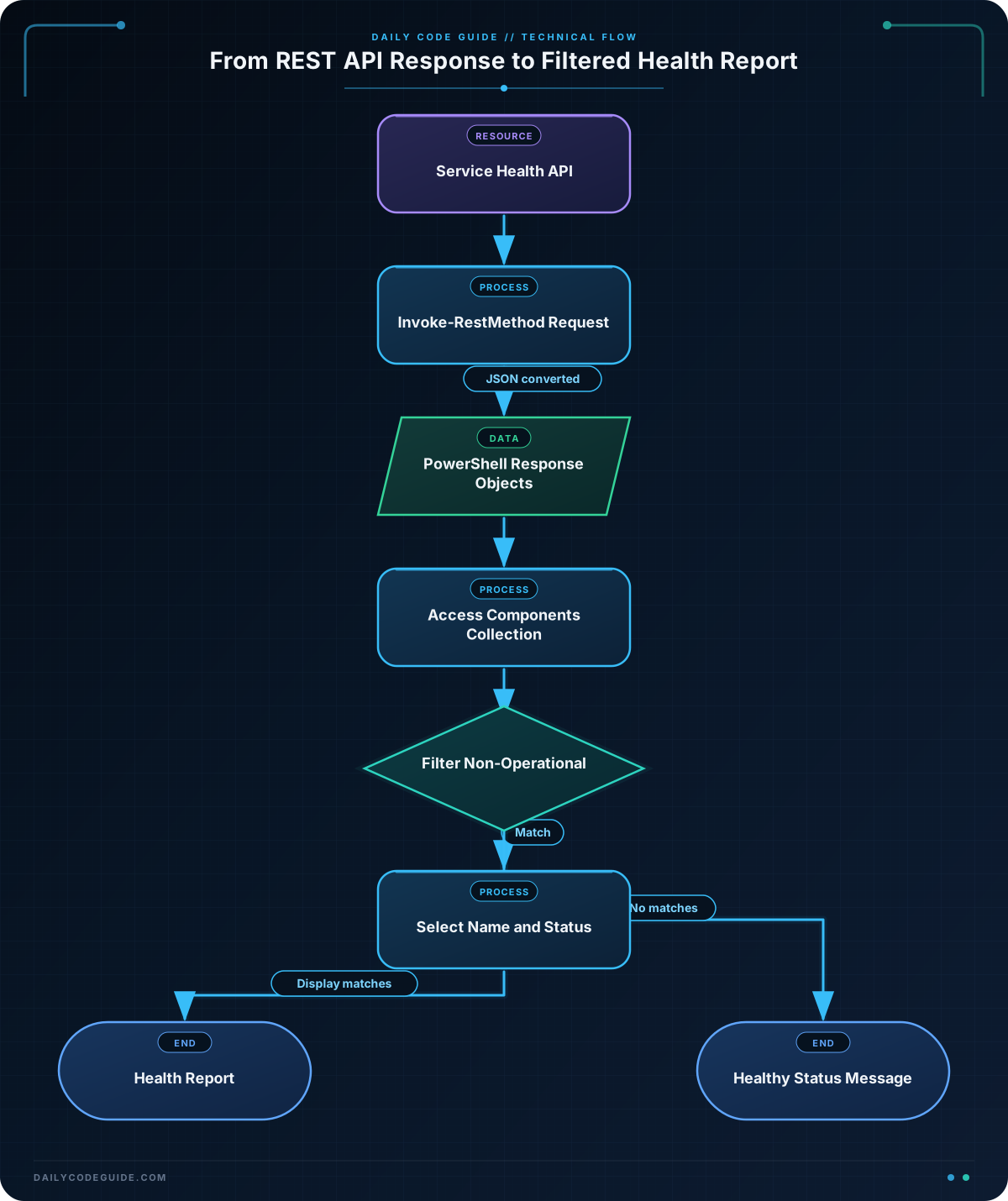
The first line stores the API address in a variable. Keeping the address in a variable makes the script easier to read and change later.
Invoke-RestMethod sends the request:
- -Uri specifies the web address.
- -Method Get says that we want to retrieve data.
The result is stored in $response. The API returns an object containing a components property. That property contains the individual service objects.
The pipeline starts with $response.components. Each object moves through the pipeline one at a time. In the Where-Object script block, $_ represents the current object:
Where-Object { $_.status -ne "operational" }This keeps only objects whose status property is not equal to operational. The -ne operator means “not equal.”
Select-Object name, status creates simpler output containing only the two properties we want to see. Finally, the if statement checks whether any matching services were found. If there are matches, Format-Table displays them in columns. Otherwise, the script prints a healthy-status message.
Another Example
Health APIs can also report incidents, not just the current state of each component. This example retrieves GitHub’s recent incidents and displays incidents that have not been resolved.
$incidentsUrl = "https://www.githubstatus.com/api/v2/incidents.json"

$incidentResponse = Invoke-RestMethod -Uri $incidentsUrl -Method Get

$activeIncidents = $incidentResponse.incidents |
    Where-Object { $_.status -ne "resolved" } |
    Select-Object name, status, created_at

if ($activeIncidents) {
    $activeIncidents | Format-Table -AutoSize
}
else {
    Write-Output "There are no unresolved incidents."
}
This example uses a different endpoint and filters incident objects instead of component objects. The same basic pattern still applies: request data, access a collection property, filter objects, and select useful properties.
Common Mistakes
- Using the wrong response property: The component data is inside $response.components, while incident data is inside $incidentResponse.incidents. If you filter the whole response instead of the collection, you may not get the expected results.
- Using Where-Object without the current-object variable: Inside the script block, use $_ to refer to the object currently moving through the pipeline.
- Assuming all APIs use the same property names: One API may use status, while another may use state or health. Inspect the response before writing your filter.
- Forgetting that online data changes: Service health output is dynamic. A result that is healthy now may show an incident later.
When you are unsure what an API returned, temporarily display the response or inspect one object:
$response.components | Select-Object -First 1 | Format-List *This shows the available properties on one component object.
Try It Yourself
Call the GitHub Status components endpoint and create a report that:
- Stores the URL in a variable.
- Uses Invoke-RestMethod to retrieve the response.
- Finds components whose status is not operational.
- Displays the component name and status.
Add a message for the case where no components need attention.
Challenge
Write a PowerShell script that retrieves the GitHub Status incidents endpoint and displays only incidents whose status is not resolved.
Your output should include the incident name, its status, and its creation time. If there are no unresolved incidents, display a clear message instead.
Solution
$incidentsUrl = "https://www.githubstatus.com/api/v2/incidents.json"

$response = Invoke-RestMethod -Uri $incidentsUrl -Method Get

$unresolvedIncidents = $response.incidents |
    Where-Object { $_.status -ne "resolved" } |
    Select-Object name, status, created_at

if ($unresolvedIncidents) {
    $unresolvedIncidents | Format-Table -AutoSize
}
else {
    Write-Output "No unresolved incidents were found."
}
The solution requests the incident data, filters the incidents collection, and keeps only incidents whose status is not resolved. Select-Object limits the report to the three requested properties.
Key Takeaways
- Invoke-RestMethod sends HTTP requests and converts JSON responses into PowerShell objects.
- Use dot notation, such as $response.components, to access data in the response.
- Use Where-Object to keep objects that match a condition.
- Use Select-Object to choose the properties displayed in a report.
- REST API results can change over time, so service-health output is not always identical.

