

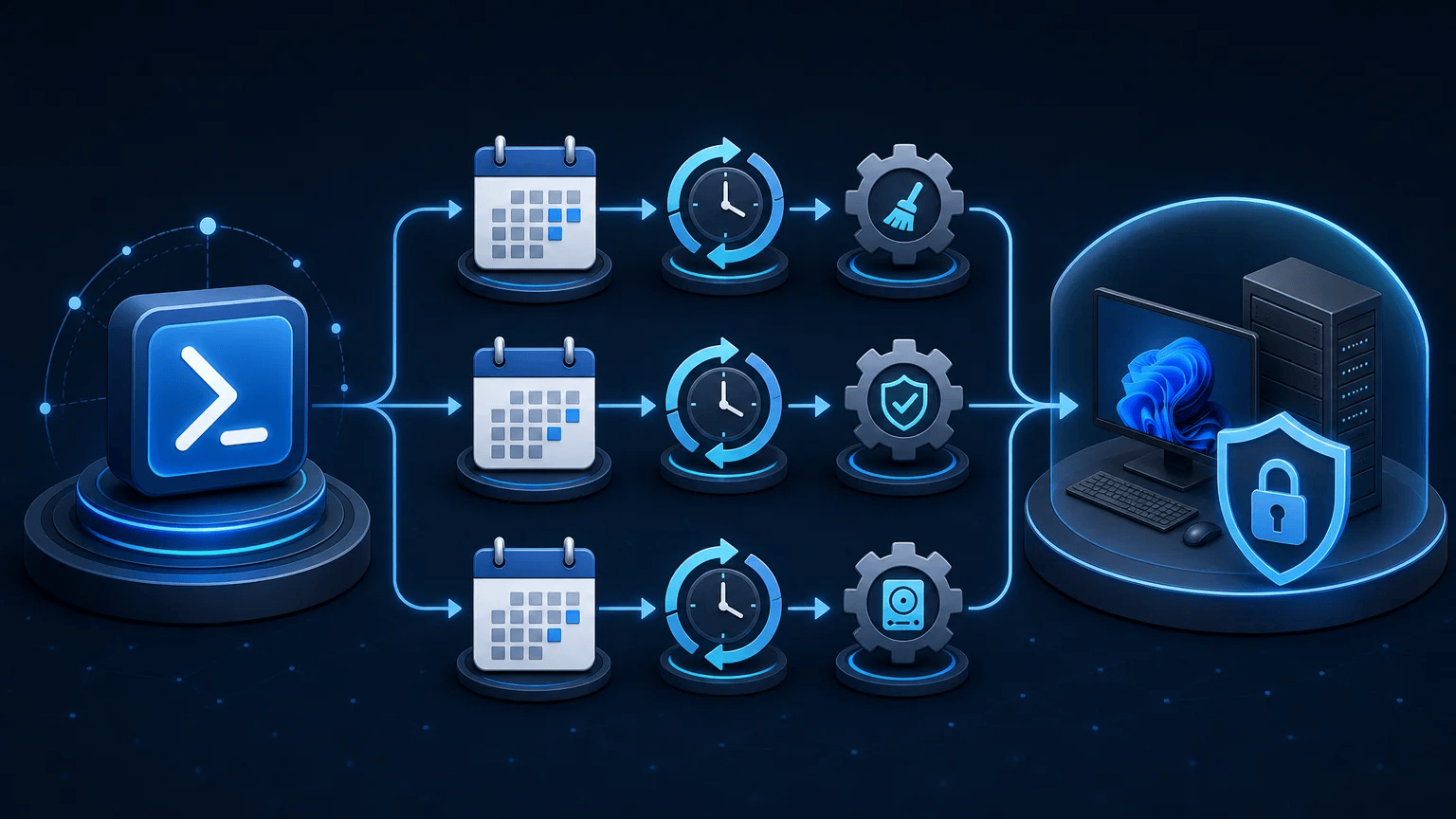
What You’ll Learn
In this lesson, you will use PowerShell’s scheduled-task cmdlets to automate recurring Windows maintenance scripts. You will create an action, choose when it runs, configure the account and privileges it uses, register the task, and verify its configuration.
- Create a scheduled task action that runs a PowerShell script.
- Configure daily and weekly triggers.
- Run a task under the Windows SYSTEM account.
- Use task settings such as
StartWhenAvailableandMultipleInstances. - Inspect, test, and remove registered tasks.
The Concept
A Windows scheduled task is a stored definition that tells Windows what to run, when to run it, and which account should run it. PowerShell provides several cmdlets for managing these definitions:
New-ScheduledTaskActiondescribes the program and arguments to execute.New-ScheduledTaskTriggerdescribes a schedule, such as daily at 2:00 AM.New-ScheduledTaskPrincipaldescribes the account and privilege level.New-ScheduledTaskSettingsSetcontrols behavior such as missed starts and overlapping runs.Register-ScheduledTasksaves the complete task definition in Windows Task Scheduler.
These parts are assembled into a task definition and then registered. You normally run the registration script from an elevated PowerShell session because creating a task that runs as SYSTEM or with the highest privileges requires administrator permissions.
Use absolute paths for scheduled scripts and log files. A scheduled task does not necessarily start in the same working directory as your interactive PowerShell session, and it may run when no user is logged in.
Basic Example
The following example creates a maintenance script and registers it to run every day at 2:00 AM. The script records disk information and removes old temporary files from a dedicated maintenance directory.
Run this code in an elevated PowerShell window. The cleanup is limited to C:\Maintenance\WorkFiles, so it does not delete arbitrary files from a user’s Windows temporary directory.
$maintenanceDirectory = "C:\Maintenance"
$scriptPath = Join-Path $maintenanceDirectory "Invoke-Maintenance.ps1"
$logPath = Join-Path $maintenanceDirectory "Logs\maintenance.log"
$workFilesPath = Join-Path $maintenanceDirectory "WorkFiles"
$taskName = "DailyCodeGuide-Maintenance"

New-Item -ItemType Directory -Path $maintenanceDirectory -Force | Out-Null
New-Item -ItemType Directory -Path (Split-Path $logPath) -Force | Out-Null
New-Item -ItemType Directory -Path $workFilesPath -Force | Out-Null

$maintenanceScript = @'
param(
    [Parameter(Mandatory)]
    [string] $LogPath
)

$workFilesPath = "C:\Maintenance\WorkFiles"
$logDirectory = Split-Path $LogPath

New-Item -ItemType Directory -Path $logDirectory -Force | Out-Null

$startedAt = Get-Date
Add-Content -Path $LogPath -Value "Maintenance started: $startedAt"

$disk = Get-CimInstance -ClassName Win32_LogicalDisk -Filter "DeviceID='C:'"
$freeSpaceGb = [math]::Round($disk.FreeSpace / 1GB, 2)
Add-Content -Path $LogPath -Value "C: free space: $freeSpaceGb GB"

$cutoffDate = (Get-Date).AddDays(-14)
$oldFiles = Get-ChildItem -Path $workFilesPath -File -Filter "*.tmp" -ErrorAction SilentlyContinue |
    Where-Object { $_.LastWriteTime -lt $cutoffDate }

foreach ($file in $oldFiles) {
    Remove-Item -LiteralPath $file.FullName -Force
    Add-Content -Path $LogPath -Value "Removed: $($file.FullName)"
}

$removedCount = @($oldFiles).Count
Add-Content -Path $LogPath -Value "Removed temporary files: $removedCount"
Add-Content -Path $LogPath -Value "Maintenance finished: $(Get-Date)"
'@

Set-Content -Path $scriptPath -Value $maintenanceScript -Encoding UTF8

$actionArguments = "-NoProfile -ExecutionPolicy Bypass -File `"$scriptPath`" -LogPath `"$logPath`""
$action = New-ScheduledTaskAction `
    -Execute "PowerShell.exe" `
    -Argument $actionArguments

$trigger = New-ScheduledTaskTrigger `
    -Daily `
    -At 2:00AM

$principal = New-ScheduledTaskPrincipal `
    -UserId "SYSTEM" `
    -LogonType ServiceAccount `
    -RunLevel Highest

$settings = New-ScheduledTaskSettingsSet `
    -StartWhenAvailable `
    -MultipleInstances IgnoreNew `
    -ExecutionTimeLimit (New-TimeSpan -Minutes 30)

Register-ScheduledTask `
    -TaskName $taskName `
    -Action $action `
    -Trigger $trigger `
    -Principal $principal `
    -Settings $settings `
    -Description "Runs the Daily Code Guide maintenance script every morning." `
    -Force | Out-Null

Write-Host "Registered scheduled task: $taskName"
Write-Host "Script: $scriptPath"
Write-Host "Schedule: Every day at 2:00 AM"
Expected Output
The registration command prints confirmation similar to this:
Registered scheduled task: DailyCodeGuide-Maintenance
Script: C:\Maintenance\Invoke-Maintenance.ps1
Schedule: Every day at 2:00 AM
The task will run at its scheduled time. You can inspect the log afterward at C:\Maintenance\Logs\maintenance.log.
How the Code Works
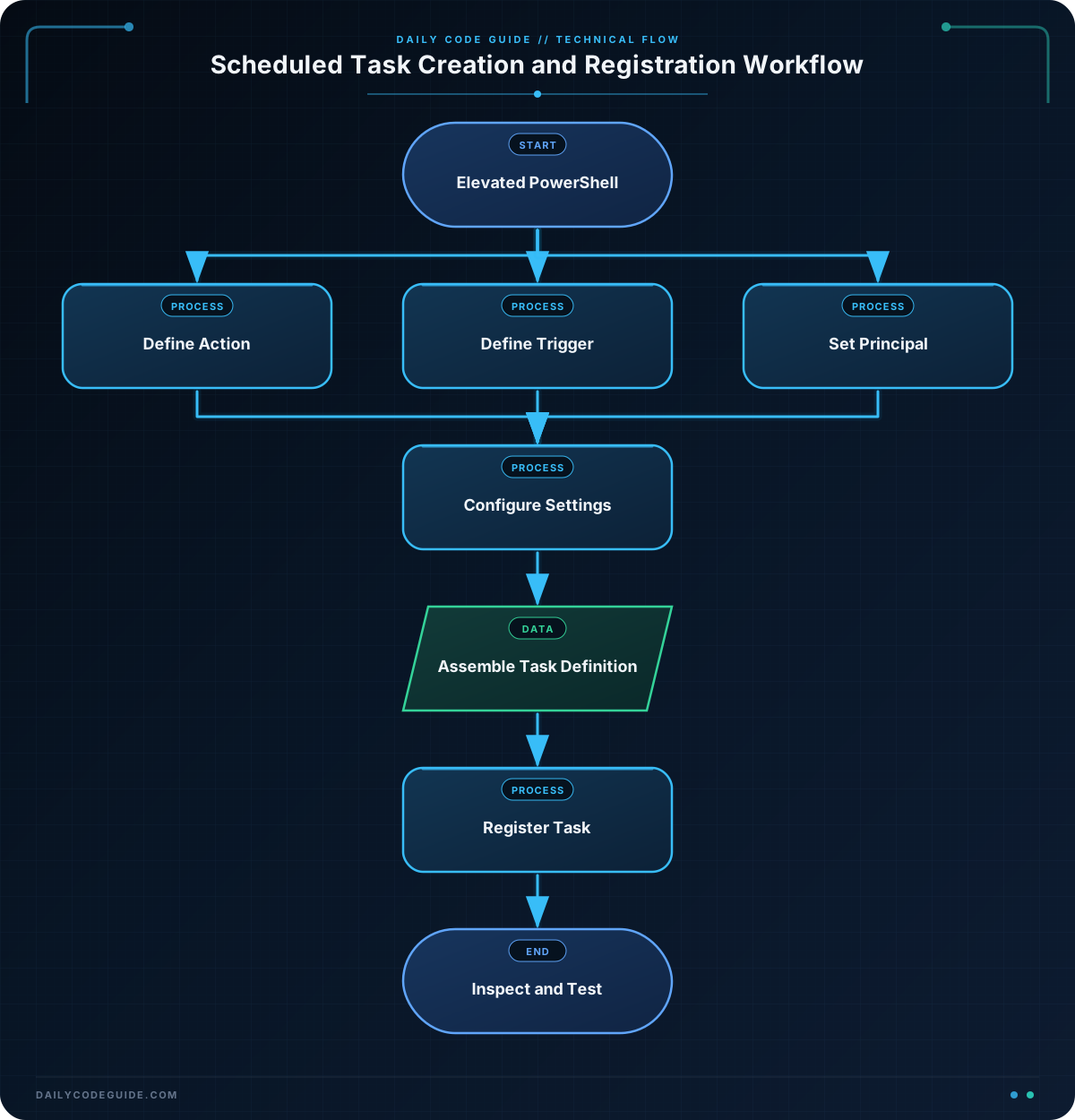
The script first creates its directories and writes the maintenance script to disk. This makes the example self-contained, but in a production environment you may deploy the maintenance script separately.
New-ScheduledTaskAction uses PowerShell.exe as the executable. Its arguments include:
-NoProfile, which prevents a user’s PowerShell profile from changing the task’s behavior.-ExecutionPolicy Bypass, which allows this specific process to run the script. This does not change the machine’s permanent execution policy.-File, followed by the absolute script path.-LogPath, followed by the script parameter value.
The backticks in the action argument string escape the embedded double quotes. Those quotes are important because a path may contain spaces.
The daily trigger controls when Windows starts the action. The SYSTEM principal allows the task to run without an interactive user session, while Highest requests the highest available privileges for that account.
The settings provide useful operational behavior:
-StartWhenAvailableallows Windows to start the task after a missed scheduled time, such as when the computer was powered off.-MultipleInstances IgnoreNewprevents a second copy from starting while the previous run is still active.-ExecutionTimeLimitstops a run that exceeds 30 minutes.
After registration, you can inspect or manually start the task:
Get-ScheduledTask -TaskName "DailyCodeGuide-Maintenance" |
    Select-Object TaskName, State

Start-ScheduledTask -TaskName "DailyCodeGuide-Maintenance"

Get-ScheduledTaskInfo -TaskName "DailyCodeGuide-Maintenance" |
    Select-Object LastRunTime, LastTaskResult, NextRunTime
A LastTaskResult value of 0 commonly indicates a successful run. The log created by the script is still the best place to verify what the maintenance operation actually did.
Another Example
Scheduled tasks are also useful for collecting recurring health reports. This example creates a weekly report containing the size and free space of every fixed disk, then registers the report script to run every Sunday at 3:30 AM.
$reportDirectory = "C:\Maintenance\Reports"
$reportScriptPath = Join-Path $reportDirectory "Write-DiskHealthReport.ps1"
$taskName = "Weekly-DiskHealthReport"

New-Item -ItemType Directory -Path $reportDirectory -Force | Out-Null

$reportScript = @'
$reportDirectory = "C:\Maintenance\Reports"
New-Item -ItemType Directory -Path $reportDirectory -Force | Out-Null

$reportPath = Join-Path $reportDirectory ("disk-health-{0}.json" -f (Get-Date -Format "yyyyMMdd-HHmmss"))

$report = Get-CimInstance -ClassName Win32_LogicalDisk -Filter "DriveType=3" |
    Select-Object DeviceID,
        VolumeName,
        @{Name = "SizeGB"; Expression = { [math]::Round($_.Size / 1GB, 2) } },
        @{Name = "FreeSpaceGB"; Expression = { [math]::Round($_.FreeSpace / 1GB, 2) } }

$report | ConvertTo-Json -Depth 3 | Set-Content -Path $reportPath -Encoding UTF8
'@

Set-Content -Path $reportScriptPath -Value $reportScript -Encoding UTF8

$action = New-ScheduledTaskAction `
    -Execute "PowerShell.exe" `
    -Argument "-NoProfile -ExecutionPolicy Bypass -File `"$reportScriptPath`""

$trigger = New-ScheduledTaskTrigger `
    -Weekly `
    -DaysOfWeek Sunday `
    -At 3:30AM

$principal = New-ScheduledTaskPrincipal `
    -UserId "SYSTEM" `
    -LogonType ServiceAccount `
    -RunLevel Highest

$settings = New-ScheduledTaskSettingsSet `
    -StartWhenAvailable `
    -MultipleInstances IgnoreNew

Register-ScheduledTask `
    -TaskName $taskName `
    -Action $action `
    -Trigger $trigger `
    -Principal $principal `
    -Settings $settings `
    -Description "Creates a weekly JSON report for fixed disks." `
    -Force | Out-Null

Write-Host "Registered scheduled task: $taskName"
Write-Host "Reports will be written to: $reportDirectory"
This task produces files such as disk-health-20250115-033000.json. A separate monitoring process could later collect these files or inspect them for low free-space values.
Common Mistakes
- Using a relative script path: A task may run from an unexpected working directory. Use a full path such as
C:\Maintenance\Invoke-Maintenance.ps1. - Forgetting administrator rights: Registering a SYSTEM task commonly fails with an access-denied error unless PowerShell is running as Administrator.
- Passing the script path incorrectly: Build one complete argument string and quote paths that may contain spaces.
- Assuming the task ran because it was registered: Registration only saves the definition. Use
Start-ScheduledTaskfor a test run and inspectGet-ScheduledTaskInfoand your script log. - Allowing overlapping maintenance runs: A slow or stuck script can overlap with the next trigger. Configure
-MultipleInstances IgnoreNew, or choose another policy when overlapping work is intentional. - Using SYSTEM without considering access: SYSTEM can access local resources but may not have access to network shares or user-specific credentials. A dedicated service account may be more appropriate for network maintenance.
Try It Yourself
Modify the first example so that it runs once per week instead of daily. Give the task a new name, schedule it for Saturday at 1:00 AM, and change the log message so it identifies the job as a weekly maintenance run.
Test your task manually with Start-ScheduledTask, then use Get-ScheduledTaskInfo to confirm its last run time and result.
Challenge
Create a scheduled task named Weekly-Maintenance-Summary that runs every Sunday at 3:00 AM as SYSTEM with the highest available privileges.
The task should:
- Run a PowerShell script stored at
C:\Maintenance\Write-WeeklySummary.ps1. - Append the current timestamp and the number of
.logfiles inC:\Maintenance\LogstoC:\Maintenance\Logs\weekly-summary.log. - Use
-NoProfileand an execution time limit of 10 minutes. - Start when available if a scheduled run was missed.
- Ignore a new trigger if a previous run is still active.
- Replace an existing task with the same name when the solution is run again.
Solution
$maintenanceDirectory = "C:\Maintenance"
$logsDirectory = Join-Path $maintenanceDirectory "Logs"
$scriptPath = Join-Path $maintenanceDirectory "Write-WeeklySummary.ps1"
$summaryPath = Join-Path $logsDirectory "weekly-summary.log"
$taskName = "Weekly-Maintenance-Summary"

New-Item -ItemType Directory -Path $logsDirectory -Force | Out-Null

$summaryScript = @'
$logsDirectory = "C:\Maintenance\Logs"
$summaryPath = Join-Path $logsDirectory "weekly-summary.log"

New-Item -ItemType Directory -Path $logsDirectory -Force | Out-Null

$logFileCount = @(Get-ChildItem -Path $logsDirectory -File -Filter "*.log" -ErrorAction SilentlyContinue).Count
Add-Content -Path $summaryPath -Value "Weekly summary: $(Get-Date -Format 's')"
Add-Content -Path $summaryPath -Value "Log files found: $logFileCount"
'@

Set-Content -Path $scriptPath -Value $summaryScript -Encoding UTF8

$action = New-ScheduledTaskAction `
    -Execute "PowerShell.exe" `
    -Argument "-NoProfile -ExecutionPolicy Bypass -File `"$scriptPath`""

$trigger = New-ScheduledTaskTrigger `
    -Weekly `
    -DaysOfWeek Sunday `
    -At 3:00AM

$principal = New-ScheduledTaskPrincipal `
    -UserId "SYSTEM" `
    -LogonType ServiceAccount `
    -RunLevel Highest

$settings = New-ScheduledTaskSettingsSet `
    -StartWhenAvailable `
    -MultipleInstances IgnoreNew `
    -ExecutionTimeLimit (New-TimeSpan -Minutes 10)

Register-ScheduledTask `
    -TaskName $taskName `
    -Action $action `
    -Trigger $trigger `
    -Principal $principal `
    -Settings $settings `
    -Description "Writes a weekly maintenance summary." `
    -Force | Out-Null

Write-Host "Registered scheduled task: $taskName"
Write-Host "Summary file: $summaryPath"
The solution creates the target directories and script, builds each part of the task definition, and registers the task with -Force. The script counts matching log files and appends its results rather than overwriting the existing summary.
Key Takeaways
Register-ScheduledTasksaves a task assembled from an action, trigger, principal, and settings.- Scheduled scripts should use absolute paths and should write useful logs for troubleshooting.
- Run registration from an elevated PowerShell session when using SYSTEM or elevated privileges.
- Use
Start-ScheduledTaskandGet-ScheduledTaskInfoto test and verify a task. - Task settings such as
StartWhenAvailableandMultipleInstancesmake recurring automation more reliable.

