


What You’ll Learn
In this lesson, you will learn how to inspect Windows services with Get-Service and restart a stopped service with Restart-Service. You will build a small automation script that checks an application-related service and attempts to recover it when it is stopped.
- Understand what a service object contains.
- Read a service’s status through its Status property.
- Use a conditional statement to decide whether a service needs attention.
- Restart a stopped service with PowerShell.
The Concept
A Windows service is a background program that performs work without requiring a user to keep an application window open. Examples include the print spooler, Windows Update, time synchronization, and services installed by business applications.
PowerShell’s Get-Service cmdlet retrieves service objects. These objects include properties such as Name, DisplayName, and Status.
Get-Service -Name "Spooler"The service’s Status property commonly contains a value such as Running or Stopped. A service that has stopped unexpectedly may indicate that an application is not operating correctly.
Restart-Service stops and starts a service. A script can combine both cmdlets with an if statement: first inspect the service, then restart it only when its status is Stopped.
Changing service state usually requires an elevated PowerShell window. If the service is disabled, depends on another unavailable service, or your account lacks permission, the restart may fail.
Basic Example
The Windows Print Spooler service manages print jobs. This example checks its status and attempts to restart it if it is stopped. The same pattern can be used for an application service installed on your computer.
$serviceName = "Spooler"

try {
    $service = Get-Service -Name $serviceName -ErrorAction Stop

    if ($service.Status -eq "Stopped") {
        Write-Output "$serviceName is stopped. Attempting to restart it..."

        Restart-Service -Name $serviceName -ErrorAction Stop

        $service = Get-Service -Name $serviceName
        Write-Output "$serviceName status after restart: $($service.Status)"
    }
    else {
        Write-Output "$serviceName is already $($service.Status). No restart was needed."
    }
}
catch {
    Write-Output "The service could not be checked or restarted: $($_.Exception.Message)"
}
Expected Output
The exact output depends on the current state of the service. When the service is already running, you may see:
Spooler is already Running. No restart was needed.If the service is stopped and the restart succeeds, the script reports the new status, which should normally be Running.
How the Code Works
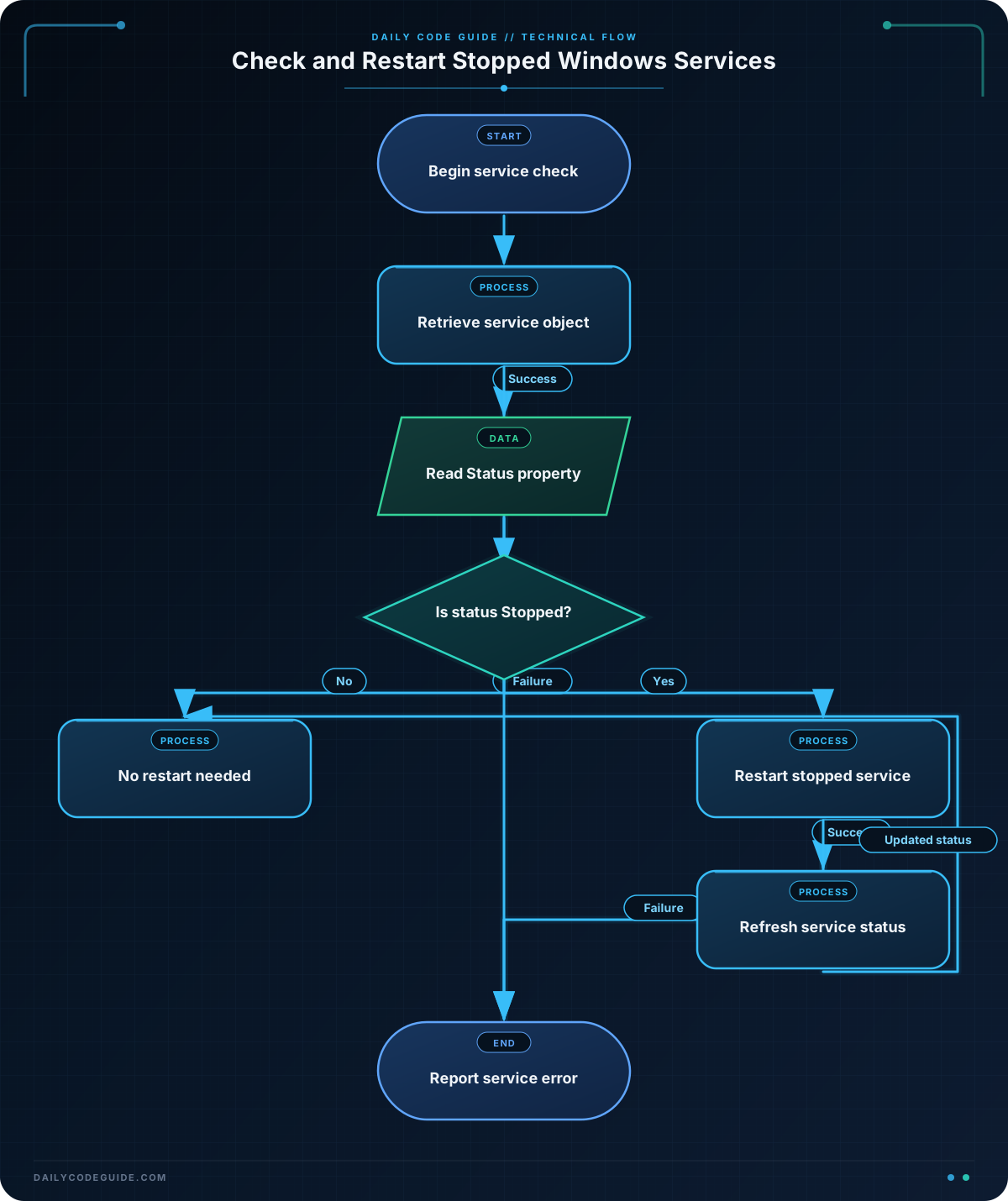
$serviceName = "Spooler"stores the service’s system name in a variable. Using a variable makes the script easier to adapt to another service.Get-Service -Name $serviceNameretrieves the service object. The -Name parameter expects the system service name, not necessarily the friendly display name shown in the Services application.-ErrorAction Stoptells PowerShell to treat a problem as a terminating error. This allows the catch block to display a useful message if the service does not exist or cannot be accessed.$service.Statusreads the status property from the object returned by Get-Service.if ($service.Status -eq "Stopped")compares the status with the text Stopped. The -eq operator means “equals.”Restart-Service -Name $serviceNamerequests a stop-and-start operation for the selected service.- The second call to Get-Service refreshes the object. Without this call, the original object may still contain the status from before the restart.
$($service.Status)places the refreshed property value inside the output string.
In real monitoring, a service may be considered unhealthy for reasons other than being stopped. This beginner example focuses on the simplest recovery rule: restart the service when its status is Stopped.
Another Example
You can check more than one service by storing their names in an array and sending the results through the pipeline. This example checks the Background Intelligent Transfer Service and the Windows Time service. It restarts each one only when it is stopped.
$serviceNames = @("BITS", "W32Time")

Get-Service -Name $serviceNames -ErrorAction SilentlyContinue |
    ForEach-Object {
        if ($_.Status -eq "Stopped") {
            Write-Output "$($_.DisplayName) is stopped. Restarting..."

            try {
                Restart-Service -Name $_.Name -ErrorAction Stop
                Write-Output "$($_.Name) restart request completed."
            }
            catch {
                Write-Output "$($_.Name) could not be restarted: $($_.Exception.Message)"
            }
        }
        else {
            Write-Output "$($_.DisplayName) is $($_.Status)."
        }
    }
Here, the pipeline sends each service object to ForEach-Object. Inside the script block, $_ represents the current service. This makes the script useful when the same check should be applied to a small group of services.
Common Mistakes
- Using the display name instead of the service name: Use Get-Service without a filter to inspect available names and display names. The Name value is the one normally used with -Name.
- Running without administrator permissions: Reading services often works in a normal session, but restarting them may require opening PowerShell with Run as administrator.
- Restarting every service unconditionally: A restart can interrupt users or an application. Check the status first and restart only when recovery is needed.
- Assuming every failure appears as Stopped: A service can also be starting, stopping, paused, or running while its application is unhealthy. The example handles the basic stopped case only.
- Not handling errors: A missing service, disabled service, dependency problem, or permission issue can make Restart-Service fail. A try/catch block helps the script report the problem instead of stopping unexpectedly.
Try It Yourself
Use Get-Service to inspect a service that exists on your computer. Store its name in a variable, display its name and status, and then add an if statement that prints a message when the service is stopped. Do not restart it yet; first practice reading the object and its properties.
Challenge
Create a PowerShell script that checks the BITS and W32Time services.
- Store both service names in an array.
- Retrieve the services with Get-Service.
- Display each service’s name and current status.
- If a service is stopped, restart it with Restart-Service.
- Use error handling so a failed restart displays an error message.
Solution
$serviceNames = @("BITS", "W32Time")

Get-Service -Name $serviceNames -ErrorAction SilentlyContinue |
    ForEach-Object {
        Write-Output "$($_.Name) current status: $($_.Status)"

        if ($_.Status -eq "Stopped") {
            try {
                Restart-Service -Name $_.Name -ErrorAction Stop

                $updatedService = Get-Service -Name $_.Name
                Write-Output "$($_.Name) status after restart: $($updatedService.Status)"
            }
            catch {
                Write-Output "$($_.Name) restart failed: $($_.Exception.Message)"
            }
        }
    }
The array supplies two service names to Get-Service. The pipeline processes each returned service, prints its current status, and restarts it only when the status is Stopped. The service is retrieved again after the restart so the script can report an updated status.
Key Takeaways
- Get-Service returns Windows service objects that contain useful properties such as Name and Status.
- Use an if statement to restart a service only when it is stopped.
- Restart-Service performs a stop-and-start operation and may require administrator permissions.
- Use service system names with -Name, and check the current status before taking action.
- Error handling makes service automation safer and easier to troubleshoot.

