


What You’ll Learn
PowerShell can create, inspect, copy, move, rename, and remove files and directories. In this lesson, you will use these operations to prepare backup folders and organize exported system reports.
- Create directories and files with New-Item.
- Inspect folder contents with Get-ChildItem.
- Copy, move, and rename items safely.
- Remove test files and folders with care.
- Use variables and Join-Path to build reliable paths.
The Concept
A directory, also called a folder, contains files and other directories. PowerShell represents both files and directories as items that you can manage with commands called cmdlets.
These are the most useful cmdlets for basic file system automation:
- New-Item creates a file or directory.
- Get-ChildItem lists the contents of a directory.
- Copy-Item copies a file or directory while leaving the original in place.
- Move-Item moves an item to a different location.
- Rename-Item changes an item’s name.
- Remove-Item deletes an item.
PowerShell paths use backslashes on Windows, such as C:\Reports. Instead of manually joining path fragments, use Join-Path. It adds the correct separator and makes scripts easier to read.
When automating backups, it is usually best to create a dedicated working folder first. That keeps practice files separate from real system files and makes it easier to clean up afterward.
Basic Example
The following example simulates an exported system health report. It creates an export folder and a backup folder, creates a report, renames it, copies it into the backup folder, and then inspects the backup.
$workspace = Join-Path (Get-Location) "SystemReportDemo"
$exportFolder = Join-Path $workspace "Exports"
$backupFolder = Join-Path $workspace "Backups"

New-Item -Path $exportFolder -ItemType Directory -Force | Out-Null
New-Item -Path $backupFolder -ItemType Directory -Force | Out-Null

$reportPath = Join-Path $exportFolder "health-check.txt"
Set-Content -Path $reportPath -Value "System health check completed."

$latestReportPath = Join-Path $exportFolder "health-check-latest.txt"
Rename-Item -Path $reportPath -NewName "health-check-latest.txt"

Copy-Item -Path $latestReportPath -Destination $backupFolder

Write-Output "Report created: $latestReportPath"
Write-Output "Report copied to: $backupFolder"

Write-Output "Backup contents:"
Get-ChildItem -Path $backupFolder -File | Select-Object -ExpandProperty Name
Expected Output
The exact beginning of each path depends on your current location. The important output is the report name and the backup listing:
Report created: ...\SystemReportDemo\Exports\health-check-latest.txt
Report copied to: ...\SystemReportDemo\Backups
Backup contents:
health-check-latest.txt
How the Code Works
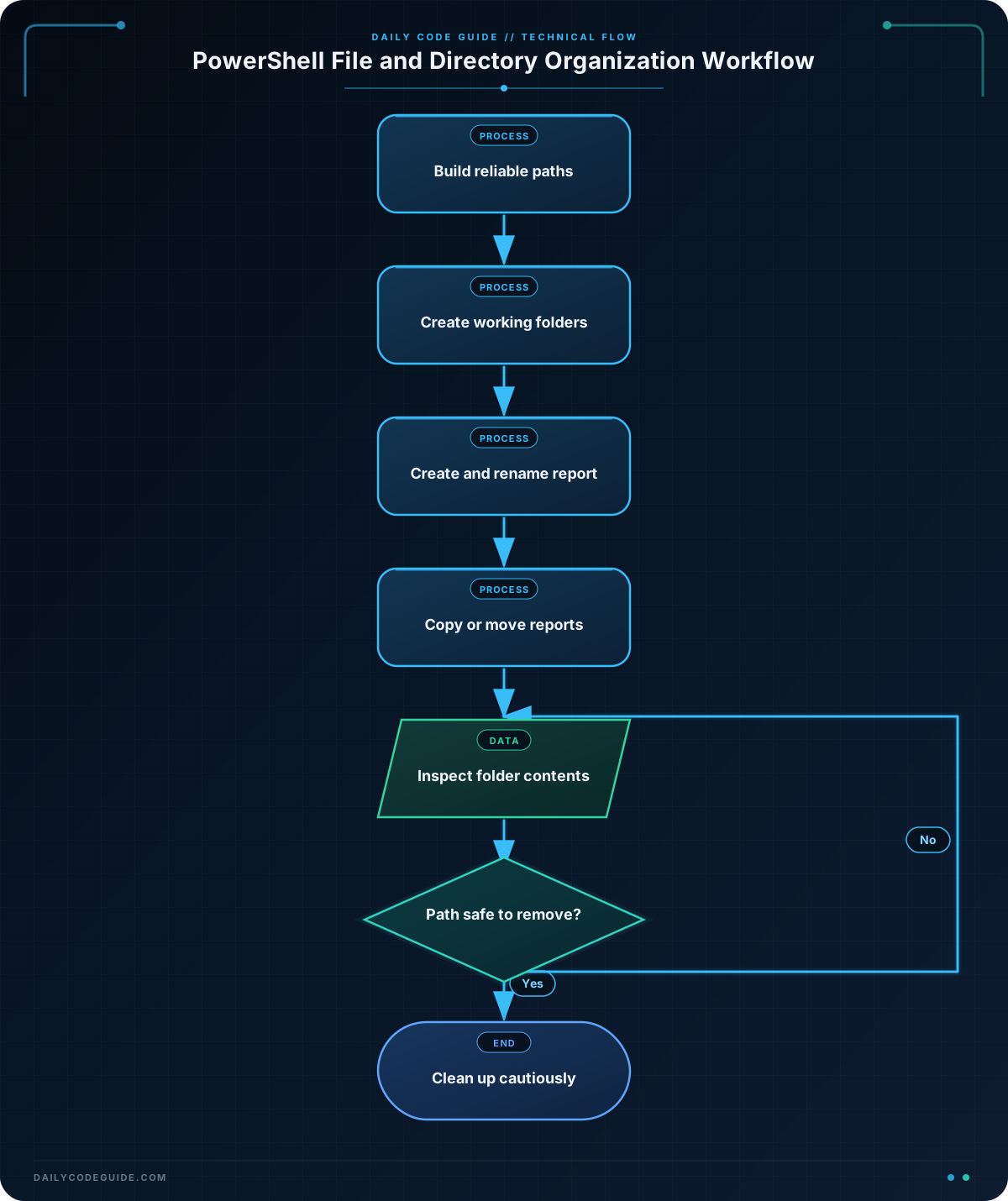
The first three variables store paths for the workspace, the export directory, and the backup directory. Get-Location returns the current directory, so the example creates its practice files beneath the location where you run the script.
New-Item -ItemType Directory creates a directory. The -Force parameter allows the command to continue when the directory already exists. This makes the script easier to run more than once.
The pipeline sends the result of New-Item to Out-Null. This hides the normal object output because the example displays its own progress messages later.
Set-Content writes text to a file. If the file does not exist, PowerShell creates it. The first file is named health-check.txt, representing an exported report.
Rename-Item changes the file name without changing its directory. The -NewName parameter receives only the new name, not the complete path.
Copy-Item places a copy of the renamed report in the backup directory. Because the destination is a directory, the copied file keeps its current name.
Finally, Get-ChildItem -File lists only files in the backup directory. The pipeline sends those file objects to Select-Object -ExpandProperty Name, which displays just their names.
Another Example
A real export process may create several reports at once. The next example creates separate report folders for daily and monthly exports, then moves files into the appropriate folder. Moving an item removes it from its original location; it does not create a second copy.
$reportWorkspace = Join-Path (Get-Location) "OrganizedReports"
$incomingFolder = Join-Path $reportWorkspace "Incoming"
$dailyFolder = Join-Path $reportWorkspace "Daily"
$monthlyFolder = Join-Path $reportWorkspace "Monthly"

New-Item -Path $incomingFolder -ItemType Directory -Force | Out-Null
New-Item -Path $dailyFolder -ItemType Directory -Force | Out-Null
New-Item -Path $monthlyFolder -ItemType Directory -Force | Out-Null

Set-Content -Path (Join-Path $incomingFolder "server-status-daily.csv") -Value "Server,Status`nSERVER01,Healthy"
Set-Content -Path (Join-Path $incomingFolder "storage-monthly.csv") -Value "Server,UsedPercent`nSERVER01,62"

Move-Item -Path (Join-Path $incomingFolder "*-daily.csv") -Destination $dailyFolder
Move-Item -Path (Join-Path $incomingFolder "*-monthly.csv") -Destination $monthlyFolder

Write-Output "Daily reports:"
Get-ChildItem -Path $dailyFolder -File | Select-Object -ExpandProperty Name

Write-Output "Monthly reports:"
Get-ChildItem -Path $monthlyFolder -File | Select-Object -ExpandProperty Name
For larger workflows, you can generate structured report data before saving it. See working with JSON data in PowerShell when your reports contain structured objects that need to be exported or transformed.
Common Mistakes
- Using a file path as a directory path: A command such as
New-Item -ItemType Directory -Path "report.txt"creates a directory namedreport.txt. Choose-ItemType Filefor files. - Forgetting that relative paths depend on the current directory: A path such as
.\Backupsis relative to the location returned byGet-Location. Use a full path or build one withJoin-Pathwhen a script needs a predictable location. - Confusing copy and move:
Copy-Itemleaves the original in place.Move-Itemdoes not. - Deleting without checking the path:
Remove-Itemcan permanently delete files. Before using it, inspect the path withGet-ChildItemor test it withTest-Path. - Overwriting existing content:
Set-Contentreplaces the contents of an existing file. Use a new file name or inspect the file first when the original data matters.
For especially important cleanup commands, add -WhatIf first. For example, Remove-Item -Path $workspace -Recurse -WhatIf shows what PowerShell would remove without actually deleting it.
Try It Yourself
Create a folder named BackupPractice in your current directory. Inside it, create Exports and Backups directories. Then create a file named network-report.txt in Exports, rename it to network-report-latest.txt, and copy it to Backups.
Use Get-ChildItem to confirm that the renamed file exists in the backup directory. Do not delete the workspace until you have inspected the result.
Challenge
Build a small report-organization script with these requirements:
- Create a workspace named
ReportArchivewithIncomingandArchiveddirectories. - Create two sample files in
Incoming:cpu-report.csvandmemory-report.csv. - Move both files into
Archived. - Rename
cpu-report.csvtocpu-report-complete.csvafter moving it. - Display the names of all files in
Archived.
Use Join-Path for the paths and -Force when creating directories so the script can be run repeatedly.
Solution
$archiveRoot = Join-Path (Get-Location) "ReportArchive"
$incomingReports = Join-Path $archiveRoot "Incoming"
$archivedReports = Join-Path $archiveRoot "Archived"

New-Item -Path $incomingReports -ItemType Directory -Force | Out-Null
New-Item -Path $archivedReports -ItemType Directory -Force | Out-Null

$cpuReport = Join-Path $incomingReports "cpu-report.csv"
$memoryReport = Join-Path $incomingReports "memory-report.csv"

Set-Content -Path $cpuReport -Value "Server,CPUPercent`nSERVER01,48"
Set-Content -Path $memoryReport -Value "Server,MemoryPercent`nSERVER01,71"

Move-Item -Path $cpuReport -Destination $archivedReports
Move-Item -Path $memoryReport -Destination $archivedReports

$archivedCpuReport = Join-Path $archivedReports "cpu-report.csv"
Rename-Item -Path $archivedCpuReport -NewName "cpu-report-complete.csv"

Write-Output "Archived reports:"
Get-ChildItem -Path $archivedReports -File | Select-Object -ExpandProperty Name
The solution creates both directories before creating files, so each path is available when it is needed. It moves the reports from Incoming to Archived, then builds the new archived CPU path before renaming that file. The final listing should contain cpu-report-complete.csv and memory-report.csv.
Key Takeaways
- Use
New-Itemto create files and directories. - Use
Join-Pathto build paths instead of manually combining strings. - Use
Get-ChildItemto inspect files and directories. - Use
Copy-Itemfor backups andMove-Itemfor organization. - Check paths carefully and use
-WhatIfbefore potentially destructive cleanup.
Once your script works locally, you can run recurring Windows maintenance automation with PowerShell scheduled tasks.

