


What You’ll Learn
PowerShell modules are packages of reusable commands. In this lesson, you will use the PowerShell Gallery and PowerShellGet commands to find, install, inspect, update, and uninstall a module that adds Windows administration commands.
- Understand what a PowerShell module is and where modules come from.
- Search the PowerShell Gallery with Find-Module.
- Install a module for only your user account.
- Inspect installed modules and the commands they provide.
- Preview updates and safely remove a module.
The Concept
A PowerShell module is a collection of commands, functions, and other resources packaged together. Modules make it possible to add reusable functionality without writing every command yourself.
The PowerShell Gallery is an online repository containing thousands of community and Microsoft modules. PowerShellGet provides commands for working with that repository. Common commands include:
- Find-Module searches registered repositories for available modules.
- Install-Module downloads and installs a module.
- Get-InstalledModule lists modules installed through PowerShellGet.
- Get-Command -Module shows commands exported by a module.
- Update-Module installs a newer version of an existing module.
- Uninstall-Module removes a module installed through PowerShellGet.
In the examples, we will use PSWindowsUpdate. This Gallery module adds commands for managing Windows updates, including Get-WindowsUpdate. The example applies to Windows systems. Before installing any Gallery module, review its author, repository information, documentation, and required permissions. A module can run with the permissions of the user who invokes its commands.
Using -Scope CurrentUser installs a module for your account without usually requiring an elevated PowerShell window. A system-wide installation uses -Scope AllUsers and commonly requires administrator permissions.
Basic Example
The following example searches for PSWindowsUpdate, installs it for the current user, and inspects one of the commands it provides.
$moduleName = "PSWindowsUpdate"

$availableModule = Find-Module -Name $moduleName -Repository PSGallery

$availableModule | Select-Object Name, Version, Repository

Install-Module -Name $moduleName -Repository PSGallery -Scope CurrentUser

$installedModule = Get-InstalledModule -Name $moduleName

$installedModule | Select-Object Name, Version, InstalledLocation

Get-Command -Module $moduleName -Name Get-WindowsUpdate
Expected Output
The exact version and installation path depend on when you run the commands. The search displays information about the Gallery version, and the final command displays the Get-WindowsUpdate command after installation. You may also see a confirmation prompt about installing from PSGallery.
After installation, the final command returns a command record similar to this:
CommandType     Name                Version    Source
-----------     ----                -------    ------
Function        Get-WindowsUpdate  2.x.x      PSWindowsUpdate
The version shown can differ from this example because the Gallery module may be updated over time.
How the Code Works
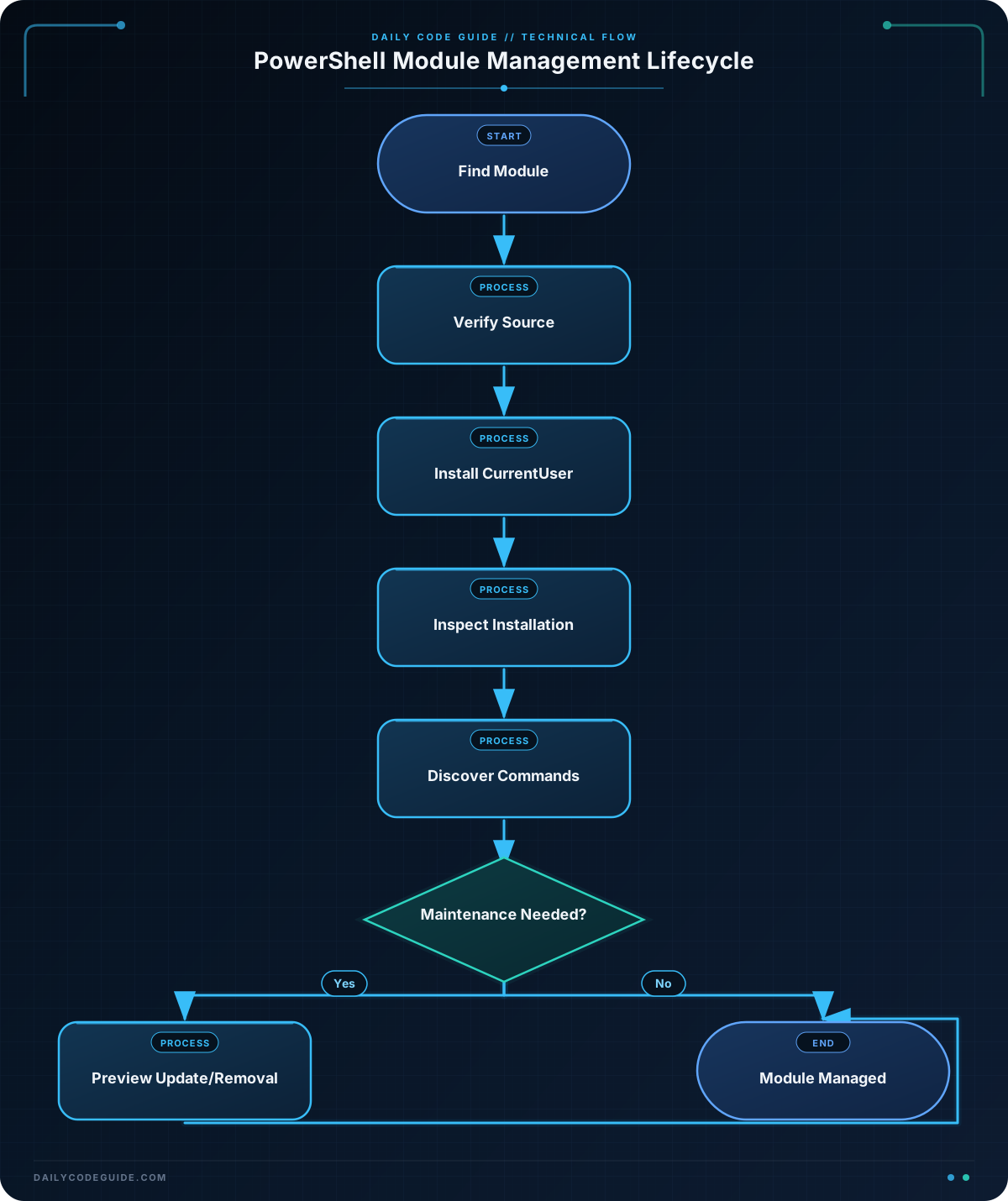
1. Store the module name
The $moduleName variable keeps the module name in one place. Reusing the variable reduces typing and makes the example easier to adapt for another module.
2. Search before installing
Find-Module searches a registered repository. The -Repository PSGallery parameter makes the source explicit instead of relying on the default repository selection.
The result is stored in $availableModule. Piping that result to Select-Object limits the displayed properties to the name, version, and repository.
3. Install for the current user
Install-Module downloads the module and places it in a module directory available to your account. The -Scope CurrentUser parameter avoids changing the installation for every user on the computer.
PowerShell may ask whether you trust PSGallery. You should confirm the repository only after checking that it is the source you intend to use. You may also be prompted to install the NuGet package provider, depending on your PowerShell environment.
4. Inspect the installed module
Get-InstalledModule reports modules installed through PowerShellGet. Its output includes the installed version and location. This is useful when you need to verify which version is available before using a command.
To inspect the folders where PowerShell searches for modules, use Get-Module -ListAvailable. Understanding these locations can help when troubleshooting installation or command-discovery problems. For more practice inspecting folders and paths, see PowerShell file and directory management.
5. Discover commands from the module
Get-Command -Module PSWindowsUpdate lists commands exported by the module. Adding -Name Get-WindowsUpdate filters the result to one command. You can omit the name filter when you want to see every command supplied by the module.
Another Example
Once a module is installed, you may need to maintain it. The following example checks the installed version, previews an update, lists available commands, and previews removal. The -WhatIf parameter is important here: it shows what would happen without actually updating or uninstalling the module.
$moduleName = "PSWindowsUpdate"

Get-InstalledModule -Name $moduleName |
    Select-Object Name, Version, InstalledLocation

Update-Module -Name $moduleName -WhatIf

Get-Command -Module $moduleName |
    Sort-Object Name |
    Select-Object CommandType, Name

Uninstall-Module -Name $moduleName -WhatIf
After reviewing the preview, remove -WhatIf from Update-Module when you are ready to perform an update. Likewise, remove it from Uninstall-Module only when you are certain that the module is no longer needed.
If you remove a module, commands such as Get-WindowsUpdate will no longer be available until you install the module again. Uninstalling a module does not undo changes made by commands you previously ran with that module.
Common Mistakes
- Installing without checking the source: The Gallery contains modules from different publishers. Use Find-Module to inspect the name, version, repository, and publisher-related metadata before installing.
- Confusing available and installed modules: Find-Module searches an online repository, while Get-InstalledModule checks modules installed through PowerShellGet on your computer.
- Expecting a module to be available immediately after a failed installation: If installation reports an error, run Get-InstalledModule and Get-Module -ListAvailable to verify whether the module was actually installed.
- Using the wrong scope: CurrentUser affects only your account. AllUsers is a system-wide installation and usually needs an elevated session.
- Updating or uninstalling without previewing: Use -WhatIf when a cmdlet supports it. This lets you review the proposed action before making a change.
- Assuming every module works on every operating system: Read the module documentation. PSWindowsUpdate is intended for managing Windows updates, so its commands are not a general solution for Linux or macOS.
Try It Yourself
Use PowerShellGet to investigate the PSWindowsUpdate module without changing your computer:
- Find the module in PSGallery.
- Display its name, version, and repository.
- List every command exported by the module.
- Use Get-Module -ListAvailable to see whether a local copy exists.
Then install it for your current user and run Get-InstalledModule to verify the installation.
Challenge
Write a function named Install-GalleryAdminModule that accepts a module name.
The function should:
- Search PSGallery for the requested module.
- Install it for the current user only if it is not already installed.
- Display the installed module’s name, version, and location.
- List the commands exported by the module.
Test the function with PSWindowsUpdate. Do not uninstall the module as part of the function.
Solution
function Install-GalleryAdminModule {
    param(
        [Parameter(Mandatory)]
        [string]$Name
    )

    $availableModule = Find-Module -Name $Name -Repository PSGallery

    Write-Host "Found $($availableModule.Name) version $($availableModule.Version) in $($availableModule.Repository)."

    $installedModule = Get-InstalledModule -Name $Name -ErrorAction SilentlyContinue

    if (-not $installedModule) {
        Install-Module -Name $Name -Repository PSGallery -Scope CurrentUser
        $installedModule = Get-InstalledModule -Name $Name
    }
    else {
        Write-Host "$Name is already installed."
    }

    $installedModule | Select-Object Name, Version, InstalledLocation

    Get-Command -Module $Name |
        Sort-Object Name |
        Select-Object CommandType, Name
}

Install-GalleryAdminModule -Name "PSWindowsUpdate"
The function first confirms that the requested module exists in PSGallery. It then checks for a locally installed version. The -ErrorAction SilentlyContinue parameter prevents a missing module from producing a distracting error while the function is checking.
If no installed module is found, the function installs it with -Scope CurrentUser. If it is already installed, the function leaves it unchanged. Finally, it displays installation details and lists the commands provided by the module. This makes the function reusable for other Gallery modules, as long as their commands are compatible with your system.
Key Takeaways
- Find-Module searches repositories such as PSGallery, while Install-Module downloads a module.
- Use -Scope CurrentUser for a per-user installation that usually does not require administrator privileges.
- Use Get-InstalledModule, Get-Module -ListAvailable, and Get-Command -Module to inspect modules and their commands.
- Update-Module and Uninstall-Module manage the module lifecycle; use -WhatIf to preview supported changes.
- Review a module’s source, documentation, compatibility, and permissions before installing or using it.

