


What You’ll Learn
In this lesson, you’ll learn how to run slow administrative commands asynchronously with PowerShell background jobs. You will start a job, continue other work, monitor its state, collect its results, and clean it up when finished.
- Start an asynchronous command with
Start-Job. - Inspect job state with
Get-Job. - Collect job output with
Receive-Job. - Understand job cleanup and common background-job limitations.
The Concept
A background job runs a PowerShell script block separately from your current command session. Instead of waiting for a slow command to finish, PowerShell immediately returns a job object that represents the running work.
This is useful for administrative tasks such as checking disk space, collecting operating system details, scanning event logs, or querying several systems while you continue working in the same console.
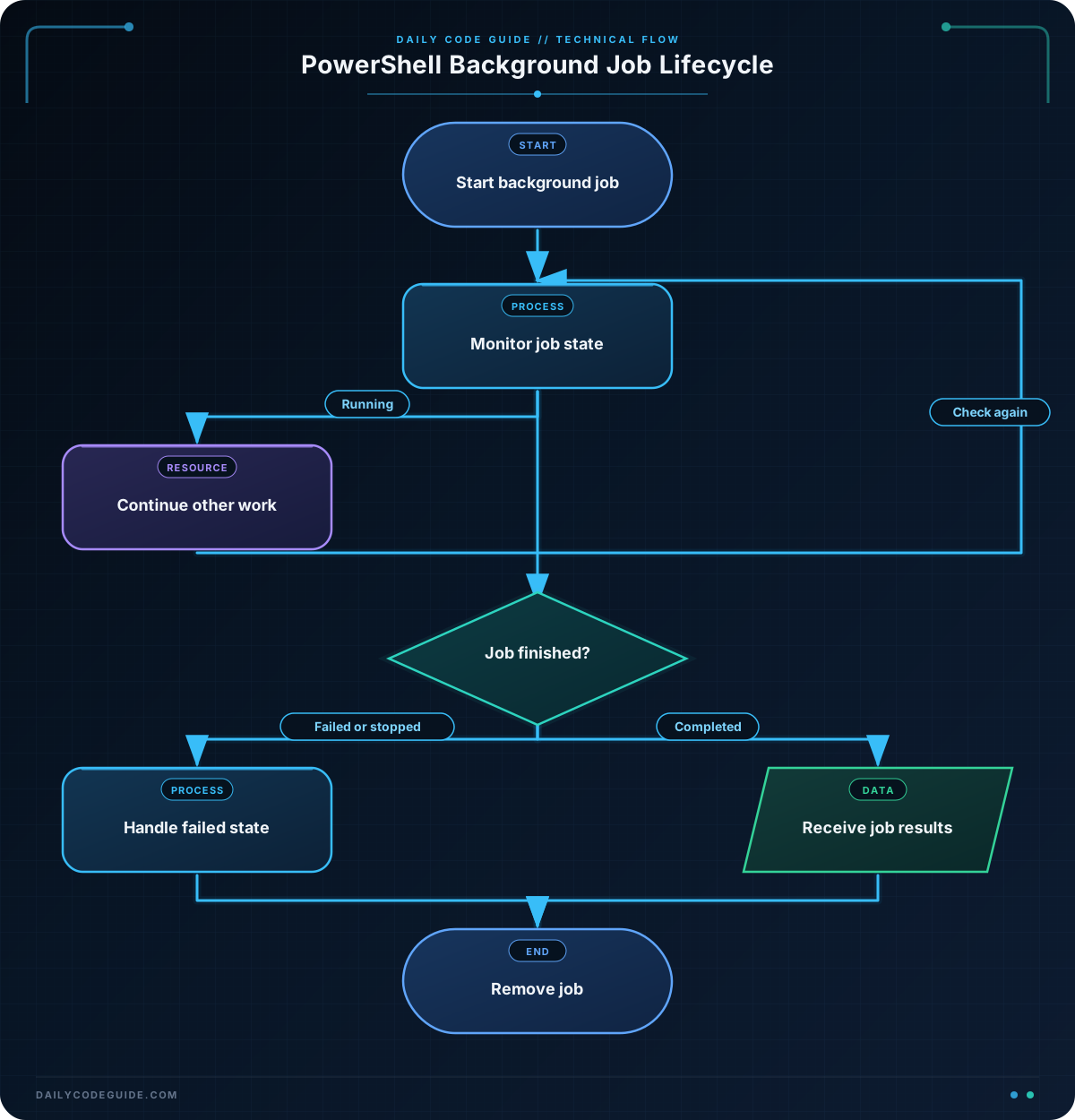
The typical job workflow is:
- Use
Start-Jobto start the work. - Use
Get-Jobto inspect the job’s state. - Use
Receive-Jobto retrieve the results. - Use
Remove-Jobto release the job after it is no longer needed.
Common job states include NotStarted, Running, Completed, Failed, and Stopped. A background job normally runs in a separate PowerShell process, so objects returned by the job are serialized before they reach your main session.
Basic Example
The following example starts a slow system check for the current administrative workstation. While the check runs, the console can perform other administrative work.
$healthJob = Start-Job -Name "WorkstationHealthCheck" -ScriptBlock {
    $operatingSystem = Get-CimInstance -ClassName Win32_OperatingSystem
    $systemDrive = Get-CimInstance -ClassName Win32_LogicalDisk -Filter "DeviceID='C:'"

    [pscustomobject]@{
        ComputerName = $env:COMPUTERNAME
        OperatingSystem = $operatingSystem.Caption
        LastBootTime = $operatingSystem.LastBootUpTime
        SystemDriveFreeGB = [math]::Round($systemDrive.FreeSpace / 1GB, 2)
    }
}

Write-Host "The health check is running in the background."

do {
    $currentJob = Get-Job -Id $healthJob.Id
    Write-Host "Job state: $($currentJob.State)"

    if ($currentJob.State -eq "Running") {
        Write-Host "Performing another administrative task..."
        Get-Process | Sort-Object CPU -Descending | Select-Object -First 3 -Property Name, Id, CPU
        Start-Sleep -Seconds 2
    }
} while ($currentJob.State -eq "Running")

if ($currentJob.State -eq "Completed") {
    $healthResult = Receive-Job -Job $healthJob
    $healthResult | Format-List
}
else {
    Write-Error "The health check ended with state: $($currentJob.State)"
}

Remove-Job -Job $healthJob
Expected Output
The exact output depends on the workstation and on how long the CIM queries take. You should see job-state messages, a list of the three processes using the most accumulated CPU time, and a final health report similar to this:
The health check is running in the background.
Job state: Running
Performing another administrative task...

Name           Id        CPU
----           --        ---
SomeProcess    2416      128.45
AnotherApp     8352       94.12
ServiceHost    1020       71.30

Job state: Completed

ComputerName      : ADMIN-PC
OperatingSystem   : Microsoft Windows 11 Pro
LastBootTime      : 6/15/2025 8:21:34 AM
SystemDriveFreeGB : 126.47
How the Code Works
Start-Job receives a script block containing the work to perform. It returns a job object immediately, so the CIM queries do not block the rest of the current session.
The script block queries two Windows management classes:
Win32_OperatingSystemprovides the operating system name and last boot time.Win32_LogicalDiskprovides free space for the system drive.
The script block returns a custom object containing only the information needed by the administrator. This is usually easier to work with than returning all properties from both CIM queries.
The do–while loop repeatedly calls Get-Job and examines the job’s State property. While the job is running, the example performs another task by listing processes. In a real administrative script, this could be log collection, configuration work, or another independent check.
Receive-Job retrieves data that the job has written to its output stream. Receiving output does not normally remove the job, which is why the example calls Remove-Job afterward.
A job’s script block runs in a separate session. Functions, variables, and imported modules from the current session are not automatically available inside it. Define required functions inside the script block, pass values with -ArgumentList, or explicitly import the required module.
Another Example
Administrators often need several independent checks from the same workstation. The next example starts separate jobs for Windows service status and recent system errors. The jobs can complete independently, and the results are collected after both have finished.
$serviceJob = Start-Job -Name "CriticalServices" -ScriptBlock {
    $serviceNames = @(
        "Spooler",
        "w32time",
        "Winmgmt"
    )

    foreach ($serviceName in $serviceNames) {
        $service = Get-Service -Name $serviceName -ErrorAction SilentlyContinue

        if ($null -ne $service) {
            [pscustomobject]@{
                ServiceName = $service.Name
                DisplayName = $service.DisplayName
                Status = $service.Status
            }
        }
    }
}

$eventJob = Start-Job -Name "RecentSystemErrors" -ScriptBlock {
    Get-WinEvent -FilterHashtable @{
        LogName = "System"
        Level = 2
        StartTime = (Get-Date).AddHours(-4)
    } -MaxEvents 10 |
    Select-Object TimeCreated, ProviderName, Id, LevelDisplayName, Message
}

$jobs = @($serviceJob, $eventJob)

while (($jobs | Where-Object State -eq "Running").Count -gt 0) {
    Get-Job -Name "CriticalServices", "RecentSystemErrors" |
        Select-Object Name, State, HasMoreData

    Start-Sleep -Seconds 2
}

$serviceResults = Receive-Job -Job $serviceJob
$eventResults = Receive-Job -Job $eventJob

Write-Host "Critical service results:"
$serviceResults | Format-Table -AutoSize

Write-Host "Recent system errors:"
$eventResults | Format-Table -Wrap

Remove-Job -Job $serviceJob, $eventJob
These jobs are independent: a slow event-log query does not prevent the service query from completing. In production automation, check each job’s state before receiving results and handle Failed jobs separately so one failed check does not make the entire report appear successful.
Common Mistakes
Forgetting to receive the results
Start-Job returns a job object, not the final data produced by the script block. Use Receive-Job after the job reaches Completed. You can use Receive-Job -Wait when you want PowerShell to wait until the job finishes.
Removing a job too early
Calling Remove-Job while a job is still running can fail or discard work. Check the state first, or stop the job deliberately with Stop-Job before removing it.
Assuming current-session variables are available
This does not automatically make $computerName available inside the job:
$computerName = "ADMIN-PC"

$job = Start-Job -ScriptBlock {
    Get-CimInstance -ClassName Win32_OperatingSystem -ComputerName $computerName
}
Pass the value explicitly with -ArgumentList and a param declaration:
$computerName = "ADMIN-PC"

$job = Start-Job -ArgumentList $computerName -ScriptBlock {
    param($targetComputer)

    Get-CimInstance -ClassName Win32_OperatingSystem -ComputerName $targetComputer
}
Ignoring failed jobs
A job can finish with the Failed state because of permissions, an unavailable computer, a missing event log, or an invalid command. Inspect the job with Get-Job, then use Receive-Job to read the error information.
Leaving completed jobs behind
Completed jobs remain in the session until they are removed. Long-running administrative scripts should clean up jobs with Remove-Job, especially when creating many jobs in a loop.
Try It Yourself
Create a background job that retrieves the five newest processes by start time. While the job runs, display its state at least once. Then receive the results and remove the job.
Use Get-Process, Sort-Object, and Select-Object -First 5. Some processes may not expose a start time because of permissions, so use -ErrorAction SilentlyContinue if needed.
Challenge
Build a workstation readiness check that runs asynchronously.
- Start one background job named
WorkstationReadiness. - Inside the job, collect the computer name, the current PowerShell version, free space on drive
C:, and the three processes with the highest CPU value. - While the job is running, display its state at least once.
- Receive and display the result after completion.
- Display an error if the job fails.
- Remove the job at the end.
Solution
$readinessJob = Start-Job -Name "WorkstationReadiness" -ScriptBlock {
    $systemDrive = Get-CimInstance -ClassName Win32_LogicalDisk -Filter "DeviceID='C:'"

    $topProcesses = Get-Process -ErrorAction SilentlyContinue |
        Where-Object CPU -ne $null |
        Sort-Object CPU -Descending |
        Select-Object -First 3 -Property Name, Id, CPU

    [pscustomobject]@{
        ComputerName = $env:COMPUTERNAME
        PowerShellVersion = $PSVersionTable.PSVersion.ToString()
        SystemDriveFreeGB = [math]::Round($systemDrive.FreeSpace / 1GB, 2)
        TopProcesses = $topProcesses
    }
}

do {
    $jobStatus = Get-Job -Id $readinessJob.Id
    Write-Host "Readiness job state: $($jobStatus.State)"

    if ($jobStatus.State -eq "Running") {
        Start-Sleep -Seconds 1
    }
} while ($jobStatus.State -eq "Running")

if ($jobStatus.State -eq "Completed") {
    $readinessResult = Receive-Job -Job $readinessJob

    Write-Host "Workstation readiness summary:"
    $readinessResult |
        Select-Object ComputerName, PowerShellVersion, SystemDriveFreeGB |
        Format-List

    Write-Host "Top processes:"
    $readinessResult.TopProcesses | Format-Table -AutoSize
}
else {
    Write-Error "The readiness job ended with state: $($jobStatus.State)"
    Receive-Job -Job $readinessJob
}

Remove-Job -Job $readinessJob
The solution creates one result object in the background job and stores the process list as a property of that object. After the job completes, the main session receives the object, formats its summary, displays the nested process data, and removes the completed job.
Key Takeaways
Start-Jobruns a script block asynchronously and returns a job object immediately.- Use
Get-Jobto monitor states such asRunning,Completed, andFailed. - Use
Receive-Jobto collect output produced by the background job. - Background jobs use a separate session, so pass required values and define required functions or modules explicitly.
- Remove completed or stopped jobs with
Remove-Jobto keep the PowerShell session clean.

