


What You’ll Learn
In this lesson, you will use PowerShell’s Get-CimInstance cmdlet to collect Windows operating system, hardware, disk, and installed-software information for an inventory report.
- Understand what CIM classes represent.
- Query common Windows system classes.
- Select useful object properties and convert raw values into readable information.
- Assemble several queries into a simple inventory report.
The Concept
CIM, or Common Information Model, provides a standard way to describe information about a computer. Windows makes many of these descriptions available through classes such as Win32_OperatingSystem, Win32_ComputerSystem, and Win32_Processor.
Get-CimInstance queries one of these classes and returns PowerShell objects. Because the result is an object, you can inspect its properties, send it through the pipeline, select only the fields you need, or save it to a file.
For example, this command retrieves the operating system object from the local computer:
$operatingSystem = Get-CimInstance -ClassName Win32_OperatingSystemThe -ClassName parameter identifies the type of information to retrieve. Some useful Windows classes include:
Win32_OperatingSystemfor Windows version, architecture, and last boot time.Win32_ComputerSystemfor the computer manufacturer, model, and memory.Win32_Processorfor processor name and core count.Win32_LogicalDiskfor disk size and free space.Win32_Productfor software registered with Windows Installer.
This approach is useful for help-desk tools, asset inventories, troubleshooting scripts, and reports that summarize many computers. If you later need to collect information from several computers at once, you can build on this idea with PowerShell background jobs.
Basic Example
The following script collects information from the local computer. It creates one general inventory object and then displays a small installed-software list.
$operatingSystem = Get-CimInstance -ClassName Win32_OperatingSystem
$computerSystem = Get-CimInstance -ClassName Win32_ComputerSystem
$processor = Get-CimInstance -ClassName Win32_Processor | Select-Object -First 1
$systemDrive = Get-CimInstance -ClassName Win32_LogicalDisk -Filter "DeviceID='C:'"

$installedSoftware = Get-CimInstance -ClassName Win32_Product |
    Select-Object -First 5 Name, Version, Vendor

$inventory = [pscustomobject]@{
    ComputerName = $computerSystem.Name
    Manufacturer = $computerSystem.Manufacturer
    Model = $computerSystem.Model
    OperatingSystem = $operatingSystem.Caption
    OSVersion = $operatingSystem.Version
    Architecture = $operatingSystem.OSArchitecture
    LastBoot = $operatingSystem.LastBootUpTime
    Processor = $processor.Name
    ProcessorCores = $processor.NumberOfCores
    MemoryGB = [math]::Round($computerSystem.TotalPhysicalMemory / 1GB, 2)
    SystemDriveSizeGB = [math]::Round($systemDrive.Size / 1GB, 2)
    SystemDriveFreeGB = [math]::Round($systemDrive.FreeSpace / 1GB, 2)
}

$inventory | Format-List

"Installed software:"
$installedSoftware | Format-Table -AutoSize
Expected Output
The exact values depend on the computer where you run the script. The output will have a general inventory section followed by a table of software entries, similar to this:
ComputerName       : DESKTOP-EXAMPLE
Manufacturer       : Example Computer Company
Model              : Example Model
OperatingSystem    : Microsoft Windows 11 Pro
OSVersion          : 10.0.22631
Architecture       : 64-bit
LastBoot           : 1/15/2025 8:42:10 AM
Processor          : Example Processor
ProcessorCores     : 8
MemoryGB           : 16
SystemDriveSizeGB  : 476.94
SystemDriveFreeGB  : 221.37

Installed software:

Name                         Version       Vendor
----                         -------       ------
Example Application          4.2.0         Example Vendor
Another Application          1.8.3         Another Vendor
How the Code Works
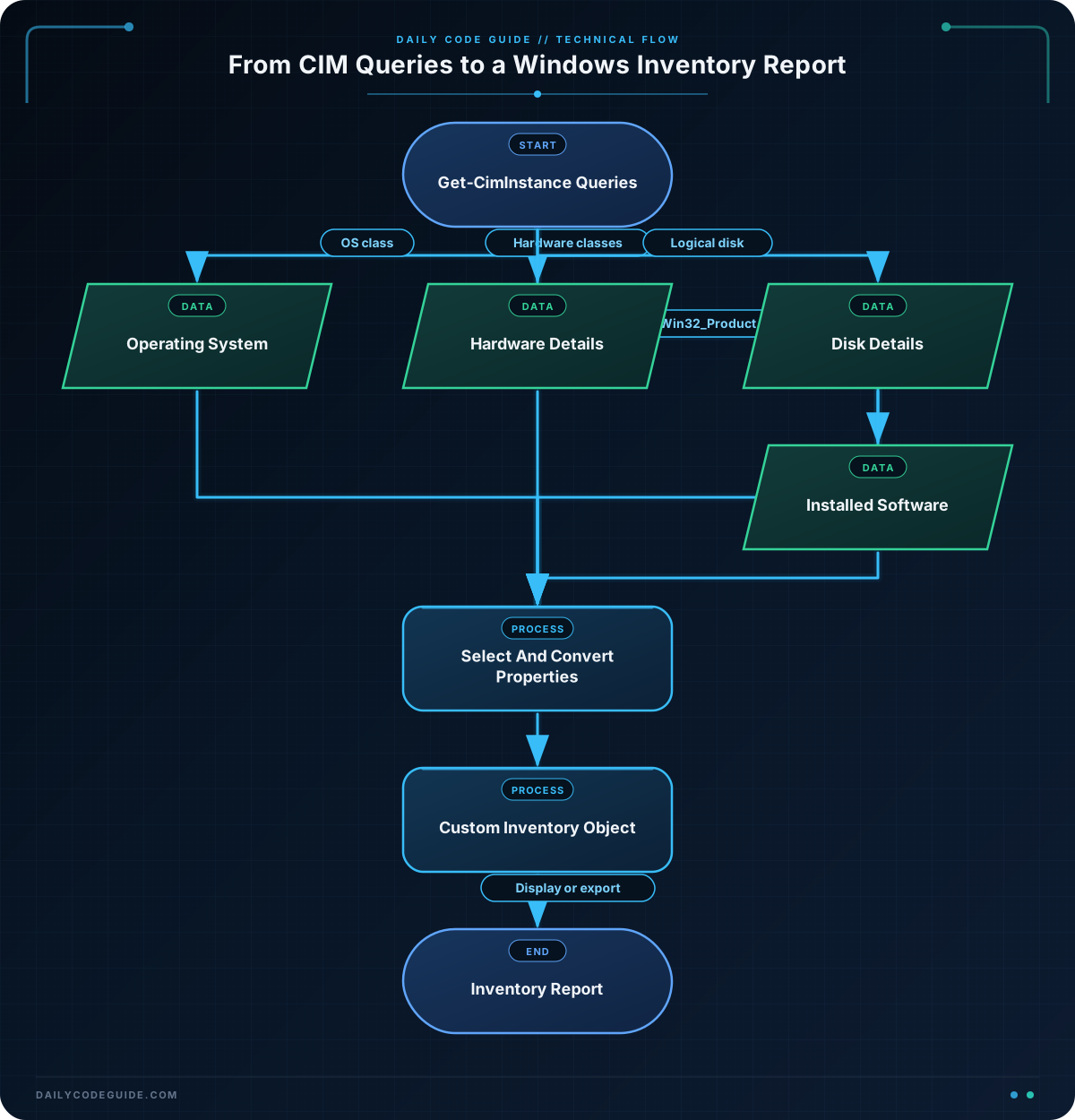
The first four commands query different CIM classes and store the returned objects in variables. For example, $operatingSystem.Caption reads the Caption property from the object returned by Win32_OperatingSystem.
The processor query may return more than one object on a computer with multiple physical processors. Select-Object -First 1 keeps the example focused on the first processor. The NumberOfCores property then provides its core count.
The Win32_LogicalDisk query uses a filter so that the script retrieves only the C: drive. The filter is written as a string because it is part of the CIM query:
Get-CimInstance -ClassName Win32_LogicalDisk -Filter "DeviceID='C:'"Windows reports memory and disk sizes in bytes. Dividing by 1GB converts the values to gigabytes. [math]::Round(..., 2) limits the result to two decimal places, making the report easier to read.
The [pscustomobject]@{} expression creates a new object with the names and values needed for the report. This is useful because the report is no longer tied to every property returned by the CIM classes.
The software query uses Win32_Product, which represents products registered with Windows Installer. It is included here because it is easy to understand, but it can be slow and may cause Windows Installer consistency checks. For a large production inventory system, investigate a registry-based or endpoint-management approach instead. Also, this class may not show software installed by other technologies.
Another Example
You can provide computer names to -ComputerName and collect a smaller report from each computer. The following example focuses on operating system and hardware details rather than listing installed software.
$computerNames = @("PC-01", "PC-02")

$remoteInventory = foreach ($computerName in $computerNames) {
    $operatingSystem = Get-CimInstance -ClassName Win32_OperatingSystem -ComputerName $computerName
    $computerSystem = Get-CimInstance -ClassName Win32_ComputerSystem -ComputerName $computerName

    [pscustomobject]@{
        ComputerName = $computerSystem.Name
        Manufacturer = $computerSystem.Manufacturer
        Model = $computerSystem.Model
        OperatingSystem = $operatingSystem.Caption
        Architecture = $operatingSystem.OSArchitecture
        MemoryGB = [math]::Round($computerSystem.TotalPhysicalMemory / 1GB, 2)
    }
}

$remoteInventory | Format-Table -AutoSize
$remoteInventory | Export-Csv -Path ".\computer-inventory.csv" -NoTypeInformation
This example assumes that the computer names are reachable and that your account has permission to query them. The final command saves the objects as a CSV file, which can be opened in spreadsheet software or processed by another script.
Common Mistakes
- Using a property that does not belong to the class: Different CIM classes expose different properties. Use
Get-CimInstanceand inspect the result, or useGet-Member, before choosing a property. - Expecting bytes to be readable: Properties such as
TotalPhysicalMemoryandSizeare returned in bytes. Convert them to gigabytes before displaying them in a report. - Assuming software queries show every application:
Win32_Productmainly reports Windows Installer products and can be slow. It is not a complete list of every possible application. - Forgetting remote permissions: A query with
-ComputerNamecan fail if the computer is offline, the name cannot be resolved, or the account lacks permission. - Replacing objects with formatted text too early: Commands such as
Format-Tableare intended for display. Keep the original objects until after you have finished filtering, exporting, or calculating values.
Try It Yourself
Run a query for Win32_OperatingSystem and display only the operating system caption, version, and last boot time. Then query Win32_Processor and display its name and number of cores.
As an extra step, select only the C: drive with a CIM filter and calculate its free space in gigabytes.
Challenge
Create a small inventory report for the local computer that includes:
- The computer name and manufacturer.
- The Windows caption and version.
- The processor name and number of cores.
- Total memory in gigabytes, rounded to two decimal places.
- Free space on the
C:drive in gigabytes, rounded to two decimal places.
Store the results in a custom object and export that object to local-inventory.csv. Do not include the installed-software query in this challenge.
Solution
The solution queries each required CIM class, converts the byte values, creates one report object, and exports it to a CSV file.
$operatingSystem = Get-CimInstance -ClassName Win32_OperatingSystem
$computerSystem = Get-CimInstance -ClassName Win32_ComputerSystem
$processor = Get-CimInstance -ClassName Win32_Processor | Select-Object -First 1
$systemDrive = Get-CimInstance -ClassName Win32_LogicalDisk -Filter "DeviceID='C:'"

$localInventory = [pscustomobject]@{
    ComputerName = $computerSystem.Name
    Manufacturer = $computerSystem.Manufacturer
    OperatingSystem = $operatingSystem.Caption
    OSVersion = $operatingSystem.Version
    Processor = $processor.Name
    ProcessorCores = $processor.NumberOfCores
    MemoryGB = [math]::Round($computerSystem.TotalPhysicalMemory / 1GB, 2)
    SystemDriveFreeGB = [math]::Round($systemDrive.FreeSpace / 1GB, 2)
}

$localInventory | Export-Csv -Path ".\local-inventory.csv" -NoTypeInformation
$localInventory | Format-List
Each property in the custom object corresponds to one challenge requirement. The same object is sent to both Export-Csv, which saves the report, and Format-List, which displays it in the console.
Key Takeaways
Get-CimInstanceretrieves Windows information as PowerShell objects.- CIM classes such as
Win32_OperatingSystemandWin32_ComputerSystemexpose different system details. - Object properties can be selected, calculated, and combined into a custom inventory object.
- Convert byte-based values to readable units before displaying them in a report.
Win32_Productcan be slow and incomplete, so treat it carefully in production inventory scripts.