


What You’ll Learn
In this lesson, you’ll learn how PowerShell comparison operators evaluate values and how Boolean operators combine those results. You’ll use them to identify computers with low free disk space or insufficient available memory.
- Compare numbers with operators such as -lt, -gt, and -eq.
- Store comparison results as Boolean values: $true or $false.
- Combine conditions with -and and -or.
- Use a combined condition in an if statement.
The Concept
A comparison operator checks the relationship between two values. For example, you can check whether available disk space is less than the minimum amount your organization requires.
PowerShell returns a Boolean result from a comparison. A Boolean value is either $true or $false.
- -eq: equal to
- -ne: not equal to
- -gt: greater than
- -ge: greater than or equal to
- -lt: less than
- -le: less than or equal to
PowerShell also provides Boolean operators for combining conditions:
- -and is true only when both conditions are true.
- -or is true when at least one condition is true.
- -not reverses a Boolean result.
These operators are useful in system administration scripts. For example, a monitoring script can flag a computer when its free disk space is below a threshold or its available memory is below a threshold.
When you are ready to replace sample values with data collected from real computers, you can query Windows system information with Get-CimInstance and then apply these checks to the returned properties.
Basic Example
This example checks one computer. The computer needs attention if either its free disk space or its available memory is below the required minimum.
$computerName = "ENG-WS-07"
$freeDiskGb = 18
$availableMemoryGb = 6

$minimumFreeDiskGb = 20
$minimumAvailableMemoryGb = 4

$diskSpaceLow = $freeDiskGb -lt $minimumFreeDiskGb
$memoryLow = $availableMemoryGb -lt $minimumAvailableMemoryGb

if ($diskSpaceLow -or $memoryLow) {
    Write-Output "$computerName needs attention."

    if ($diskSpaceLow) {
        Write-Output "Free disk space is below the minimum."
    }

    if ($memoryLow) {
        Write-Output "Available memory is below the minimum."
    }
}
else {
    Write-Output "$computerName is within the required limits."
}
Expected Output
ENG-WS-07 needs attention.
Free disk space is below the minimum.
How the Code Works
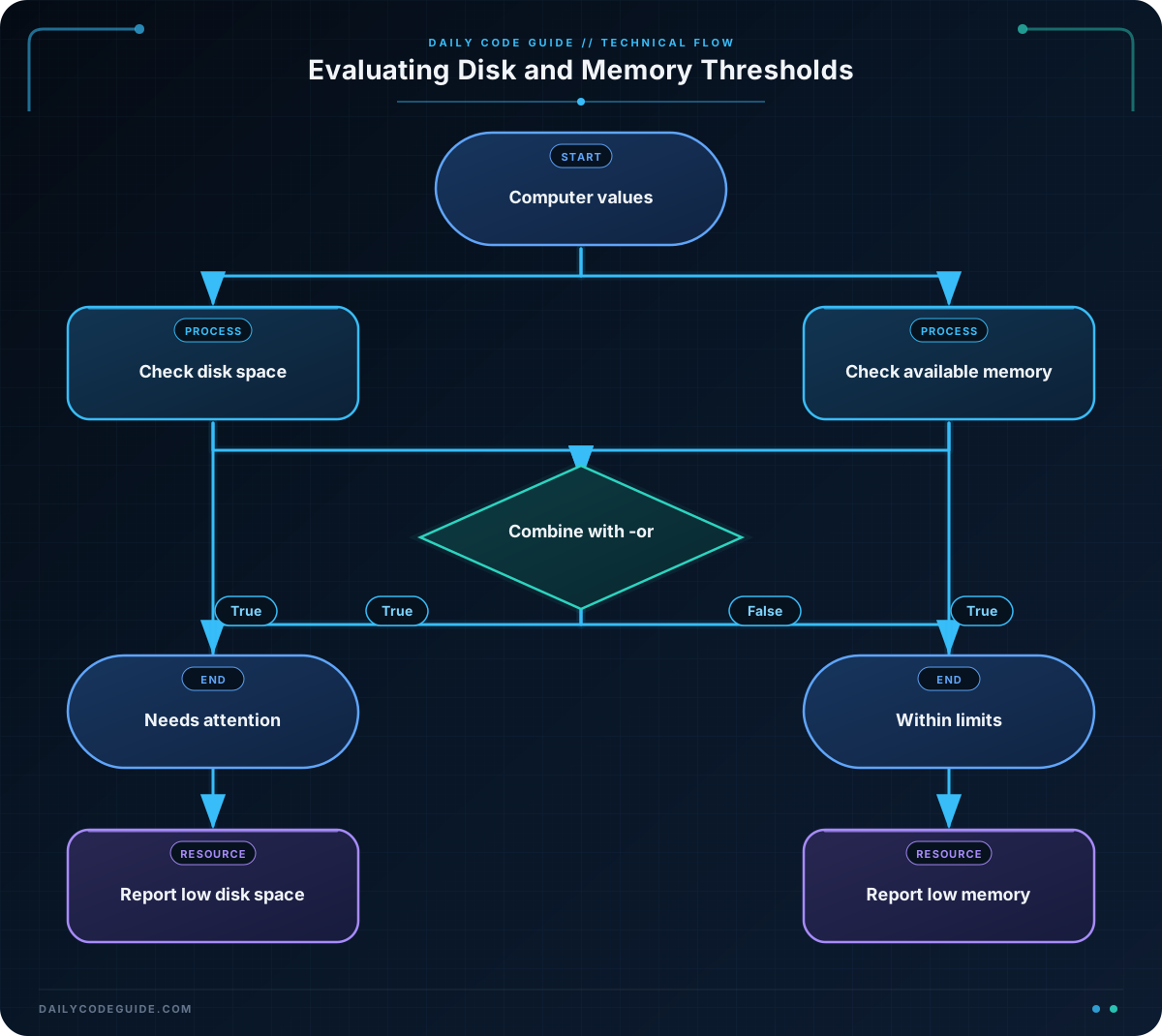
The first group of variables describes the computer and its current measurements:
- $freeDiskGb contains the available disk space.
- $availableMemoryGb contains the available memory.
- $minimumFreeDiskGb and $minimumAvailableMemoryGb contain the limits.
This line compares the computer’s free disk space with the minimum:
$diskSpaceLow = $freeDiskGb -lt $minimumFreeDiskGbBecause 18 is less than 20, PowerShell stores $true in $diskSpaceLow. The memory comparison stores $false because 6 is not less than 4.
The main condition uses -or:
if ($diskSpaceLow -or $memoryLow)At least one condition is true, so the computer is flagged. The two inner if statements then explain which specific measurements caused the alert.
Notice that PowerShell uses -lt for “less than.” A single equals sign assigns a value to a variable; it does not compare values. For comparisons, use operators such as -eq, -lt, or -gt.
Another Example
Sometimes a computer should receive a high-priority alert only when two problems occur together. This example uses -and to detect a computer with both low free disk space and high memory usage. It also uses -ge to include values equal to the threshold.
$computerName = "FILE-SRV-02"
$freeDiskPercent = 12
$memoryUsedPercent = 86

$lowDiskThreshold = 15
$highMemoryThreshold = 85

$diskIsLow = $freeDiskPercent -le $lowDiskThreshold
$memoryIsHigh = $memoryUsedPercent -ge $highMemoryThreshold

if ($diskIsLow -and $memoryIsHigh) {
    Write-Output "$computerName has a high-priority resource alert."
}
elseif ($diskIsLow) {
    Write-Output "$computerName has low free disk space."
}
elseif ($memoryIsHigh) {
    Write-Output "$computerName has high memory usage."
}
else {
    Write-Output "$computerName has no resource alerts."
}
Both comparisons are true: 12 is less than or equal to 15, and 86 is greater than or equal to 85. Therefore, the -and condition is true and the first branch runs.
Common Mistakes
- Using an assignment instead of a comparison: Use comparison operators such as -eq to test values. Do not use = when you mean “is equal to.”
- Choosing the wrong Boolean operator: Use -or when either problem should trigger an alert. Use -and only when both problems must be present.
- Confusing “less than” and “greater than”: If a low value is a problem, use -lt or -le. If a high value is a problem, use -gt or -ge.
- Forgetting parentheses in longer conditions: Parentheses make the intended grouping clear, such as ($diskIsLow -or $memoryIsLow).
Try It Yourself
Change the values in the following script so that the computer has enough disk space but not enough available memory. Run it and observe which message appears.
$computerName = "SALES-WS-03"
$freeDiskGb = 40
$availableMemoryGb = 2

$minimumFreeDiskGb = 20
$minimumAvailableMemoryGb = 4

$diskSpaceLow = $freeDiskGb -lt $minimumFreeDiskGb
$memoryLow = $availableMemoryGb -lt $minimumAvailableMemoryGb

if ($diskSpaceLow -or $memoryLow) {
    Write-Output "$computerName needs attention."
}
else {
    Write-Output "$computerName is within the required limits."
}
Challenge
Write a PowerShell script that checks the following computer:
- Name: HR-WS-11
- Free disk space: 14 GB
- Available memory: 8 GB
- Minimum free disk space: 20 GB
- Minimum available memory: 4 GB
Your script should:
- Use comparison operators to create a disk-space condition and a memory condition.
- Use -or to flag the computer when either condition is true.
- Print a message explaining whether the computer needs attention.
- Print a separate message when disk space is below the minimum.
- Print a separate message when memory is below the minimum.
Solution
$computerName = "HR-WS-11"
$freeDiskGb = 14
$availableMemoryGb = 8

$minimumFreeDiskGb = 20
$minimumAvailableMemoryGb = 4

$diskSpaceLow = $freeDiskGb -lt $minimumFreeDiskGb
$memoryLow = $availableMemoryGb -lt $minimumAvailableMemoryGb

if ($diskSpaceLow -or $memoryLow) {
    Write-Output "$computerName needs attention."

    if ($diskSpaceLow) {
        Write-Output "Free disk space is below the minimum."
    }

    if ($memoryLow) {
        Write-Output "Available memory is below the minimum."
    }
}
else {
    Write-Output "$computerName is within the required limits."
}
The disk comparison is true because 14 GB is less than 20 GB. The memory comparison is false because 8 GB is not less than 4 GB. Since -or needs only one true condition, the computer is flagged, and only the disk-space explanation is printed.
Key Takeaways
- PowerShell comparison operators return Boolean values: $true or $false.
- Use -lt and -le for values below a limit, and -gt and -ge for values above a limit.
- Use -or when any one condition should trigger an alert.
- Use -and when all combined conditions must be true.
- Comparison and Boolean operators let scripts evaluate computer resources and make useful decisions automatically.