


What You’ll Learn
In this lesson, you will learn how to read product records from a CSV file and use the data to calculate the value of each inventory item and the value of the entire inventory.
- Understand what a CSV file is and how its rows and columns are organized.
- Read CSV data with Python’s built-in csv module.
- Use csv.DictReader to work with column names.
- Convert text values into numbers for calculations.
- Calculate per-item and total inventory values.
The Concept
CSV stands for comma-separated values. It is a simple text format commonly used to store spreadsheet-like data. Each line represents a record, and commas separate the values in that record.
For example, a product CSV file might contain a header row followed by product records:
product,quantity,unit_price
Keyboard,12,29.99
Notebook,40,4.50
Desk Lamp,8,18.75
The first row contains the column names: product, quantity, and unit_price. Python can use these names to make each row easier to understand.
Python includes a built-in module named csv for reading and writing CSV files. Using this module is safer and clearer than manually splitting every line with split(“,”). The csv.DictReader class reads each row as a dictionary, using the header values as dictionary keys.
One important detail is that values read from a CSV file are strings. Even if a value looks like a number, such as 12 or 29.99, Python initially treats it as text. Convert quantities to int and prices to float before performing calculations.
Basic Example
Save the following content in a file named inventory.csv in the same folder as your Python program:
product,quantity,unit_price
Keyboard,12,29.99
Notebook,40,4.50
Desk Lamp,8,18.75
Now create a Python file named inventory_value.py and add this code:
import csv

total_inventory_value = 0.0

with open("inventory.csv", newline="", encoding="utf-8") as inventory_file:
    reader = csv.DictReader(inventory_file)

    for row in reader:
        product_name = row["product"]
        quantity = int(row["quantity"])
        unit_price = float(row["unit_price"])
        item_value = quantity * unit_price

        total_inventory_value += item_value
        print(f"{product_name}: ${item_value:.2f}")

print(f"Total inventory value: ${total_inventory_value:.2f}")
Expected Output
Keyboard: $359.88
Notebook: $180.00
Desk Lamp: $150.00
Total inventory value: $689.88
How the Code Works
import csv loads Python’s built-in CSV tools. You do not need to install an additional package.
The variable total_inventory_value starts at 0.0. The program adds each product’s value to this variable as it processes the file.
This line opens the CSV file:
with open("inventory.csv", newline="", encoding="utf-8") as inventory_file:The with statement makes sure Python closes the file when the indented block finishes. The newline=”” option is recommended when working with the csv module, and encoding=”utf-8″ allows the file to contain common text characters reliably.
Next, csv.DictReader reads the file:
reader = csv.DictReader(inventory_file)Each row produced by reader is a dictionary. For example, the Keyboard row can be accessed like this:
product_name = row["product"]
quantity = int(row["quantity"])
unit_price = float(row["unit_price"])
The product name remains a string. The quantity is converted to an integer, and the price is converted to a decimal number that Python can use in multiplication.
The per-item inventory value is calculated by multiplying the quantity by the unit price:
item_value = quantity * unit_priceThe format specifier :.2f displays a number with exactly two digits after the decimal point, which is useful for prices.
Another Example
CSV files can contain additional columns. The next example groups product values by category instead of printing only one total for the entire inventory.
Save this data as categorized_inventory.csv:
category,product,quantity,unit_price
Office,Printer Paper,25,6.80
Office,Stapler,10,8.50
Technology,Webcam,6,42.00
Technology,USB Cable,30,7.25
This program calculates a separate inventory value for each category:
import csv

category_totals = {}

with open("categorized_inventory.csv", newline="", encoding="utf-8") as inventory_file:
    reader = csv.DictReader(inventory_file)

    for row in reader:
        category = row["category"]
        quantity = int(row["quantity"])
        unit_price = float(row["unit_price"])
        item_value = quantity * unit_price

        if category not in category_totals:
            category_totals[category] = 0.0

        category_totals[category] += item_value

for category in sorted(category_totals):
    print(f"{category}: ${category_totals[category]:.2f}")
The dictionary stores one running total for each category. If a category appears for the first time, the program creates a starting value of 0.0. Later rows add to that category’s existing total.
Common Mistakes
- Forgetting to convert numeric values: CSV values are strings. Use int(row[“quantity”]) and float(row[“unit_price”]) before calculating.
- Using the wrong column name: Dictionary keys must match the CSV header exactly. row[“unit price”] is different from row[“unit_price”].
- Putting the CSV file in the wrong folder: A relative filename such as “inventory.csv” is searched for in the program’s current working folder.
- Skipping the header unexpectedly: DictReader expects the first row to contain column names. Make sure the CSV starts with its header row.
- Using manual string splitting for every row: Commas can appear inside quoted CSV values. The csv module handles standard CSV formatting more reliably.
Try It Yourself
Update the basic example so that it also prints the quantity and unit price for each product. Your output should include information similar to this:
Keyboard: 12 units at $29.99 each = $359.88Use the existing inventory.csv file and the values already available in each row. Keep the total inventory calculation at the end.
Challenge
Create a program that reads a file named stock.csv. The file contains product names, quantities, and unit prices:
product,quantity,unit_price
Mouse,4,19.99
Monitor,7,149.50
Keyboard,12,29.99
Headset,3,45.00
Your program should:
- Print the name and inventory value of every product.
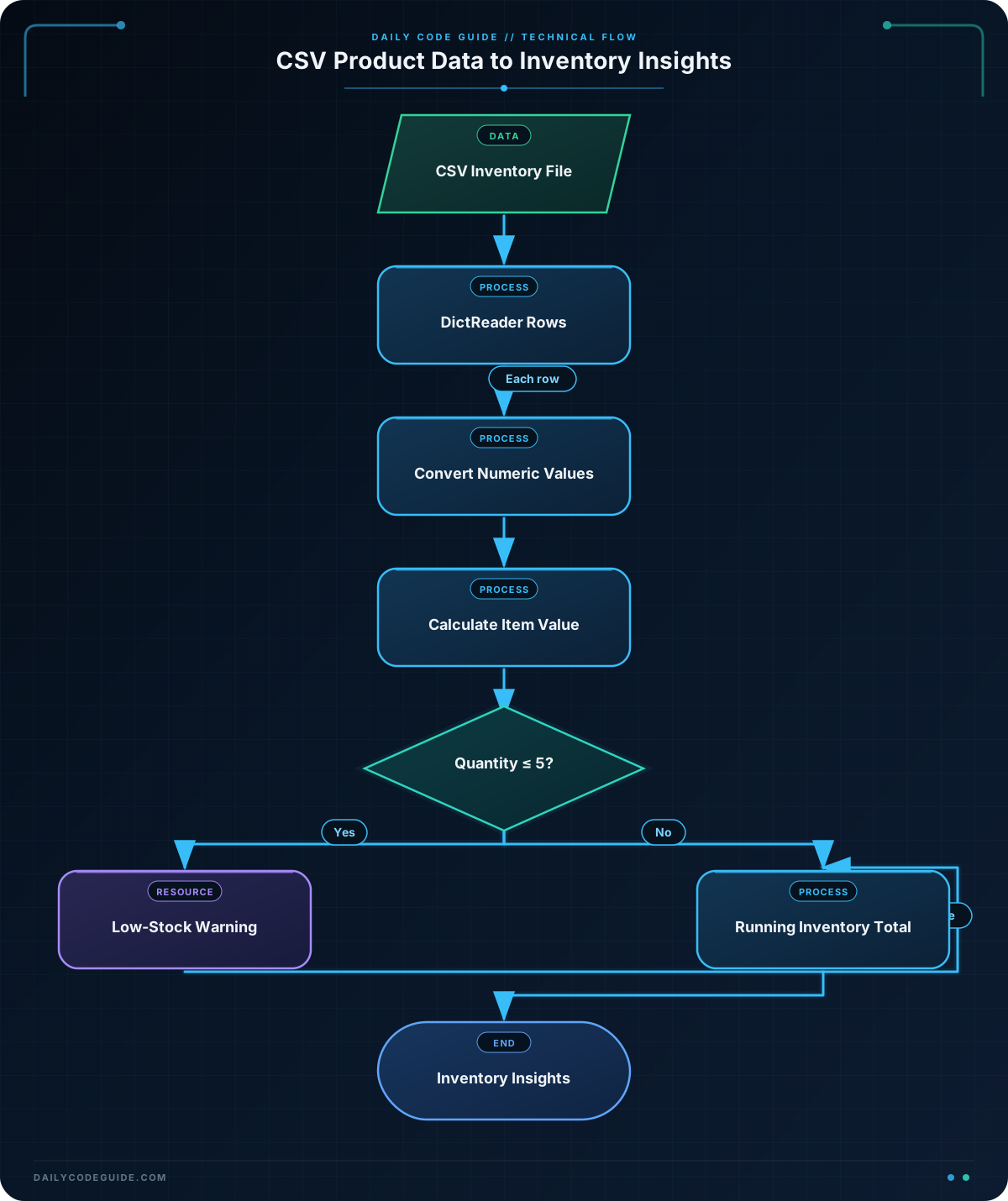
- Print a warning for products with 5 or fewer units in stock.
- Print the total inventory value at the end.
Solution
The following solution converts the CSV values before calculating, checks the stock level, and maintains a running total:
import csv

total_inventory_value = 0.0

with open("stock.csv", newline="", encoding="utf-8") as stock_file:
    reader = csv.DictReader(stock_file)

    for row in reader:
        product_name = row["product"]
        quantity = int(row["quantity"])
        unit_price = float(row["unit_price"])
        item_value = quantity * unit_price

        total_inventory_value += item_value
        print(f"{product_name}: ${item_value:.2f}")

        if quantity <= 5:
            print(f"  Warning: only {quantity} units left")

print(f"Total inventory value: ${total_inventory_value:.2f}")
The comparison quantity <= 5 identifies products with five or fewer units. For the sample file, Mouse and Headset receive warnings. The program still includes every product in the total inventory value.
Key Takeaways
- Use Python’s built-in csv module to read CSV files.
- csv.DictReader lets you access values by their column names.
- Values from a CSV file are strings until you convert them.
- Multiply quantity by unit price to calculate an item’s inventory value.
- Use a running total to calculate the value of all product records.

