


What You’ll Learn
In this lesson, you will learn how Terraform resources represent infrastructure that Terraform can create and manage. You will build a basic AWS cloud server, configure its properties with variables, and understand how Terraform tracks the server after it is created.
- Understand what a Terraform resource is.
- Create an AWS EC2 server with a
resourceblock. - Use variables to make a server configuration reusable.
- Review how Terraform plans, creates, and removes resources.
The Concept
A Terraform resource is a block of configuration that describes something Terraform should manage. That thing might be a cloud server, a database, a network, or a storage bucket.
A resource block has three important parts:
- Resource type: Identifies the kind of infrastructure, such as
aws_instance. - Local name: A name you choose to refer to the resource inside your Terraform configuration.
- Arguments: Settings that describe how the resource should be configured.
For example, aws_instance represents an Amazon EC2 virtual server. Terraform uses the AWS provider to translate that resource into AWS API operations.
Resources are useful because your infrastructure becomes repeatable. Instead of manually creating a server in a cloud console, you can store the configuration in a file, review it, reuse it, and let Terraform detect changes.
Basic Example
The following configuration creates one EC2 server. It uses variables for the AWS region, machine image, and instance size. Replace the example AMI ID with an AMI that exists in the AWS region you choose.
terraform {
  required_providers {
    aws = {
      source  = "hashicorp/aws"
      version = "~> 5.0"
    }
  }
}

provider "aws" {
  region = var.aws_region
}

variable "aws_region" {
  description = "AWS region where the server will be created"
  type        = string
  default     = "us-east-1"
}

variable "ami_id" {
  description = "AMI ID for the server operating system"
  type        = string
}

variable "instance_type" {
  description = "EC2 instance size"
  type        = string
  default     = "t3.micro"
}

resource "aws_instance" "app_server" {
  ami           = var.ami_id
  instance_type = var.instance_type

  tags = {
    Name = "daily-code-app-server"
  }
}

output "server_id" {
  description = "ID of the EC2 server"
  value       = aws_instance.app_server.id
}

output "server_public_ip" {
  description = "Public IP address assigned to the server"
  value       = aws_instance.app_server.public_ip
}
Save the configuration as main.tf. Make sure your AWS credentials are configured before running Terraform. You can then initialize Terraform and preview the proposed resource:
terraform init
terraform plan -var="ami_id=ami-0123456789abcdef0"
The AMI ID above is only an example format. Use a real AMI ID that is available in your selected region. If the plan looks correct, create the server with terraform apply:
terraform apply -var="ami_id=ami-0123456789abcdef0"Expected Output
The server ID and public IP are assigned by AWS, so their exact values cannot be known in advance. After a successful apply, Terraform displays output similar to this:
Apply complete! Resources: 1 added, 0 changed, 0 destroyed.

Outputs:

server_id = "i-0123456789abcdef0"
server_public_ip = "203.0.113.42"
How the Code Works
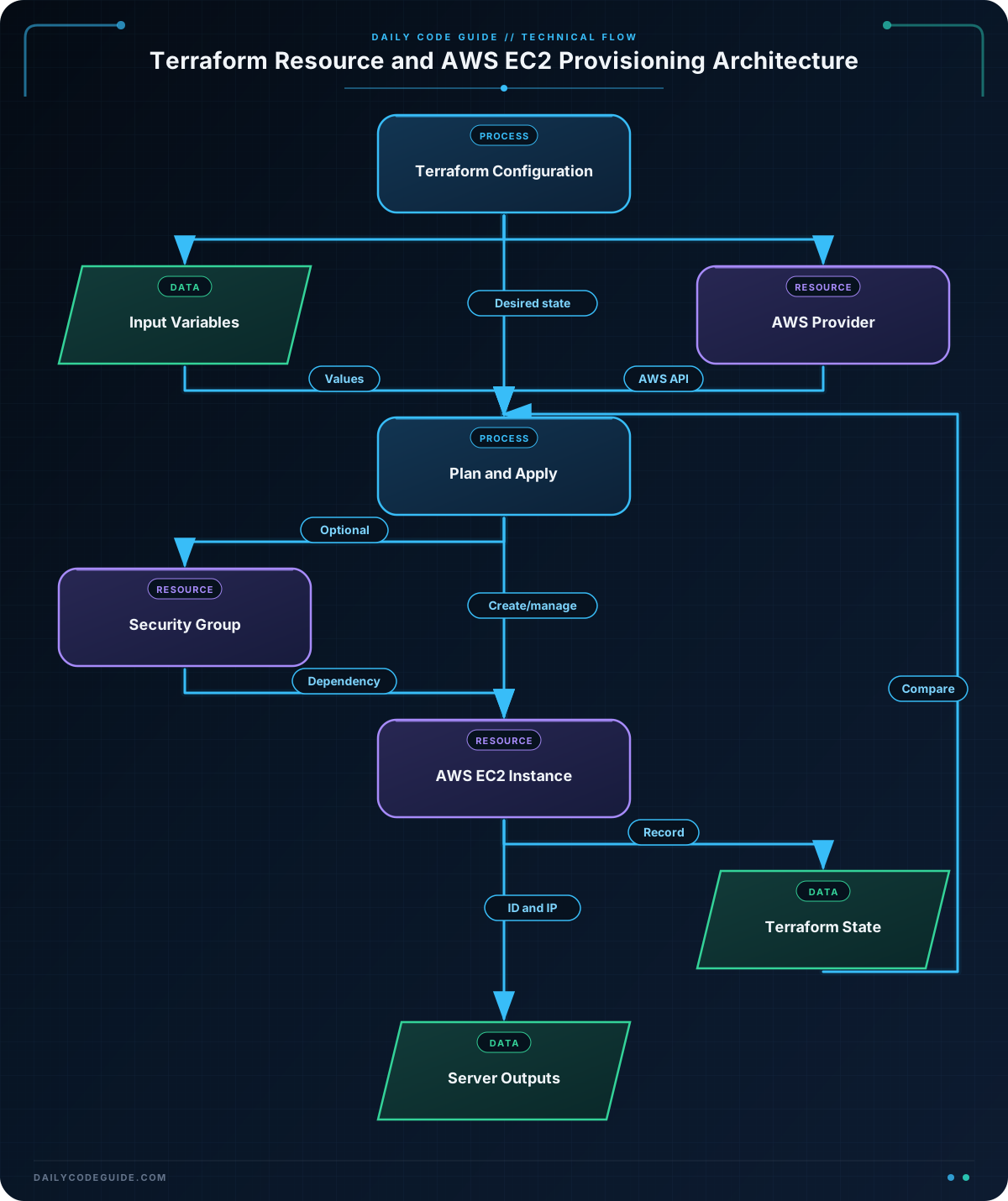
The terraform block declares the AWS provider dependency. A provider is a plugin that allows Terraform to communicate with a specific platform. In this example, the provider comes from HashiCorp and is identified by hashicorp/aws.
The provider configuration selects the AWS region:
provider "aws"configures the AWS provider.region = var.aws_regionreads the region from theaws_regionvariable.
The ami_id variable has no default value because AMI IDs differ between regions and operating systems. Terraform requires you to provide it when you run the plan or apply command.
The main resource is:
resource "aws_instance" "app_server" {
  ami           = var.ami_id
  instance_type = var.instance_type
}
aws_instance is the resource type, and app_server is the local name. Together, they identify this resource inside Terraform as aws_instance.app_server.
The ami argument selects the operating system image. The instance_type argument selects the virtual hardware size. Both values are sent to AWS when Terraform creates the EC2 server.
The tags block adds a readable name in AWS. Tags are useful for identifying resources, organizing costs, and finding the correct server later.
The output values show information Terraform learns after creation. For example, aws_instance.app_server.public_ip refers to the public IP address of this specific resource.
Terraform also creates a state file that records the relationship between your configuration and the real server. If you change an argument and run terraform plan again, Terraform compares the desired configuration with its recorded state and the infrastructure it manages.
When practicing, remove the server afterward to avoid unnecessary cloud charges:
terraform destroy -var="ami_id=ami-0123456789abcdef0"Another Example
A server is often created together with other resources. The following example creates a security group that allows HTTP traffic on port 80, then attaches that security group to a web server.
This example expects an AWS account with a default VPC. It also expects a valid AMI ID for the selected region.
terraform {
  required_providers {
    aws = {
      source  = "hashicorp/aws"
      version = "~> 5.0"
    }
  }
}

provider "aws" {
  region = var.region
}

variable "region" {
  type    = string
  default = "us-east-1"
}

variable "web_ami_id" {
  description = "AMI ID for the web server"
  type        = string
}

data "aws_vpc" "default" {
  default = true
}

resource "aws_security_group" "web" {
  name        = "daily-code-web"
  description = "Allow HTTP traffic to the web server"
  vpc_id      = data.aws_vpc.default.id

  ingress {
    description = "HTTP from the internet"
    from_port   = 80
    to_port     = 80
    protocol    = "tcp"
    cidr_blocks = ["0.0.0.0/0"]
  }

  egress {
    from_port   = 0
    to_port     = 0
    protocol    = "-1"
    cidr_blocks = ["0.0.0.0/0"]
  }

  tags = {
    Name = "daily-code-web-security-group"
  }
}

resource "aws_instance" "web_server" {
  ami                    = var.web_ami_id
  instance_type          = "t3.micro"
  vpc_security_group_ids = [aws_security_group.web.id]

  tags = {
    Name = "daily-code-web-server"
  }
}

output "web_server_public_ip" {
  value = aws_instance.web_server.public_ip
}
Here, the security group is another resource. The expression aws_security_group.web.id gives Terraform the ID of the security group. Terraform understands that the server depends on the security group because the server uses that ID in vpc_security_group_ids.
The data "aws_vpc" "default" block reads information about an existing VPC. Unlike a resource, a data block does not create the VPC. It only lets the configuration find and use information that already exists.
Allowing port 80 from 0.0.0.0/0 makes the server reachable over HTTP from anywhere on the internet. This is convenient for a basic demonstration, but production systems should restrict access when possible.
Common Mistakes
- Using an AMI from the wrong region: AMI IDs are usually region-specific. An AMI that works in
us-east-1may not exist in another region. Choose the AMI and region together. - Confusing local names with AWS names: In
aws_instance.app_server,app_serveris a Terraform name. It is not necessarily the name displayed in AWS. Use tags to set a visible AWS name. - Skipping the plan:
terraform planshows what Terraform intends to create, change, or destroy. Review it before applying changes. - Forgetting to destroy practice resources: Cloud resources can cost money. Run
terraform destroywhen you are finished practicing. - Opening unnecessary network access: A security group that allows traffic from
0.0.0.0/0accepts traffic from every IPv4 address. Use narrower rules for real applications.
Try It Yourself
Modify the basic server configuration so that:
- The default instance type is
t3.small. - The resource tag uses the name
daily-code-test-server. - The outputs include the server ID and public IP.
Run terraform plan with a valid AMI ID and inspect the planned resource before creating it.
Challenge
Create a separate database server resource for a development environment. Your configuration should:
- Use variables for the AWS region and database AMI ID.
- Create one EC2 instance with the
t3.smallinstance type. - Give the instance the tag
Name = "daily-code-development-database". - Output the instance ID.
You do not need to create a database software installation or a network security group. Focus on describing the server as a Terraform resource.
Solution
terraform {
  required_providers {
    aws = {
      source  = "hashicorp/aws"
      version = "~> 5.0"
    }
  }
}

provider "aws" {
  region = var.aws_region
}

variable "aws_region" {
  description = "AWS region for the development database server"
  type        = string
  default     = "us-east-1"
}

variable "database_ami_id" {
  description = "AMI ID for the development database server"
  type        = string
}

resource "aws_instance" "development_database" {
  ami           = var.database_ami_id
  instance_type = "t3.small"

  tags = {
    Name = "daily-code-development-database"
  }
}

output "development_database_id" {
  description = "ID of the development database server"
  value       = aws_instance.development_database.id
}
This solution defines the required variables before using them, creates exactly one EC2 resource, applies the requested instance type and tag, and exposes the server ID through an output. Run it with a valid AMI ID for the selected region, then use terraform destroy when the practice resource is no longer needed.
Key Takeaways
- A Terraform resource describes infrastructure that Terraform creates and manages.
- The resource type identifies what is being managed, while the local name identifies it inside the configuration.
- Variables make resource configurations reusable across regions, AMIs, and server sizes.
- Terraform plans changes before applying them and records managed infrastructure in its state.
- Cloud practice resources should be destroyed when they are no longer needed.

