


What You’ll Learn
In this lesson, you will learn how to use AWS CLI S3 commands to create a bucket and organize application backup files in it. You will also practice listing, uploading, syncing, and removing files.
- Create an S3 bucket with
aws s3 mb. - Upload a group of backup files with
aws s3 cp. - View bucket contents with
aws s3 ls. - Understand how folder-like prefixes organize files in S3.
The Concept
Amazon S3 stores objects, such as database dumps, log archives, and application backup files. An S3 bucket is the top-level container for those objects.
The AWS CLI provides simple S3 commands that begin with aws s3. These commands are useful when you want to automate file operations from a terminal or include them in a backup script.
S3 does not use traditional folders internally. Instead, an object key can contain slash characters. For example, application-backups/2026-05-18/database.sql.gz looks like a file inside folders, but the entire path is the object’s key. This folder-like path is commonly called a prefix.
Before running these examples, make sure the AWS CLI is configured with credentials and a default region, and that your IAM permissions allow the requested S3 operations. Bucket names must be globally unique, so replace the sample name with your own unique name.
Basic Example
Suppose an application creates backup files in a local directory named app-backups. The following commands create a bucket, upload those files under an organized prefix, and list the uploaded objects.
BACKUP_DIR="$HOME/app-backups"
BUCKET_NAME="dcg-app-backups-replace-with-unique-name"
AWS_REGION="us-east-1"

aws s3 mb "s3://$BUCKET_NAME" --region "$AWS_REGION"
aws s3 cp "$BACKUP_DIR/" "s3://$BUCKET_NAME/application-backups/" --recursive
aws s3 ls "s3://$BUCKET_NAME/application-backups/" --recursive
Change BUCKET_NAME to a globally unique bucket name before running the commands. The local directory must also exist and contain the files you want to upload.
Expected Output
The exact output depends on your bucket name, files, and upload times. A successful run produces output similar to this:
make_bucket: dcg-app-backups-replace-with-unique-name
upload: app-backups/database.sql.gz to s3://dcg-app-backups-replace-with-unique-name/application-backups/database.sql.gz
upload: app-backups/config.tar.gz to s3://dcg-app-backups-replace-with-unique-name/application-backups/config.tar.gz
2026-05-18 09:30:00       1842 application-backups/config.tar.gz
2026-05-18 09:30:01      56320 application-backups/database.sql.gz
How the Code Works
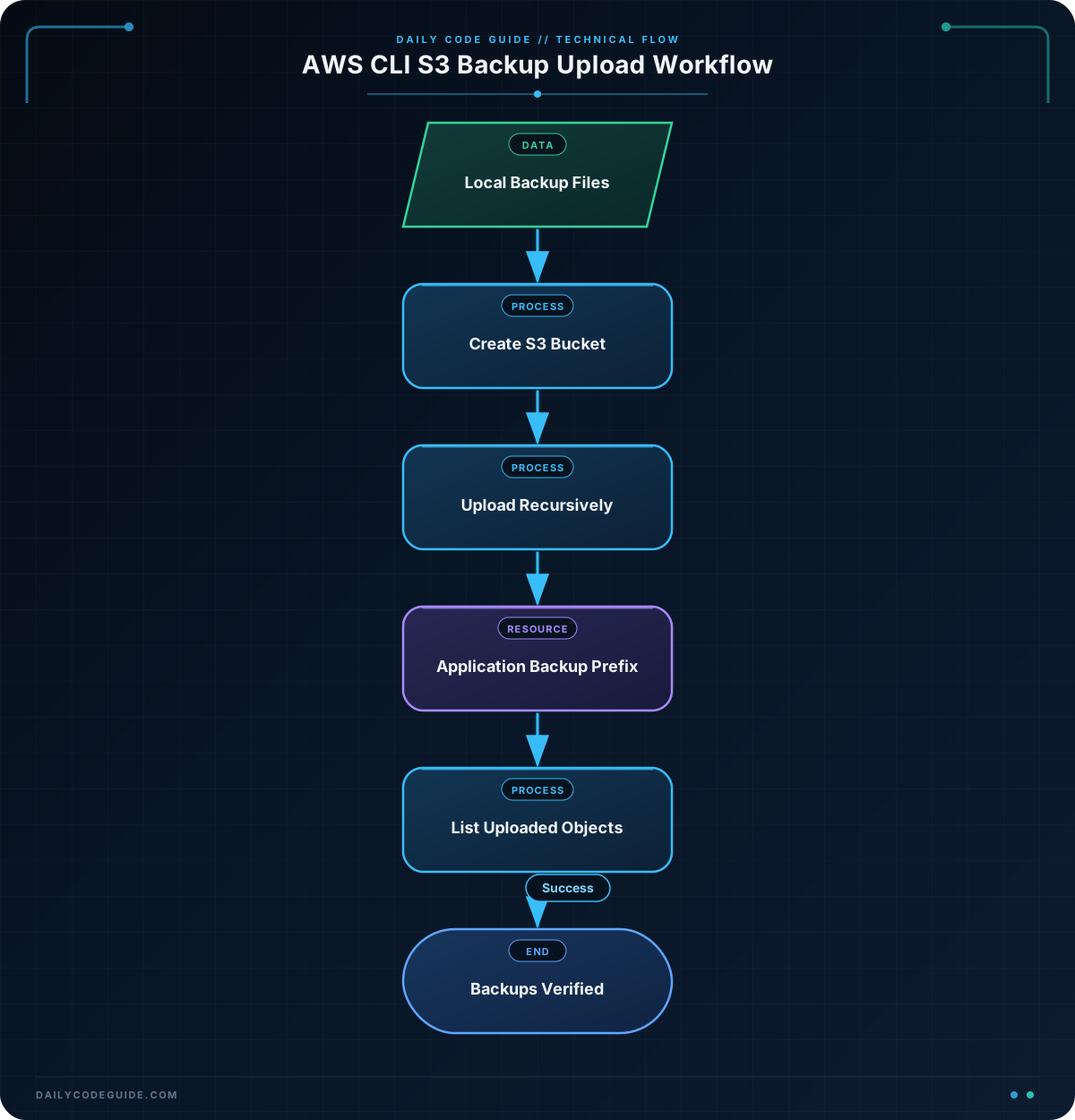
BACKUP_DIRstores the path to the local backup directory. The$HOMEvariable points to your home directory on most Linux and macOS systems.BUCKET_NAMEstores the name of the S3 bucket. S3 bucket names must be unique across AWS, not just within your account.AWS_REGIONidentifies the AWS Region where the bucket will be created.aws s3 mbmeans “make bucket.” The--regionoption chooses the bucket’s Region.aws s3 cpcopies files. The--recursiveoption tells the CLI to copy every file inside the local directory, including files in its subdirectories.- The destination ending in
application-backups/gives the uploaded objects an organized prefix. aws s3 lslists S3 buckets or objects. Supplying the prefix and--recursivedisplays all uploaded files below that path.
The slash after "$BACKUP_DIR/" means that the contents of the directory are copied. The directory name itself is not added as an extra level in the S3 path.
Another Example
A common backup routine keeps each backup set under a date-based prefix. This makes it easier to find files from a particular day. The following example uploads a local directory named daily-backup to a specific date and then lists only that day’s objects.
BUCKET_NAME="dcg-app-backups-replace-with-unique-name"
BACKUP_DATE="2026-05-18"
SOURCE_DIR="$HOME/daily-backup"
DESTINATION="s3://$BUCKET_NAME/application-backups/$BACKUP_DATE/"

aws s3 cp "$SOURCE_DIR/" "$DESTINATION" --recursive
aws s3 ls "$DESTINATION" --recursive
With this structure, a database file might have an S3 key such as application-backups/2026-05-18/database.sql.gz. On another day, you can use a different date value without mixing the new files with older backups.
The aws s3 sync command is another useful option when you repeatedly copy a directory. It compares the source and destination and generally transfers only new or changed files. For a first upload or a simple one-time copy, cp --recursive is often easier to understand.
Common Mistakes
- Using a bucket name that already exists: Bucket names are globally unique. If
aws s3 mbreports a naming conflict, choose a different name. - Forgetting
--recursive: Without this option,cpcannot copy all files from a directory as a group. - Confusing local and S3 paths: A local path such as
$HOME/app-backups/is different from an S3 URI such ass3://example-bucket/application-backups/. - Uploading to the wrong Region: Create the bucket in the Region you intend to use. You can check its location with
aws s3api get-bucket-location --bucket BUCKET_NAME. - Assuming an S3 folder must be created first: You do not need to create
application-backups/separately. The prefix is created as part of the object’s key when you upload a file. - Deleting without checking the path: Commands such as
aws s3 rm --recursivecan remove many objects. Always list the destination first and verify the bucket and prefix.
Try It Yourself
Create a bucket with your own unique name, then upload the contents of a local directory named weekly-backup under the prefix application-backups/weekly/. Finally, list the uploaded files recursively.
Use the command pattern from the examples, but choose your own bucket name and local directory path. Check the listing to confirm that every backup file was uploaded.
Challenge
Write AWS CLI commands that perform this small backup task:
- Use a bucket name stored in
BUCKET_NAME. - Use a local directory stored in
BACKUP_DIR. - Upload the directory contents to
application-backups/monthly/. - List the uploaded objects recursively.
Do not create a new bucket in the solution; assume the bucket already exists.
Solution
BUCKET_NAME="dcg-app-backups-replace-with-unique-name"
BACKUP_DIR="$HOME/monthly-backup"

aws s3 cp "$BACKUP_DIR/" "s3://$BUCKET_NAME/application-backups/monthly/" --recursive
aws s3 ls "s3://$BUCKET_NAME/application-backups/monthly/" --recursive
The first command copies every file under the local backup directory to the monthly S3 prefix. The second command lists that same prefix recursively, allowing you to verify the uploaded files.
Key Takeaways
aws s3 mbcreates an S3 bucket, and the bucket name must be globally unique.aws s3 cp --recursiveuploads all files in a local directory.aws s3 lshelps verify bucket contents and uploaded backup files.- S3 prefixes create useful folder-like organization for application backups.
- Always verify the bucket name and prefix before performing operations that could change or delete files.

