


What You’ll Learn
In this lesson, you will learn how to use the AWS CLI to start and stop EC2 development instances. You will target instances by ID, check their state, and wait for an operation to finish so you can reduce costs when development resources are not being used.
- Stop a running EC2 instance with aws ec2 stop-instances.
- Start a stopped EC2 instance with aws ec2 start-instances.
- Check an instance’s current state with describe-instances.
- Wait until an asynchronous start or stop operation completes.
The Concept
An EC2 instance is a virtual server running in AWS. A development instance does not need to run continuously, especially outside working hours. Stopping it can reduce compute charges while preserving the instance and its attached Amazon EBS volumes.
The AWS CLI identifies an EC2 instance with an instance ID such as i-0123456789abcdef0. The main commands are:
- stop-instances requests that a running instance shut down.
- start-instances requests that a stopped instance boot.
- describe-instances displays information, including the current state.
Starting and stopping are asynchronous operations. This means the command can return before the instance reaches its final state. For example, after requesting a stop, the instance may briefly be in the stopping state before becoming stopped. AWS CLI waiters let you pause until the expected state is reached.
These commands affect only the instance IDs you provide. Always verify the IDs and AWS Region before running them, particularly when working with shared or production accounts.
Basic Example
Suppose your development web server is no longer needed at the end of the day. The following Bash commands check its state, stop it, wait for the stop to finish, and then verify the final state.
INSTANCE_ID="i-0123456789abcdef0"
AWS_REGION="us-east-1"

aws ec2 describe-instances \
    --instance-ids "$INSTANCE_ID" \
    --region "$AWS_REGION" \
    --query 'Reservations[0].Instances[0].State.Name' \
    --output text

aws ec2 stop-instances \
    --instance-ids "$INSTANCE_ID" \
    --region "$AWS_REGION"

aws ec2 wait instance-stopped \
    --instance-ids "$INSTANCE_ID" \
    --region "$AWS_REGION"

aws ec2 describe-instances \
    --instance-ids "$INSTANCE_ID" \
    --region "$AWS_REGION" \
    --query 'Reservations[0].Instances[0].State.Name' \
    --output text
Expected Output
The first state check should show the instance’s current state, such as running. After the stop request and waiter finish, the final check should show stopped. The exact response from stop-instances includes timestamps and state codes that vary by instance.
running
{
    "StoppingInstances": [
        {
            "InstanceId": "i-0123456789abcdef0",
            "CurrentState": {
                "Code": 64,
                "Name": "stopping"
            },
            "PreviousState": {
                "Code": 16,
                "Name": "running"
            }
        }
    ]
}
stopped
How the Code Works
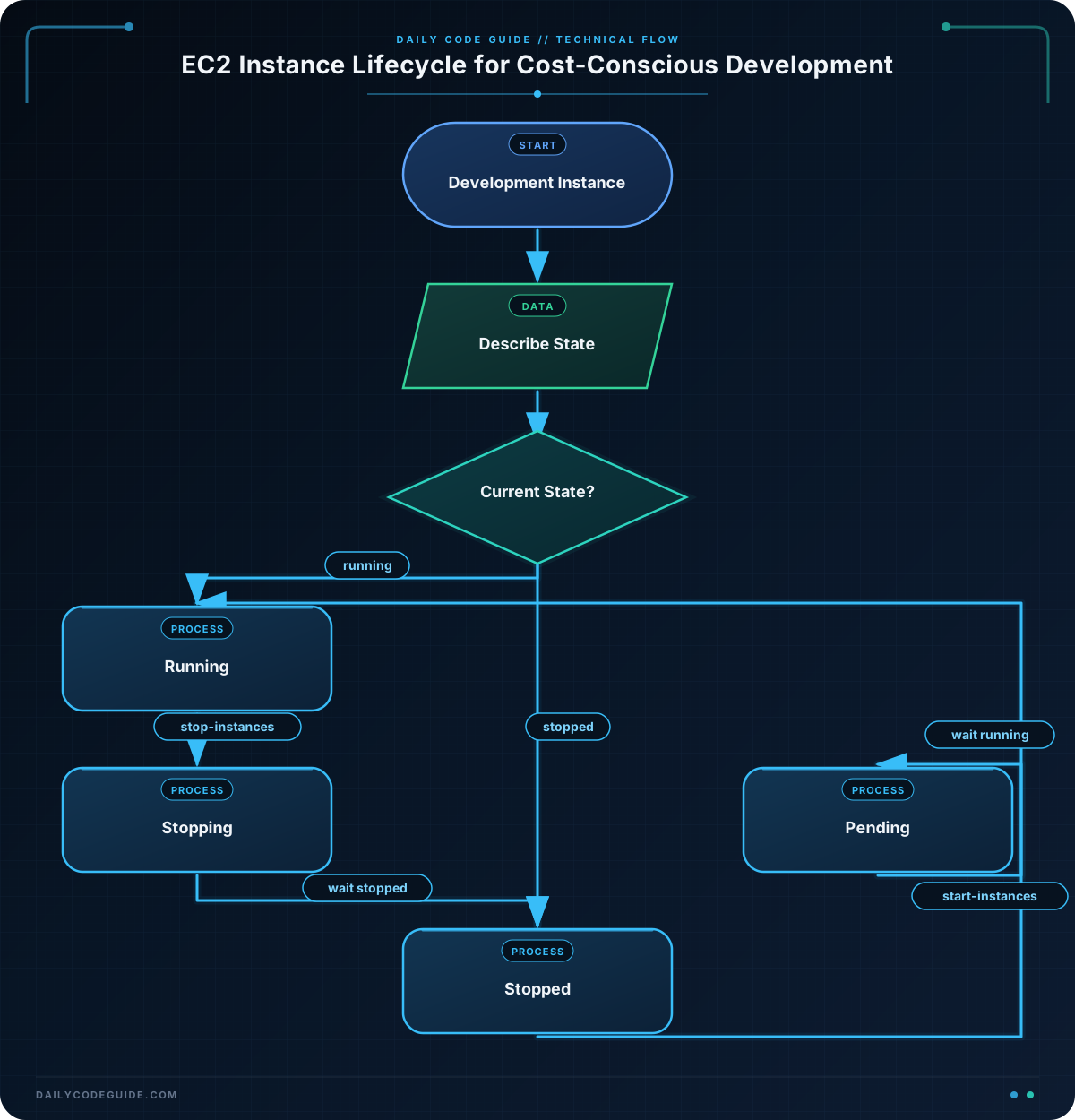
INSTANCE_ID stores the EC2 instance ID. Replace the sample value with the ID of your own development instance. AWS_REGION identifies the Region containing that instance. An instance ID in another Region will not be found when you use the wrong Region.
The first describe-instances command checks the instance. The –query option selects only the state name from the larger response, and –output text prints a simple value instead of formatted JSON.
stop-instances sends the stop request. It does not immediately guarantee that the instance is stopped, so wait instance-stopped checks AWS until the instance reaches the stopped state.
The final describe-instances command confirms the result. This confirmation is useful in scripts and when manually checking whether a development server is ready to be left powered off.
To start the same instance later, use start-instances followed by the instance-running waiter:
aws ec2 start-instances \
    --instance-ids "$INSTANCE_ID" \
    --region "$AWS_REGION"

aws ec2 wait instance-running \
    --instance-ids "$INSTANCE_ID" \
    --region "$AWS_REGION"

aws ec2 describe-instances \
    --instance-ids "$INSTANCE_ID" \
    --region "$AWS_REGION" \
    --query 'Reservations[0].Instances[0].State.Name' \
    --output text
When the waiter completes, the final state check should print running. The instance’s operating system and applications may still need additional time to finish their own startup tasks.
Another Example
You can target more than one development instance by supplying multiple instance IDs. This example stops two test servers at the end of a workday, waits for both to stop, and later starts both again.
AWS_REGION="us-east-1"
DEV_INSTANCE_IDS=("i-0123456789abcdef0" "i-0fedcba9876543210")

aws ec2 stop-instances \
    --instance-ids "${DEV_INSTANCE_IDS[@]}" \
    --region "$AWS_REGION"

aws ec2 wait instance-stopped \
    --instance-ids "${DEV_INSTANCE_IDS[@]}" \
    --region "$AWS_REGION"

aws ec2 describe-instances \
    --instance-ids "${DEV_INSTANCE_IDS[@]}" \
    --region "$AWS_REGION" \
    --query 'Reservations[].Instances[].[InstanceId,State.Name]' \
    --output table

aws ec2 start-instances \
    --instance-ids "${DEV_INSTANCE_IDS[@]}" \
    --region "$AWS_REGION"

aws ec2 wait instance-running \
    --instance-ids "${DEV_INSTANCE_IDS[@]}" \
    --region "$AWS_REGION"

aws ec2 describe-instances \
    --instance-ids "${DEV_INSTANCE_IDS[@]}" \
    --region "$AWS_REGION" \
    --query 'Reservations[].Instances[].[InstanceId,State.Name]' \
    --output table
The Bash array keeps the two IDs together, and “${DEV_INSTANCE_IDS[@]}” passes each ID as a separate argument. The table output makes it easy to see the state of both instances after each operation.
Common Mistakes
- Using the wrong Region: EC2 instance IDs are looked up in the Region supplied to the command. Check the Region in the AWS console or your CLI configuration.
- Using a name instead of an instance ID: The –instance-ids option expects IDs such as i-0123456789abcdef0, not a display name.
- Assuming the operation is immediate: Start and stop requests are asynchronous. Use aws ec2 wait instance-stopped or aws ec2 wait instance-running when the next step depends on the final state.
- Confusing stop with terminate: Stopping preserves the instance so it can be started again. Terminating permanently deletes the instance and is a different, destructive operation.
- Expecting every cost to disappear: Stopping usually removes running compute charges, but attached EBS volumes and other resources can still incur charges. Review the resources associated with the development environment.
- Forgetting that a public address may change: A stopped and restarted instance may receive a different public IPv4 address unless an Elastic IP or another stable addressing solution is used.
Try It Yourself
Choose one non-production development instance and complete these steps:
- Use describe-instances to print its current state.
- Stop the instance with stop-instances.
- Wait until it reaches the stopped state.
- Run another state check to confirm the result.
- Start the instance again and wait until it reaches the running state.
Use the correct Region and replace the sample instance ID. Do not test these commands against an instance that other people or applications are currently using.
Challenge
Create a Bash command sequence for two development instances that are usually turned off overnight. Your sequence should:
- Store the Region and both instance IDs in variables.
- Stop both instances.
- Wait until both instances are stopped.
- Display each instance ID and its final state in a table.
Do not start the instances in the challenge sequence; imagine that a separate morning command will start them later.
Solution
AWS_REGION="us-east-1"
OVERNIGHT_DEV_INSTANCES=("i-0123456789abcdef0" "i-0fedcba9876543210")

aws ec2 stop-instances \
    --instance-ids "${OVERNIGHT_DEV_INSTANCES[@]}" \
    --region "$AWS_REGION"

aws ec2 wait instance-stopped \
    --instance-ids "${OVERNIGHT_DEV_INSTANCES[@]}" \
    --region "$AWS_REGION"

aws ec2 describe-instances \
    --instance-ids "${OVERNIGHT_DEV_INSTANCES[@]}" \
    --region "$AWS_REGION" \
    --query 'Reservations[].Instances[].[InstanceId,State.Name]' \
    --output table
The array contains both development instance IDs, and Bash expands it into two separate values for the AWS CLI. The waiter ensures the final table is displayed only after AWS reports that both instances are stopped.
Key Takeaways
- stop-instances powers off EC2 instances without terminating them.
- start-instances boots an instance that is stopped.
- Use describe-instances to check an instance’s state.
- Use waiters when a script must wait for stopped or running.
- Stopping unused development instances can reduce compute costs, but related resources may still incur charges.

