


What You’ll Learn
In this lesson, you will learn how to create a Python virtual environment and install project-specific packages with pip. You will use these tools to prepare a small web application without adding its dependencies to every Python project on your computer.
- Understand what a virtual environment is and why it is useful.
- Create and activate a virtual environment.
- Install Flask with
pip. - Save installed packages in a
requirements.txtfile. - Run a small web application inside its isolated environment.
The Concept
A package is reusable Python code that you can install and import into your own programs. Flask, for example, is a package that helps you build web applications.
pip is Python’s package installer. You can use it to install packages from the Python Package Index, commonly called PyPI.
A virtual environment is a separate directory containing its own Python interpreter and installed packages. Instead of installing Flask globally, you can install it only for one project.
This isolation is useful because different projects may need different packages or package versions. For example, your web application can use Flask without changing the packages used by another project.
Virtual environments are usually created inside a project folder and commonly given the name .venv. The folder is normally added to .gitignore because it can be recreated from a dependency file.
Basic Example
First, create a folder for a small web application and move into it. Then create and activate a virtual environment. The following commands use a Bash-compatible terminal such as macOS/Linux Terminal or Git Bash on Windows.
mkdir cafe-menu
cd cafe-menu
python3 -m venv .venv
source .venv/bin/activate
python -m pip install Flask
python -m pip freeze > requirements.txt
On Windows PowerShell, activate the environment with this command instead:
.\.venv\Scripts\Activate.ps1After activation, create a file named app.py with this code:
from flask import Flask

app = Flask(__name__)


@app.route("/")
def menu():
    return "<h1>Today's Cafe Menu</h1><p>Tomato soup and fresh bread</p>"


if __name__ == "__main__":
    app.run()
Start the application while the virtual environment is active:
python app.pyExpected Output
Flask starts a local development server. The exact port can vary, but the default output normally includes a local address similar to this:
* Running on http://127.0.0.1:5000Open http://127.0.0.1:5000 in a browser to see the cafe menu.
How the Code Works
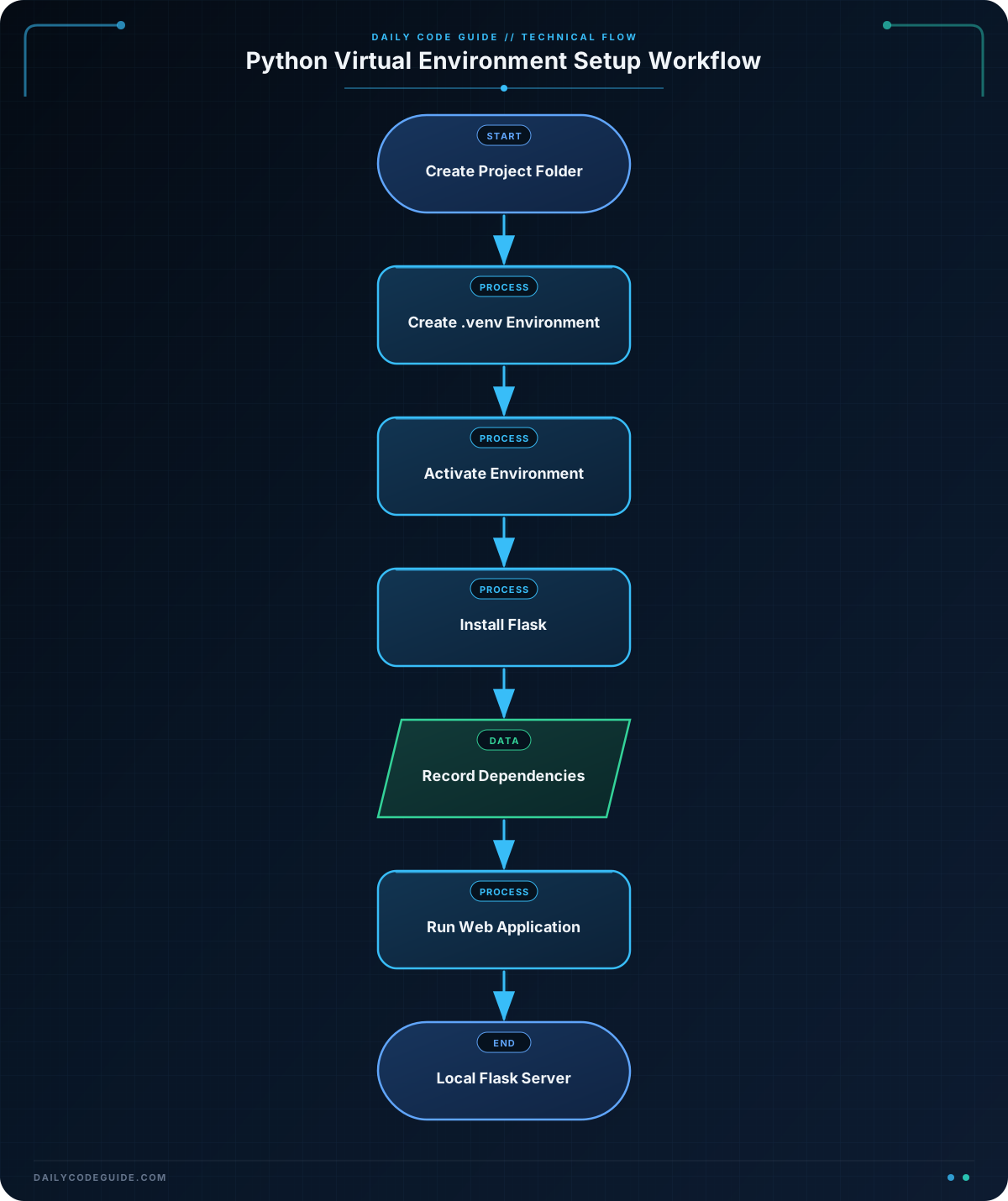
python3 -m venv .venvuses Python’s built-invenvmodule to create an environment in the.venvfolder. On some systems, the command is written aspython -m venv .venv.source .venv/bin/activateactivates the environment in a Bash-compatible terminal. Activation changes which Python andpipcommands your terminal uses.python -m pip install Flaskrunspipthrough the selected Python interpreter and installs Flask into the active environment. Usingpython -m piphelps ensure that the package is installed for the Python you are using.python -m pip freeze > requirements.txtwrites the installed packages and their versions torequirements.txt. The>character redirects command output into a file.from flask import Flaskimports the Flask class so the program can create a web application.app = Flask(__name__)creates the application object. Flask uses__name__to locate the current application.@app.route("/")connects the website’s root URL,/, to themenufunction.app.run()starts Flask’s local development server.
When you are finished working, you can leave the virtual environment with:
deactivateThe project files remain, but commands in that terminal no longer use the environment. Activate it again when you return to the project.
Another Example
A dependency file makes it easy for another developer, or another computer, to recreate the project’s environment. Suppose the cafe-menu project already contains requirements.txt. A new developer can create a fresh environment and install every listed package with -r:
cd cafe-menu
python3 -m venv .venv
source .venv/bin/activate
python -m pip install -r requirements.txt
python app.py
The -r requirements.txt option tells pip to read package names and versions from the file. This avoids manually installing Flask and helps keep the environment consistent with the original project.
If you add another package later, activate the environment, install the package, and update the dependency file:
python -m pip install python-dotenv
python -m pip freeze > requirements.txt
The package is now available to this project, and its exact installed version is recorded for future setup.
Common Mistakes
- Installing before activation: If the terminal prompt does not show something like
(.venv), you may install a package globally or into a different environment. Activate the environment before runningpip install. - Using the wrong activation command: Bash and PowerShell use different commands. Use
source .venv/bin/activatein Bash and.\.venv\Scripts\Activate.ps1in PowerShell. - Forgetting to create the environment: Activation cannot work until
python -m venv .venvhas successfully created the folder. - Committing
.venvto version control: The environment can be large and depends on the operating system. Sharerequirements.txtinstead. - Running the app after deactivating: Flask may no longer be available to that terminal. Activate the environment again before running
python app.py.
Try It Yourself
Extend the cafe application with a second route named /hours. It should display an <h1> heading saying Cafe Hours and a paragraph saying Open daily from 8 AM to 4 PM.
After adding the route, run the application and visit http://127.0.0.1:5000/hours in your browser.
Challenge
Create a new project folder named bakery-status and prepare it with a virtual environment.
- Create and activate a
.venvenvironment. - Install Flask inside the environment.
- Create an
app.pyfile. - Make the root route display
Bakery StatusandFresh bread is available.. - Create
requirements.txtwithpip freeze.
Solution
Run these setup commands in a Bash-compatible terminal:
mkdir bakery-status
cd bakery-status
python3 -m venv .venv
source .venv/bin/activate
python -m pip install Flask
Then save the following as app.py:
from flask import Flask

app = Flask(__name__)


@app.route("/")
def status():
    return "<h1>Bakery Status</h1><p>Fresh bread is available.</p>"


if __name__ == "__main__":
    app.run()
Finally, record the installed dependencies and start the application:
python -m pip freeze > requirements.txt
python app.py
The solution works because Flask is installed after the virtual environment is activated, so it belongs only to the bakery-status project. The root route returns the two required messages, and requirements.txt records the packages needed to recreate the environment.
Key Takeaways
- A virtual environment isolates a project’s Python interpreter and packages from other projects.
- Use
python -m venv .venvto create an environment and activate it before installing packages. - Use
python -m pip install package-nameto install a package into the active environment. - Use
python -m pip freeze > requirements.txtto record installed dependencies. - Use
python -m pip install -r requirements.txtto recreate an environment from its dependency file.

