


What You’ll Learn
In this lesson, you’ll learn how to use AWS CLI CloudFormation stack commands to create, inspect, update, monitor, and delete infrastructure stacks.
- Understand what a CloudFormation stack is.
- Create a stack from a local CloudFormation template.
- Check stack status and view resources.
- Update a stack by applying a changed template.
- Safely delete a stack when it is no longer needed.
The Concept
A CloudFormation stack is a collection of AWS resources managed as one unit. For example, a stack might contain an S3 bucket, an Amazon EC2 instance, or a database.
Instead of creating each resource manually, you describe the desired infrastructure in a CloudFormation template. The AWS CLI then sends commands to CloudFormation to create or change the resources defined in that template.
The most common stack commands are:
create-stack– creates a new stack and its resources.describe-stacks– displays information about a stack.describe-stack-events– shows recent creation, update, or deletion events.list-stack-resources– lists resources belonging to a stack.update-stack– changes a stack using an updated template.delete-stack– deletes the stack and resources CloudFormation manages for it.
CloudFormation operations are usually asynchronous. This means a command can start an operation while AWS continues working in the background. Commands such as aws cloudformation wait let you pause until an operation finishes.
Basic Example
Suppose you want CloudFormation to manage an S3 bucket for a small project. First, create a file named bucket-stack.yaml with this template:
AWSTemplateFormatVersion: "2010-09-09"
Description: A simple S3 bucket managed by CloudFormation

Resources:
  ProjectBucket:
    Type: AWS::S3::Bucket
Run the following commands from the directory containing the template. Replace us-east-1 with the AWS Region you want to use, if necessary.
STACK_NAME="guide-storage-stack"
REGION="us-east-1"

aws cloudformation create-stack \
  --stack-name "$STACK_NAME" \
  --template-body file://bucket-stack.yaml \
  --region "$REGION"

aws cloudformation wait stack-create-complete \
  --stack-name "$STACK_NAME" \
  --region "$REGION"

aws cloudformation describe-stacks \
  --stack-name "$STACK_NAME" \
  --region "$REGION" \
  --query "Stacks[0].{Name:StackName,Status:StackStatus}" \
  --output table

aws cloudformation list-stack-resources \
  --stack-name "$STACK_NAME" \
  --region "$REGION" \
  --query "StackResourceSummaries[].{LogicalId:LogicalResourceId,Type:ResourceType,Status:ResourceStatus}" \
  --output table
Expected Output
The stack ID and physical S3 bucket name are generated by AWS, so the exact output varies. After the wait command completes, the status should be CREATE_COMPLETE, and the resource list should contain the ProjectBucket logical resource.
--------------------------------
|       DescribeStacks        |
+--------+--------------------+
| Name   | guide-storage-stack|
| Status | CREATE_COMPLETE    |
+--------+--------------------+
To update the stack, change the template. For example, save the following as bucket-stack-updated.yaml:
AWSTemplateFormatVersion: "2010-09-09"
Description: A tagged S3 bucket managed by CloudFormation

Resources:
  ProjectBucket:
    Type: AWS::S3::Bucket
    Properties:
      Tags:
        - Key: Environment
          Value: development
Apply the changed template, wait for the update to finish, and then delete the stack when you no longer need it:
aws cloudformation update-stack \
  --stack-name "$STACK_NAME" \
  --template-body file://bucket-stack-updated.yaml \
  --region "$REGION"

aws cloudformation wait stack-update-complete \
  --stack-name "$STACK_NAME" \
  --region "$REGION"

aws cloudformation describe-stacks \
  --stack-name "$STACK_NAME" \
  --region "$REGION" \
  --query "Stacks[0].{Name:StackName,Status:StackStatus}" \
  --output table

aws cloudformation delete-stack \
  --stack-name "$STACK_NAME" \
  --region "$REGION"

aws cloudformation wait stack-delete-complete \
  --stack-name "$STACK_NAME" \
  --region "$REGION"
How the Code Works
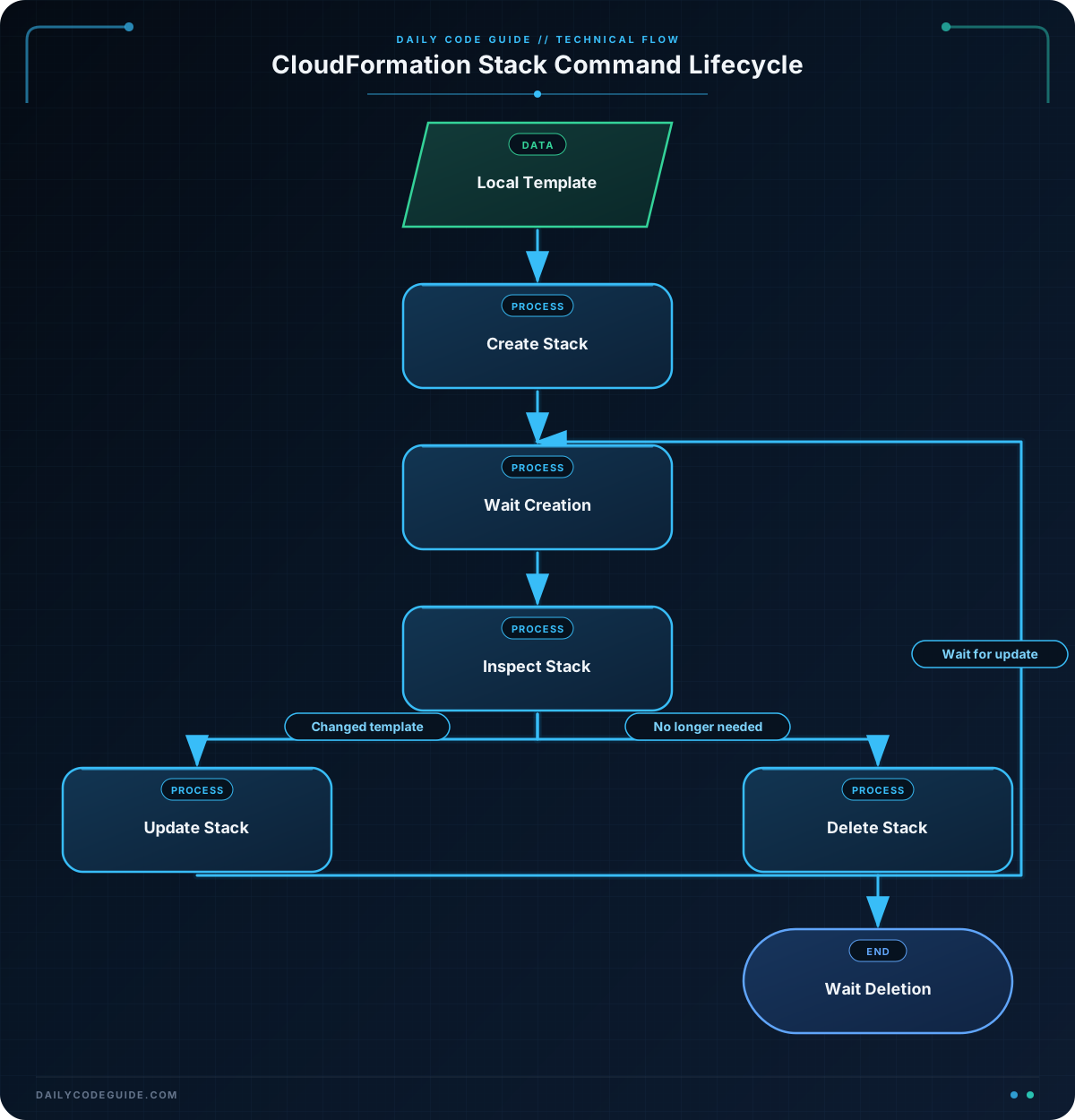
The shell variables make the commands easier to reuse. The STACK_NAME variable identifies the stack, while REGION selects the AWS Region where CloudFormation operates.
The file:// prefix tells the AWS CLI to read the template from a local file. Without this prefix, CloudFormation would expect a template body or URL in a different format.
The create-stack command starts stack creation. It returns before all resources necessarily finish creating, which is why the example then uses:
stack-create-completeto wait for creation.stack-update-completeto wait for an update.stack-delete-completeto wait for deletion.
The describe-stacks command returns stack details. The --query option selects only the stack name and status, while --output table formats the result for easier reading.
CloudFormation gives resources logical IDs inside the template. In this example, ProjectBucket is the logical ID. CloudFormation maps it to a physical S3 bucket that AWS creates.
The update template keeps the same logical ID and resource type but adds a tag. CloudFormation compares the new template with the existing stack and makes the required change.
Finally, delete-stack removes the stack and resources that it manages. An empty S3 bucket can be deleted automatically, but a bucket containing objects may prevent stack deletion until those objects are removed.
Another Example
When a stack operation does not behave as expected, inspect its events. Events show which resources are being created or changed and can reveal an error message.
STACK_NAME="guide-storage-stack"
REGION="us-east-1"

aws cloudformation describe-stacks \
  --stack-name "$STACK_NAME" \
  --region "$REGION" \
  --query "Stacks[0].StackStatus" \
  --output text

aws cloudformation describe-stack-events \
  --stack-name "$STACK_NAME" \
  --region "$REGION" \
  --query "StackEvents[0:10].{Time:Timestamp,LogicalId:LogicalResourceId,Status:ResourceStatus,Reason:ResourceStatusReason}" \
  --output table

aws cloudformation list-stack-resources \
  --stack-name "$STACK_NAME" \
  --region "$REGION" \
  --query "StackResourceSummaries[].{LogicalId:LogicalResourceId,PhysicalId:PhysicalResourceId,Status:ResourceStatus}" \
  --output table
The first command prints a status such as CREATE_COMPLETE or UPDATE_IN_PROGRESS. The second command displays recent stack events, including failure reasons when available. The third command connects template logical IDs with the physical resource IDs created in AWS.
Common Mistakes
- Using the wrong Region: A stack exists only in the Region where it was created. Use the same
--regionvalue when inspecting, updating, or deleting it. - Forgetting to wait: A successful
create-stackresponse means the operation started, not necessarily that it completed. Use the appropriateaws cloudformation waitcommand. - Using a missing template file: Confirm that the file exists in the current directory and that the path begins with
file://. - Trying to update an unchanged stack: CloudFormation may respond with
No updates are to be performedwhen the new template does not change the stack. - Deleting a nonempty S3 bucket: CloudFormation cannot usually delete an S3 bucket that still contains objects. Empty the bucket first, or use a separate cleanup process.
- Ignoring stack events: When a stack reaches a failure state, run
describe-stack-eventsto find the resource and reason for the failure.
Try It Yourself
Create a CloudFormation template named website-assets.yaml that defines an S3 bucket with the tag Purpose set to website-assets. Then create a stack named guide-website-assets, wait for it to reach CREATE_COMPLETE, and list its resources.
Use the Region where you normally practice. After checking the resource, delete the stack and wait for deletion to complete.
Challenge
Create and manage a stack named guide-logs-stack using a local template named logs-stack.yaml.
Your template must define an S3 bucket with a tag whose key is Purpose and whose value is application-logs. Then write AWS CLI commands that:
- Create the stack.
- Wait for creation to complete.
- Display the stack status.
- List the stack resources.
- Delete the stack.
- Wait for deletion to complete.
Solution
Save this CloudFormation template as logs-stack.yaml:
AWSTemplateFormatVersion: "2010-09-09"
Description: An S3 bucket for application logs

Resources:
  ApplicationLogsBucket:
    Type: AWS::S3::Bucket
    Properties:
      Tags:
        - Key: Purpose
          Value: application-logs
Then run these commands:
STACK_NAME="guide-logs-stack"
REGION="us-east-1"

aws cloudformation create-stack \
  --stack-name "$STACK_NAME" \
  --template-body file://logs-stack.yaml \
  --region "$REGION"

aws cloudformation wait stack-create-complete \
  --stack-name "$STACK_NAME" \
  --region "$REGION"

aws cloudformation describe-stacks \
  --stack-name "$STACK_NAME" \
  --region "$REGION" \
  --query "Stacks[0].{Name:StackName,Status:StackStatus}" \
  --output table

aws cloudformation list-stack-resources \
  --stack-name "$STACK_NAME" \
  --region "$REGION" \
  --query "StackResourceSummaries[].{LogicalId:LogicalResourceId,Type:ResourceType,Status:ResourceStatus}" \
  --output table

aws cloudformation delete-stack \
  --stack-name "$STACK_NAME" \
  --region "$REGION"

aws cloudformation wait stack-delete-complete \
  --stack-name "$STACK_NAME" \
  --region "$REGION"
The template creates one S3 bucket and assigns the required tag. The command sequence performs the complete lifecycle: create, monitor, inspect, delete, and confirm completion by waiting for the deletion operation.
Key Takeaways
- CloudFormation stacks let you manage related AWS resources as one unit.
- Use
create-stack,update-stack, anddelete-stackto manage the stack lifecycle. - Use
describe-stacks,describe-stack-events, andlist-stack-resourcesto inspect a stack. - CloudFormation operations are asynchronous, so waiters help you verify that an operation has completed.
- Always check the Region and review resource-specific deletion requirements before removing a stack.

