


What You’ll Learn
In this lesson, you will learn how to create reusable PowerShell functions and control their behavior with parameters. You will build system health checks that use configurable CPU, memory, and disk thresholds.
- Define and call a PowerShell function.
- Pass values into a function through parameters.
- Use parameter attributes such as
ValidateRangeandParameter. - Provide default parameter values.
- Return useful health-check results from a function.
The Concept
A function is a named group of PowerShell commands that you can run whenever you need it. Functions make scripts easier to reuse because you write the logic once and call it many times.
For example, instead of writing separate commands every time you want to check a computer’s health, you can create a function named Get-SystemHealthReport. The function can collect system information, compare it with limits, and return a report.
Parameters are named inputs for a function. They allow the same function to work with different values. A health check might accept a maximum CPU percentage or a minimum disk-space percentage as parameters.
PowerShell supports parameter attributes that add rules or behavior to parameters:
Parameter()can mark a parameter as mandatory.ValidateRange()can restrict a number to a safe range.- A value after a parameter declaration provides a default when the caller does not supply a value.
Basic Example
The following function checks the current computer’s CPU usage, memory usage, and available disk space. The threshold parameters have defaults, but the caller can provide different values when needed.
function Get-SystemHealthReport {
    [CmdletBinding()]
    param(
        [Parameter()]
        [ValidateRange(1, 99)]
        [int]$MaxCpuPercent = 80,

        [Parameter()]
        [ValidateRange(1, 99)]
        [int]$MaxMemoryPercent = 80,

        [Parameter()]
        [ValidateRange(1, 99)]
        [int]$MinFreeDiskPercent = 15
    )

    $processor = Get-CimInstance -ClassName Win32_Processor |
        Measure-Object -Property LoadPercentage -Average

    $operatingSystem = Get-CimInstance -ClassName Win32_OperatingSystem

    $disks = Get-CimInstance -ClassName Win32_LogicalDisk -Filter "DriveType=3"

    $cpuPercent = [math]::Round($processor.Average, 2)
    $memoryPercent = [math]::Round(
        (($operatingSystem.TotalVisibleMemorySize - $operatingSystem.FreePhysicalMemory) /
        $operatingSystem.TotalVisibleMemorySize) * 100,
        2
    )

    [pscustomobject]@{
        Check     = "CPU"
        Value     = "$cpuPercent%"
        Threshold = "Maximum $MaxCpuPercent%"
        Status    = if ($cpuPercent -le $MaxCpuPercent) { "Healthy" } else { "Warning" }
    }

    [pscustomobject]@{
        Check     = "Memory"
        Value     = "$memoryPercent%"
        Threshold = "Maximum $MaxMemoryPercent%"
        Status    = if ($memoryPercent -le $MaxMemoryPercent) { "Healthy" } else { "Warning" }
    }

    foreach ($disk in $disks) {
        $freeDiskPercent = [math]::Round(
            ($disk.FreeSpace / $disk.Size) * 100,
            2
        )

        [pscustomobject]@{
            Check     = "Disk $($disk.DeviceID)"
            Value     = "$freeDiskPercent% free"
            Threshold = "Minimum $MinFreeDiskPercent%"
            Status    = if ($freeDiskPercent -ge $MinFreeDiskPercent) { "Healthy" } else { "Warning" }
        }
    }
}

Get-SystemHealthReport
Expected Output
The exact values depend on the computer where you run the function. The result will contain one row for CPU, one for memory, and one for each local disk.
Check       Value          Threshold       Status
-----       -----          ---------       ------
CPU         24.5%          Maximum 80%     Healthy
Memory      61.2%          Maximum 80%     Healthy
Disk C:     42.8% free     Minimum 15%     Healthy
You can also call the function with custom thresholds:
Get-SystemHealthReport -MaxCpuPercent 60 -MaxMemoryPercent 70 -MinFreeDiskPercent 20How the Code Works
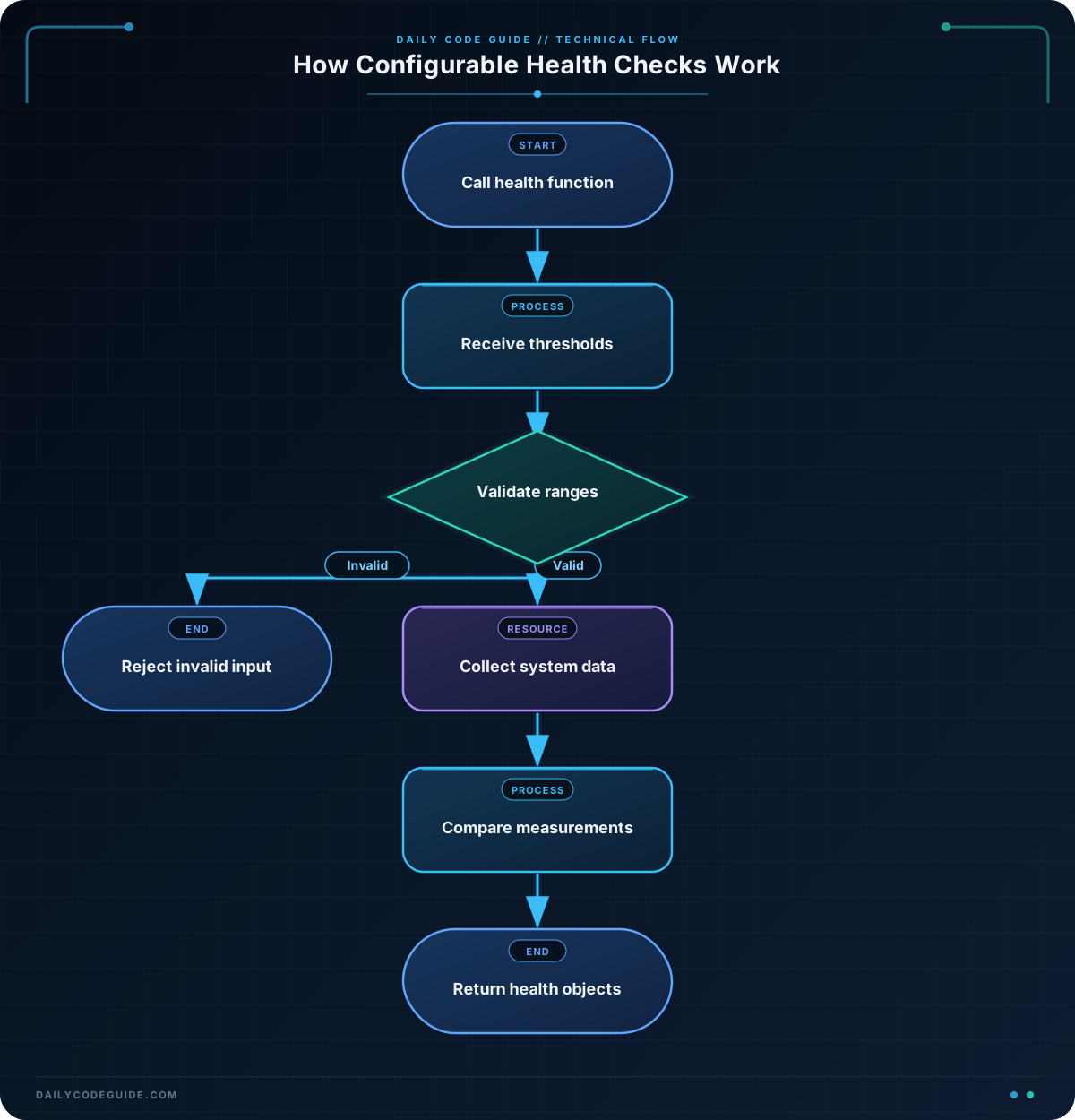
The function begins with the function keyword and a name. The commands between the braces are the function body.
[CmdletBinding()] gives the function some standard PowerShell command behavior. It is commonly used for functions that are intended to act like commands. The param block defines the function’s inputs.
Each threshold is declared as an integer with [int]. For example, this parameter accepts a whole number:
$MaxCpuPercentstores the maximum acceptable CPU percentage.= 80means the default is 80 when no value is supplied.[ValidateRange(1, 99)]prevents values below 1 or above 99.
The Get-CimInstance command reads information from Windows. Win32_Processor provides processor load, Win32_OperatingSystem provides memory information, and Win32_LogicalDisk provides disk information.
Measure-Object -Property LoadPercentage -Average calculates the average CPU load when the computer has more than one processor.
The memory values returned by Windows are measured in kilobytes. The calculation subtracts free memory from total memory, divides by total memory, and converts the result into a percentage.
The foreach loop checks every local disk. This is useful because a computer can have several fixed disks, and the function should report on all of them.
Each [pscustomobject] creates one result object. The Status property uses an if expression to compare the measured value with the parameter threshold. The function outputs these objects automatically, so PowerShell can display them in a table or send them to another command.
Another Example
Functions can also check a specific set of Windows services. This example accepts an array of service names, loops through them, and returns a result for each service. The Mandatory attribute requires the caller to provide at least one service name.
function Test-ServiceHealth {
    [CmdletBinding()]
    param(
        [Parameter(Mandatory = $true)]
        [string[]]$Name
    )

    foreach ($serviceName in $Name) {
        $service = Get-Service -Name $serviceName -ErrorAction SilentlyContinue

        if ($null -eq $service) {
            [pscustomobject]@{
                Service = $serviceName
                Status  = "Not found"
                Health  = "Warning"
            }

            continue
        }

        [pscustomobject]@{
            Service = $service.Name
            Status  = $service.Status
            Health  = if ($service.Status -eq "Running") { "Healthy" } else { "Warning" }
        }
    }
}

Test-ServiceHealth -Name @("Spooler", "wuauserv")
Here, [string[]] means the parameter can contain multiple text values. The caller passes an array with @(...). The function then checks every requested service instead of requiring a separate function call for each one.
Common Mistakes
Forgetting to call the function
Defining a function does not run it. The function must be called by writing its name, optionally followed by parameter values.
Get-SystemHealthReportUsing a parameter name that does not exist
Parameter names must match the names declared in the param block. For example, -MaxCpuPercent is valid for the first example, while an undeclared name such as -CpuLimit is not.
Passing a value outside a validation range
The ValidateRange(1, 99) attribute rejects values such as 0 or 100. This protects the function from thresholds that do not make sense as percentages.
Assuming every computer has the same disks
The disk results depend on the computer. The example discovers local disks at runtime rather than assuming that only the C: drive exists.
Try It Yourself
Call Get-SystemHealthReport with stricter limits than the defaults. Try a maximum CPU value of 50, a maximum memory value of 65, and a minimum free disk value of 25.
Then change one threshold at a time and observe how the Status values change. Remember that a warning means the measured value crossed the limit you supplied.
Challenge
Create a function named Get-FileSystemHealth that checks one or more file-system paths.
- Accept a mandatory
[string[]]$Pathparameter. - Accept a
[int]$MaxItemsparameter with a default of 1000. - Use
ValidateRange(1, 100000)for$MaxItems. - For each path, count the files in that path and its subdirectories.
- Return an object containing the path, file count, threshold, and either
HealthyorWarning. - If a path does not exist, return a warning with a file count of 0.
Solution
function Get-FileSystemHealth {
    [CmdletBinding()]
    param(
        [Parameter(Mandatory = $true)]
        [string[]]$Path,

        [Parameter()]
        [ValidateRange(1, 100000)]
        [int]$MaxItems = 1000
    )

    foreach ($currentPath in $Path) {
        if (-not (Test-Path -Path $currentPath -PathType Container)) {
            [pscustomobject]@{
                Path      = $currentPath
                FileCount = 0
                Threshold = "Maximum $MaxItems files"
                Status    = "Warning"
            }

            continue
        }

        $fileCount = @(Get-ChildItem -Path $currentPath -File -Recurse -ErrorAction SilentlyContinue).Count

        [pscustomobject]@{
            Path      = $currentPath
            FileCount = $fileCount
            Threshold = "Maximum $MaxItems files"
            Status    = if ($fileCount -le $MaxItems) { "Healthy" } else { "Warning" }
        }
    }
}

Get-FileSystemHealth -Path @("C:\Windows\Temp", "C:\Users") -MaxItems 5000
The function uses the mandatory path array in a foreach loop. Test-Path checks whether each item is an existing directory. For valid directories, Get-ChildItem finds files recursively, and the resulting count is compared with $MaxItems. The parameter default and validation rule make the function safe to call without always specifying a threshold.
Key Takeaways
- A PowerShell function packages reusable commands behind a name.
- Parameters let callers customize a function without changing its code.
- Default values provide convenient behavior when no argument is supplied.
- Parameter attributes can require values and validate user input.
- Functions can return structured objects that are easy to display, filter, or save.

