


What You’ll Learn
PowerShell commands usually return objects rather than plain text. In this lesson, you will learn how to inspect those objects and use Select-Object to display only the properties that are useful to you.
- Understand what object properties are.
- Inspect available properties with Get-Member.
- Use Select-Object to choose specific fields.
- Rename properties and create a calculated property.
- Build cleaner reports from service and computer information.
The Concept
An object is a value that contains both data and information about that data. For example, a service object returned by Get-Service can contain properties such as Name, Status, and DisplayName.
A property is a named piece of information stored on an object. You can view the properties available on an object by piping it to Get-Member:
Get-Service | Get-Member -MemberType PropertiesThe pipe character (|) sends the objects produced by one command to the next command.
Commands often return more properties than you need. Select-Object creates a new object containing only the properties you request. This is useful when you want to:
- Make command output easier to read.
- Create a small report.
- Prepare data for export.
- Give a property a clearer name.
- Calculate a new value from existing properties.
Basic Example
The following example selects three useful fields from the services installed on the computer. It also creates a friendlier status label called ServiceState.
$serviceReport = Get-Service |
    Select-Object -Property Name, DisplayName, @{
        Name = "ServiceState"
        Expression = {
            if ($_.Status -eq "Running") {
                "Online"
            }
            else {
                "Not running"
            }
        }
    }

$serviceReport | Format-Table -AutoSize
Expected Output
The exact services and statuses depend on the computer where you run the command. The output will have these three columns:
Name        DisplayName                         ServiceState
----        -----------                         ------------
Spooler     Print Spooler                       Online
W32Time     Windows Time                        Not running
WinDefend   Microsoft Defender Antivirus       Online
How the Code Works
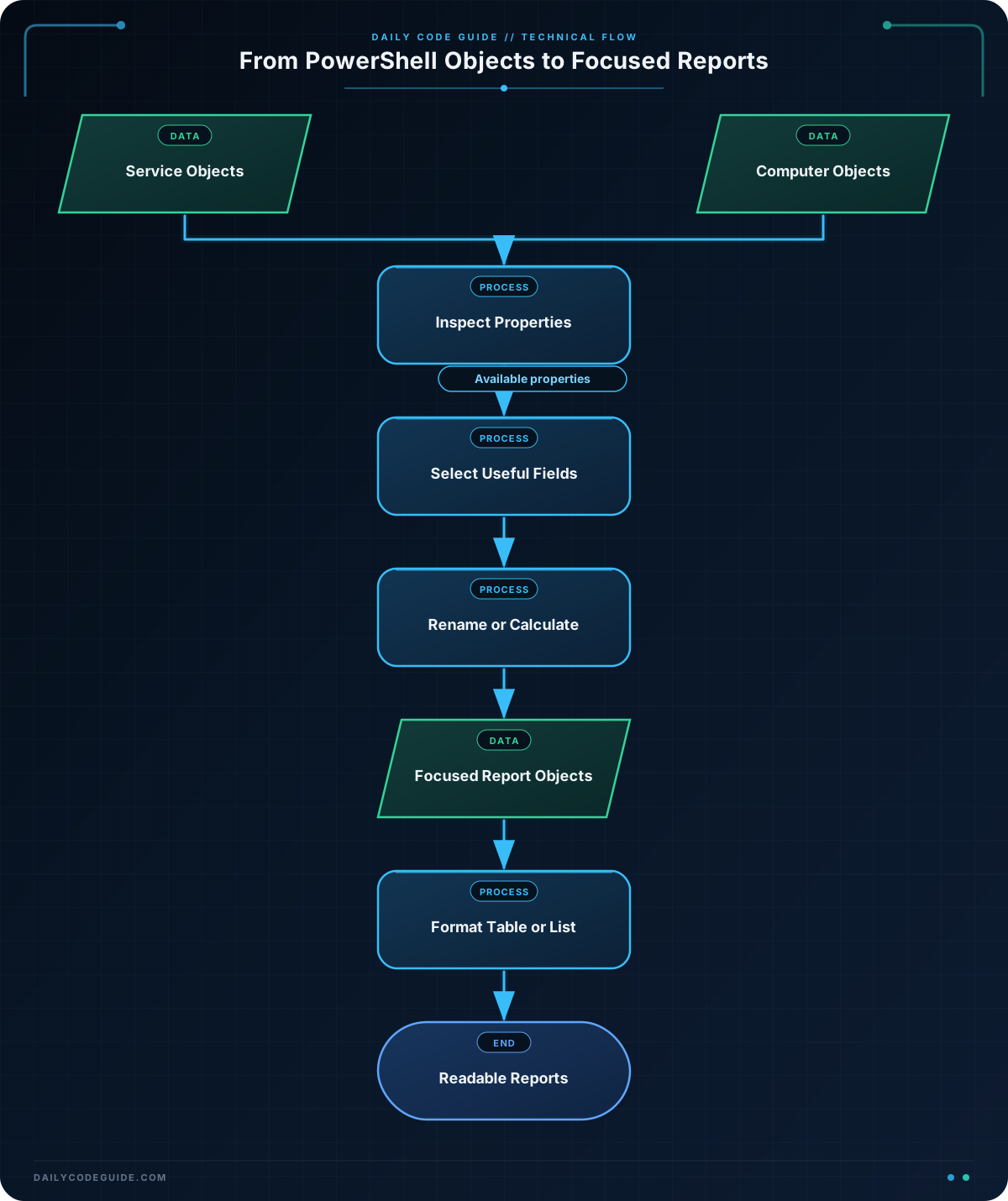
Get-Service retrieves service objects. Each object contains many properties, but this example uses only the fields needed for a short report.
The Select-Object -Property parameter accepts a comma-separated list of property names:
Select-Object -Property Name, DisplayNameThe first two selected properties, Name and DisplayName, are copied from each service object.
The third item is a calculated property. It uses a hashtable with two keys:
- Name sets the name of the new property.
- Expression contains a script block that calculates its value.
Inside the expression, $_ represents the current service object. Therefore, $_.Status reads the status of that service. The if statement changes the original status into a simpler label.
Format-Table -AutoSize controls how the result is displayed in the console. It does not change which properties the objects contain. Select-Object shapes the objects; Format-Table controls their presentation.
Another Example
You can also select and rename properties from computer information. The following command creates a compact summary of the current computer.
$computerSummary = Get-ComputerInfo |
    Select-Object -Property @{
        Name = "ComputerName"
        Expression = { $_.CsName }
    }, @{
        Name = "OperatingSystem"
        Expression = { $_.OsName }
    }, @{
        Name = "OperatingSystemVersion"
        Expression = { $_.OsVersion }
    }, @{
        Name = "LastBootTime"
        Expression = { $_.CsLastBootupTime }
    }

$computerSummary | Format-List
The original properties have names such as CsName and OsName. The calculated property syntax lets you expose the same values with clearer names such as ComputerName and OperatingSystem.
Get-ComputerInfo is available on Windows PowerShell and PowerShell installations that include the command. The exact values depend on the computer, and some properties can be empty on a particular system.
Common Mistakes
Requesting a property that does not exist
If you select a misspelled property name, PowerShell may produce an empty value. Check the available properties first:
Get-ComputerInfo | Get-Member -MemberType PropertiesUsing a property name as if it were a command
Property names are accessed through an object. For example, $service.Status reads a property from a service stored in $service. You do not need to call a separate command named Status.
Confusing Select-Object with Format-Table
Select-Object creates objects with selected properties. Format-Table is mainly for final screen display. If you plan to save, filter, or further process the results, use Select-Object before formatting.
Forgetting that service names vary
Services differ between Windows editions and installed applications. Avoid assuming that a particular service exists unless you check first. Using Get-Service without a specific name is useful for a general inventory.
Try It Yourself
Create a service report that displays only the service name and display name. Then add a calculated property named IsRunning that contains True when the service status is Running and False otherwise.
Use Format-Table -AutoSize to make the output easier to read.
Challenge
Create a compact computer information report with these requirements:
- Use Get-ComputerInfo.
- Select the computer name, operating system name, and last boot time.
- Rename the selected properties to ComputerName, OperatingSystem, and LastBootTime.
- Add a calculated property named DaysSinceBoot.
- Calculate DaysSinceBoot by subtracting the last boot time from Get-Date.
- Display the result with Format-List.
Solution
$computerReport = Get-ComputerInfo |
    Select-Object -Property @{
        Name = "ComputerName"
        Expression = { $_.CsName }
    }, @{
        Name = "OperatingSystem"
        Expression = { $_.OsName }
    }, @{
        Name = "LastBootTime"
        Expression = { $_.CsLastBootupTime }
    }, @{
        Name = "DaysSinceBoot"
        Expression = {
            (Get-Date) - $_.CsLastBootupTime
        }
    }

$computerReport | Format-List
The final calculated property subtracts the computer’s last boot time from the current date and time. PowerShell returns a TimeSpan value, which includes the number of days and smaller time units. The exact result depends on when you run the command.
Key Takeaways
- PowerShell commands commonly return objects with named properties.
- Use Get-Member to inspect the properties available on an object.
- Use Select-Object to choose only the fields you need.
- Calculated properties can rename values or create new values from existing data.
- Use formatting commands such as Format-Table or Format-List after shaping the data.

