


What You’ll Learn
In this lesson, you will learn how to collect information from a person running a Bash script by using the read builtin. You will also learn how to validate simple answers and hide sensitive input such as a deployment token.
- Store interactive input in Bash variables.
- Use
read -r,read -p, andread -s. - Check whether the user entered an acceptable deployment environment.
- Confirm deployment settings without displaying a secret.
The Concept
The Bash read command pauses a script and waits for the user to type a line. After the user presses Enter, Bash stores the line in a variable.
The simplest form is:
read -r variable_nameThe -r option tells Bash to treat backslashes as ordinary characters. It is a good default when reading text because the user’s input is stored more literally.
You can display a prompt with -p:
read -r -p "Enter the environment: " environmentFor sensitive values, use -s. Silent mode prevents the characters from appearing on the screen while the user types. This is useful for passwords, tokens, and other secrets.
read -r -s -p "Enter the deployment token: " deploy_token
printf '\n'
The printf command moves the cursor to a new line after the hidden input. It does not print the token.
Basic Example
This script collects an environment, a release version, and a deployment token. It allows only staging or production as the environment, then asks the user to approve the settings.
#!/usr/bin/env bash

printf '%s\n' 'Deployment settings'

read -r -p "Environment (staging/production): " environment

if [[ "$environment" != "staging" && "$environment" != "production" ]]; then
    printf 'Invalid environment: %s\n' "$environment"
    exit 1
fi

read -r -p "Release version: " release_version

if [[ -z "$release_version" ]]; then
    echo "Release version cannot be empty."
    exit 1
fi

read -r -s -p "Deployment token: " deploy_token
printf '\n'

printf '\nEnvironment: %s\n' "$environment"
printf 'Release version: %s\n' "$release_version"
read -r -p "Type yes to continue: " confirmation

if [[ "$confirmation" == "yes" ]]; then
    echo "Deployment settings approved."
else
    echo "Deployment cancelled."
fi

unset deploy_token
Expected Output
The token is not shown as the user types. A possible run using staging might look like this:
Deployment settings
Environment (staging/production): staging
Release version: 2.4.0
Deployment token:
Environment: staging
Release version: 2.4.0
Type yes to continue: yes
Deployment settings approved.
How the Code Works
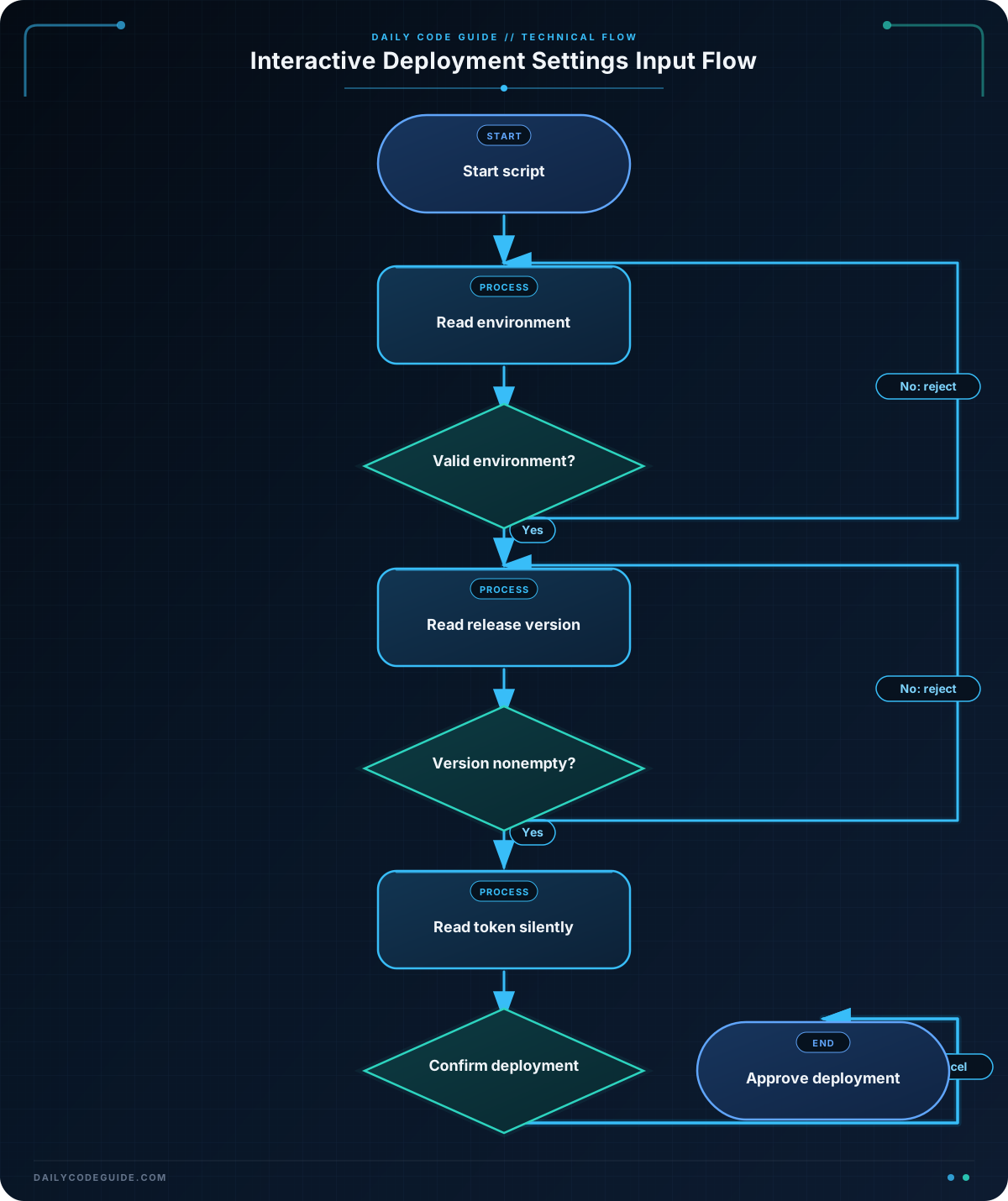
read -r -p ... environment: Displays a prompt and stores the response in the environment variable. The variable can then be used with "$environment".
The environment check: The if statement rejects any value other than staging or production. The && operator means both comparisons must be true for the invalid-input message to run.
[[ -z "$release_version" ]]: The -z test checks whether the value has zero characters. A deployment should not proceed without a release version.
read -r -s ... deploy_token: Reads the token silently. The token is available in the variable while the script runs, but the script never prints it.
exit 1: Stops the script and reports failure when input is invalid. This prevents later deployment commands from running with bad settings.
unset deploy_token: Removes the token variable after it is no longer needed. This does not guarantee that every trace of a secret is erased from memory, but it is a useful basic cleanup step.
Always place double quotes around variables when using them, as in "$environment". Quoting helps preserve spaces and prevents the shell from interpreting parts of the input unexpectedly.
Another Example
A deployment script might also ask whether to create a backup before releasing. This example accepts only yes or no, then collects a short maintenance message.
#!/usr/bin/env bash

printf '%s\n' 'Release preparation'

read -r -p "Create a database backup first? (yes/no): " backup_choice

if [[ "$backup_choice" != "yes" && "$backup_choice" != "no" ]]; then
    echo "Please answer yes or no."
    exit 1
fi

read -r -p "Maintenance message: " maintenance_message

if [[ -z "$maintenance_message" ]]; then
    echo "A maintenance message is required."
    exit 1
fi

printf '\nBackup requested: %s\n' "$backup_choice"
printf 'Maintenance message: %s\n' "$maintenance_message"

read -r -p "Type APPLY to save these settings: " final_confirmation

if [[ "$final_confirmation" == "APPLY" ]]; then
    echo "Release preparation settings saved."
else
    echo "No settings were saved."
fi
Common Mistakes
- Forgetting the variable name:
read -r -p "Environment: "reads input but does not store it in a useful variable. Add a name such asenvironment. - Printing a secret: Do not use
echo "$deploy_token"for debugging. Useread -sand avoid displaying the variable. - Forgetting
-r: Without-r, backslashes in input can be treated specially. Useread -rfor ordinary text input. - Skipping validation: A value from
readis just text. Check it before using it in a deployment command. - Not quoting variables: Use
"$variable"in tests and output instead of relying on unquoted expansion.
Try It Yourself
Write a Bash script that asks for a deployment region and a service name. The script should:
- Accept only
us-eastoreu-westas the region. - Reject an empty service name.
- Print the accepted region and service name.
Use read -r -p for both prompts and an if statement for each validation.
Challenge
Create an interactive deployment approval script with these requirements:
- Ask for an environment and accept only
stagingorproduction. - Ask for a release version and reject an empty answer.
- Ask for a deployment token without showing it on screen.
- Display the environment and release version, but never display the token.
- Proceed only when the user types
DEPLOYexactly. - Remove the token variable before the script exits.
Solution
#!/usr/bin/env bash

printf '%s\n' 'Deployment approval'

read -r -p "Environment (staging/production): " environment

if [[ "$environment" != "staging" && "$environment" != "production" ]]; then
    echo "Invalid environment."
    exit 1
fi

read -r -p "Release version: " release_version

if [[ -z "$release_version" ]]; then
    echo "Release version cannot be empty."
    exit 1
fi

read -r -s -p "Deployment token: " deploy_token
printf '\n'

printf '\nEnvironment: %s\n' "$environment"
printf 'Release version: %s\n' "$release_version"

read -r -p "Type DEPLOY to continue: " approval

if [[ "$approval" == "DEPLOY" ]]; then
    echo "Deployment approved."
else
    echo "Deployment cancelled."
fi

unset deploy_token
The solution uses read -r -p for normal settings and read -r -s -p for the secret. The validation checks stop the script before approval when required input is invalid. The token is never included in output, and unset removes it after the decision is made.
Key Takeaways
readpauses a Bash script and stores user input in a variable.- Use
read -rfor ordinary text input. - Use
-pto display a prompt and-sto hide sensitive input. - Validate input before using it in deployment or other important commands.
- Quote variables and remove sensitive values with
unsetwhen they are no longer needed.

