


What You’ll Learn
In this lesson, you will learn how to use PowerShell’s Where-Object cmdlet to keep only the objects that match a condition. This is useful when administrative commands return many results and you need to find a smaller group, such as stopped services or computers that have not checked in recently.
- Understand how Where-Object filters objects in a pipeline.
- Use
$_to refer to the current object. - Compare object properties with operators such as
-eqand-lt. - Filter administrative data by service status or computer activity date.
The Concept
PowerShell commands often return objects, not just lines of text. An object contains properties that describe it. For example, a service object might have properties named Name, Status, and StartType.
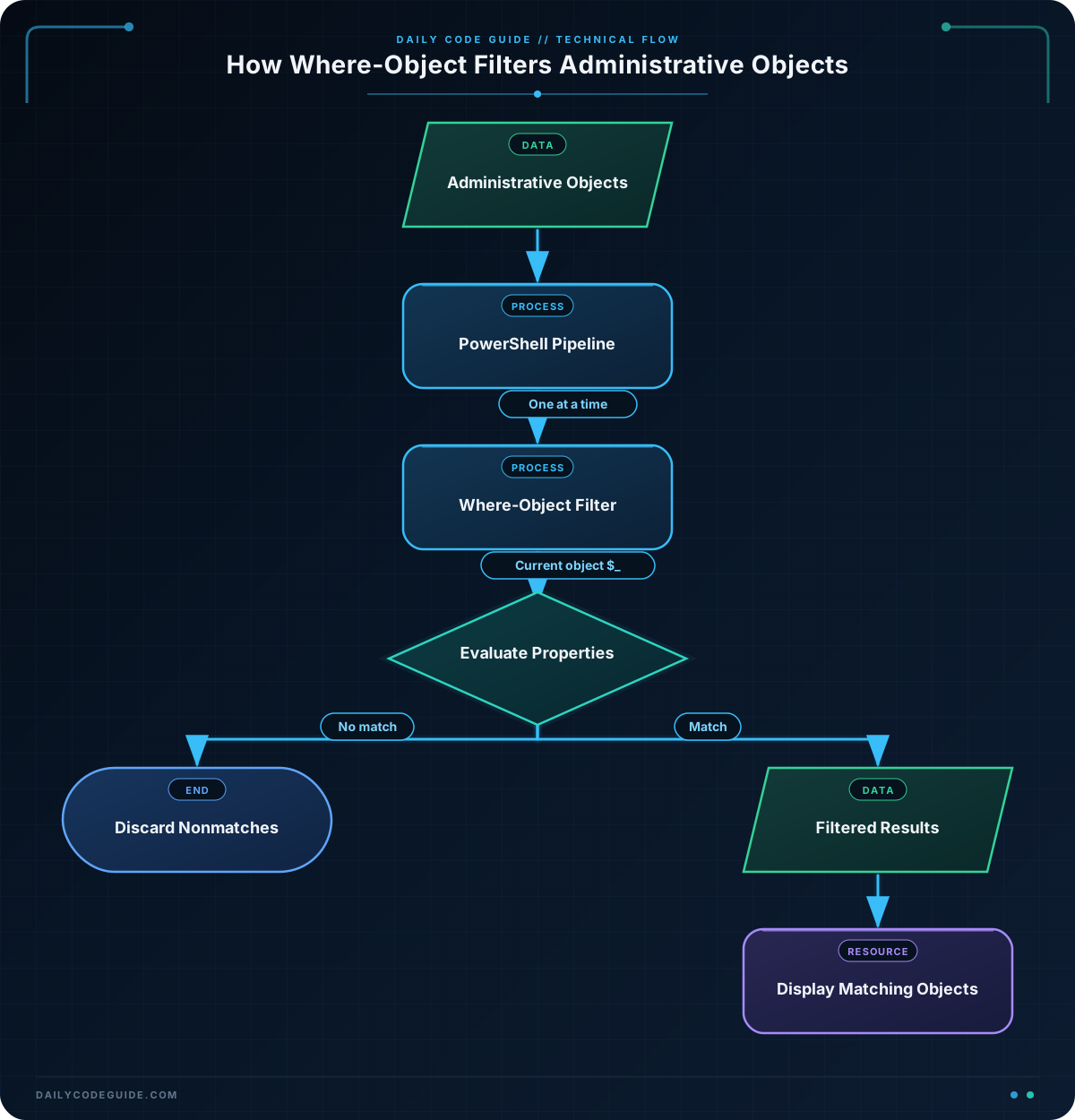
Where-Object examines objects in a pipeline and keeps only the objects whose properties match a condition.
The basic syntax is:
$items | Where-Object { $_.Property -eq "Value" }Inside the script block, $_ represents the object currently being examined. The dot notation accesses one of that object’s properties. In the example above, $_.Property means “the Property value of the current object.”
PowerShell uses comparison operators such as these:
-eq: equal to-ne: not equal to-lt: less than-gt: greater than-and: requires two conditions to be true
You can use Where-Object with real administrative commands, such as filtering the results of Get-Service, or with data collected from another command, file, or management system.
Basic Example
The following example represents service information returned by an administrative command. It filters the objects so that only stopped services remain.
$services = @(
    [PSCustomObject]@{
        Name = "Spooler"
        Status = "Running"
        StartType = "Automatic"
    }
    [PSCustomObject]@{
        Name = "LegacyBackup"
        Status = "Stopped"
        StartType = "Automatic"
    }
    [PSCustomObject]@{
        Name = "FileSync"
        Status = "Stopped"
        StartType = "Manual"
    }
)

$failedServices = $services | Where-Object {
    $_.Status -eq "Stopped"
}

$failedServices | ForEach-Object {
    "$($_.Name): $($_.Status)"
}
Expected Output
LegacyBackup: Stopped
FileSync: Stopped
How the Code Works
The first statement creates an array named $services. Each item is a custom PowerShell object with three properties:
Nameidentifies the service.Statusdescribes whether the service is running or stopped.StartTypedescribes how the service is configured to start.
This pipeline performs the filtering:
$failedServices = $services | Where-Object {
    $_.Status -eq "Stopped"
}
PowerShell sends each service object through Where-Object one at a time. For each object, the expression checks whether its Status property is equal to "Stopped".
For the Spooler object, the condition is false, so that object is discarded. For LegacyBackup and FileSync, the condition is true, so those objects are stored in $failedServices.
The final pipeline formats each remaining object as a readable line. The filtering itself has already happened; this last step only controls how the results are displayed.
With actual service data, the same idea could be applied directly to the output of Get-Service:
$stoppedServices = Get-Service | Where-Object {
    $_.Status -eq "Stopped"
}
Another Example
Administrative reports often contain a LastSeen property for each computer. A computer is potentially stale when its last check-in date is earlier than a chosen cutoff date.
$computers = @(
    [PSCustomObject]@{
        ComputerName = "FIN-015"
        LastSeen = [datetime]"2025-02-12"
        Owner = "Finance"
    }
    [PSCustomObject]@{
        ComputerName = "HR-004"
        LastSeen = [datetime]"2024-11-18"
        Owner = "Human Resources"
    }
    [PSCustomObject]@{
        ComputerName = "ENG-022"
        LastSeen = [datetime]"2025-03-01"
        Owner = "Engineering"
    }
)

$cutoffDate = [datetime]"2025-01-01"

$staleComputers = $computers | Where-Object {
    $_.LastSeen -lt $cutoffDate
}

$staleComputers | ForEach-Object {
    "$($_.ComputerName) last checked in on $($_.LastSeen.ToString("yyyy-MM-dd"))"
}
Here, -lt means “less than.” The filter keeps computers whose LastSeen date is earlier than $cutoffDate.
Common Mistakes
Using an assignment operator instead of a comparison operator
Use -eq when you want to compare a property with a value. Do not use = for this purpose.
$services | Where-Object {
    $_.Status -eq "Stopped"
}
Forgetting the current-object variable
Inside the Where-Object script block, $_ refers to the object currently being tested. A property name by itself does not tell PowerShell which object should be examined.
Filtering the wrong property
Check the properties returned by a command before writing a filter. You can inspect them by piping results to Get-Member or by displaying a few objects. A filter for Status will not work if the command returns a differently named property such as State.
Expecting results when no objects match
If no objects satisfy the condition, Where-Object returns no objects. This is not necessarily an error; it may simply mean that there are no stopped services or stale computers in the data.
Try It Yourself
Use the following administrative records to find computers that have an Active status. Store the matching objects in a variable named $activeComputers, then display their computer names.
$computerRecords = @(
    [PSCustomObject]@{
        ComputerName = "SALES-101"
        Status = "Active"
    }
    [PSCustomObject]@{
        ComputerName = "SALES-102"
        Status = "Retired"
    }
    [PSCustomObject]@{
        ComputerName = "SALES-103"
        Status = "Active"
    }
)
Challenge
Find computers that meet both of these administrative conditions:
- The computer runs Windows 10.
- Its last check-in occurred before January 1, 2025.
Store the matching objects in $outdatedWindows10Computers and display each computer name with its last check-in date. Use Where-Object and the -and operator.
Solution
$computerInventory = @(
    [PSCustomObject]@{
        ComputerName = "ACCT-007"
        OperatingSystem = "Windows 10"
        LastSeen = [datetime]"2024-12-15"
    }
    [PSCustomObject]@{
        ComputerName = "ACCT-008"
        OperatingSystem = "Windows 11"
        LastSeen = [datetime]"2024-10-20"
    }
    [PSCustomObject]@{
        ComputerName = "ACCT-009"
        OperatingSystem = "Windows 10"
        LastSeen = [datetime]"2025-02-04"
    }
    [PSCustomObject]@{
        ComputerName = "ACCT-010"
        OperatingSystem = "Windows 10"
        LastSeen = [datetime]"2024-08-30"
    }
)

$cutoffDate = [datetime]"2025-01-01"

$outdatedWindows10Computers = $computerInventory | Where-Object {
    $_.OperatingSystem -eq "Windows 10" -and
    $_.LastSeen -lt $cutoffDate
}

$outdatedWindows10Computers | ForEach-Object {
    "$($_.ComputerName): $($_.LastSeen.ToString("yyyy-MM-dd"))"
}
ACCT-007: 2024-12-15
ACCT-010: 2024-08-30The filter keeps an object only when both conditions are true. ACCT-008 is too old but runs Windows 11, while ACCT-009 runs Windows 10 but checked in after the cutoff date. Therefore, neither one appears in the results.
Key Takeaways
- Where-Object filters objects that travel through a PowerShell pipeline.
- Use
$_to refer to the object currently being tested. - Access a property with dot notation, such as
$_.Statusor$_.LastSeen. - Use comparison operators such as
-eqand-ltto define the filter. - Use
-andwhen an object must satisfy multiple conditions.

