


What You’ll Learn
In this lesson, you’ll learn how to use Bash command substitution to run a command and place its output inside another command or variable. This is useful for creating dynamic filenames and automating backup tasks.
- Use the modern
$(command)syntax. - Recognize the older backtick syntax.
- Store command output in a Bash variable.
- Use dates and command output in backup filenames.
The Concept
Command substitution means running a command and replacing that command with its output. Bash does this before it runs the surrounding command.
The recommended syntax is $(command):
current_date=$(date +%Y-%m-%d)Here, Bash runs date +%Y-%m-%d. If the command outputs 2026-08-18, the assignment becomes similar to:
current_date="2026-08-18"The older syntax uses backticks:
current_date=`date +%Y-%m-%d`Backticks still work in Bash, but $(command) is preferred because it is easier to read and can be nested more clearly.
Command substitution is especially useful when a value should be generated while a script runs. For example, a backup script can include the current date and time in an archive filename instead of using the same filename every time.
Basic Example
The following script creates a compressed backup of the Documents directory in your home directory. It uses command substitution to create a timestamp for the backup filename.
Before running it, make sure your home directory contains a Documents directory, or change the source path to a directory you want to back up.
#!/usr/bin/env bash

source_dir="$HOME/Documents"
backup_dir="$HOME/backups"
timestamp=$(date +%Y-%m-%d_%H-%M-%S)
backup_file="$backup_dir/documents_$timestamp.tar.gz"

mkdir -p "$backup_dir"
tar -czf "$backup_file" -C "$HOME" Documents

printf 'Backup created: %s\n' "$backup_file"
Expected Output
The exact timestamp depends on when you run the script, so your filename will be different. The output will look similar to this:
Backup created: /home/alex/backups/documents_2026-08-18_14-30-05.tar.gzHow the Code Works
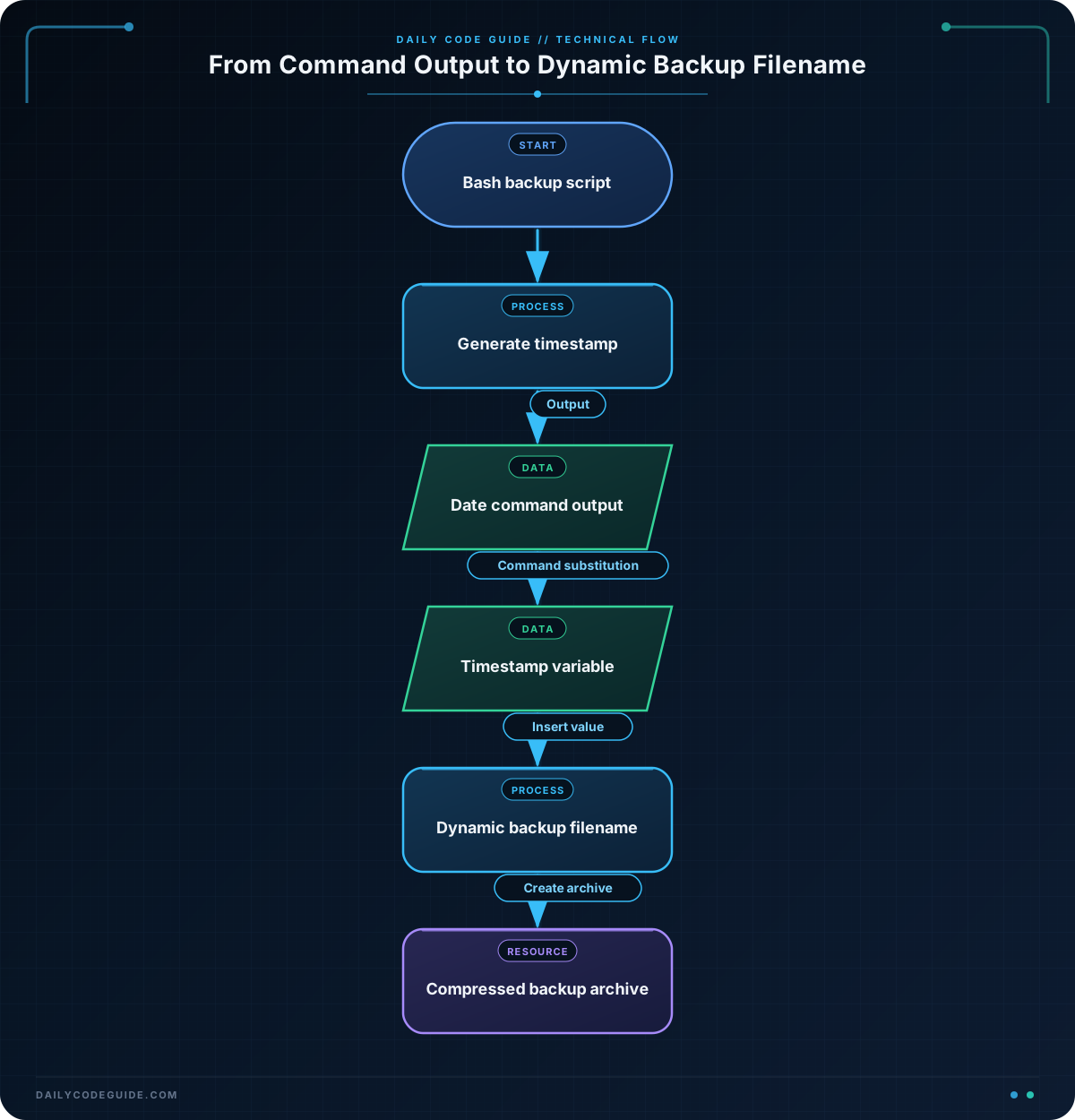
The first line tells the operating system to run the script with Bash:
#!/usr/bin/env bashThese variables identify the directory to back up and the directory where the archive should be stored:
source_dir="$HOME/Documents"
backup_dir="$HOME/backups"
$HOME is a Bash environment variable containing the current user’s home directory. Quoting the paths helps protect them if a path contains spaces.
This line uses command substitution:
timestamp=$(date +%Y-%m-%d_%H-%M-%S)The date command produces the current date and time. The format symbols mean:
%Y: four-digit year%m: two-digit month%d: two-digit day%H: hour in 24-hour format%M: minute%S: second
The result is stored in timestamp. That value is then included in the backup filename:
backup_file="$backup_dir/documents_$timestamp.tar.gz"For example, if timestamp is 2026-08-18_14-30-05, backup_file becomes /home/alex/backups/documents_2026-08-18_14-30-05.tar.gz.
mkdir -p creates the backup directory if it does not already exist. The tar command then creates a gzip-compressed archive. The -C "$HOME" option makes tar start in the home directory, so the archive contains the Documents directory.
Another Example
Command substitution can also help a script create a report about existing backups. This example counts compressed backup files and places the count in a dated report file.
#!/usr/bin/env bash

backup_dir="$HOME/backups"
mkdir -p "$backup_dir"

backup_count=$(find "$backup_dir" -maxdepth 1 -type f -name '*.tar.gz' | wc -l)
report_date=$(date +%Y-%m-%d)
report_file="$backup_dir/backup_report_$report_date.txt"

printf 'Backup report for %s\n' "$report_date" > "$report_file"
printf 'Compressed backups found: %s\n' "$backup_count" >> "$report_file"

printf 'Report written to: %s\n' "$report_file"
In this script, backup_count=$(...) captures the output of a pipeline. The find command locates compressed archive files, and wc -l counts the resulting lines. The count is then written into a report whose filename includes the current date.
Common Mistakes
Forgetting the dollar sign
Command substitution requires both the dollar sign and parentheses:
timestamp=$(date +%Y-%m-%d)Writing (date +%Y-%m-%d) by itself does not perform command substitution.
Leaving filenames unquoted
Always quote variables when they represent paths or filenames:
tar -czf "$backup_file" -C "$HOME" DocumentsQuotes keep Bash from splitting a path into multiple words if it contains spaces.
Confusing output with errors
Command substitution captures a command’s standard output. Error messages normally go to standard error and are not stored in the variable. For example, a failed command may leave the variable empty while still displaying an error message in the terminal.
Using backticks for new scripts
This older form works:
report_date=`date +%Y-%m-%d`However, prefer $(...) in new scripts. It is easier to read, especially when one command substitution is placed inside another.
Try It Yourself
Create a Bash script that uses command substitution to:
- Store the current date in a variable.
- Create a filename such as
backup_2026-08-18.txt. - Write a short message to that file.
- Print the filename that was created.
Use printf and redirect its output into the dynamically generated filename. Test the script more than once and observe how the filename changes on a new day.
Challenge
Write a small backup script for a Photos directory in your home directory. The script should:
- Use
$(date ...)to create a timestamp. - Create a
$HOME/backupsdirectory if needed. - Create a gzip-compressed archive named
photos_TIMESTAMP.tar.gz. - Print the full path of the created archive.
Use the timestamp format YYYY-MM-DD_HH-MM-SS. Make sure the source directory and generated filename are quoted.
Solution
#!/usr/bin/env bash

source_dir="$HOME/Photos"
backup_dir="$HOME/backups"
timestamp=$(date +%Y-%m-%d_%H-%M-%S)
backup_file="$backup_dir/photos_$timestamp.tar.gz"

mkdir -p "$backup_dir"
tar -czf "$backup_file" -C "$HOME" Photos

printf 'Backup created: %s\n' "$backup_file"
The timestamp variable receives the output of date. That value becomes part of backup_file, so each run produces a filename based on the current date and time. The tar command then stores the Photos directory in the generated archive.
Key Takeaways
- Command substitution runs a command and uses its output in another command or assignment.
- The recommended syntax is
$(command). - Backticks provide older command substitution syntax, but they are harder to read.
- Command substitution is useful for timestamps, dynamic filenames, file counts, and automation.
- Quote variables that contain paths or filenames.

