


What You’ll Learn
In this lesson, you will learn how to send system objects through a PowerShell pipeline and use ForEach-Object to perform an action on each object that matches a filter.
- Understand how objects move through a pipeline.
- Filter service objects with
Where-Object. - Use
ForEach-Objectto process one object at a time. - Use
$_to refer to the current service. - Preview a service action safely with
-WhatIf.
The Concept
PowerShell commands usually work with objects rather than plain text. A command such as Get-Service returns service objects. Each object has properties such as Name, DisplayName, and Status.
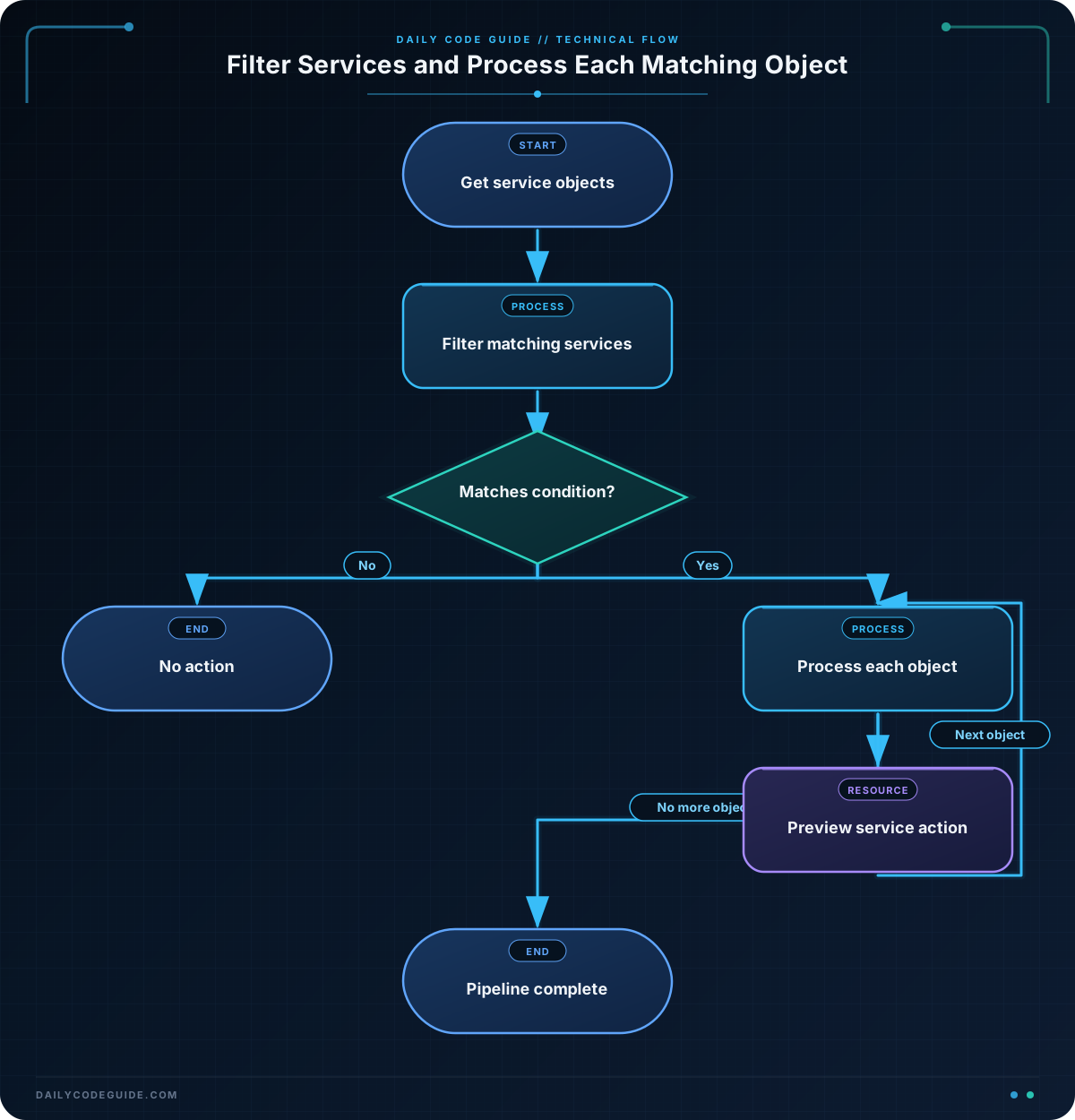
The pipeline character, |, sends the output of one command to the next command. You can first filter the objects and then process each remaining object:
Get-Service |
    Where-Object { $_.Status -eq "Running" } |
    ForEach-Object {
        # Action for each running service
    }
Where-Object keeps only objects that satisfy its condition. Inside the script block, $_ means “the current object.”
ForEach-Object then runs its script block once for every object it receives. This is useful when you need to perform an action on each matching service, file, process, or other system object.
Basic Example
The following example looks for the Windows Print Spooler service. If the service is running, it passes the service object to ForEach-Object. The action uses Restart-Service with -WhatIf, so PowerShell shows what it would do without actually restarting the service.
$spoolerService = Get-Service -Name "Spooler" -ErrorAction SilentlyContinue

$spoolerService |
    Where-Object { $_.Status -eq "Running" } |
    ForEach-Object {
        Restart-Service -InputObject $_ -WhatIf
    }
Expected Output
The output depends on whether the Print Spooler service exists and is running on your computer. If it is running, the preview may look like this:
What if: Performing the operation "Restart-Service" on target "Print Spooler (Spooler)".If the service is missing or stopped, the pipeline has no matching object, so the action does not run and there may be no output.
How the Code Works
1. Store the service object:
$spoolerService = Get-Service -Name "Spooler" -ErrorAction SilentlyContinueGet-Service retrieves the service named Spooler. The result is stored in $spoolerService. The -ErrorAction SilentlyContinue option prevents an error message if that service is not available.
2. Filter the object:
Where-Object { $_.Status -eq "Running" }The condition checks the current service’s Status property. Only a service whose status equals "Running" continues through the pipeline.
3. Process the matching object:
ForEach-Object {
    Restart-Service -InputObject $_ -WhatIf
}
ForEach-Object runs the script block once for every matching service. At that moment, $_ represents that service. The -InputObject parameter gives the service to Restart-Service.
-WhatIf is useful when learning or testing. It previews the action instead of carrying it out. After checking the result, an administrator could remove -WhatIf to perform the restart, provided the action is appropriate and the PowerShell session has sufficient permissions.
Another Example
This example handles a group of services instead of selecting one service by name. It finds stopped services whose display names begin with Windows and previews starting each one.
Get-Service |
    Where-Object {
        $_.Status -eq "Stopped" -and
        $_.DisplayName -like "Windows*"
    } |
    ForEach-Object {
        Write-Output "Preparing to start: $($_.DisplayName)"
        Start-Service -InputObject $_ -WhatIf
    }
This pipeline may process several service objects. ForEach-Object does not need to know how many objects it will receive; it simply runs the action once for each one. The subexpression $($_.DisplayName) inserts the current service’s display name into the message.
Common Mistakes
- Using a property without
$_: InsideWhere-ObjectandForEach-Object, use$_.Statusor$_.Nameto access the current object. - Putting the action before the filter: Filter objects before starting or stopping services. Otherwise, the action may run on services that should not be changed.
- Forgetting that no objects may match: A pipeline can produce no output when the service is missing or does not meet the condition. That is normal behavior.
- Removing
-WhatIftoo quickly: Use the preview first, especially when an action changes system state. Starting or restarting a service can affect applications and users. - Confusing
ForEach-Objectwith a collection loop:ForEach-Objectis designed for pipeline input. It processes each object as it arrives from the previous command.
Try It Yourself
Use the pipeline to find services whose names start with W. For each matching service, display its name and status. Do not start or stop anything yet.
A useful outline is:
Get-Service |
    Where-Object { $_.Name -like "W*" } |
    ForEach-Object {
        Write-Output "$($_.Name): $($_.Status)"
    }
After running it, change the filter to display only services whose status is "Running".
Challenge
Write a pipeline that:
- Gets all services.
- Keeps only services whose display names contain the word
Windows. - Keeps only services with a status of
Running. - Uses
ForEach-Objectto preview restarting each matching service. - Displays a message containing the service name before each previewed restart.
Use -WhatIf so the challenge does not actually restart services.
Solution
Get-Service |
    Where-Object {
        $_.DisplayName -like "*Windows*" -and
        $_.Status -eq "Running"
    } |
    ForEach-Object {
        Write-Output "Preparing to restart: $($_.Name)"
        Restart-Service -InputObject $_ -WhatIf
    }
The first condition checks whether the display name contains Windows. The second condition keeps only running services. ForEach-Object then processes each remaining service, prints its name, and previews a restart for that specific object.
Key Takeaways
- The PowerShell pipeline sends objects from one command to another.
Where-Objectfilters objects before an action is performed.ForEach-Objectruns a script block once for every object it receives.$_represents the current object inside the pipeline script block.-WhatIflets you preview actions that change system state.

