


What You’ll Learn
In this lesson, you will learn how to parse JSON data in PowerShell, read values from nested objects, select only the configuration values you need, and export those values to a CSV file.
- Understand what JSON is and how PowerShell represents parsed JSON.
- Use
ConvertFrom-Jsonto turn an API response into a PowerShell object. - Read values from nested JSON properties.
- Export selected values with
Export-Csv.
The Concept
JSON, short for JavaScript Object Notation, is a common text format for exchanging structured data. APIs often return responses in JSON format.
A JSON object can contain strings, numbers, Boolean values, arrays, and other objects. When PowerShell receives JSON as text, you can use ConvertFrom-Json to parse it. Parsing means converting the text into a PowerShell object whose properties you can access.
For example, a nested JSON property such as application.configuration.region can be accessed in PowerShell with dot notation:
$apiData.application.configuration.region
After selecting the values you need, Export-Csv can save them in a format that is easy to open in spreadsheet applications or process with other scripts.
Basic Example
The following example represents a JSON response from a configuration API. The response contains an application name and several nested configuration values.
$apiResponse = @'
{
    "application": {
        "name": "inventory-api",
        "configuration": {
            "region": "us-east-1",
            "logLevel": "Information",
            "auditLogging": true,
            "maxRetries": 3
        }
    }
}
'@

$apiData = $apiResponse | ConvertFrom-Json

$selectedConfig = [PSCustomObject]@{
    Application  = $apiData.application.name
    Region       = $apiData.application.configuration.region
    LogLevel     = $apiData.application.configuration.logLevel
    AuditLogging = $apiData.application.configuration.auditLogging
    MaxRetries   = $apiData.application.configuration.maxRetries
}

$selectedConfig | Export-Csv -Path .\selected-configuration.csv -NoTypeInformation

Get-Content -Path .\selected-configuration.csv
Expected Output
The script creates selected-configuration.csv and then displays its contents:
"Application","Region","LogLevel","AuditLogging","MaxRetries"
"inventory-api","us-east-1","Information","True","3"
How the Code Works
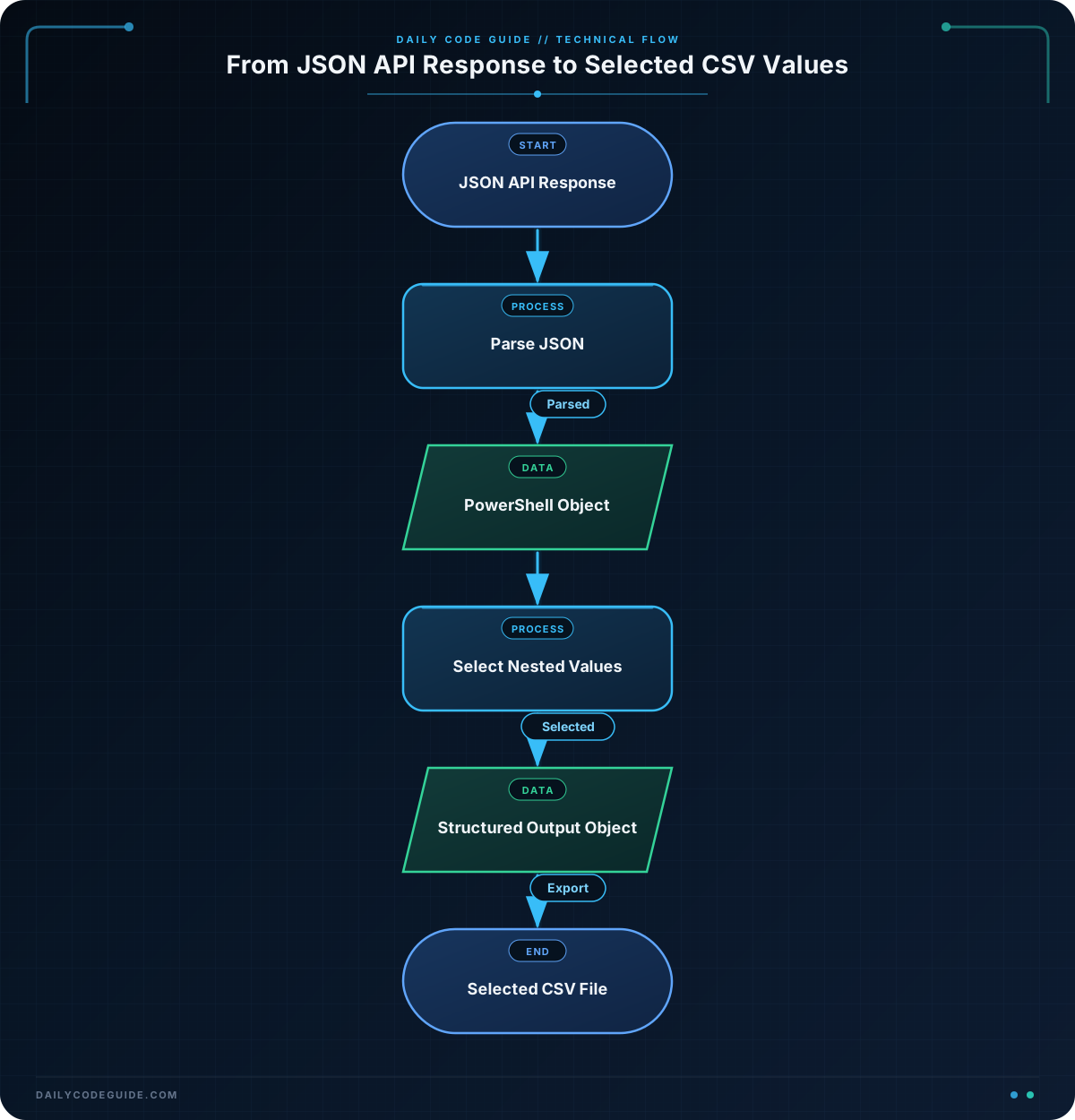
1. Store the response as text
The @' and '@ lines create a here-string. A here-string lets you store multiple lines of text in one PowerShell variable. In a real script, the response might come from an HTTP request instead of a here-string.
2. Parse the JSON
This line converts the JSON text into a PowerShell object:
$apiData = $apiResponse | ConvertFrom-Json
After this command, $apiData has an application property. That property contains a name property and a nested configuration property.
3. Read nested properties
This expression reads the application’s region:
$apiData.application.configuration.region
PowerShell moves through the object one property at a time:
applicationselects the top-level application object.configurationselects the nested configuration object.regionretrieves the final value.
4. Create an object containing only the required values
The [PSCustomObject] block creates a new object with the properties you want to keep. This is useful because API responses often contain much more data than a report needs.
Each property on $selectedConfig is assigned a value from the parsed JSON object. The property names can be different from the original JSON names if that makes the exported report clearer.
5. Export the selected data
Export-Csv writes the object to a CSV file:
$selectedConfig | Export-Csv -Path .\selected-configuration.csv -NoTypeInformation
The -Path parameter specifies the output file. The -NoTypeInformation parameter prevents PowerShell from adding an extra type-information row to the file.
Another Example
JSON responses can also contain arrays. This example reads configuration for several services, selects nested port and health-check values, and exports one row for each service.
$apiResponse = @'
{
    "services": [
        {
            "name": "orders-api",
            "configuration": {
                "port": 8080,
                "healthCheck": "/health"
            }
        },
        {
            "name": "reports-api",
            "configuration": {
                "port": 8081,
                "healthCheck": "/status"
            }
        }
    ]
}
'@

$apiData = $apiResponse | ConvertFrom-Json

$serviceSettings = $apiData.services | ForEach-Object {
    [PSCustomObject]@{
        ServiceName = $_.name
        Port        = $_.configuration.port
        HealthCheck = $_.configuration.healthCheck
    }
}

$serviceSettings | Export-Csv -Path .\service-settings.csv -NoTypeInformation

Get-Content -Path .\service-settings.csv
Here, $apiData.services is an array of service objects. ForEach-Object processes each service and creates a smaller object with only the selected settings. The pipeline then exports all of those objects as rows in the CSV file.
Common Mistakes
- Forgetting to parse the response: A JSON response stored as a string is still just text. Use
ConvertFrom-Jsonbefore accessing properties. - Using the wrong property path: If the JSON contains
configuration.region, accessing only$apiData.regionwill not find the value. Follow the nesting shown in the JSON. - Confusing arrays and objects: A single JSON object has properties you can access directly. An array contains multiple items and usually needs a loop or
ForEach-Object. - Overwriting the original data: Keep the parsed response in one variable and create a separate object for selected values. This makes the script easier to understand and reuse.
- Assuming a missing property is a valid value: If an API changes its response or omits a property, PowerShell may return
$null. Check the spelling and nesting when a value is blank.
Try It Yourself
Create a JSON response for one application with these nested configuration values:
- Application name:
billing-api - Region:
eu-west-1 - Log level:
Warning - Audit logging:
false - Maximum retries:
5
Parse the response, create an object containing those five values, and export the object to billing-configuration.csv. Use Get-Content to inspect the resulting file.
Challenge
Suppose a deployment API returns the following information:
- The deployment environment name.
- The region where it runs.
- Whether automatic scaling is enabled.
- The minimum number of instances.
Write a PowerShell script that:
- Stores the JSON response in a variable.
- Parses it with
ConvertFrom-Json. - Selects the four requested values from their nested properties.
- Exports the result to
deployment-settings.csv.
Solution
$apiResponse = @'
{
    "deployment": {
        "environment": {
            "name": "production",
            "region": "us-west-2"
        },
        "scaling": {
            "automatic": true,
            "minimumInstances": 2
        }
    }
}
'@

$apiData = $apiResponse | ConvertFrom-Json

$deploymentSettings = [PSCustomObject]@{
    Environment       = $apiData.deployment.environment.name
    Region            = $apiData.deployment.environment.region
    AutomaticScaling  = $apiData.deployment.scaling.automatic
    MinimumInstances  = $apiData.deployment.scaling.minimumInstances
}

$deploymentSettings | Export-Csv -Path .\deployment-settings.csv -NoTypeInformation

Get-Content -Path .\deployment-settings.csv
The solution follows the JSON structure from the outside inward. It first selects deployment, then either environment or scaling, and finally retrieves the requested property. The new object contains only the four values required for the exported report.
Key Takeaways
ConvertFrom-Jsonchanges JSON text into a PowerShell object.- Use dot notation to access nested properties such as
$data.application.configuration.region. - Create a new object when you need only selected values from a larger API response.
- Use
ForEach-Objectwhen the JSON contains an array of similar objects. Export-Csvsaves selected PowerShell object properties in a reusable tabular format.

