


What You’ll Learn
In this lesson, you will use AWS CLI Elastic Load Balancer commands to inspect an Application Load Balancer, find its listeners and target groups, check backend server health, and temporarily manage traffic during server maintenance.
- Understand the relationship between load balancers, listeners, target groups, and targets.
- Find resource ARNs with the AWS CLI.
- Inspect the health of EC2 instances behind a load balancer.
- Register and deregister a target safely.
The Concept
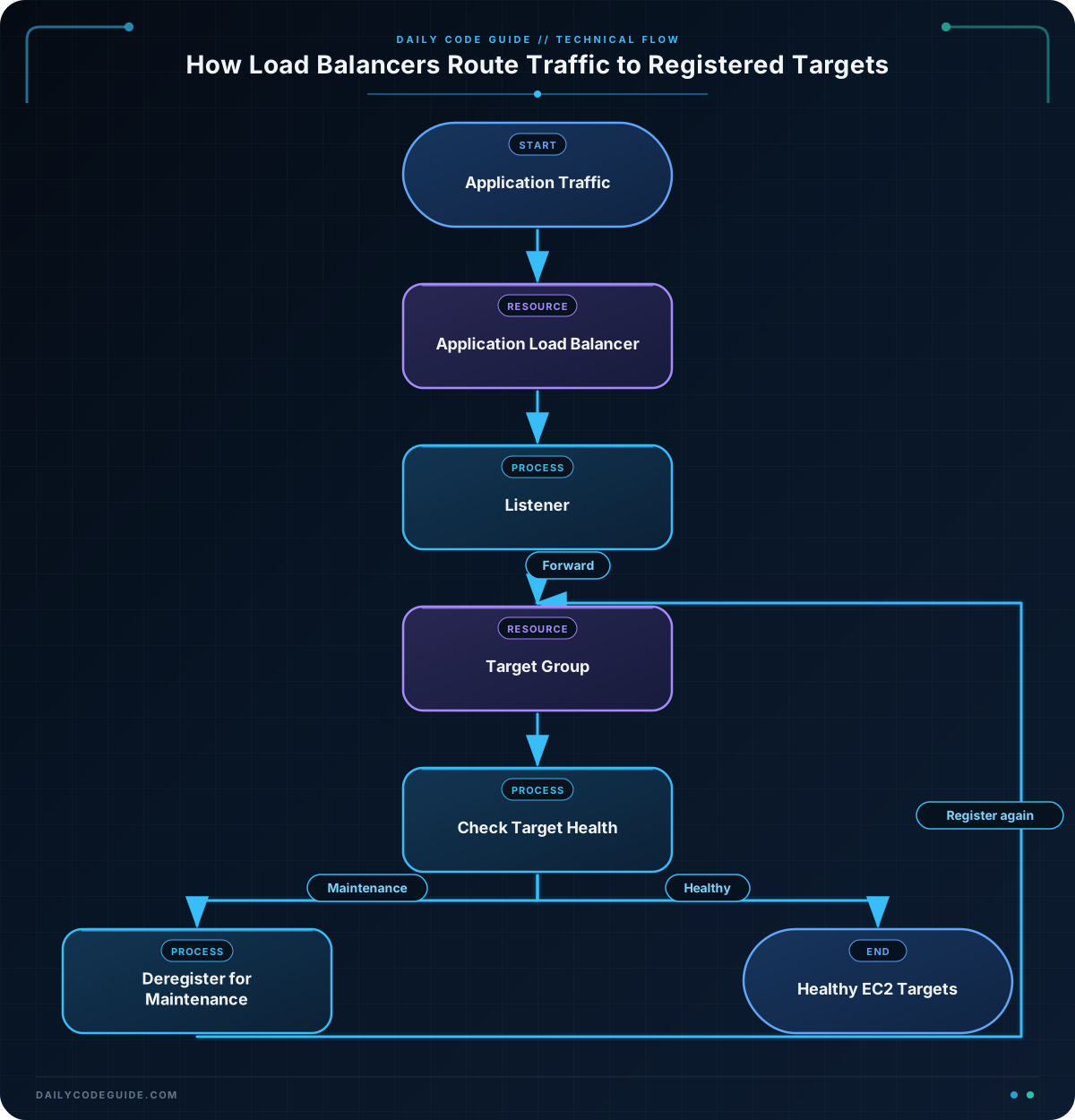
Elastic Load Balancing distributes application traffic across multiple backend resources, such as EC2 instances. The load balancer receives requests, a listener waits for traffic on a protocol and port, and a target group contains the backend servers that receive forwarded requests.
A target is commonly an EC2 instance, identified by its instance ID. The load balancer regularly performs health checks against targets. A healthy target can receive traffic, while an unhealthy target is normally removed from traffic distribution.
The AWS CLI provides these commonly used Elastic Load Balancing version 2 commands:
- describe-load-balancers finds load balancers and their ARNs.
- describe-listeners shows listener ports and default actions.
- describe-target-groups shows target groups connected to a load balancer.
- describe-target-health shows whether backend targets are healthy.
- register-targets adds a backend server to a target group.
- deregister-targets removes a backend server from a target group.
These examples use the elbv2 command group, which applies to Application Load Balancers, Network Load Balancers, and Gateway Load Balancers. You need AWS CLI credentials with permission to describe and modify the relevant load balancing resources.
Basic Example
Suppose an Application Load Balancer named shop-alb distributes web traffic to EC2 application servers. The following Bash script finds the load balancer, displays its listeners and target groups, and checks the health of the first target group.
#!/usr/bin/env bash

aws_region="us-east-1"
load_balancer_name="shop-alb"

load_balancer_arn=$(aws elbv2 describe-load-balancers \
    --names "$load_balancer_name" \
    --query 'LoadBalancers[0].LoadBalancerArn' \
    --output text \
    --region "$aws_region")

echo "Load balancer ARN:"
echo "$load_balancer_arn"

printf '\n--- Listeners ---\n'
aws elbv2 describe-listeners \
    --load-balancer-arn "$load_balancer_arn" \
    --query 'Listeners[].{Port:Port,Protocol:Protocol,ListenerArn:ListenerArn}' \
    --output table \
    --region "$aws_region"

printf '\n--- Target Groups ---\n'
aws elbv2 describe-target-groups \
    --load-balancer-arn "$load_balancer_arn" \
    --query 'TargetGroups[].{Name:TargetGroupName,Port:Port,Protocol:Protocol,TargetGroupArn:TargetGroupArn}' \
    --output table \
    --region "$aws_region"

target_group_arn=$(aws elbv2 describe-target-groups \
    --load-balancer-arn "$load_balancer_arn" \
    --query 'TargetGroups[0].TargetGroupArn' \
    --output text \
    --region "$aws_region")

printf '\n--- Target Health ---\n'
aws elbv2 describe-target-health \
    --target-group-arn "$target_group_arn" \
    --query 'TargetHealthDescriptions[].{TargetId:Target.Id,Port:Target.Port,State:TargetHealth.State,Reason:TargetHealth.Reason}' \
    --output table \
    --region "$aws_region"
Expected Output
Your ARNs, target IDs, and health states will be different. A healthy target group may produce output similar to this:
Load balancer ARN:
arn:aws:elasticloadbalancing:us-east-1:123456789012:loadbalancer/app/shop-alb/abc123

--- Listeners ---
-----------------------------------------------
|                 Listeners                   |
+-------+----------+--------------------------+
| Port  | Protocol | ListenerArn              |
+-------+----------+--------------------------+
| 80    | HTTP     | arn:aws:...:listener/...|
+-------+----------+--------------------------+

--- Target Groups ---
------------------------------------------------
|                 Target Groups                 |
+----------+------+----------+----------------------+
| Name     | Port | Protocol | TargetGroupArn        |
+----------+------+----------+----------------------+
| shop-web | 80   | HTTP     | arn:aws:...:targetgroup/...|
+----------+------+----------+----------------------+

--- Target Health ---
----------------------------------------
|             Target Health             |
+---------------+------+---------+-----+
| TargetId      | Port | State   | Reason |
+---------------+------+---------+-----+
| i-0123456789  | 80   | healthy | -     |
+---------------+------+---------+-----+
How the Code Works
The variable aws_region tells each command which AWS Region to use. The load_balancer_name variable identifies the load balancer by its friendly name.
This command finds the load balancer’s ARN:
--namesselects the load balancer by name.--query 'LoadBalancers[0].LoadBalancerArn'extracts only the ARN from the response.--output textreturns a plain value that can be stored in a Bash variable.
The ARN, or Amazon Resource Name, is a unique identifier that other AWS CLI commands use to identify a specific resource. The listener and target group commands need this ARN rather than only the load balancer name.
describe-listeners shows where the load balancer accepts traffic. For example, an HTTP listener on port 80 might forward requests to a target group.
describe-target-groups displays the backend group name, protocol, port, and ARN. The example chooses the first target group with TargetGroups[0]. This is convenient for a simple setup with one target group. In a production script with several target groups, select a group by its name instead.
Finally, describe-target-health reports each target’s current state. Common states include healthy, unhealthy, and initial. The Reason field can help explain why a target is not healthy, such as a failed health check or a target still being registered.
Another Example
During maintenance, you may want to stop sending new requests to one application server without removing the entire target group. First deregister the EC2 instance, perform maintenance, and then register it again.
Deregistering a target does not stop or terminate the EC2 instance. It only removes that instance from the selected target group. Existing connections may be allowed to finish according to the target group’s deregistration delay.
#!/usr/bin/env bash

aws_region="us-east-1"
target_group_name="shop-web"
maintenance_instance_id="i-0123456789abcdef0"

target_group_arn=$(aws elbv2 describe-target-groups \
    --names "$target_group_name" \
    --query 'TargetGroups[0].TargetGroupArn' \
    --output text \
    --region "$aws_region")

printf 'Removing %s from traffic...\n' "$maintenance_instance_id"
aws elbv2 deregister-targets \
    --target-group-arn "$target_group_arn" \
    --targets Id="$maintenance_instance_id" \
    --region "$aws_region"

printf '\nCurrent target health:\n'
aws elbv2 describe-target-health \
    --target-group-arn "$target_group_arn" \
    --query 'TargetHealthDescriptions[].{TargetId:Target.Id,State:TargetHealth.State,Reason:TargetHealth.Reason}' \
    --output table \
    --region "$aws_region"

printf '\nAdding %s back to port 80...\n' "$maintenance_instance_id"
aws elbv2 register-targets \
    --target-group-arn "$target_group_arn" \
    --targets Id="$maintenance_instance_id",Port=80 \
    --region "$aws_region"

printf '\nHealth after registration:\n'
aws elbv2 describe-target-health \
    --target-group-arn "$target_group_arn" \
    --targets Id="$maintenance_instance_id" \
    --query 'TargetHealthDescriptions[].{TargetId:Target.Id,Port:Target.Port,State:TargetHealth.State,Reason:TargetHealth.Reason}' \
    --output table \
    --region "$aws_region"
After registration, the instance may initially show an initial state while the load balancer performs health checks. Wait until it becomes healthy before assuming it is receiving application traffic.
Common Mistakes
- Using the wrong Region: Load balancers are regional resources. If the command cannot find a known load balancer, check
--regionand your configured default Region. - Confusing names and ARNs: Some commands accept a load balancer name, while others require an ARN. Use
describe-load-balancersordescribe-target-groupsto retrieve the required ARN. - Assuming registration means healthy: A registered target can still fail its health check. Always verify the state with
describe-target-health. - Removing the only healthy server: Before deregistering a target, check that other healthy targets can handle the traffic.
- Using the wrong application port: The port in
register-targetsshould match the port where the application is listening and the target group’s health check configuration.
Try It Yourself
Choose an existing load balancer in a test environment and use the AWS CLI to:
- Find its ARN.
- List its listeners.
- List its target groups.
- Run
describe-target-healthfor one target group.
Use the --query option to display only the target ID and health state. Do not deregister a target unless you have confirmed that another healthy server can handle requests.
Challenge
Write a Bash script for an application load balancer named catalog-alb. The script should:
- Use the Region
us-east-1. - Find the load balancer ARN.
- Find the target group ARN for the target group named
catalog-web. - Display each target ID, port, and health state.
- Display only targets whose state is not
healthy.
Solution
#!/usr/bin/env bash

aws_region="us-east-1"
load_balancer_name="catalog-alb"
target_group_name="catalog-web"

load_balancer_arn=$(aws elbv2 describe-load-balancers \
    --names "$load_balancer_name" \
    --query 'LoadBalancers[0].LoadBalancerArn' \
    --output text \
    --region "$aws_region")

target_group_arn=$(aws elbv2 describe-target-groups \
    --names "$target_group_name" \
    --query 'TargetGroups[0].TargetGroupArn' \
    --output text \
    --region "$aws_region")

echo "All target health:"
aws elbv2 describe-target-health \
    --target-group-arn "$target_group_arn" \
    --query 'TargetHealthDescriptions[].{TargetId:Target.Id,Port:Target.Port,State:TargetHealth.State}' \
    --output table \
    --region "$aws_region"

printf '\nTargets requiring attention:\n'
aws elbv2 describe-target-health \
    --target-group-arn "$target_group_arn" \
    --query 'TargetHealthDescriptions[?TargetHealth.State!=`healthy`].{TargetId:Target.Id,Port:Target.Port,State:TargetHealth.State,Reason:TargetHealth.Reason}' \
    --output table \
    --region "$aws_region"
The first health query displays every target. The second uses a JMESPath filter to keep only targets whose state is not healthy. The backticks around healthy are part of the AWS CLI query syntax and allow the value to be compared as a string.
Key Takeaways
- Listeners accept load balancer traffic and forward it to target groups.
- Target groups contain backend application servers, such as EC2 instances.
- Use
describe-target-healthto confirm whether a server can receive traffic. - Use
deregister-targetsfor temporary maintenance andregister-targetsto add a server back. - Always check the Region, resource ARN, target port, and health state before changing traffic.

