


What You’ll Learn
In this lesson, you will learn how to create structured records with PowerShell PSCustomObject. You will assign named properties to each record, collect multiple records in an array, display them in a report, and prepare them for CSV export.
- Understand what a PSCustomObject is.
- Create objects with named properties.
- Build a collection of inventory records.
- Send structured records through the PowerShell pipeline.
- Prepare records for reporting and export.
The Concept
A PSCustomObject is a simple PowerShell object whose properties you define yourself. A property is a named piece of information, such as Name, Category, or Quantity.
Without structured objects, related inventory values can become difficult to organize. A PSCustomObject keeps each item and its information together:
- Name: Wireless Mouse
- Category: Accessories
- Quantity: 12
- Location: Storage Room A
You create one by using the PSCustomObject type accelerator followed by a hashtable. In this hashtable, the keys become property names and the values become property values.
PowerShell objects work especially well with the pipeline. Once inventory items are objects, you can sort, filter, display, and export them without manually building text reports. For example, structured data collected from PowerShell registry values can also be transformed into custom objects with consistent property names.
Basic Example
The following example creates three inventory records and stores them in an array. Each record has the same set of named properties.
$inventory = @(
    [PSCustomObject]@{
        Name         = "Wireless Mouse"
        Category     = "Accessories"
        Quantity     = 12
        ReorderLevel = 5
        Location     = "Storage Room A"
    }
    [PSCustomObject]@{
        Name         = "USB-C Cable"
        Category     = "Accessories"
        Quantity     = 4
        ReorderLevel = 10
        Location     = "Storage Room A"
    }
    [PSCustomObject]@{
        Name         = "Laptop Stand"
        Category     = "Office Equipment"
        Quantity     = 8
        ReorderLevel = 3
        Location     = "Storage Room B"
    }
)

$inventory | Format-Table Name, Category, Quantity, ReorderLevel, Location
Expected Output
Name           Category          Quantity ReorderLevel Location
----           --------          -------- ------------ --------
Wireless Mouse Accessories             12            5 Storage Room A
USB-C Cable    Accessories               4           10 Storage Room A
Laptop Stand   Office Equipment          8            3 Storage Room B
How the Code Works
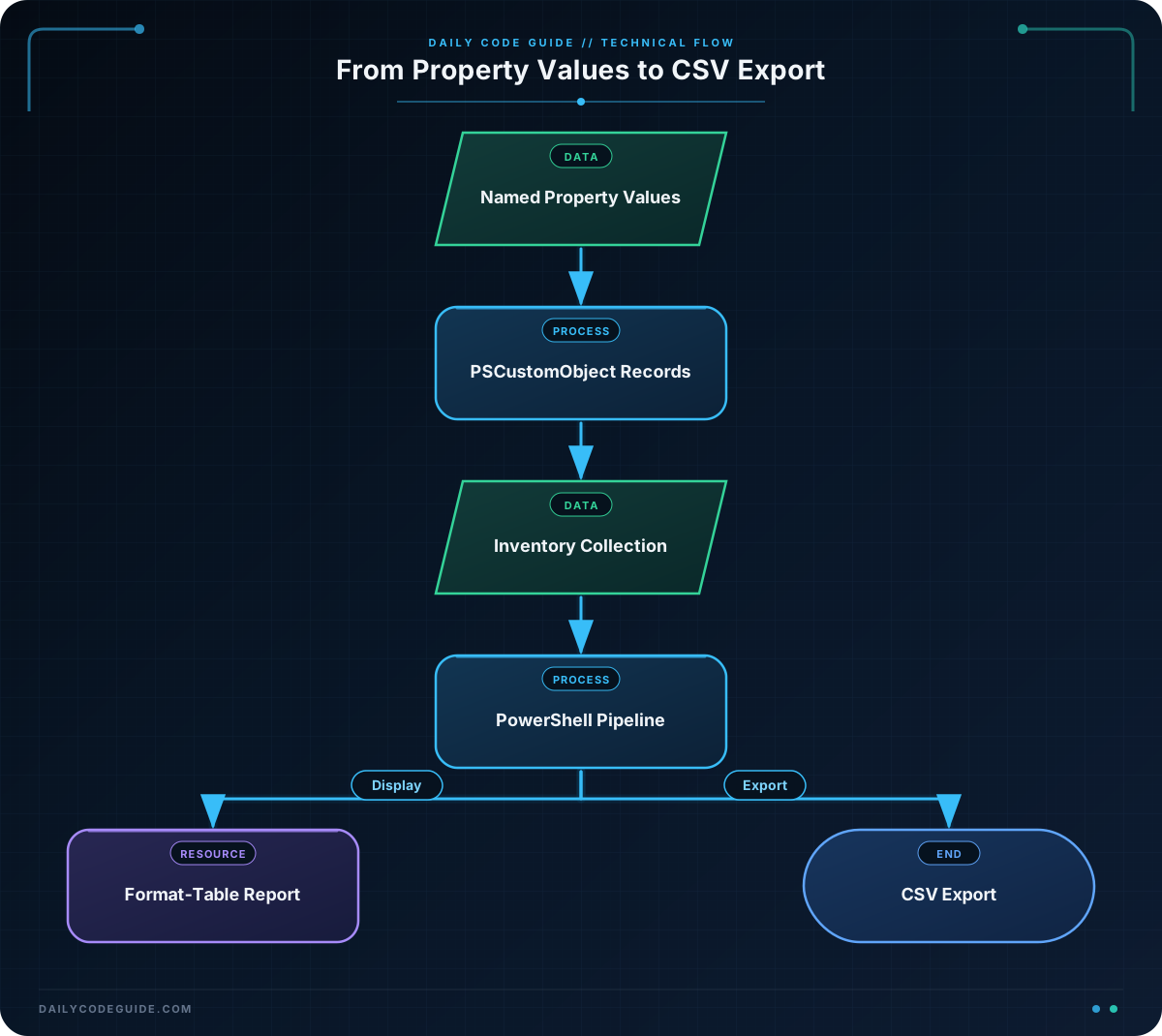
The variable named inventory uses the array operator, which allows it to hold several values. Each value in the array is a separate PSCustomObject.
Inside each object, the left side of each assignment is a property name. For example, Name and Quantity are properties. The right side is the value assigned to that property.
Because every object uses the same property names, PowerShell can treat the records as one consistent collection. This makes operations such as sorting and filtering easier.
The pipeline operator sends the inventory collection to Format-Table. The property list tells Format-Table which columns to display and in what order. Format-Table is useful for viewing data on screen, but it is primarily a display command. For data that you plan to save, continue using the original objects rather than formatting them first.
For example, you could find items below their reorder level with a pipeline:
$inventory |
    Where-Object { $_.Quantity -lt $_.ReorderLevel } |
    Format-Table Name, Quantity, ReorderLevel
In the filter, the dollar sign followed by an underscore represents the current object moving through the pipeline. The expression compares that object’s Quantity and ReorderLevel properties.
Another Example
Inventory information may begin as less-structured input, such as rows created by another process. You can transform each row into a PSCustomObject before reporting or exporting it.
This example converts simple hashtables into consistent inventory records and saves them as a CSV file. If you need to create the destination folder first, PowerShell file and directory management techniques can help you prepare the export location.
$stockUpdates = @(
    @{
        ProductCode = "MON-24"
        Description = "24-inch Monitor"
        Received    = 6
        Department  = "Design"
    }
    @{
        ProductCode = "KEY-104"
        Description = "Mechanical Keyboard"
        Received    = 10
        Department  = "Engineering"
    }
)

$inventoryRecords = $stockUpdates | ForEach-Object {
    [PSCustomObject]@{
        ProductCode = $_.ProductCode
        Description = $_.Description
        Quantity    = [int]$_.Received
        Department  = $_.Department
        Status      = "New stock"
    }
}

$inventoryRecords | Format-Table ProductCode, Description, Quantity, Department, Status

$inventoryRecords | Export-Csv -Path ".\inventory-report.csv" -NoTypeInformation
Export-Csv writes the property names as column headings and each PSCustomObject as a row. The NoTypeInformation option prevents PowerShell from adding an extra type-information line to the CSV file.
Common Mistakes
- Using inconsistent property names: If one record uses Quantity and another uses Count, reports become harder to use. Choose a property name and use it consistently.
- Formatting before exporting: Commands such as Format-Table create display formatting, not reusable data. Pipe the original objects to Export-Csv instead.
- Forgetting the array operator: When creating several records together, use the array operator so the variable clearly contains a collection.
- Confusing property names with variable names: Name inside the object is a property. It is different from a variable such as inventory.
- Storing numbers as text: Values such as Quantity should normally be numbers when you need comparisons. The second example uses an integer conversion for Received.
Try It Yourself
Create an inventory collection with two PSCustomObject records. Give each record these properties:
- Name
- Category
- Quantity
- Location
Then send the collection through the pipeline and display only the Name and Quantity properties with Format-Table. Try changing one quantity and observe the updated report.
Challenge
Create a small inventory report for three office supplies. Each record must include:
- Item
- Category
- Quantity
- MinimumStock
- NeedsReorder
Set NeedsReorder to True when Quantity is less than MinimumStock and False otherwise. Display the records in a table and export them to a file named office-inventory.csv.
Solution
$officeSupplies = @(
    [PSCustomObject]@{
        Item         = "Copy Paper"
        Category     = "Paper"
        Quantity     = 2
        MinimumStock = 5
    }
    [PSCustomObject]@{
        Item         = "Blue Pens"
        Category     = "Writing"
        Quantity     = 24
        MinimumStock = 10
    }
    [PSCustomObject]@{
        Item         = "Sticky Notes"
        Category     = "Office Supplies"
        Quantity     = 6
        MinimumStock = 8
    }
)

$inventoryReport = $officeSupplies | ForEach-Object {
    [PSCustomObject]@{
        Item         = $_.Item
        Category     = $_.Category
        Quantity     = $_.Quantity
        MinimumStock = $_.MinimumStock
        NeedsReorder = $_.Quantity -lt $_.MinimumStock
    }
}

$inventoryReport | Format-Table Item, Category, Quantity, MinimumStock, NeedsReorder

$inventoryReport | Export-Csv -Path ".\office-inventory.csv" -NoTypeInformation
The solution first creates three structured records. The ForEach-Object pipeline creates a new PSCustomObject for each record and calculates NeedsReorder by comparing Quantity with MinimumStock. The same collection is then used for both screen output and CSV export.
Key Takeaways
- PSCustomObject lets you create objects with your own named properties.
- An array can hold a collection of structured inventory records.
- Consistent property names make pipeline operations and reports easier.
- Use Format-Table for viewing records and Export-Csv for saving the original objects.
- Calculated properties, such as NeedsReorder, can be created while transforming records in a pipeline.

