


What You’ll Learn
In this lesson, you will use PowerShell to manage Windows Registry values that store application configuration. You will learn how to inspect existing values, create missing values, update settings, remove obsolete values, and make changes more safely with backups and validation.
- Navigate Registry keys with the PowerShell registry provider.
- Read string and numeric registry values.
- Create or update application settings idempotently.
- Remove obsolete values without deleting the entire key.
- Consider permissions, data types, backups, and registry redirection.
The Concept
The Windows Registry stores configuration data in keys and values. A key is similar to a directory, while a value is similar to a named setting inside that key. For example, a managed application might store its API endpoint, retry count, or feature flags in a key under the current user’s profile.
PowerShell exposes the Registry through a provider. This lets you use paths such as HKCU:\Software\CompanyName\ApplicationName with familiar commands like Get-ItemProperty, Set-ItemProperty, and Remove-ItemProperty.
- HKCU: HKEY_CURRENT_USER, which contains settings for the signed-in user.
- HKLM: HKEY_LOCAL_MACHINE, which contains computer-wide settings and often requires administrator permissions.
- Registry value: A named piece of data, such as a string, integer, or binary value.
For application configuration management, prefer narrowly changing individual values instead of replacing an entire key. Before modifying important settings, export the relevant key or otherwise create a backup. The PowerShell file and directory commands can help you create and manage a predictable backup location.
Basic Example
The following example manages settings for a fictional application called ManagedApp. It creates the key and values if they do not exist, reads the current configuration, updates the retry count, and reads the result again.
$settingsPath = "HKCU:\Software\DailyCodeGuide\ManagedApp"

if (-not (Test-Path -Path $settingsPath)) {
    New-Item -Path $settingsPath -Force | Out-Null
}

New-ItemProperty `
    -Path $settingsPath `
    -Name "ApiEndpoint" `
    -Value "https://config.example.test/api" `
    -PropertyType String `
    -Force | Out-Null

New-ItemProperty `
    -Path $settingsPath `
    -Name "RetryCount" `
    -Value 3 `
    -PropertyType DWord `
    -Force | Out-Null

$currentSettings = Get-ItemProperty -Path $settingsPath

Write-Output "Before update:"
Write-Output "ApiEndpoint: $($currentSettings.ApiEndpoint)"
Write-Output "RetryCount: $($currentSettings.RetryCount)"

Set-ItemProperty `
    -Path $settingsPath `
    -Name "RetryCount" `
    -Value 5

$updatedSettings = Get-ItemProperty -Path $settingsPath

Write-Output "After update:"
Write-Output "ApiEndpoint: $($updatedSettings.ApiEndpoint)"
Write-Output "RetryCount: $($updatedSettings.RetryCount)"
Expected Output
Before update:
ApiEndpoint: https://config.example.test/api
RetryCount: 3
After update:
ApiEndpoint: https://config.example.test/api
RetryCount: 5
How the Code Works
Test-Path checks whether the registry key exists. If it does not, New-Item creates it. The -Force parameter allows the command to create any missing parts of the path without failing when the key already exists.
New-ItemProperty creates a named value. Its -PropertyType parameter is important:
- String stores text such as an endpoint or environment name.
- DWord stores a 32-bit integer such as a retry count or timeout.
Using -Force with New-ItemProperty makes this operation convenient for managed configuration. It creates the value when missing and replaces its current data when the value already exists.
Get-ItemProperty returns an object whose properties correspond to registry values. That is why the script can access $currentSettings.ApiEndpoint and $currentSettings.RetryCount.
Set-ItemProperty updates an existing value while preserving the registry key and other values. This is a useful choice when you know the value should already exist. If the value might be missing, use New-ItemProperty -Force or check for it before calling Set-ItemProperty.
Another Example
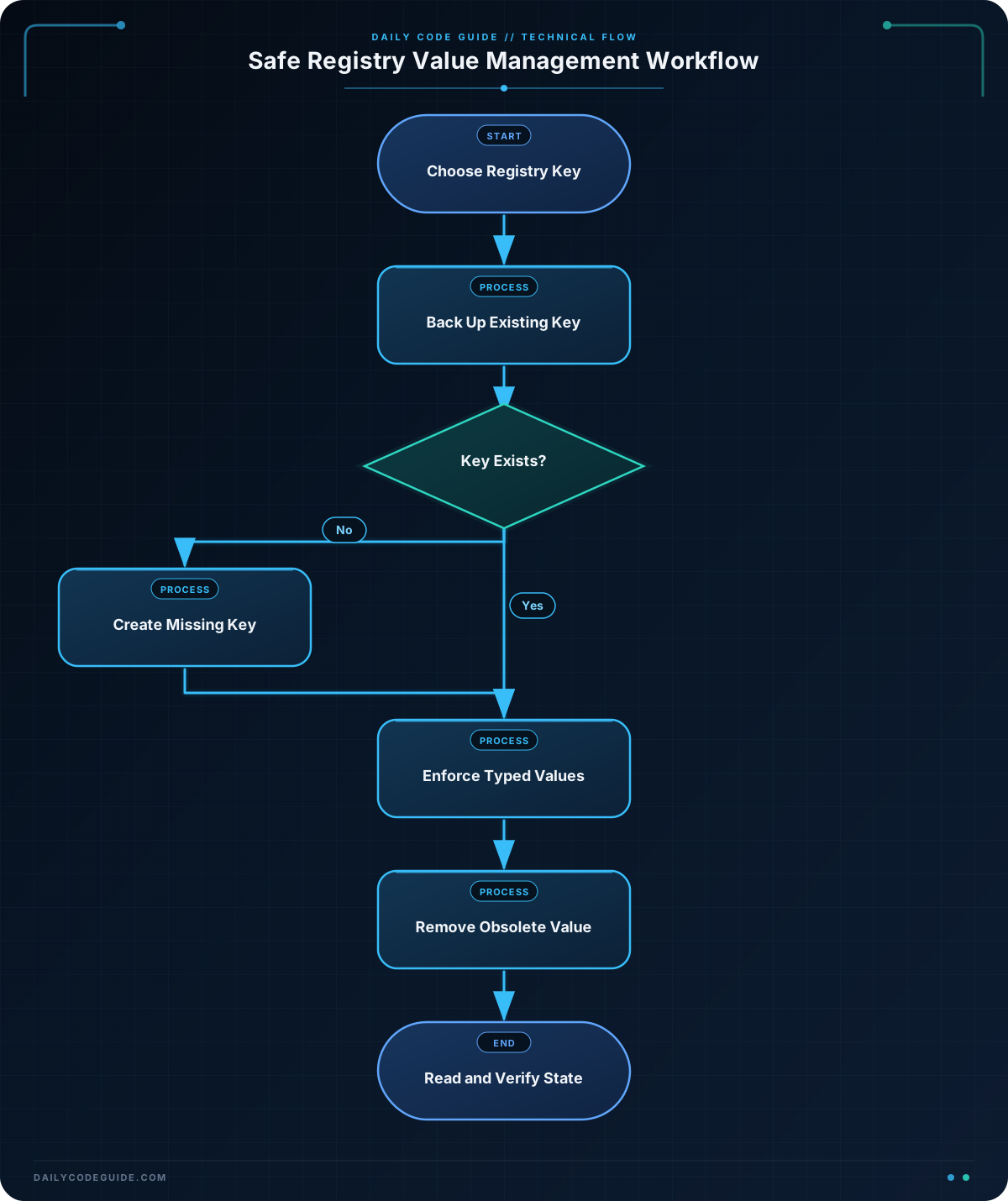
A deployment script often needs to enforce several settings repeatedly. The next example backs up an existing application key, ensures the desired values are present, removes an obsolete value, and verifies the final configuration. Re-running it produces the same desired state, which is known as an idempotent operation.
$configurationPath = "HKCU:\Software\DailyCodeGuide\ManagedApp"
$backupPath = Join-Path -Path $env:TEMP -ChildPath "ManagedApp-registry-backup.reg"

if (Test-Path -Path $configurationPath) {
    & reg.exe export "HKCU\Software\DailyCodeGuide\ManagedApp" $backupPath /y | Out-Null
}
else {
    New-Item -Path $configurationPath -Force | Out-Null
}

$desiredValues = @{
    Environment = @{
        Value = "Production"
        Type = "String"
    }
    RequestTimeoutSeconds = @{
        Value = 30
        Type = "DWord"
    }
    EnableDiagnostics = @{
        Value = 0
        Type = "DWord"
    }
}

foreach ($entry in $desiredValues.GetEnumerator()) {
    New-ItemProperty `
        -Path $configurationPath `
        -Name $entry.Key `
        -Value $entry.Value.Value `
        -PropertyType $entry.Value.Type `
        -Force | Out-Null
}

$currentConfiguration = Get-ItemProperty -Path $configurationPath

if ($currentConfiguration.PSObject.Properties.Name -contains "LegacyMode") {
    Remove-ItemProperty `
        -Path $configurationPath `
        -Name "LegacyMode"
}

$verifiedConfiguration = Get-ItemProperty -Path $configurationPath

Write-Output "Backup: $backupPath"
Write-Output "Environment: $($verifiedConfiguration.Environment)"
Write-Output "RequestTimeoutSeconds: $($verifiedConfiguration.RequestTimeoutSeconds)"
Write-Output "EnableDiagnostics: $($verifiedConfiguration.EnableDiagnostics)"
Write-Output "LegacyMode present: $($verifiedConfiguration.PSObject.Properties.Name -contains 'LegacyMode')"
The script uses reg.exe export to save the existing key before changing it. The backup is created only when the key already exists, because there is nothing to export for a new key.
This workflow is useful when a configuration script runs during application deployment or maintenance. If a registry change requires an application restart, you can combine this approach with managing Windows services with PowerShell to restart and verify the related service.
Common Mistakes
- Using a file-system path instead of a registry provider path: Use HKCU:\ or HKLM:\ with PowerShell registry cmdlets. A path such as C:\Software\… refers to the file system, not the Registry.
- Changing HKLM without elevation: Computer-wide settings commonly require an elevated PowerShell session. Test with HKCU when you are developing a per-user configuration.
- Using the wrong value type: A numeric setting stored as a string may not be interpreted correctly by the application. Use DWord for appropriate 32-bit integer settings.
- Deleting a key when only one value is obsolete: Remove-ItemProperty removes one value. Remove-Item can remove the entire key and should be used only when that is intentional.
- Ignoring 32-bit and 64-bit registry views: Some applications use different registry locations depending on whether they are 32-bit or 64-bit. If a script cannot find a setting that is visible in Registry Editor, check which application and registry view created it.
- Skipping backups for production changes: Export the relevant key before changing managed computers, and test the script on a non-production device first.
Try It Yourself
Create a per-user configuration key at HKCU:\Software\DailyCodeGuide\ReportClient. Add a string value named ServerUrl and a DWord value named RefreshMinutes. Read both values with Get-ItemProperty, change the refresh interval, and confirm the updated value.
Challenge
Write a PowerShell script that manages the key HKCU:\Software\DailyCodeGuide\InventoryClient.
- Export the key to a file in the user’s temporary directory if it already exists.
- Create the key if it is missing.
- Ensure that ServerUrl is the string https://inventory.example.test.
- Ensure that PollIntervalSeconds is the DWord value 60.
- Remove the obsolete UseLegacyProtocol value if it exists.
- Display the final values and whether the obsolete value is still present.
Solution
$inventoryPath = "HKCU:\Software\DailyCodeGuide\InventoryClient"
$inventoryBackup = Join-Path -Path $env:TEMP -ChildPath "InventoryClient-registry-backup.reg"

if (Test-Path -Path $inventoryPath) {
    & reg.exe export "HKCU\Software\DailyCodeGuide\InventoryClient" $inventoryBackup /y | Out-Null
}
else {
    New-Item -Path $inventoryPath -Force | Out-Null
}

New-ItemProperty `
    -Path $inventoryPath `
    -Name "ServerUrl" `
    -Value "https://inventory.example.test" `
    -PropertyType String `
    -Force | Out-Null

New-ItemProperty `
    -Path $inventoryPath `
    -Name "PollIntervalSeconds" `
    -Value 60 `
    -PropertyType DWord `
    -Force | Out-Null

$existingValues = Get-ItemProperty -Path $inventoryPath

if ($existingValues.PSObject.Properties.Name -contains "UseLegacyProtocol") {
    Remove-ItemProperty `
        -Path $inventoryPath `
        -Name "UseLegacyProtocol"
}

$finalValues = Get-ItemProperty -Path $inventoryPath

Write-Output "Backup: $inventoryBackup"
Write-Output "ServerUrl: $($finalValues.ServerUrl)"
Write-Output "PollIntervalSeconds: $($finalValues.PollIntervalSeconds)"
Write-Output "UseLegacyProtocol present: $($finalValues.PSObject.Properties.Name -contains 'UseLegacyProtocol')"
The solution checks the key before exporting it, creates missing configuration, uses -Force to make the desired values reliable on repeated runs, and checks the property collection before removing the obsolete value. It reads the key again at the end so the displayed information represents the final registry state.
Key Takeaways
- PowerShell uses registry provider paths such as HKCU:\ and HKLM:\ to manage Registry keys.
- Use Get-ItemProperty to read values, New-ItemProperty to create or enforce them, and Set-ItemProperty to update existing values.
- Use Remove-ItemProperty when removing one obsolete value without deleting the entire key.
- Match the registry value type to the application’s expectation, especially for numeric settings.
- Back up important keys and validate the final state before applying configuration changes broadly.

