


What You’ll Learn
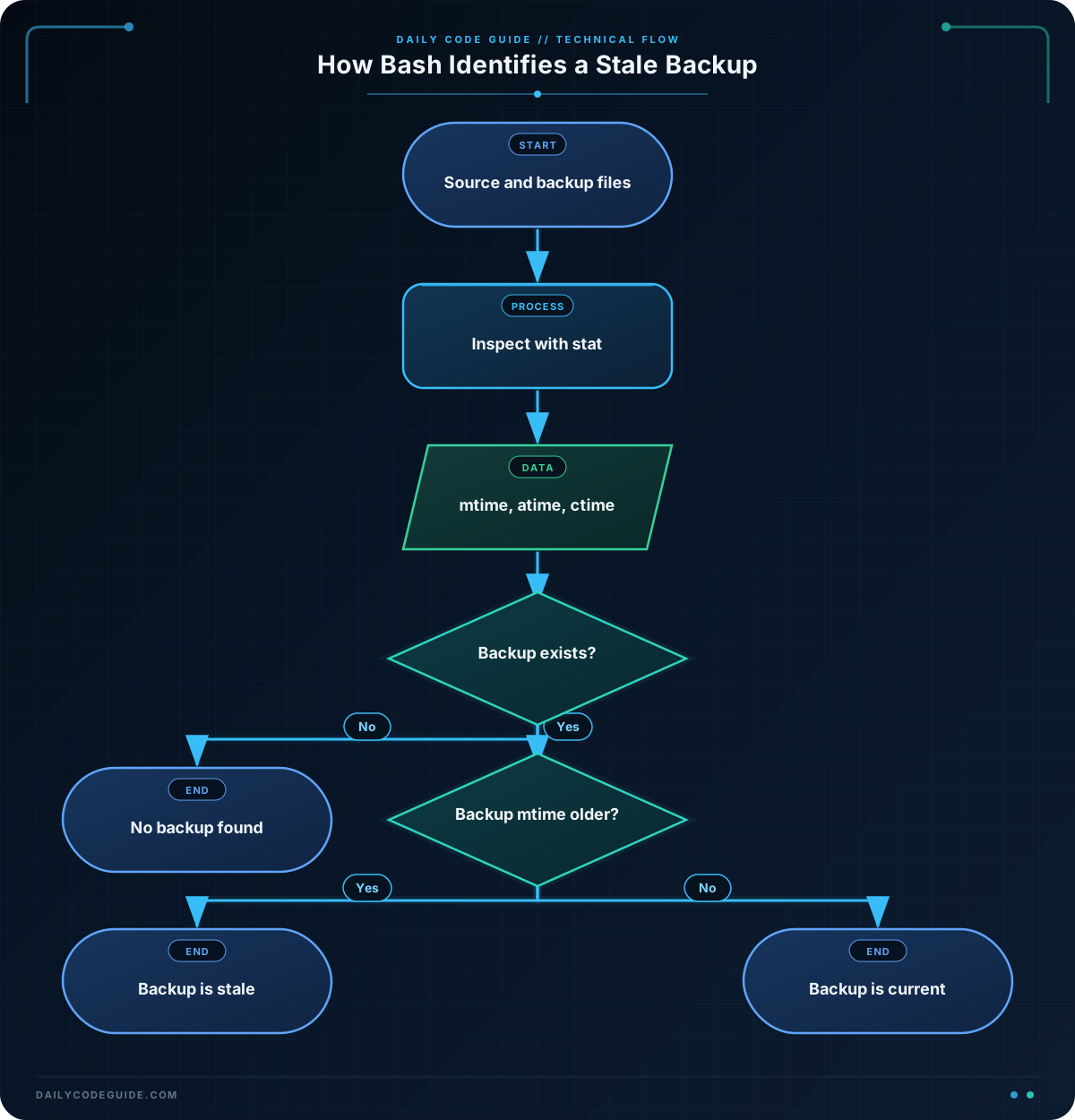
In this lesson, you will use Bash’s stat command to inspect file timestamps and compare backup files with the files they protect. By the end, you will be able to identify a stale backup and decide whether it needs to be refreshed.
- Understand modification, access, and change timestamps.
- Read a file’s modification time with
stat. - Compare timestamps in a Bash conditional.
- Handle a missing backup file safely.
The Concept
Every file has several timestamps associated with it:
- Modification time (mtime): When the file’s contents were last changed.
- Access time (atime): When the file was last read.
- Change time (ctime): When the file’s metadata or contents last changed. On Linux, this is not the file’s creation time.
The stat command displays this metadata. On Linux systems using GNU stat, the -c option lets you choose the value to print:
stat -c %Y file.txt    # Modification time as Unix seconds
stat -c %X file.txt    # Access time as Unix seconds
stat -c %Z file.txt    # Change time as Unix seconds
A Unix timestamp is a number representing seconds since January 1, 1970. Numbers are useful in scripts because Bash can compare them easily. For example, if a backup’s modification timestamp is smaller than the source file’s timestamp, the backup is older and may be stale.
The examples in this lesson use the GNU/Linux form of stat. macOS uses a different syntax for some stat options, so check your system’s manual page with man stat if an option is unavailable.
Basic Example
This script creates a source file and an older backup, reads their modification timestamps, and reports whether the backup needs to be refreshed.
#!/usr/bin/env bash

work_dir=$(mktemp -d)
trap 'rm -rf "$work_dir"' EXIT

source_file="$work_dir/website-data.txt"
backup_file="$work_dir/website-data.backup"

touch -d "2025-01-10 09:00:00" "$source_file"
touch -d "2025-01-09 09:00:00" "$backup_file"

source_mtime=$(stat -c %Y "$source_file")
backup_mtime=$(stat -c %Y "$backup_file")

if (( backup_mtime < source_mtime )); then
    echo "The backup is stale and needs to be refreshed."
else
    echo "The backup is current."
fi
Expected Output
The backup is stale and needs to be refreshed.How the Code Works
mktemp -d creates a temporary directory for the example. The trap command removes that directory when the script exits, so the example does not leave files behind.
The two variables store the paths of the source file and its backup:
source_file="$work_dir/website-data.txt"
backup_file="$work_dir/website-data.backup"
The touch -d commands create the files and assign them sample modification times. The source file is newer than the backup, which gives us a clear stale-backup situation.
These lines run stat and save the numeric modification times in variables:
source_mtime=$(stat -c %Y "$source_file")
backup_mtime=$(stat -c %Y "$backup_file")
$(...) is command substitution. It runs the command inside the parentheses and places its output into the variable. The quotes around the file paths protect the command if a path contains spaces.
Finally, the arithmetic conditional compares the two numbers:
if (( backup_mtime < source_mtime )); then
    echo "The backup is stale and needs to be refreshed."
fi
If the backup timestamp is smaller, the backup was created or updated before the source file. In a real workflow, this is where you could run your backup command. For deployed files, a similar timestamp check can help decide when to refresh cached website files with the AWS CLI.
Another Example
Sometimes you need to inspect all three timestamps rather than make a single comparison. This audit script displays the modification, access, and change times for a source file and its backup.
#!/usr/bin/env bash

audit_dir=$(mktemp -d)
trap 'rm -rf "$audit_dir"' EXIT

source_file="$audit_dir/customer-export.csv"
backup_file="$audit_dir/customer-export.backup"

touch -d "2025-02-15 14:30:00" "$source_file"
touch -d "2025-02-14 14:30:00" "$backup_file"

printf '%s\n' "Source file timestamps:"
stat -c '  Modified: %y\n  Accessed:  %x\n  Changed:   %z' "$source_file"

printf '\n%s\n' "Backup file timestamps:"
stat -c '  Modified: %y\n  Accessed:  %x\n  Changed:   %z' "$backup_file"
Here, %y, %x, and %z display human-readable versions of the modification, access, and change times. These values are convenient for people to read. The numeric formats such as %Y are usually more convenient for comparisons in scripts.
The exact output can include fractional seconds and depends on the file system, but it will have this general shape:
Source file timestamps:
  Modified: 2025-02-15 14:30:00.000000000 +0000
  Accessed:  2025-02-15 14:30:00.000000000 +0000
  Changed:   2025-02-15 14:30:00.000000000 +0000

Backup file timestamps:
  Modified: 2025-02-14 14:30:00.000000000 +0000
  Accessed:  2025-02-14 14:30:00.000000000 +0000
  Changed:   2025-02-14 14:30:00.000000000 +0000
Common Mistakes
- Comparing formatted dates as text: Human-readable dates are useful for display, but numeric Unix timestamps are simpler and safer for comparisons.
- Confusing change time with creation time: Linux’s ctime records metadata changes, such as permission changes. It does not reliably tell you when a file was created.
- Forgetting to quote file paths: Use
"$file_path"when passing a variable tostat. This prevents spaces in a path from being interpreted as separate arguments. - Assuming the backup exists: Running
staton a missing file produces an error. Check with[[ -f "$backup_file" ]]before reading its timestamp when working with real files.
Try It Yourself
Create a temporary source file and backup file with touch. Assign the source a newer date than the backup, then use stat -c %Y to print both modification timestamps. Change the backup’s date so it is newer and run the comparison again.
Observe how the result changes when the backup timestamp is greater than the source timestamp.
Challenge
Write a Bash script that checks whether a file named database.sql has a corresponding database.sql.backup in the same directory.
- If the backup does not exist, print
No backup found. - If the backup exists and is older than the source, print
Backup is stale. - Otherwise, print
Backup is current.
Use stat -c %Y to compare modification timestamps. You can use a temporary directory and touch -d to test each condition.
Solution
This solution checks for the backup before calling stat, then compares the two modification timestamps only when both files are available.
#!/usr/bin/env bash

check_dir=$(mktemp -d)
trap 'rm -rf "$check_dir"' EXIT

source_file="$check_dir/database.sql"
backup_file="$check_dir/database.sql.backup"

touch -d "2025-03-10 08:00:00" "$source_file"

if [[ ! -f "$backup_file" ]]; then
    echo "No backup found."
else
    source_mtime=$(stat -c %Y "$source_file")
    backup_mtime=$(stat -c %Y "$backup_file")

    if (( backup_mtime < source_mtime )); then
        echo "Backup is stale."
    else
        echo "Backup is current."
    fi
fi
Because the solution does not create the backup file, it prints No backup found.. To test the other branches, create $backup_file with touch and assign it either an older or newer date before the conditional runs.
Key Takeaways
statcan retrieve a file’s modification, access, and change timestamps.- Use
stat -c %Yto get a modification time as a Unix timestamp on GNU/Linux. - A smaller modification timestamp means the file is older.
- Comparing a source file’s timestamp with its backup helps identify stale backups.
- Check that a file exists before asking
statto inspect it.