


What You’ll Learn
In this lesson, you’ll learn how to use PowerShell’s Select-Xml cmdlet with XPath queries to extract configuration settings and structured data from XML files or API responses.
- Use
Select-Xmlwith XML content and parsed XML objects. - Write XPath expressions that select elements and filter matching nodes.
- Read values from the returned
Nodeproperty. - Transform XML nodes into useful PowerShell objects.
- Recognize common XPath and XML namespace issues.
The Concept
XML is often used for application configuration, deployment metadata, and responses from older or enterprise APIs. Although PowerShell can access XML through the [xml] type accelerator, navigating a large document manually can become difficult.
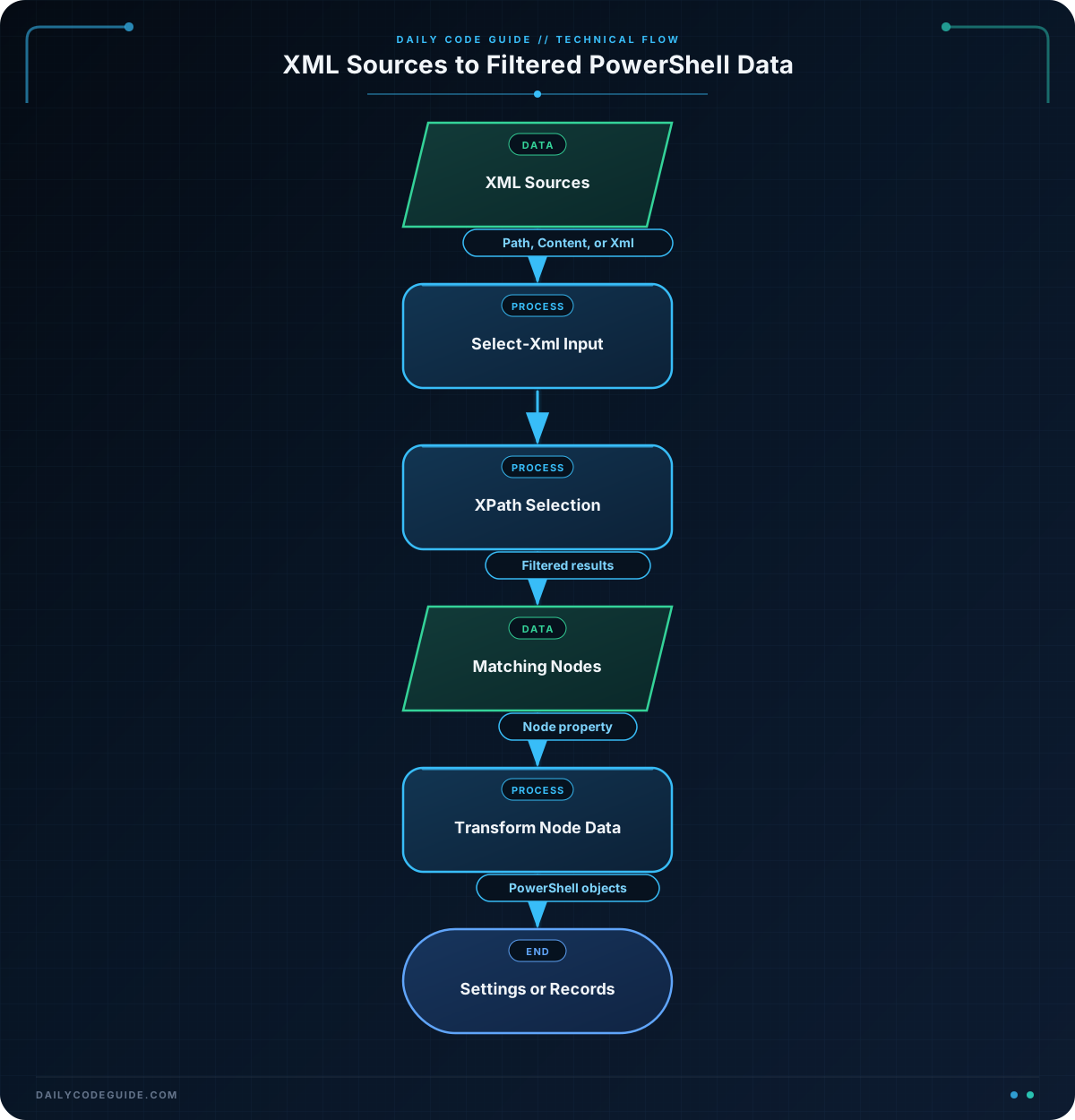
Select-Xml combines XML parsing with XPath selection. XPath is a query language for locating elements, attributes, and text within an XML document.
The cmdlet can read XML in several ways:
-Pathreads one or more XML files.-Contentreads XML text stored in a string.-Xmlsearches an XML document that has already been parsed.
Each result returned by Select-Xml includes a Node property containing the matching XML element. You can then read properties such as InnerText, InnerXml, and XML attributes, or convert the result into a custom PowerShell object.
If your configuration uses simple key-value text rather than nested XML, PowerShell configuration parsing may be a simpler approach. XML is most useful when the data has nesting, repeated elements, attributes, or a schema shared with another system.
Basic Example
This example searches application configuration text for every setting element and converts the results into readable name-value pairs.
$configurationXml = @'
<configuration>
    <application>
        <setting name="Environment">Production</setting>
        <setting name="Region">us-east-1</setting>
        <setting name="LogLevel">Warning</setting>
    </application>
</configuration>
'@

$settingNodes = Select-Xml `
    -Content $configurationXml `
    -XPath '/configuration/application/setting'

$settings = foreach ($setting in $settingNodes) {
    [pscustomobject]@{
        Name  = $setting.Node.GetAttribute("name")
        Value = $setting.Node.InnerText.Trim()
    }
}

$settings | ForEach-Object {
    '{0} = {1}' -f $_.Name, $_.Value
}
Expected Output
Environment = Production
Region = us-east-1
LogLevel = Warning
How the Code Works
The here-string stores the XML document in $configurationXml. A here-string is useful when XML comes from an API response, a test fixture, or another command rather than directly from a file.
The XPath expression is:
/configuration/application/setting
Each slash moves down one level in the document. Therefore, the query selects every setting element beneath application.
The result of Select-Xml is not the element itself. Each result is a wrapper object, so the matching XML element is accessed through $setting.Node. The code then uses:
GetAttribute("name")to read the setting’snameattribute.InnerTextto read the text between the opening and closing tags.[pscustomobject]to create a normal PowerShell object that can be sorted, filtered, exported, or passed through another pipeline.
For an XML file, the same query could use -Path instead:
$settingNodes = Select-Xml `
    -Path './appsettings.xml' `
    -XPath '/configuration/application/setting'
Use -Content when you have XML text and -Xml when you already have a parsed XML document.
Another Example
API responses commonly contain repeated records. XPath predicates let you filter those records while selecting them. The following example extracts only services whose status is enabled from an XML API response.
$apiResponse = @'
<serviceResponse>
    <services>
        <service name="catalog">
            <status>enabled</status>
            <endpoint>https://api.example.com/catalog</endpoint>
            <timeoutSeconds>30</timeoutSeconds>
        </service>
        <service name="billing">
            <status>disabled</status>
            <endpoint>https://api.example.com/billing</endpoint>
            <timeoutSeconds>45</timeoutSeconds>
        </service>
        <service name="accounts">
            <status>enabled</status>
            <endpoint>https://api.example.com/accounts</endpoint>
            <timeoutSeconds>20</timeoutSeconds>
        </service>
    </services>
</serviceResponse>
'@

$apiXml = [xml]$apiResponse

$enabledServices = Select-Xml `
    -Xml $apiXml `
    -XPath "/serviceResponse/services/service[status='enabled']"

$serviceSettings = foreach ($service in $enabledServices) {
    $node = $service.Node

    [pscustomobject]@{
        Name           = $node.GetAttribute("name")
        Endpoint       = $node.endpoint.InnerText
        TimeoutSeconds = [int]$node.timeoutSeconds.InnerText
    }
}

$serviceSettings | Sort-Object Name | Format-Table -AutoSize
The predicate [status='enabled'] filters the repeated service elements. Only matching service nodes are returned, so the disabled billing service is excluded before the PowerShell loop runs.
Common Mistakes
Reading properties from the wrapper instead of the XML node
Select-Xml returns result objects that contain metadata and a Node property. To read an attribute or child element, use the node:
$results = Select-Xml -Content $configurationXml -XPath '/configuration/application/setting'

foreach ($result in $results) {
    $result.Node.GetAttribute("name")
}
Using an XPath that does not match the document
XPath is structure-sensitive. If the XML contains <configuration><application><setting>, a query beginning with /settings will return no results. When troubleshooting, compare every part of the XPath with the actual XML hierarchy.
Forgetting XML namespaces
Some API responses use a namespace, such as xmlns="https://example.com/api". An XPath query without a namespace prefix will not match those elements. Supply a namespace map with -Namespace and use the prefix in the XPath:
$namespaces = @{
    api = 'https://example.com/api'
}

$results = Select-Xml `
    -Path './response.xml' `
    -Namespace $namespaces `
    -XPath '/api:response/api:setting'
Assuming every value exists
A missing child element may produce a null property or an unexpected result. For production scripts, check whether a node was found before converting its value, especially when consuming responses from external systems that may change their schema.
Try It Yourself
Create an XML document containing a <database> element with several <connection> children. Give each connection a name attribute and child elements named server, databaseName, and enabled.
Use Select-Xml to select only connections whose enabled value is true. Convert the matching nodes into objects with the properties Name, Server, and Database, then display them with Format-Table.
Challenge
An XML deployment response contains application settings. Write a PowerShell script that:
- Selects only settings with
environment="production". - Extracts the setting name and value.
- Converts
restartRequiredfrom XML text into a Boolean value. - Displays the results as a table sorted by setting name.
Use an XPath predicate rather than selecting every setting and filtering only afterward in PowerShell.
Solution
$deploymentResponse = @'
<deployment>
    <settings>
        <setting name="CacheEndpoint" environment="production" restartRequired="false">redis-prod-01</setting>
        <setting name="WorkerCount" environment="staging" restartRequired="true">4</setting>
        <setting name="ApiBaseUrl" environment="production" restartRequired="true">https://api.example.com</setting>
        <setting name="LogRetentionDays" environment="production" restartRequired="false">30</setting>
    </settings>
</deployment>
'@

$deploymentXml = [xml]$deploymentResponse

$productionSettings = Select-Xml `
    -Xml $deploymentXml `
    -XPath "/deployment/settings/setting[@environment='production']"

$settings = foreach ($result in $productionSettings) {
    $node = $result.Node

    [pscustomobject]@{
        Name           = $node.GetAttribute("name")
        Value          = $node.InnerText.Trim()
        RestartRequired = [bool]::Parse($node.GetAttribute("restartRequired"))
    }
}

$settings |
    Sort-Object Name |
    Format-Table -AutoSize
The XPath predicate [@environment='production'] selects only elements with the requested attribute value. The script then reads the setting’s attribute and text content, converts restartRequired with [bool]::Parse(), and sorts the resulting PowerShell objects by name.
Key Takeaways
Select-Xmluses XPath to locate elements in XML files, strings, and parsed XML documents.- Use
$result.Nodeto access the matching XML element returned by the cmdlet. - Use
InnerTextfor element text andGetAttribute()for XML attributes. - XPath predicates can filter configuration records before they reach the PowerShell pipeline.
- XML namespaces require a namespace map and prefixed XPath expressions.