


What You’ll Learn
In this lesson, you will learn how to turn simple configuration text into a PowerShell hashtable with ConvertFrom-StringData. You will also learn how to access the resulting values and avoid common formatting problems.
- Recognize the required key=value input format.
- Convert configuration text into structured PowerShell data.
- Read values from the resulting hashtable.
- Understand why all parsed values begin as strings.
The Concept
Configuration files and command output often contain settings as plain text. For example, a tool might return the following lines:
Environment=Development
Port=8080
EnableLogging=true
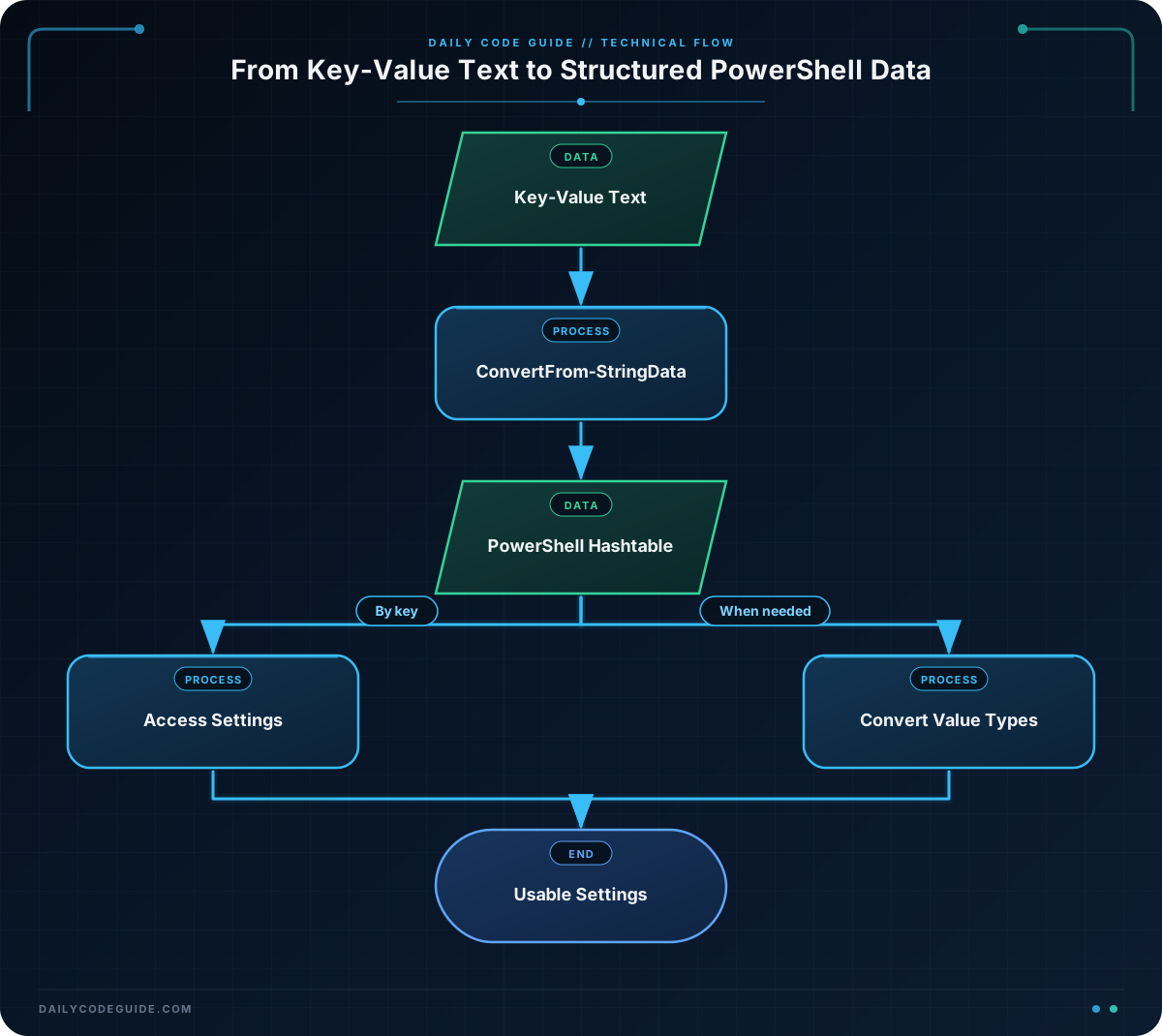
Each line has a key, an equals sign, and a value. PowerShell’s ConvertFrom-StringData command reads this format and returns a hashtable. A hashtable stores related values using names called keys.
After conversion, you can access the Environment setting by its key instead of manually splitting every line of text. This is useful when reading small configuration files, processing command output, or passing settings between scripts.
The input must use one key-value pair per line:
- The key appears before the first equals sign.
- The value appears after the equals sign.
- Each pair must be on its own line.
ConvertFrom-StringData does not automatically convert values into numbers or Boolean values. For example, Port is initially the string “8080”, and EnableLogging is initially the string “true”. You can convert a value later when your script needs a specific data type.
Basic Example
The following example stores configuration text in a multiline string, converts it, and reads three settings.
$configurationText = @"
Environment=Development
Port=8080
EnableLogging=true
"@

$settings = ConvertFrom-StringData -StringData $configurationText

Write-Output "Environment: $($settings.Environment)"
Write-Output "Port: $($settings.Port)"
Write-Output "Logging enabled: $($settings.EnableLogging)"
Expected Output
Environment: Development
Port: 8080
Logging enabled: true
How the Code Works
The first assignment creates a here-string. A here-string is a convenient way to store multiple lines of text. The opening marker must be followed by a newline, and the closing marker must appear on its own line.
Inside the text, each setting follows the required key=value pattern:
- Environment is the key, and Development is its value.
- Port is the key, and 8080 is its value.
- EnableLogging is the key, and true is its value.
The ConvertFrom-StringData command reads the text and stores the result in the settings variable. The result is a hashtable, so each setting can be accessed with dot notation such as settings.Environment or settings.Port.
The dollar sign and parentheses in an expression such as $($settings.Port) tell PowerShell to evaluate the property and place its value inside the larger output string.
Although Port looks like a number, ConvertFrom-StringData returns it as text. If you need to perform arithmetic with it, convert it explicitly:
$portNumber = [int]$settings.Port
Write-Output ($portNumber + 1)
Likewise, a text value such as true can be converted to a Boolean value when needed:
$loggingEnabled = [bool]::Parse($settings.EnableLogging)Another Example
You can also read key-value configuration text from a file. The following example creates a small application settings file, reads its complete contents, and converts those contents into a hashtable.
$configPath = Join-Path $PWD "application-settings.txt"

@"
ApplicationName=Inventory Dashboard
ApiHost=https://api.example.test
RetryCount=3
"@ | Set-Content -Path $configPath

$fileText = Get-Content -Path $configPath -Raw
$appSettings = ConvertFrom-StringData -StringData $fileText

$retryCount = [int]$appSettings.RetryCount

Write-Output "Application: $($appSettings.ApplicationName)"
Write-Output "API host: $($appSettings.ApiHost)"
Write-Output "Retry count: $retryCount"

Remove-Item -Path $configPath
In a real script, the file would usually already exist, so you would use Get-Content with the file path and then ConvertFrom-StringData. The example creates and removes the file so it can be run independently without requiring setup.
ConvertFrom-StringData is intentionally simple. If your configuration needs sections such as [Database], nested settings, or richer INI features, a dedicated format may be a better choice. For that situation, see Python’s configparser for INI files as an example of working with structured INI configuration.
Common Mistakes
Using a colon instead of an equals sign
ConvertFrom-StringData expects key=value pairs. Text such as Environment: Development does not use the expected format. Use Environment=Development instead.
Putting multiple settings on one line
Each setting must be on its own line. Do not place several pairs together on one line separated by commas or semicolons.
Expecting automatic data type conversion
Parsed values are strings. Convert a value to an integer, Boolean, or another type when your script needs that type.
Using a key that does not exist
If you request a setting with the wrong key name, the result may be null. Check the spelling and capitalization of your keys, and make sure the input contains the setting you need.
Adding extra structure
ConvertFrom-StringData is designed for simple key-value text. It is not a general-purpose parser for JSON, XML, or multi-section INI files. Choose a parser that matches the format of your data.
Try It Yourself
Create a configuration string for a small website with these settings:
- SiteName
- Environment
- MaxUsers
Convert the string with ConvertFrom-StringData, display all three values, and convert MaxUsers to an integer before displaying it.
Challenge
Write a PowerShell script that parses the following deployment configuration:
- ServiceName should be Billing Worker.
- Environment should be Production.
- WorkerCount should be 4.
- Diagnostics should be false.
Your script should:
- Store the settings as key-value text.
- Convert the text into a hashtable.
- Convert WorkerCount into an integer.
- Convert Diagnostics into a Boolean.
- Display the service name, environment, worker count, and whether diagnostics are enabled.
Solution
$deploymentText = @"
ServiceName=Billing Worker
Environment=Production
WorkerCount=4
Diagnostics=false
"@

$deployment = ConvertFrom-StringData -StringData $deploymentText

$workerCount = [int]$deployment.WorkerCount
$diagnosticsEnabled = [bool]::Parse($deployment.Diagnostics)

Write-Output "Service: $($deployment.ServiceName)"
Write-Output "Environment: $($deployment.Environment)"
Write-Output "Worker count: $workerCount"
Write-Output "Diagnostics enabled: $diagnosticsEnabled"
The text uses one key-value pair per line, so ConvertFrom-StringData can create the hashtable. WorkerCount is converted with the integer type accelerator, and Diagnostics is converted from the string false into a Boolean value before both values are displayed.
Key Takeaways
- ConvertFrom-StringData converts simple key=value text into a PowerShell hashtable.
- Each key-value pair must appear on its own line.
- Access parsed settings by using their keys, such as settings.Environment.
- Parsed values are strings until you explicitly convert them.
- Use another configuration format when you need sections or nested data.