


What You’ll Learn
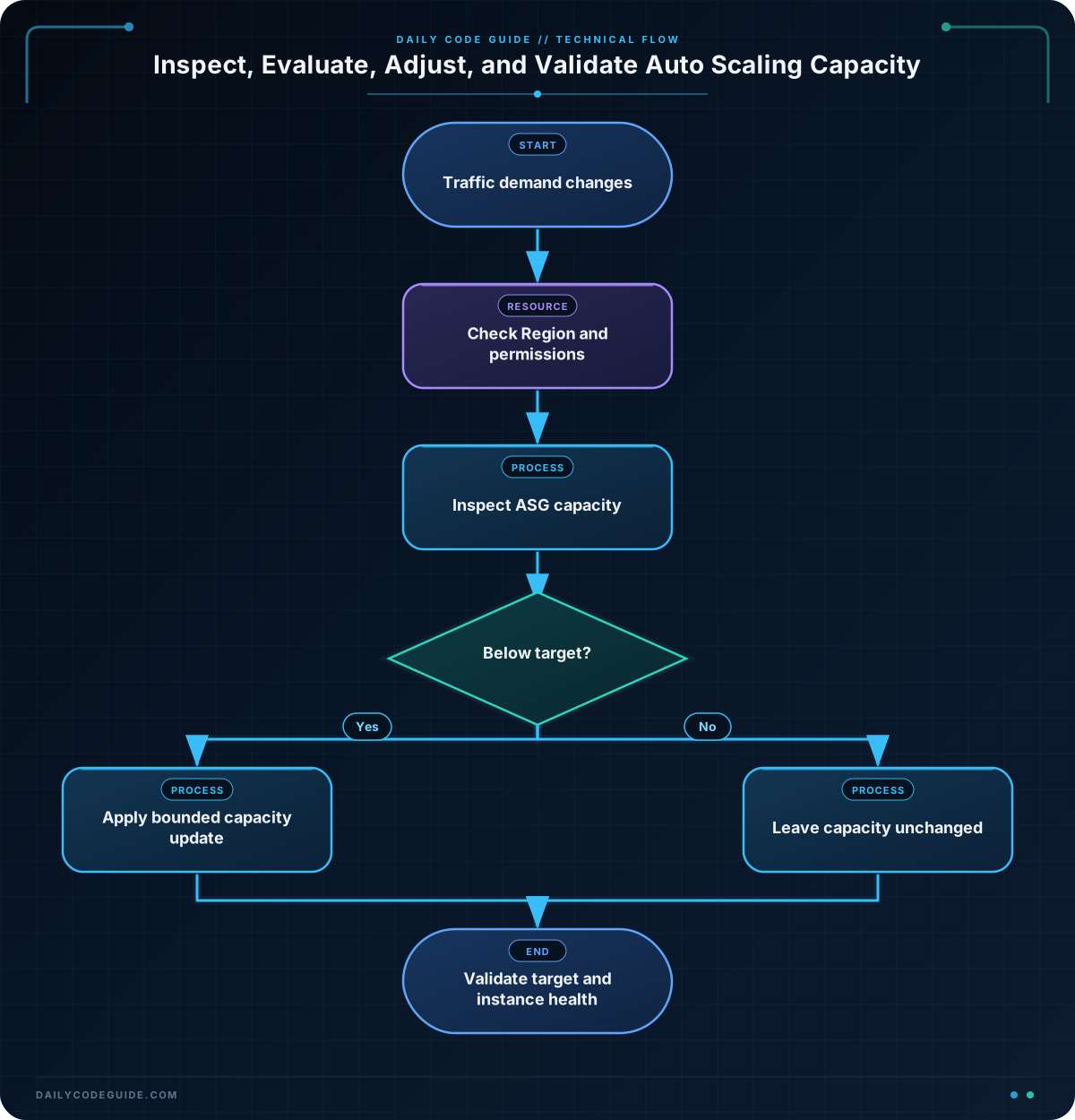
In this lesson, you will use AWS CLI Auto Scaling Group commands to inspect an EC2 Auto Scaling Group and adjust its capacity as application demand changes.
- Read an Auto Scaling Group’s minimum, desired, and maximum capacity.
- Change capacity with
update-auto-scaling-group. - Use Bash variables and conditions to apply a controlled scaling response.
- Recognize operational concerns such as scaling policies, cooldowns, and permissions.
The Concept
An Auto Scaling Group (ASG) maintains a fleet of EC2 instances. Its capacity settings define how many instances the group can run:
- Minimum capacity is the smallest number of instances the group should maintain.
- Desired capacity is the number of instances the group currently tries to run.
- Maximum capacity is the largest number of instances the group may launch.
You can inspect these settings with describe-auto-scaling-groups and change them with update-auto-scaling-group. For example, during a marketing campaign, you might increase desired capacity so the application has more EC2 instances available for incoming requests.
These commands operate in the AWS Region selected by your CLI configuration or by an explicit --region option. Your IAM identity also needs permissions such as autoscaling:DescribeAutoScalingGroups and autoscaling:UpdateAutoScalingGroup.
Basic Example
Suppose an application normally runs with three instances, but traffic is increasing. The following Bash script inspects the group, increases its desired capacity to five, and then verifies the new settings.
#!/usr/bin/env bash
set -euo pipefail

ASG_NAME="web-production-asg"

printf '%s\n' "Current Auto Scaling Group capacity:"
aws autoscaling describe-auto-scaling-groups \
    --auto-scaling-group-names "$ASG_NAME" \
    --query 'AutoScalingGroups[0].[AutoScalingGroupName,MinSize,DesiredCapacity,MaxSize,length(Instances)]' \
    --output table

aws autoscaling update-auto-scaling-group \
    --auto-scaling-group-name "$ASG_NAME" \
    --desired-capacity 5

printf '\n%s\n' "Capacity after the update:"
aws autoscaling describe-auto-scaling-groups \
    --auto-scaling-group-names "$ASG_NAME" \
    --query 'AutoScalingGroups[0].[AutoScalingGroupName,MinSize,DesiredCapacity,MaxSize,length(Instances)]' \
    --output table
Expected Output
The exact table layout depends on the group’s current state and the time required for EC2 instances to launch. Before the update, the desired capacity might be three. After the update request, the desired capacity should be five, while the number of running instances may increase asynchronously.
Current Auto Scaling Group capacity:
-------------------------------------------------
|              DescribeAutoScalingGroups         |
+----------------------+----+----+----+----------+
|  web-production-asg  | 2  | 3  | 8  | 3        |
+----------------------+----+----+----+----------+

Capacity after the update:
-------------------------------------------------
|              DescribeAutoScalingGroups         |
+----------------------+----+----+----+----------+
|  web-production-asg  | 2  | 5  | 8  | 3        |
+----------------------+----+----+----+----------+
How the Code Works
The ASG_NAME variable keeps the group name in one place. The --auto-scaling-group-names option tells the describe command which group to inspect.
The JMESPath expression passed to --query selects five useful values:
- The group name.
MinSize, the minimum capacity.DesiredCapacity, the current target capacity.MaxSize, the maximum capacity.- The length of the
Instanceslist, which shows how many instances are currently associated with the group.
The update command changes only desired capacity because it includes --desired-capacity 5. The minimum and maximum values remain unchanged. AWS then works toward the new desired capacity; the command does not wait for all new instances to become healthy.
A manual desired-capacity update can be temporary. Target tracking, step scaling, scheduled scaling, or other automation may change the value again when its conditions are evaluated. In a production system, make sure a manual adjustment agrees with the scaling policies that manage the application.
Another Example
A one-time capacity change is useful, but automation often needs to make a decision based on the current state. This script reads the current desired capacity and responds to a traffic event by increasing capacity to eight only when the group is currently below eight.
#!/usr/bin/env bash
set -euo pipefail

ASG_NAME="checkout-production-asg"
BURST_TARGET=8

current_desired=$(aws autoscaling describe-auto-scaling-groups \
    --auto-scaling-group-names "$ASG_NAME" \
    --query 'AutoScalingGroups[0].DesiredCapacity' \
    --output text)

printf 'Current desired capacity: %s\n' "$current_desired"

if (( current_desired < BURST_TARGET )); then
    aws autoscaling update-auto-scaling-group \
        --auto-scaling-group-name "$ASG_NAME" \
        --min-size 2 \
        --max-size 12 \
        --desired-capacity "$BURST_TARGET"

    printf 'Burst capacity requested: %s instances\n' "$BURST_TARGET"
else
    printf 'No change required; capacity is already at least %s instances\n' "$BURST_TARGET"
fi
This pattern avoids repeatedly submitting the same update when capacity is already sufficient. It also changes the bounds together with desired capacity, ensuring that a target of eight is allowed by the maximum capacity of twelve.
Common Mistakes
- Using the wrong Region: An ASG name is looked up in the selected Region. If the command reports no matching group, check
aws configure get regionor add--region. - Confusing desired capacity with running instances: Desired capacity is the target. New instances still need to launch, pass health checks, and potentially register with the load balancer.
- Setting an invalid range: Desired capacity must be between the minimum and maximum capacity. If you change several values, make sure the resulting values are consistent.
- Ignoring scaling policies: A policy can increase or decrease desired capacity after your command runs. Inspect the group’s policies and scheduled actions when a manual change does not persist.
- Assuming the command waits for readiness:
update-auto-scaling-grouprequests a new target but does not wait for instances to become healthy. Monitor the group and load balancer health separately.
Try It Yourself
Choose a test Auto Scaling Group and use the AWS CLI to:
- Display its name, minimum capacity, desired capacity, maximum capacity, and instance count.
- Increase desired capacity by one, without exceeding the group’s current maximum.
- Run the describe command again and compare the desired capacity with the instance count.
Use a non-production group or restore the original capacity after testing. Remember that launching EC2 instances can incur charges.
Challenge
Write a Bash script for an application expecting a short traffic spike. The script must:
- Read the current desired capacity of
api-production-asg. - If desired capacity is below four, set minimum capacity to two, maximum capacity to eight, and desired capacity to four.
- If desired capacity is already four or higher, leave the group unchanged.
- Print a message describing whether an update was made.
Do not change capacity when the group is already at least four instances. Test the script against a suitable development or staging group before using production infrastructure.
Solution
#!/usr/bin/env bash
set -euo pipefail

ASG_NAME="api-production-asg"
current_desired=$(aws autoscaling describe-auto-scaling-groups \
    --auto-scaling-group-names "$ASG_NAME" \
    --query 'AutoScalingGroups[0].DesiredCapacity' \
    --output text)

if (( current_desired < 4 )); then
    aws autoscaling update-auto-scaling-group \
        --auto-scaling-group-name "$ASG_NAME" \
        --min-size 2 \
        --max-size 8 \
        --desired-capacity 4

    printf 'Updated %s to a desired capacity of 4.\n' "$ASG_NAME"
else
    printf '%s already has a desired capacity of %s; no update made.\n' \
        "$ASG_NAME" "$current_desired"
fi
The script retrieves only the numeric desired capacity, allowing Bash to compare it with four. The update runs only when the current value is lower, and the new minimum, desired, and maximum values form a valid range.
Key Takeaways
- Use
describe-auto-scaling-groupsto inspect an Auto Scaling Group’s capacity and instance state. - Use
update-auto-scaling-groupto adjust minimum, desired, and maximum capacity. - Desired capacity is a target, so instance launches and health checks happen asynchronously.
- Check Region, IAM permissions, scaling policies, and capacity bounds when troubleshooting.
- Use conditional scripts to make capacity changes only when application demand requires them.

