


What You’ll Learn
In this lesson, you will use the AWS CLI to create a DynamoDB table and manage application records from the command line. DynamoDB is a NoSQL database, so records are stored as items rather than rows, and each item is identified by a primary key.
- Create and describe a DynamoDB table.
- Add an item with
put-item. - Retrieve an item with
get-item. - Update and delete an item.
- List items with
scan.
You should already have the AWS CLI configured with credentials and a default region. If you are practicing with other command-line AWS services, the related AWS CLI Secrets Manager commands tutorial uses a similar resource-management workflow.
The Concept
A DynamoDB table stores items. An item is similar to a record, but DynamoDB does not require every item to contain the same fields. Each item must contain the table’s primary key.
In this lesson, the recordId attribute is the partition key. A partition key is the attribute DynamoDB uses to locate an item. Because its type is S, each key value is a string.
DynamoDB uses a special JSON format for attribute values. For example, {"S":"active"} means that the value is the string active. The common type markers are:
Sfor stringsNfor numbersBOOLfor true or false values
The AWS CLI command group begins with aws dynamodb. You then add an operation such as create-table, put-item, or get-item.
Basic Example
The following Bash session creates a table for application records and manages one record. The --billing-mode PAY_PER_REQUEST option uses on-demand capacity, which is convenient for a small practice table because you do not need to choose read and write capacity values.
TABLE_NAME="AppRecords"

aws dynamodb create-table \
    --table-name "$TABLE_NAME" \
    --attribute-definitions AttributeName=recordId,AttributeType=S \
    --key-schema AttributeName=recordId,KeyType=HASH \
    --billing-mode PAY_PER_REQUEST

aws dynamodb wait table-exists --table-name "$TABLE_NAME"

aws dynamodb describe-table \
    --table-name "$TABLE_NAME" \
    --query 'Table.[TableName,TableStatus,KeySchema]' \
    --output json

aws dynamodb put-item \
    --table-name "$TABLE_NAME" \
    --item '{"recordId":{"S":"rec-1001"},"customerName":{"S":"Avery Chen"},"status":{"S":"new"},"priority":{"N":"2"}}'

aws dynamodb get-item \
    --table-name "$TABLE_NAME" \
    --key '{"recordId":{"S":"rec-1001"}}' \
    --output json

aws dynamodb update-item \
    --table-name "$TABLE_NAME" \
    --key '{"recordId":{"S":"rec-1001"}}' \
    --update-expression 'SET #status = :status' \
    --expression-attribute-names '{"#status":"status"}' \
    --expression-attribute-values '{":status":{"S":"in-progress"}}' \
    --return-values ALL_NEW

aws dynamodb scan \
    --table-name "$TABLE_NAME" \
    --projection-expression 'recordId, customerName, #status' \
    --expression-attribute-names '{"#status":"status"}' \
    --output json

aws dynamodb delete-item \
    --table-name "$TABLE_NAME" \
    --key '{"recordId":{"S":"rec-1001"}}'

aws dynamodb get-item \
    --table-name "$TABLE_NAME" \
    --key '{"recordId":{"S":"rec-1001"}}' \
    --output json
Expected Output
The exact output from describe-table includes additional metadata, but the selected fields show that the table is active and uses recordId as its partition key. The update returns the item with its new status, and the final get-item returns an empty object because the item was deleted.
[
    "AppRecords",
    "ACTIVE",
    [
        {
            "AttributeName": "recordId",
            "KeyType": "HASH"
        }
    ]
]

{
    "Attributes": {
        "recordId": {
            "S": "rec-1001"
        },
        "customerName": {
            "S": "Avery Chen"
        },
        "status": {
            "S": "in-progress"
        },
        "priority": {
            "N": "2"
        }
    }
}

{}
How the Code Works
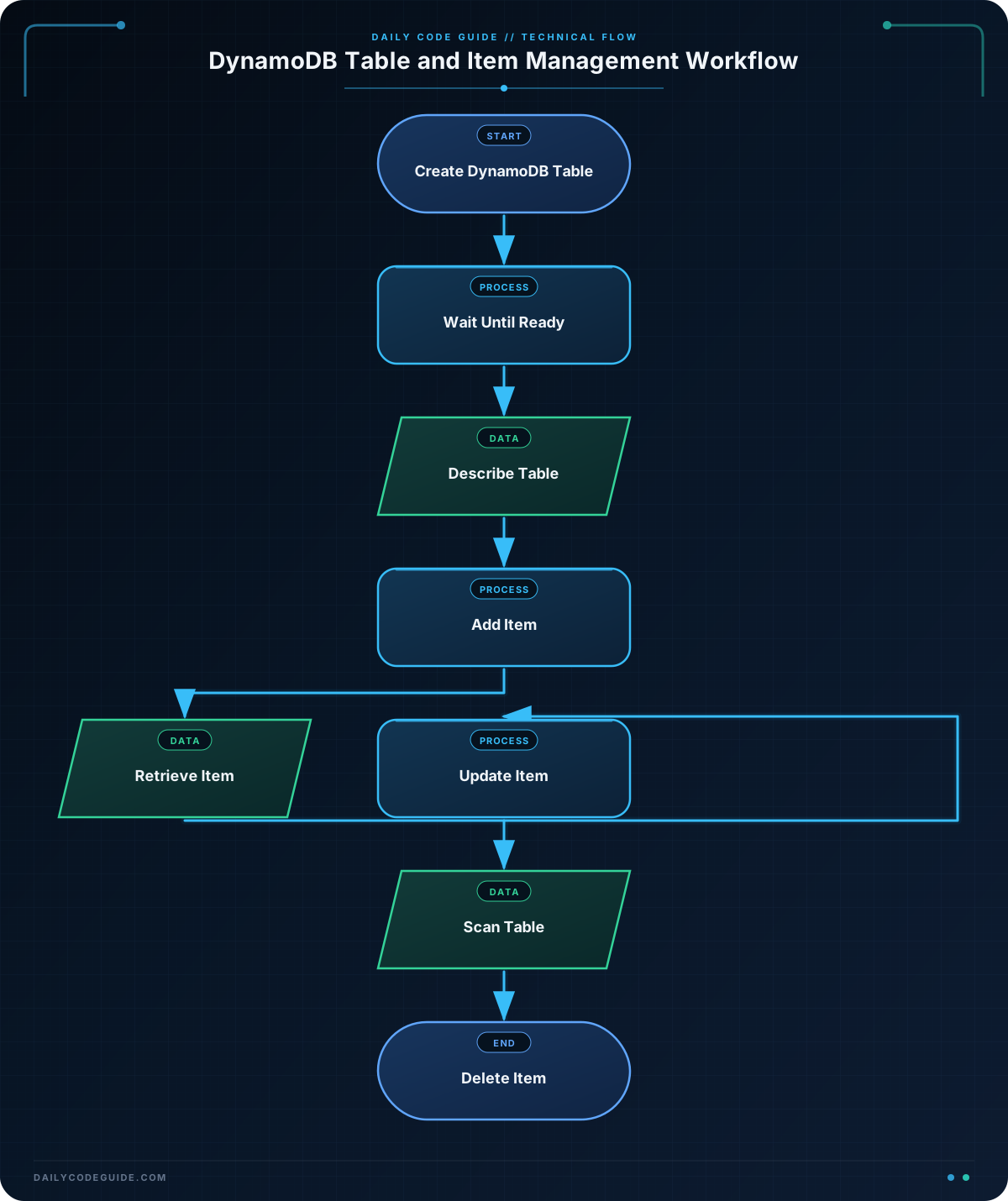
Creating the table: --attribute-definitions declares the type of every key attribute. --key-schema identifies recordId as the partition key by assigning it KeyType=HASH. DynamoDB requires these settings when the table is created.
Waiting for readiness: The create operation can finish before the table is ready for item operations. aws dynamodb wait table-exists pauses until AWS reports that the table exists and is available.
Describing the table: describe-table shows configuration and status information. The --query option uses a JMESPath expression to select only the fields needed in this example, while --output json formats the result as JSON.
Adding an item: put-item creates an item or replaces an existing item with the same primary key. The item contains the required recordId plus application attributes such as customerName, status, and priority.
Retrieving an item: get-item needs the table name and a key object. Since the table has one partition key, the key only needs recordId. If no item matches the key, DynamoDB returns an empty result.
Updating an item: update-item changes selected attributes without replacing the complete item. The expression sets status to a new value. The name placeholder #status and value placeholder :status keep the expression clear and help avoid conflicts with reserved words.
Scanning the table: scan reads items across the table. It is useful for small demonstrations and administrative checks, but it can become expensive for large tables. The projection expression limits the returned attributes.
Deleting an item: delete-item removes the item identified by its primary key. It does not delete the table itself.
Another Example
Application preferences are another practical use for DynamoDB. This example creates a table whose key is a user ID, stores notification preferences, retrieves them, changes one preference, and then lists the stored users.
PREFERENCES_TABLE="UserPreferences"

aws dynamodb create-table \
    --table-name "$PREFERENCES_TABLE" \
    --attribute-definitions AttributeName=userId,AttributeType=S \
    --key-schema AttributeName=userId,KeyType=HASH \
    --billing-mode PAY_PER_REQUEST

aws dynamodb wait table-exists --table-name "$PREFERENCES_TABLE"

aws dynamodb put-item \
    --table-name "$PREFERENCES_TABLE" \
    --item '{"userId":{"S":"user-204"},"email":{"S":"samira@example.com"},"weeklySummary":{"BOOL":true},"theme":{"S":"dark"}}'

aws dynamodb get-item \
    --table-name "$PREFERENCES_TABLE" \
    --key '{"userId":{"S":"user-204"}}' \
    --projection-expression 'userId, email, weeklySummary, theme' \
    --output json

aws dynamodb update-item \
    --table-name "$PREFERENCES_TABLE" \
    --key '{"userId":{"S":"user-204"}}' \
    --update-expression 'SET #summary = :enabled' \
    --expression-attribute-names '{"#summary":"weeklySummary"}' \
    --expression-attribute-values '{":enabled":{"BOOL":false}}' \
    --return-values UPDATED_NEW

aws dynamodb scan \
    --table-name "$PREFERENCES_TABLE" \
    --select COUNT

aws dynamodb delete-item \
    --table-name "$PREFERENCES_TABLE" \
    --key '{"userId":{"S":"user-204"}}'
Here, BOOL stores a Boolean value instead of a string. The --select COUNT option makes the scan return the number of items rather than all item data, which is useful when you only need a count.
Common Mistakes
- Leaving out the DynamoDB type marker:
"status":"new"is not a valid DynamoDB attribute value. Use"status":{"S":"new"}. - Using the wrong key: Every
get-item,update-item, anddelete-itemcommand must provide the exact primary-key attribute and value defined for the table. - Trying to create the same table twice:
create-tablefails if the table already exists. Usedescribe-tableto inspect an existing table or choose a different table name. - Expecting
scanto be a targeted lookup: A scan examines the table. For a known primary key, useget-iteminstead. - Forgetting the AWS region: The table exists only in the region where it was created. Check your configured region or add
--regionto the commands when necessary.
Try It Yourself
Create a table named ProjectTasks with a string partition key named taskId. Add an item with these values:
taskId:task-1title:Write release notescompleted: false
Then retrieve the item with get-item, change completed to true with update-item, and use scan to display the table contents.
Challenge
Create a DynamoDB table named SupportTickets with a string partition key named ticketId. Then:
- Add a ticket with ID
ticket-501, subjectCannot reset password, and priorityhigh. - Retrieve the ticket.
- Update its priority to
urgent. - Scan the table to show the ticket.
- Delete the ticket.
Use on-demand billing and wait for the table to exist before adding the item.
Solution
TABLE_NAME="SupportTickets"

aws dynamodb create-table \
    --table-name "$TABLE_NAME" \
    --attribute-definitions AttributeName=ticketId,AttributeType=S \
    --key-schema AttributeName=ticketId,KeyType=HASH \
    --billing-mode PAY_PER_REQUEST

aws dynamodb wait table-exists --table-name "$TABLE_NAME"

aws dynamodb put-item \
    --table-name "$TABLE_NAME" \
    --item '{"ticketId":{"S":"ticket-501"},"subject":{"S":"Cannot reset password"},"priority":{"S":"high"}}'

aws dynamodb get-item \
    --table-name "$TABLE_NAME" \
    --key '{"ticketId":{"S":"ticket-501"}}' \
    --output json

aws dynamodb update-item \
    --table-name "$TABLE_NAME" \
    --key '{"ticketId":{"S":"ticket-501"}}' \
    --update-expression 'SET priority = :priority' \
    --expression-attribute-values '{":priority":{"S":"urgent"}}' \
    --return-values UPDATED_NEW

aws dynamodb scan \
    --table-name "$TABLE_NAME" \
    --output json

aws dynamodb delete-item \
    --table-name "$TABLE_NAME" \
    --key '{"ticketId":{"S":"ticket-501"}}'
The solution uses ticketId consistently as the key for retrieval, updating, and deletion. The update expression changes only the priority attribute, while the scan confirms that the item is present before it is removed.
Key Takeaways
- DynamoDB items use typed attribute values such as
S,N, andBOOL. - The table’s primary key must be supplied for item retrieval, updates, and deletion.
put-itemadds or replaces an item, whileupdate-itemchanges selected attributes.scanreads across a table and should be used carefully with larger datasets.- After practicing DynamoDB, you can continue with other cloud automation workflows such as AWS CLI API Gateway commands.