


What You’ll Learn
In this lesson, you will use the AWS CLI to inspect Amazon ECS services and tasks, deploy a newer task definition revision, force a new deployment, and verify that replacement tasks become healthy.
- Inspect service status, desired counts, running counts, and deployment state.
- List and describe the tasks currently running in a service.
- Update a service to use a new task definition revision.
- Restart service tasks with a forced deployment.
- Recognize common ECS troubleshooting and rollout mistakes.
The Concept
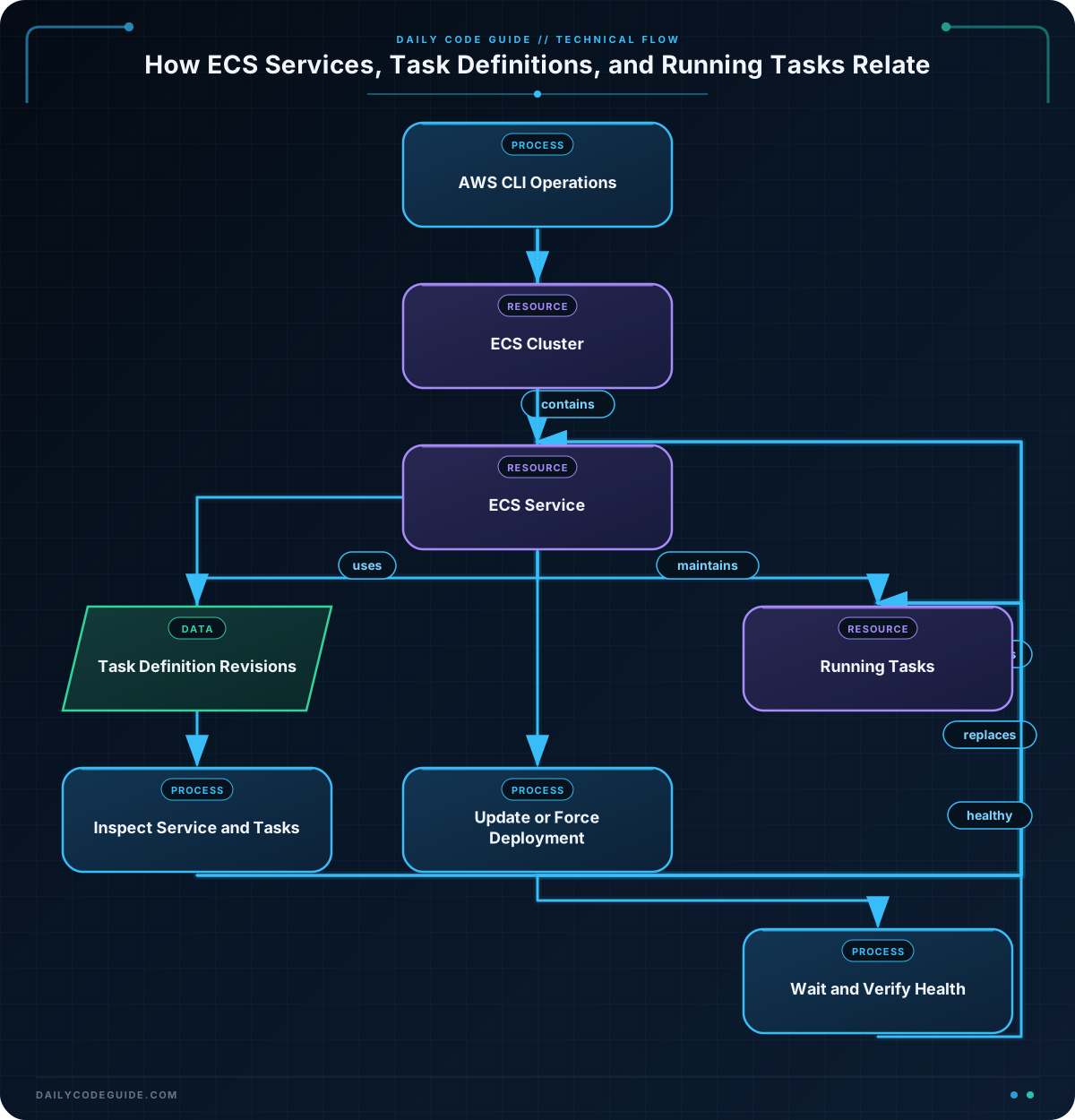
An ECS service maintains a desired number of running tasks. For example, a service with a desired count of three attempts to keep three task instances running, replacing tasks when they stop or when a deployment starts.
The AWS CLI provides several commands for working with this lifecycle:
aws ecs describe-servicesshows service configuration, deployment state, and task counts.aws ecs list-tasksreturns task ARNs that match filters such as service or desired status.aws ecs describe-tasksshows container-level details, including task health and stopped reasons.aws ecs update-servicechanges service settings, selects a task definition revision, or starts a new deployment.aws ecs wait services-stablewaits until ECS reports that the service has reached a stable state.
These commands are useful during deployments and incident response. You can confirm what ECS is running before making a change, apply a task definition revision, and then verify that the rollout completed successfully.
These examples use AWS CLI v2 syntax. If your environment still uses an older installation, review the AWS CLI v2 migration guidance before placing these commands in deployment scripts.
Basic Example
The following Bash sequence inspects an orders-api service. It first summarizes the service and then lists details for its running tasks.
#!/usr/bin/env bash
set -euo pipefail

REGION="us-east-1"
CLUSTER="production-cluster"
SERVICE="orders-api"

aws ecs describe-services \
    --region "$REGION" \
    --cluster "$CLUSTER" \
    --services "$SERVICE" \
    --query 'services[0].{status:status,desired:desiredCount,running:runningCount,pending:pendingCount,taskDefinition:taskDefinition,deployments:deployments[*].{status:status,rollout:rolloutState,running:runningCount,desired:desiredCount}}' \
    --output table

TASK_ARNS=$(aws ecs list-tasks \
    --region "$REGION" \
    --cluster "$CLUSTER" \
    --service-name "$SERVICE" \
    --desired-status RUNNING \
    --query 'taskArns' \
    --output text)

if [[ -n "$TASK_ARNS" ]]; then
    aws ecs describe-tasks \
        --region "$REGION" \
        --cluster "$CLUSTER" \
        --tasks $TASK_ARNS \
        --query 'tasks[*].{task:taskArn,lastStatus:lastStatus,health:healthStatus,started:startedAt,containers:containers[*].{name:name,lastStatus:lastStatus,health:healthStatus,reason:reason}}' \
        --output table
else
    printf 'No running tasks were found for service %s.\n' "$SERVICE"
fi
Expected Output
The exact values depend on your cluster. A healthy service might produce output similar to this:
----------------------------------------
|           DescribeServices            |
+----------------+---------------------+
|  status        |  ACTIVE             |
|  desired       |  3                  |
|  running       |  3                  |
|  pending       |  0                  |
+----------------+---------------------+

--------------------------------------------
|              DescribeTasks                |
+----------------+---------------------------+
|  lastStatus    |  RUNNING                 |
|  health        |  HEALTHY                 |
|  containers    |  orders-api: RUNNING    |
+----------------+---------------------------+
How the Code Works
The variables keep environment-specific values in one place. This makes the commands easier to reuse for another cluster, region, or service without editing every argument.
The describe-services query selects useful fields from the first service returned. The deployment list is especially important during a rollout: an old deployment and a new deployment can exist at the same time while ECS replaces tasks.
list-tasks returns task ARNs rather than complete task objects. The script stores those ARNs in TASK_ARNS, then passes them to describe-tasks. The conditional prevents a confusing command when the service currently has no running tasks.
The task output separates task-level state from container-level state. A task can be running while one of its containers is unhealthy or has stopped, so inspect both levels when troubleshooting.
The command uses --output table for interactive inspection. For automation, --output json is usually a better choice because scripts can process structured data without parsing human-readable tables.
Another Example
Suppose a deployment pipeline has already registered a new revision of the orders-api task definition as orders-api:42. The following commands update the service to that revision, start the deployment, and wait for ECS to report stability.
#!/usr/bin/env bash
set -euo pipefail

REGION="us-east-1"
CLUSTER="production-cluster"
SERVICE="orders-api"
TASK_DEFINITION="orders-api:42"

aws ecs update-service \
    --region "$REGION" \
    --cluster "$CLUSTER" \
    --service "$SERVICE" \
    --task-definition "$TASK_DEFINITION" \
    --query 'service.{service:serviceName,taskDefinition:taskDefinition,desired:desiredCount,deployments:deployments[*].{status:status,rollout:rolloutState,running:runningCount,desired:desiredCount}}' \
    --output table

aws ecs wait services-stable \
    --region "$REGION" \
    --cluster "$CLUSTER" \
    --services "$SERVICE"

aws ecs describe-services \
    --region "$REGION" \
    --cluster "$CLUSTER" \
    --services "$SERVICE" \
    --query 'services[0].{status:status,taskDefinition:taskDefinition,desired:desiredCount,running:runningCount,pending:pendingCount,rollout:deployments[?status==`PRIMARY`].rolloutState | [0]}' \
    --output table
The --task-definition option selects the new revision. ECS then gradually replaces tasks according to the service’s deployment configuration. The wait command does not make the deployment healthy; it waits for the service to reach the stable condition and returns a failure if it cannot do so within the waiter’s limits.
If you want to restart tasks without changing the task definition, omit --task-definition and add --force-new-deployment instead:
aws ecs update-service \
    --region "us-east-1" \
    --cluster "production-cluster" \
    --service "orders-api" \
    --force-new-deployment

aws ecs wait services-stable \
    --region "us-east-1" \
    --cluster "production-cluster" \
    --services "orders-api"
A forced deployment is useful for replacing tasks that may have become unhealthy or for causing ECS to pull a newer image when your workflow intentionally uses a mutable image tag. However, it does not change the task definition. Immutable image tags or image digests are safer for repeatable deployments.
Common Mistakes
Confusing a task restart with a new application version
--force-new-deployment replaces tasks, but it does not register a new task definition or change CPU, memory, environment variables, ports, or image configuration. To deploy those changes, register a new task definition revision and pass it to --task-definition.
Checking only the desired count
A desired count of three does not guarantee that three healthy application containers are serving traffic. Compare desired, running, and pending counts, then inspect task and container health. If the service uses an Application Load Balancer, also check target health with the AWS CLI load balancer and target commands.
Assuming a stable service means the application is correct
ECS can consider a service stable while the application returns errors or while a dependency is unavailable. Review container logs, health checks, and application-level monitoring after a rollout.
Ignoring unexpected service changes
If a task definition or deployment changed unexpectedly, ECS inspection shows the current state but not necessarily who initiated the API call. Use AWS CLI CloudTrail event lookups to investigate the identity, API action, and time of the change.
Passing the wrong cluster
Service names are scoped to a cluster. A correct service name combined with the wrong cluster can produce a missing-service error or cause you to inspect an entirely different workload. Keep the cluster and region explicit in scripts.
Try It Yourself
Choose a non-production ECS service and modify the inspection example so that it:
- Uses your own region, cluster, and service values.
- Displays the service’s primary task definition and deployment rollout state.
- Lists stopped tasks instead of running tasks.
- Includes each stopped task’s
stoppedReason.
For stopped tasks, change the --desired-status value in list-tasks to STOPPED, then query fields such as lastStatus, stoppedReason, and stopCode with describe-tasks.
Challenge
Write a Bash script that safely restarts the current task definition for a service and verifies the result.
Your script should:
- Define variables for the region, cluster, and service.
- Read and display the service’s current task definition.
- Start a forced deployment without changing the task definition.
- Wait for the service to become stable.
- Display the final desired, running, and pending counts.
- Exit with an error if the service has no task definition or the waiter fails.
Solution
#!/usr/bin/env bash
set -euo pipefail

REGION="us-east-1"
CLUSTER="production-cluster"
SERVICE="orders-api"

CURRENT_TASK_DEFINITION=$(aws ecs describe-services \
    --region "$REGION" \
    --cluster "$CLUSTER" \
    --services "$SERVICE" \
    --query 'services[0].taskDefinition' \
    --output text)

if [[ -z "$CURRENT_TASK_DEFINITION" || "$CURRENT_TASK_DEFINITION" == "None" ]]; then
    printf 'Unable to find a task definition for service %s.\n' "$SERVICE" >&2
    exit 1
fi

printf 'Current task definition: %s\n' "$CURRENT_TASK_DEFINITION"

aws ecs update-service \
    --region "$REGION" \
    --cluster "$CLUSTER" \
    --service "$SERVICE" \
    --force-new-deployment \
    --query 'service.{service:serviceName,taskDefinition:taskDefinition,desired:desiredCount}' \
    --output table

aws ecs wait services-stable \
    --region "$REGION" \
    --cluster "$CLUSTER" \
    --services "$SERVICE"

aws ecs describe-services \
    --region "$REGION" \
    --cluster "$CLUSTER" \
    --services "$SERVICE" \
    --query 'services[0].{taskDefinition:taskDefinition,desired:desiredCount,running:runningCount,pending:pendingCount,rollout:deployments[?status==`PRIMARY`].rolloutState | [0]}' \
    --output table
The script first retrieves the task definition so the restart is visibly tied to the current service configuration. It then uses --force-new-deployment without supplying a different revision, waits for ECS to finish replacing tasks, and performs a final status check. With set -euo pipefail, an AWS CLI failure or an unsuccessful waiter stops the script instead of allowing later commands to report misleading results.
Key Takeaways
- Use
describe-servicesfor deployment state and desired, running, and pending task counts. - Use
list-tasksfollowed bydescribe-tasksto inspect individual workloads and container health. - Pass a new task definition revision to
update-servicewhen deploying configuration or image changes. - Use
--force-new-deploymentto replace tasks without changing the task definition. - Use
services-stable, health checks, load balancer targets, and CloudTrail together when troubleshooting a rollout.

