


What You’ll Learn
In this lesson, you will learn how to use AWS CLI security group commands to inspect and safely update inbound rules for an Amazon EC2 application server.
- Understand what an inbound security group rule controls.
- List the current rules for an EC2 security group.
- Add an HTTPS rule for a web application.
- Remove an unsafe SSH rule when it is no longer needed.
The Concept
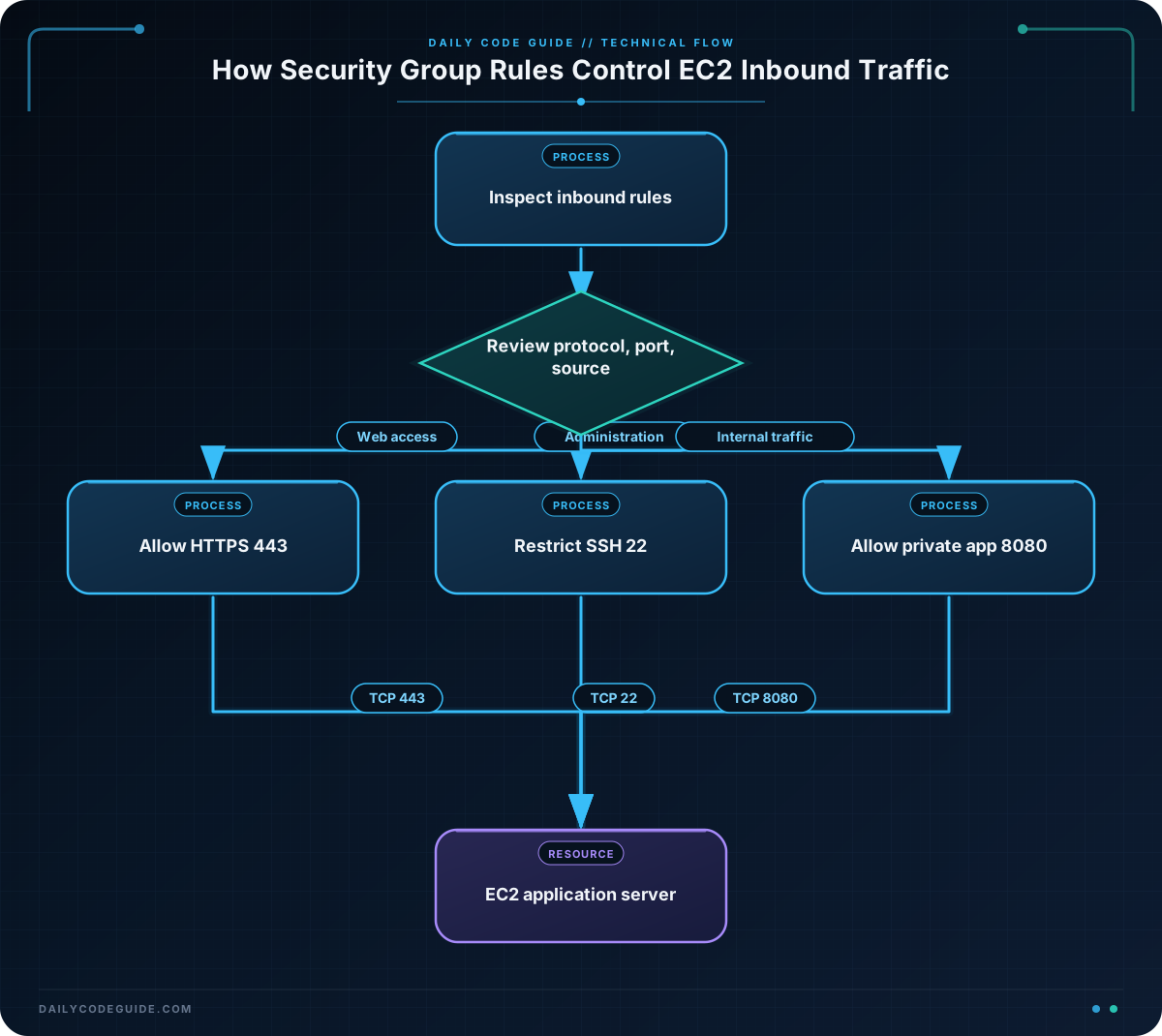
An Amazon EC2 security group acts like a virtual firewall for an instance. Its inbound rules define which network traffic is allowed to reach the instance. Each rule usually specifies a protocol, a port, and a source.
For example, an inbound rule might allow TCP traffic on port 443 from 0.0.0.0/0. Port 443 is commonly used for HTTPS, and 0.0.0.0/0 means any IPv4 address on the internet.
Security groups are associated with network interfaces and instances. Before changing a rule, inspect the current configuration so you do not accidentally remove a rule that the application needs. The main AWS CLI commands are:
describe-security-groupsto inspect security groups and their rules.authorize-security-group-ingressto add an inbound rule.revoke-security-group-ingressto remove an inbound rule.
For safety, use the smallest source range and the smallest port range that your application requires. A rule allowing SSH from one administrator IP address is safer than a rule allowing SSH from every IPv4 address.
Basic Example
Suppose an EC2 application server uses the security group sg-0123456789abcdef0. First, inspect its inbound rules. Then add an HTTPS rule so users can reach the application securely.
Replace the example security group ID with the ID from your AWS account. The command uses --query to display only the inbound permissions instead of the complete security group object.
SECURITY_GROUP_ID="sg-0123456789abcdef0"

aws ec2 describe-security-groups \
    --group-ids "$SECURITY_GROUP_ID" \
    --query 'SecurityGroups[0].IpPermissions' \
    --output json

aws ec2 authorize-security-group-ingress \
    --group-id "$SECURITY_GROUP_ID" \
    --ip-permissions '[
        {
            "IpProtocol": "tcp",
            "FromPort": 443,
            "ToPort": 443,
            "IpRanges": [
                {
                    "CidrIp": "0.0.0.0/0",
                    "Description": "Public HTTPS access"
                }
            ]
        }
    ]'
Expected Output
The first command returns the security group’s current inbound permissions. For example, an existing HTTP rule might appear as follows. Your output will depend on your account.
[
    {
        "FromPort": 80,
        "IpProtocol": "tcp",
        "IpRanges": [
            {
                "CidrIp": "0.0.0.0/0",
                "Description": "Public HTTP access"
            }
        ],
        "Ipv6Ranges": [],
        "PrefixListIds": [],
        "ToPort": 80,
        "UserIdGroupPairs": []
    }
]
If the HTTPS rule is added successfully, the second command returns no output and exits successfully. AWS CLI may report an error if an identical rule already exists. That is useful information: inspect the rules before adding duplicates.
How the Code Works
SECURITY_GROUP_ID is a Bash variable containing the target security group ID. Writing "$SECURITY_GROUP_ID" passes its value safely to the AWS CLI command.
The describe-security-groups command reads the security group configuration. Its important options are:
--group-idsselects the security group to inspect.--query 'SecurityGroups[0].IpPermissions'selects only the first security group’s inbound permissions.--output jsonformats the result as JSON, which is easy to read and process later.
The authorize-security-group-ingress command adds an inbound rule. The JSON passed to --ip-permissions describes one TCP rule:
"IpProtocol": "tcp"allows TCP traffic."FromPort": 443and"ToPort": 443limit the rule to HTTPS traffic."CidrIp": "0.0.0.0/0"allows connections from any IPv4 address."Description"records why the rule exists, which helps with future reviews.
Opening HTTPS to the internet is common for a public web application. However, do not use the same broad source for administrative ports such as SSH unless there is a specific reason. A production environment should normally restrict SSH to a trusted IP range, VPN, or bastion host.
Another Example
Now imagine that a security review found an SSH rule open to the entire internet. If the rule is no longer required, revoke it. The rule must match the protocol, port, and source range that you want to remove.
This example removes public SSH access and then adds SSH access for a single administrator IP address. Replace 203.0.113.25/32 with the administrator’s actual public IPv4 address. The /32 suffix represents one IPv4 address.
SECURITY_GROUP_ID="sg-0123456789abcdef0"
ADMIN_IP_RANGE="203.0.113.25/32"

aws ec2 revoke-security-group-ingress \
    --group-id "$SECURITY_GROUP_ID" \
    --ip-permissions '[
        {
            "IpProtocol": "tcp",
            "FromPort": 22,
            "ToPort": 22,
            "IpRanges": [
                {
                    "CidrIp": "0.0.0.0/0"
                }
            ]
        }
    ]'

aws ec2 authorize-security-group-ingress \
    --group-id "$SECURITY_GROUP_ID" \
    --ip-permissions "[
        {
            \"IpProtocol\": \"tcp\",
            \"FromPort\": 22,
            \"ToPort\": 22,
            \"IpRanges\": [
                {
                    \"CidrIp\": \"$ADMIN_IP_RANGE\",
                    \"Description\": \"Administrator SSH access\"
                }
            ]
        }
    ]"
The first command removes only the rule allowing TCP port 22 from 0.0.0.0/0. The second command creates a narrower rule for one IP address. This is a safer pattern for temporary administration of an EC2 application server.
Common Mistakes
- Using an instance ID instead of a security group ID: Security group commands require values such as
sg-0123456789abcdef0, not instance IDs such asi-0123456789abcdef0. - Revoking a rule with different details: The protocol, ports, and source range must match the rule being removed. A rule for port 22 is different from a rule for port 80.
- Opening administrative ports to everyone: Avoid
0.0.0.0/0for SSH or other administrative services whenever possible. - Adding a duplicate rule: Run
describe-security-groupsfirst. An existing identical rule does not need to be added again. - Forgetting IPv6: An IPv4 rule does not automatically allow IPv6 traffic. Review
Ipv6Rangesas well if your server is reachable over IPv6. - Changing the wrong region or profile: The AWS CLI uses your configured region and credentials. Confirm them before making changes to a real server.
Try It Yourself
Choose a test security group and use describe-security-groups to list its inbound rules. Identify which rules allow web traffic and which rules allow administration. Do not change a production security group for this exercise unless you have permission.
As a follow-up, add an HTTPS rule only if one does not already exist. Use a description that explains its purpose.
Challenge
A private application server needs to receive TCP traffic on port 8080 only from the application network 10.0.10.0/24.
- Set variables for the security group ID and the application network.
- Add an inbound rule for TCP port 8080.
- Give the rule a description such as
Internal application traffic.
Do not open port 8080 to 0.0.0.0/0.
Solution
SECURITY_GROUP_ID="sg-0123456789abcdef0"
APPLICATION_NETWORK="10.0.10.0/24"

aws ec2 authorize-security-group-ingress \
    --group-id "$SECURITY_GROUP_ID" \
    --ip-permissions "[
        {
            \"IpProtocol\": \"tcp\",
            \"FromPort\": 8080,
            \"ToPort\": 8080,
            \"IpRanges\": [
                {
                    \"CidrIp\": \"$APPLICATION_NETWORK\",
                    \"Description\": \"Internal application traffic\"
                }
            ]
        }
    ]"
This solution defines both variables before using them, allows only TCP port 8080, and limits the source to the specified private network. It does not expose the application port to the public internet.
Key Takeaways
- Use
describe-security-groupsto inspect inbound rules before changing them. - Use
authorize-security-group-ingressto add a rule andrevoke-security-group-ingressto remove one. - A rule combines a protocol, port or port range, and source range.
- Use narrow CIDR ranges for administrative access whenever possible.
- Review the AWS region, credentials, security group ID, and existing rules before making changes.

