


What You’ll Learn
In this lesson, you will learn how to create reusable PowerShell administrative commands that behave more like built-in cmdlets. You will use CmdletBinding to add common parameters, parameter validation, pipeline support, and predictable error handling.
- Turn a regular function into an advanced function with
[CmdletBinding()]. - Use validated parameters for safer administrative commands.
- Support common parameters such as
-Verboseand-ErrorAction. - Use
ShouldProcessto safely implement commands that change system state.
The Concept
A regular PowerShell function can accept parameters and return objects, but an advanced function can behave much more like a built-in cmdlet. The key is the [CmdletBinding()] attribute placed before the param block.
Adding [CmdletBinding()] enables common parameters, including:
-Verbosefor optional diagnostic messages.-Debugfor debugging information.-ErrorActionand-ErrorVariablefor error control.-WarningActionand-WarningVariablefor warning control.
Advanced functions also support parameter attributes such as Mandatory, ValueFromPipeline, ValidateSet, ValidateRange, and ValidateNotNullOrEmpty. Validation prevents invalid input from reaching the administrative logic.
For commands that modify a computer, use SupportsShouldProcess with $PSCmdlet.ShouldProcess(). This adds safe -WhatIf and -Confirm behavior, allowing an administrator to preview a change before it happens.
Basic Example
The following function collects operating-system information from one or more computers. It returns structured objects instead of formatted text, making the results easy to filter, export, or send to another command. For background on the underlying inventory command, see these PowerShell system-information queries.
function Get-ServerHealth {
    [CmdletBinding()]
    param(
        [Parameter(
            ValueFromPipeline,
            ValueFromPipelineByPropertyName
        )]
        [ValidateNotNullOrEmpty()]
        [string[]]$ComputerName = $env:COMPUTERNAME
    )

    process {
        foreach ($computer in $ComputerName) {
            try {
                Write-Verbose "Collecting operating-system information from $computer"

                $operatingSystem = Get-CimInstance `
                    -ClassName Win32_OperatingSystem `
                    -ComputerName $computer `
                    -ErrorAction Stop

                $computerSystem = Get-CimInstance `
                    -ClassName Win32_ComputerSystem `
                    -ComputerName $computer `
                    -ErrorAction Stop

                [pscustomobject]@{
                    ComputerName = $computer
                    OperatingSystem = $operatingSystem.Caption
                    Version = $operatingSystem.Version
                    LastBootTime = $operatingSystem.LastBootUpTime
                    Manufacturer = $computerSystem.Manufacturer
                    Model = $computerSystem.Model
                    Status = "Reachable"
                }
            }
            catch {
                Write-Error "Could not query $computer. $($_.Exception.Message)"
            }
        }
    }
}
You can run the function against the local computer or provide several computer names:
Get-ServerHealth -Verbose
Get-ServerHealth -ComputerName "APP01", "DB01" -ErrorAction Continue
Expected Output
The exact operating-system values depend on the computers being queried. The function returns objects similar to these:
VERBOSE: Collecting operating-system information from APP01

ComputerName    : APP01
OperatingSystem : Microsoft Windows Server 2022 Standard
Version         : 10.0.20348
LastBootTime    : 1/15/2025 8:42:11 AM
Manufacturer    : Microsoft Corporation
Model           : Virtual Machine
Status          : Reachable
How the Code Works
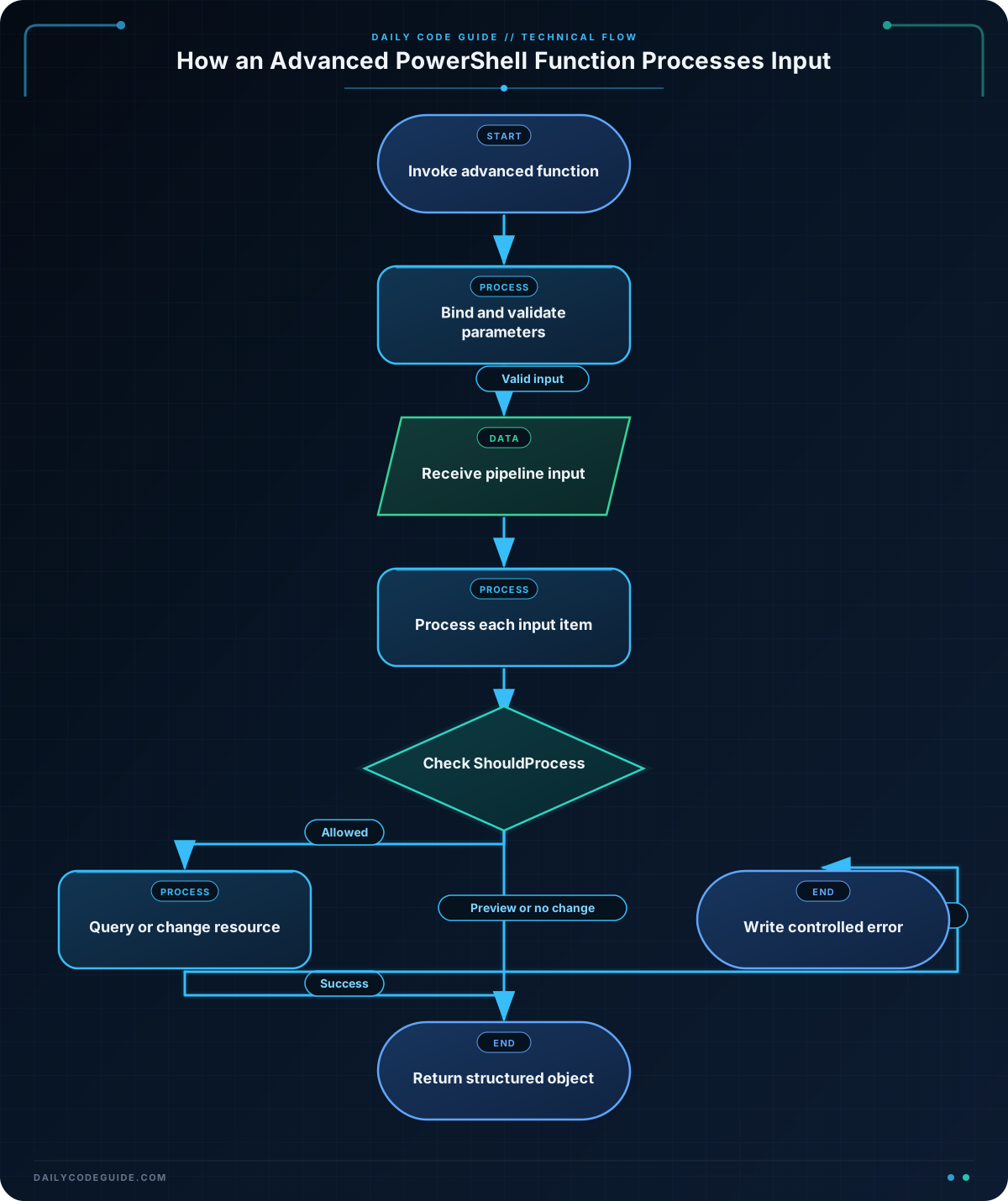
[CmdletBinding()] changes Get-ServerHealth into an advanced function. Because of this attribute, -Verbose and -ErrorAction work without being declared in the parameter list.
The ComputerName parameter accepts an array, so one invocation can query multiple computers. ValueFromPipeline allows names to be piped directly into the function, while ValueFromPipelineByPropertyName allows objects with a property named ComputerName to provide the value.
The process block is important for pipeline-aware functions. PowerShell runs it for each incoming pipeline object. The foreach loop then handles every name in the current array.
Both CIM queries use -ErrorAction Stop. Without it, a non-terminating error might be written while execution continues, preventing the catch block from handling the failure consistently. The function writes an error for a failed computer but can continue processing other computer names.
The result is created with [pscustomobject]. Returning objects rather than display-oriented strings is a useful administrative pattern because callers can use normal PowerShell filtering and comparison operators. These operators are especially useful when extending the function with health conditions; see PowerShell comparison operators and Boolean logic.
Another Example
The next function changes a service’s startup mode. This is a meaningfully different use of an advanced function because it changes system state rather than only collecting information.
function Set-ManagedServiceStartup {
    [CmdletBinding(
        SupportsShouldProcess,
        ConfirmImpact = "High"
    )]
    param(
        [Parameter(
            Mandatory,
            ValueFromPipeline,
            ValueFromPipelineByPropertyName
        )]
        [ValidateNotNullOrEmpty()]
        [string]$Name,

        [Parameter(Mandatory)]
        [ValidateSet("Automatic", "Manual", "Disabled")]
        [string]$StartupType
    )

    process {
        try {
            $service = Get-Service -Name $Name -ErrorAction Stop
            $target = "$($service.Name) on $env:COMPUTERNAME"

            if ($PSCmdlet.ShouldProcess($target, "Set startup type to $StartupType")) {
                Set-Service -Name $service.Name -StartupType $StartupType -ErrorAction Stop
                Get-Service -Name $service.Name
            }
        }
        catch {
            Write-Error "Could not update service '$Name'. $($_.Exception.Message)"
        }
    }
}
Because the function supports ShouldProcess, you can preview the change safely:
Set-ManagedServiceStartup -Name "Spooler" -StartupType "Manual" -WhatIfTo perform the change, omit -WhatIf. Depending on the confirmation impact and your session settings, PowerShell may request confirmation before making the change.
Common Mistakes
- Forgetting
-ErrorAction Stop: Atry/catchblock does not reliably catch non-terminating errors unless the command is configured to stop. - Using text output instead of objects:
Write-Hostis useful for messages, but it prevents callers from easily filtering or exporting results. Return objects for command results. - Skipping validation: Without
ValidateSet, a caller could pass an unsupported startup mode and receive a less useful error from the underlying command. - Changing state without
ShouldProcess: Administrative functions should support-WhatIfwhenever they create, delete, restart, or modify resources. - Assuming remoting is always available:
Get-CimInstance -ComputerNamerequires connectivity and appropriate permissions. A function can be structurally correct while a target remains unreachable.
Try It Yourself
Run Get-ServerHealth against several computers and pipe the results to Where-Object to keep only reachable systems. Then try -Verbose and -ErrorAction SilentlyContinue to observe how common parameters change the command’s behavior.
Challenge
Create an advanced function named Get-DiskSpaceReport that follows these requirements:
- Accept one or more computer names through the pipeline or the
-ComputerNameparameter. - Accept a
-MinimumFreePercentparameter with a valid range from 1 through 99 and a default of 15. - Query fixed disks with
Get-CimInstanceand theWin32_LogicalDiskclass. - Optionally filter to one drive letter using a validated
-DriveLetterparameter. - Return the computer name, drive, size in gigabytes, free space in gigabytes, free percentage, and a status of either
HealthyorLowSpace. - Use
-ErrorAction Stop,try/catch, andWrite-Verbose.
Solution
function Get-DiskSpaceReport {
    [CmdletBinding()]
    param(
        [Parameter(
            ValueFromPipeline,
            ValueFromPipelineByPropertyName
        )]
        [ValidateNotNullOrEmpty()]
        [string[]]$ComputerName = $env:COMPUTERNAME,

        [ValidateRange(1, 99)]
        [int]$MinimumFreePercent = 15,

        [ValidatePattern("^[A-Za-z]$")]
        [string]$DriveLetter
    )

    process {
        foreach ($computer in $ComputerName) {
            try {
                Write-Verbose "Collecting disk information from $computer"

                $disks = Get-CimInstance `
                    -ClassName Win32_LogicalDisk `
                    -Filter "DriveType = 3" `
                    -ComputerName $computer `
                    -ErrorAction Stop

                foreach ($disk in $disks) {
                    $currentDriveLetter = $disk.DeviceID.TrimEnd(":")

                    if ($DriveLetter -and
                        $currentDriveLetter -ne $DriveLetter.ToUpperInvariant()) {
                        continue
                    }

                    if ($disk.Size -le 0) {
                        continue
                    }

                    $freePercent = [math]::Round(
                        ($disk.FreeSpace / $disk.Size) * 100,
                        1
                    )

                    [pscustomobject]@{
                        ComputerName = $computer
                        Drive = $disk.DeviceID
                        SizeGB = [math]::Round($disk.Size / 1GB, 2)
                        FreeGB = [math]::Round($disk.FreeSpace / 1GB, 2)
                        FreePercent = $freePercent
                        Status = if ($freePercent -ge $MinimumFreePercent) {
                            "Healthy"
                        }
                        else {
                            "LowSpace"
                        }
                    }
                }
            }
            catch {
                Write-Error "Could not query disks on $computer. $($_.Exception.Message)"
            }
        }
    }
}
The solution validates the threshold and drive letter before querying the system. It processes each computer independently, skips zero-sized disks to avoid invalid calculations, and returns one structured object per fixed disk. The status comparison uses the configured threshold, so callers can change the definition of low disk space without editing the function.
Key Takeaways
[CmdletBinding()]gives a function cmdlet-like behavior and common parameters.- Parameter attributes validate input before administrative work begins.
- Use
processwhen an advanced function should accept pipeline input. - Use
-ErrorAction Stopwithtry/catchfor predictable error handling. - Use
SupportsShouldProcessand$PSCmdlet.ShouldProcess()for safe state-changing commands.