


What You’ll Learn
In this lesson, you will learn how to use if statements in PowerShell to make decisions based on a Windows service’s status.
- Understand how an if statement makes a decision.
- Compare a service’s status with a value such as
Running. - Use
elsewhen the condition is false. - Handle a service that cannot be found.
The Concept
An if statement runs a block of code only when a condition is true. A condition is a question that can have a true or false answer.
For example, a script can ask: “Is this service running?” If the answer is yes, the script can display a healthy-status message. If the answer is no, it can display a warning.
PowerShell uses this basic structure:
if (condition) {
    # Code that runs when the condition is true
}
else {
    # Code that runs when the condition is false
}
The condition goes inside parentheses. The code that belongs to each result goes inside curly braces, {}.
PowerShell uses comparison operators to create conditions. The -eq operator means “equals.” For example, $status -eq 'Running' asks whether the value in $status is equal to Running.
Basic Example
The following script checks the Windows Print Spooler service. The Get-Service cmdlet retrieves information about a service, and the if statement checks whether the service is running.
$service = Get-Service -Name 'Spooler' -ErrorAction SilentlyContinue

if ($null -eq $service) {
    Write-Output "Service 'Spooler' was not found."
}
elseif ($service.Status -eq 'Running') {
    Write-Output "Service 'Spooler' is running."
}
else {
    Write-Output "Service 'Spooler' is not running."
}
Expected Output
The output depends on whether the Print Spooler service exists and what its current status is. One of these messages will be displayed:
Service 'Spooler' is running.
Service 'Spooler' is not running.
Service 'Spooler' was not found.
How the Code Works
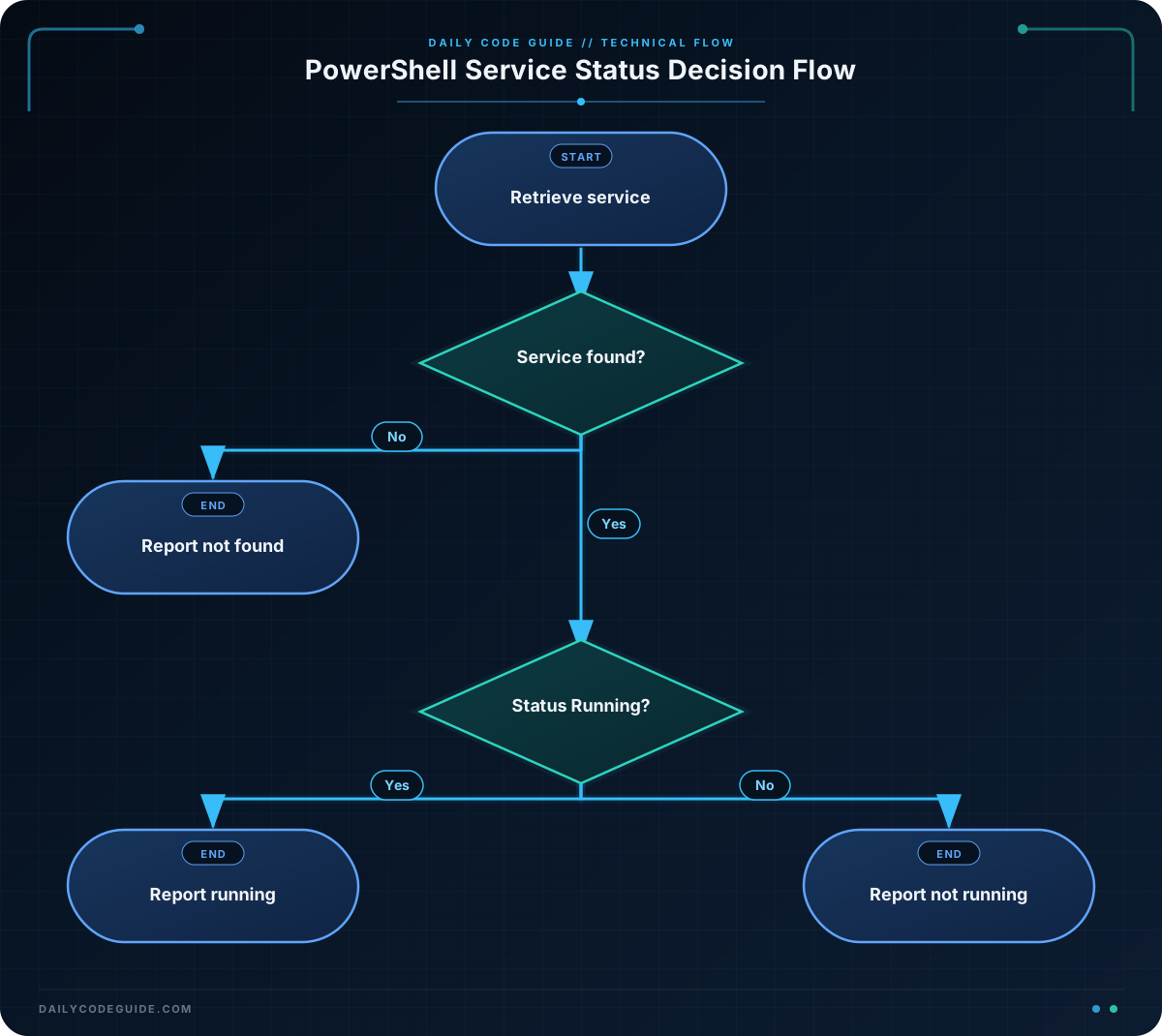
$service is a variable. A variable stores a value so that the script can use it later. The Get-Service cmdlet stores information about the service in this variable.
The -Name 'Spooler' parameter tells PowerShell which service to look up. The service name is different from the friendly name that may appear in the Services application.
-ErrorAction SilentlyContinue prevents PowerShell from displaying an error if the service is not found. Instead, $service will have a null value.
The first condition checks for that missing value:
if ($null -eq $service) {When the service is not found, the script displays a message and does not try to read a status from an empty value.
The elseif statement checks another condition if the first condition was false. The expression $service.Status reads the service’s status, and -eq 'Running' compares it with the text Running.
If the service exists and its status is Running, PowerShell executes the code inside that elseif block. Otherwise, it reaches the else block and reports that the service is not running.
Only one branch of this if statement runs: the first true branch. This lets a script choose an appropriate response instead of performing every action unconditionally.
Another Example
Here is another service-status check using the Background Intelligent Transfer Service, commonly called BITS. This example shows three possible service states: running, stopped, or another state such as starting or stopping.
$bitsService = Get-Service -Name 'BITS' -ErrorAction SilentlyContinue

if ($null -eq $bitsService) {
    Write-Output "The BITS service is unavailable on this computer."
}
elseif ($bitsService.Status -eq 'Running') {
    Write-Output "BITS is ready to transfer files."
}
elseif ($bitsService.Status -eq 'Stopped') {
    Write-Output "BITS is stopped and may need attention."
}
else {
    Write-Output "BITS is currently $($bitsService.Status.ToString().ToLower())."
}
This example uses more than one elseif branch. PowerShell checks the conditions from top to bottom and runs the first matching branch.
Common Mistakes
- Using
=instead of-eq: PowerShell uses-eqfor equality comparisons. Write$service.Status -eq 'Running'. - Forgetting the curly braces: The statements controlled by an if, elseif, or else branch must be inside
{}. - Using the display name instead of the service name: The name passed to
-Namemust be the service’s actual system name, such asSpoolerorBITS. - Reading
.Statuswhen the service was not found: Check whether the variable is null before reading its properties. - Expecting the same result on every computer: Services can be installed, removed, started, or stopped depending on the computer and its configuration.
Try It Yourself
Write a script that checks the Windows Event Log service. Store the result of Get-Service -Name 'EventLog' in a variable. Then use an if statement to print whether the service is running or not running.
Remember to include -ErrorAction SilentlyContinue and handle the possibility that the service was not found.
Challenge
Create a PowerShell script that checks the Windows Task Scheduler service, whose service name is Schedule.
- Print
Task Scheduler is running.when its status isRunning. - Print
Task Scheduler is not running.when the service exists but has another status. - Print
Task Scheduler was not found.when the service does not exist.
Solution
$taskService = Get-Service -Name 'Schedule' -ErrorAction SilentlyContinue

if ($null -eq $taskService) {
    Write-Output "Task Scheduler was not found."
}
elseif ($taskService.Status -eq 'Running') {
    Write-Output "Task Scheduler is running."
}
else {
    Write-Output "Task Scheduler is not running."
}
The script first checks whether the service was found. If it was found, the elseif condition compares its status with Running. Any other existing status reaches the else branch.
Key Takeaways
- An if statement lets a PowerShell script make decisions.
- Use
-eqto compare a value with another value. - Use
elseiffor additional conditions andelsefor the remaining case. - Check for a missing service before reading its properties.
- Service status checks are useful for monitoring and troubleshooting computers.

