


What You’ll Learn
In this lesson, you will learn how to create and use variables in Bash. Variables let you store values, such as file paths, so you can reuse them throughout a script without typing the same information repeatedly.
- Assign a file path to a Bash variable.
- Read a variable using the
$prefix. - Combine variables to build longer paths.
- Use quotes to safely handle paths.
The Concept
A variable is a named place where a script stores a value. In Bash, a variable can hold text such as a directory path or a filename.
Assign a value by writing the variable name, an equals sign, and the value. Do not put spaces around the equals sign:
folder_path="/home/alex/Documents"To use the stored value, place $ before the variable name:
printf '%s\n' "$folder_path"Quotes are important when working with file paths. A path may contain spaces, such as /home/alex/Project Files. Double quotes keep the entire path together when Bash uses it.
Variables are useful because a path may need to appear in several commands. If the path changes later, you can update the variable once instead of editing every command.
Basic Example
This script stores a project directory and two file paths in variables, then displays them.
#!/usr/bin/env bash

project_dir="/home/alex/website"
source_file="$project_dir/index.html"
log_file="$project_dir/logs/deploy.log"

printf 'Project directory: %s\n' "$project_dir"
printf 'Source file: %s\n' "$source_file"
printf 'Log file: %s\n' "$log_file"
Expected Output
Project directory: /home/alex/website
Source file: /home/alex/website/index.html
Log file: /home/alex/website/logs/deploy.log
How the Code Works
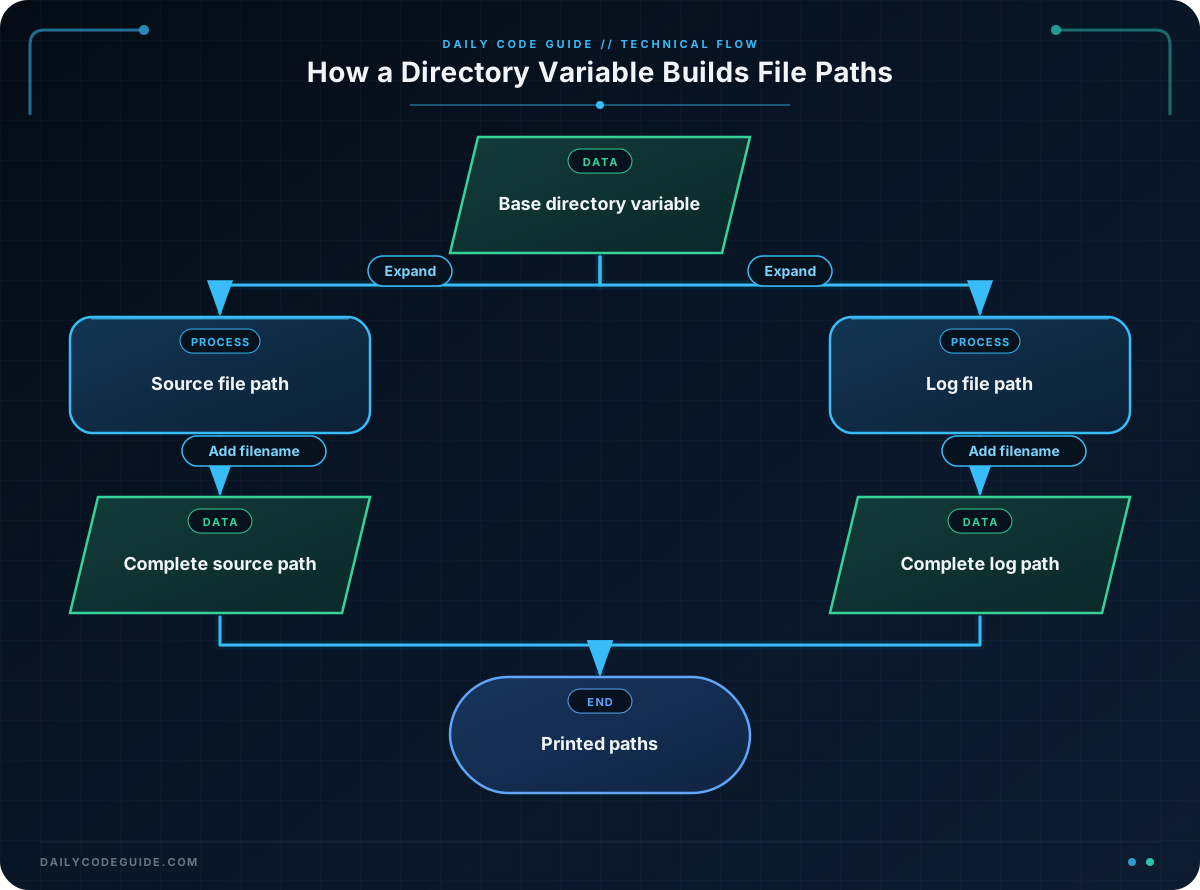
The first line identifies Bash as the interpreter that should run the script:
#!/usr/bin/env bashThis line creates a variable named project_dir and stores a directory path in it:
project_dir="/home/alex/website"The next variables use the value of project_dir. Bash replaces $project_dir with /home/alex/website before using the rest of the path:
source_file="$project_dir/index.html"
log_file="$project_dir/logs/deploy.log"
This is called variable expansion. It allows you to build a new value from an existing variable.
Finally, printf displays each path. The %s placeholder means “insert a string,” and the quoted variable supplies the string:
printf 'Source file: %s\n' "$source_file"The variable name itself does not include the dollar sign when you assign a value. Use source_file=... for assignment, but use "$source_file" when reading the value.
Another Example
Variables can also describe a collection of files. This example prepares paths for image files in a photo archive.
#!/usr/bin/env bash

archive_dir="/home/alex/Photos/2025"
cover_image="$archive_dir/cover.jpg"
notes_file="$archive_dir/notes.txt"

printf 'Photo archive: %s\n' "$archive_dir"
printf 'Cover image: %s\n' "$cover_image"
printf 'Notes file: %s\n' "$notes_file"
The paths are related, but each value has a clear name. If the archive moves to another directory, changing archive_dir automatically changes the paths built from it.
Common Mistakes
- Adding spaces around the equals sign: Bash treats
folder_path = "/home/alex/Documents"as a command instead of a variable assignment. Writefolder_path="/home/alex/Documents". - Forgetting the dollar sign when reading a variable: Use
"$folder_path"when you want the stored value. - Leaving paths unquoted: A path such as
/home/alex/Project Filescontains a space. Use"$folder_path"so Bash treats it as one value. - Using a variable before assigning it: Define the variable before building another path from it.
Try It Yourself
Create variables for a downloads directory, a PDF file inside that directory, and a text file containing notes. Print all three paths with labels.
Use a path such as /home/alex/Downloads, and build the file paths from the downloads variable rather than repeating the full directory path.
Challenge
Create a Bash script for a music collection. Your script should:
- Store the collection directory in a variable.
- Build a path for a rock music directory.
- Build a path for a playlist file inside the collection directory.
- Print all three paths with clear labels.
Use a collection directory of /home/alex/Music, a rock directory named Rock, and a playlist file named favorites.m3u.
Solution
#!/usr/bin/env bash

music_dir="/home/alex/Music"
rock_dir="$music_dir/Rock"
playlist_file="$music_dir/favorites.m3u"

printf 'Music collection: %s\n' "$music_dir"
printf 'Rock directory: %s\n' "$rock_dir"
printf 'Playlist file: %s\n' "$playlist_file"
The solution defines music_dir first, then uses it to construct the rock directory and playlist paths. Quoting each variable keeps the script safe if the directory name later contains spaces.
Key Takeaways
- Bash variables store reusable values such as file paths.
- Do not use spaces around the equals sign when assigning a variable.
- Use
$variable_nameto read a variable’s value. - Use double quotes around path variables, especially when paths may contain spaces.
- Build related paths from one base directory to make scripts easier to update.

