


What You’ll Learn
By the end of this lesson, you will be able to use PowerShell’s try, catch, and finally blocks to handle failures in file operations and clean up temporary files reliably.
- Understand how terminating errors move execution from
trytocatch. - Use
-ErrorAction Stopwhen a cmdlet’s failure must be handled. - Recover from a failed file read with fallback data.
- Use
finallyfor cleanup that must happen whether an operation succeeds or fails.
The Concept
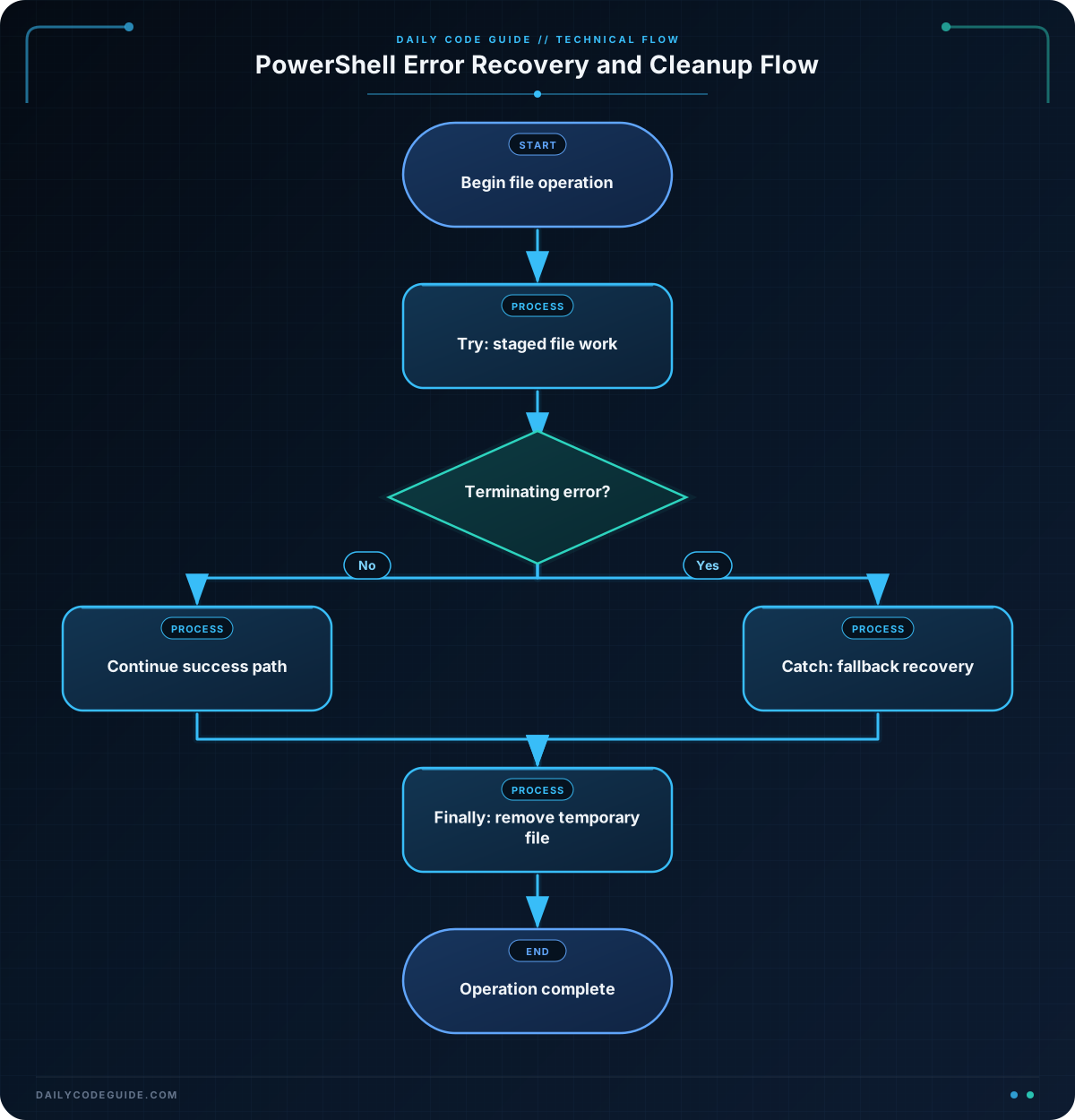
PowerShell uses three related blocks for structured error handling:
- try: Contains code that might fail.
- catch: Runs when a terminating error occurs in the associated
tryblock. - finally: Runs after the
tryorcatchblock, regardless of whether an error occurred.
A basic structure looks like this:
try {
    # Operation that might fail
}
catch {
    # Recovery or error reporting
}
finally {
    # Cleanup
}
One important PowerShell detail is that many cmdlets produce non-terminating errors by default. A non-terminating error may be displayed while the script continues, so it might not activate catch. Add -ErrorAction Stop when a failed operation must transfer control to catch.
This pattern is useful when a script creates a temporary file, opens a resource, stages an export, or performs another operation that requires cleanup. The finally block is the right place for cleanup because it runs after both successful and failed execution paths.
Basic Example
The following function creates a temporary file, attempts to read a missing input file, and uses fallback data when the read fails. The temporary file is removed in finally.
function Read-InputWithFallback {
    $tempFile = Join-Path $env:TEMP ("daily-code-guide-" + [guid]::NewGuid().ToString() + ".tmp")
    $missingInput = Join-Path $env:TEMP "missing-input.txt"

    try {
        New-Item -ItemType File -Path $tempFile -Force -ErrorAction Stop | Out-Null
        Write-Output "Temporary file created."

        $content = Get-Content -LiteralPath $missingInput -Raw -ErrorAction Stop
        Set-Content -LiteralPath $tempFile -Value $content -ErrorAction Stop
        Write-Output "Input file copied to the temporary file."
    }
    catch {
        Write-Output "Input file could not be read; using fallback data."
        Set-Content -LiteralPath $tempFile -Value "fallback data" -ErrorAction Stop
    }
    finally {
        if (Test-Path -LiteralPath $tempFile) {
            Remove-Item -LiteralPath $tempFile -Force -ErrorAction SilentlyContinue
        }

        Write-Output "Temporary file cleanup attempted."
    }
}

Read-InputWithFallback
Expected Output
Temporary file created.
Input file could not be read; using fallback data.
Temporary file cleanup attempted.
How the Code Works
The function generates a unique temporary path with [guid]::NewGuid(). This reduces the chance of colliding with a temporary file created by another process.
The first try operation creates the file:
New-Itemcreates the temporary file.-ErrorAction Stopensures a failure becomes terminating.Out-Nullprevents the created file object from being written to the pipeline.
The call to Get-Content intentionally targets a file that does not exist. Without -ErrorAction Stop, PowerShell can report the error and continue instead of entering catch. With the parameter, execution immediately moves to the catch block.
The catch block recovers by writing known fallback content to the temporary file. In a real script, fallback data might come from a default configuration, a cache, or another trusted source.
The finally block checks whether the temporary file exists before removing it. The check avoids trying to remove a file that was never created. -ErrorAction SilentlyContinue prevents a cleanup warning from overwhelming the original operation’s result, although production scripts may want to log cleanup failures instead of hiding them.
Another Example
Temporary files are often used to stage an export before publishing it. This example writes objects to a temporary CSV file and moves the completed file into its final location only after the export succeeds.
$reportDirectory = Join-Path $env:TEMP "daily-code-guide-reports"
$finalReport = Join-Path $reportDirectory "inventory.csv"
$tempReport = Join-Path $reportDirectory ("inventory-" + [guid]::NewGuid().ToString() + ".tmp")

$records = @(
    [pscustomobject]@{
        Name = "Web server"
        Status = "Ready"
    }
    [pscustomobject]@{
        Name = "Database server"
        Status = "Needs review"
    }
)

try {
    New-Item -ItemType Directory -Path $reportDirectory -Force -ErrorAction Stop | Out-Null

    $records |
        ConvertTo-Csv -NoTypeInformation |
        Set-Content -LiteralPath $tempReport -Encoding utf8 -ErrorAction Stop

    Move-Item -LiteralPath $tempReport -Destination $finalReport -Force -ErrorAction Stop
    Write-Output "Report published successfully."
}
catch {
    Write-Output ("Report export failed: " + $_.Exception.Message)
}
finally {
    if (Test-Path -LiteralPath $tempReport) {
        Remove-Item -LiteralPath $tempReport -Force -ErrorAction SilentlyContinue
    }

    Write-Output "Staging file cleanup completed."
}
The final report is moved into place only after the temporary export completes. If conversion or writing fails, the existing final report is not replaced by a partial file. The finally block removes a leftover staging file if one exists.
Common Mistakes
Forgetting -ErrorAction Stop
A frequent mistake is assuming every cmdlet failure automatically enters catch. For operations such as Get-Content, explicitly use:
Get-Content -LiteralPath $path -ErrorAction StopUse this when the rest of the script should not continue after that operation fails.
Putting cleanup only in catch
If cleanup is placed only in catch, it will not run after a successful operation. Cleanup belongs in finally when it is required on both paths.
Assuming finally means the operation succeeded
finally only means that the earlier code has finished. It does not indicate success. Keep success messages in try, error messages in catch, and cleanup messages in finally.
Accidentally masking the original error
Cleanup can fail too. For example, a file may be locked by another process. Decide whether cleanup failures should be logged, ignored, or raised separately. Silently ignoring every cleanup error can make operational problems difficult to diagnose.
Try It Yourself
Write a function named Read-ConfigSafely that accepts a file path parameter. It should:
- Attempt to read the file with
Get-Content -Raw. - Use
-ErrorAction Stop. - Print the file contents when the read succeeds.
- Print a clear fallback message when the file is missing.
- Create and remove a temporary marker file in a
finallyblock.
Test it with both an existing file and a path that does not exist.
Challenge
Create a function named Save-TextSafely with two parameters: SourcePath and DestinationPath.
The function must:
- Read the source file as a single string.
- Write the content to a uniquely named temporary file in the destination directory.
- Move the temporary file to the destination only after writing succeeds.
- Print a success message when the destination is updated.
- Catch failures and print an error message without claiming the backup succeeded.
- Remove the temporary file in
finally, whether the operation succeeds or fails.
Solution
function Save-TextSafely {
    param(
        [Parameter(Mandatory)]
        [string]$SourcePath,

        [Parameter(Mandatory)]
        [string]$DestinationPath
    )

    $destinationDirectory = Split-Path -Parent $DestinationPath

    if ([string]::IsNullOrWhiteSpace($destinationDirectory)) {
        $destinationDirectory = (Get-Location).Path
    }

    $temporaryName = "." + [guid]::NewGuid().ToString() + ".tmp"
    $temporaryPath = Join-Path $destinationDirectory $temporaryName

    try {
        $content = Get-Content -LiteralPath $SourcePath -Raw -ErrorAction Stop

        Set-Content -LiteralPath $temporaryPath -Value $content -Encoding utf8 -ErrorAction Stop
        Move-Item -LiteralPath $temporaryPath -Destination $DestinationPath -Force -ErrorAction Stop

        Write-Output "Text saved successfully."
    }
    catch {
        Write-Output ("Text save failed: " + $_.Exception.Message)
    }
    finally {
        if (Test-Path -LiteralPath $temporaryPath) {
            Remove-Item -LiteralPath $temporaryPath -Force -ErrorAction SilentlyContinue
        }

        Write-Output "Temporary file cleanup completed."
    }
}

Save-TextSafely `
    -SourcePath (Join-Path $env:TEMP "source.txt") `
    -DestinationPath (Join-Path $env:TEMP "backup.txt")
The source read, temporary write, and final move all use -ErrorAction Stop, so any failure reaches catch. The destination is changed only by the successful Move-Item operation. Regardless of where the failure occurs, finally removes a leftover temporary file.
Key Takeaways
trycontains operations that might fail,catchhandles terminating errors, andfinallyperforms guaranteed cleanup.- Use
-ErrorAction Stopwhen a cmdlet failure must activatecatch. - Use temporary files to stage work before publishing a final file.
- Keep cleanup in
finallyso it runs after both success and failure. - Do not report success from
finally; that block does not indicate whether the main operation succeeded.

