


What You’ll Learn
After completing this lesson, you will know how to start long-running Bash backup tasks without blocking your terminal, inspect their status, bring them back to the foreground, and stop or wait for them safely.
- Run a command in the background with
&. - Use
$!,jobs, andpsto identify and monitor processes. - Pause, resume, and stop jobs with
Ctrl+Z,bg,fg, andkill. - Use
waitto collect a backup process’s exit status.
The Concept
Bash normally runs one foreground command at a time. While that command is running, the shell waits for it to finish before displaying another prompt. This is appropriate for quick commands, but a backup, archive, or database export may take several minutes or hours.
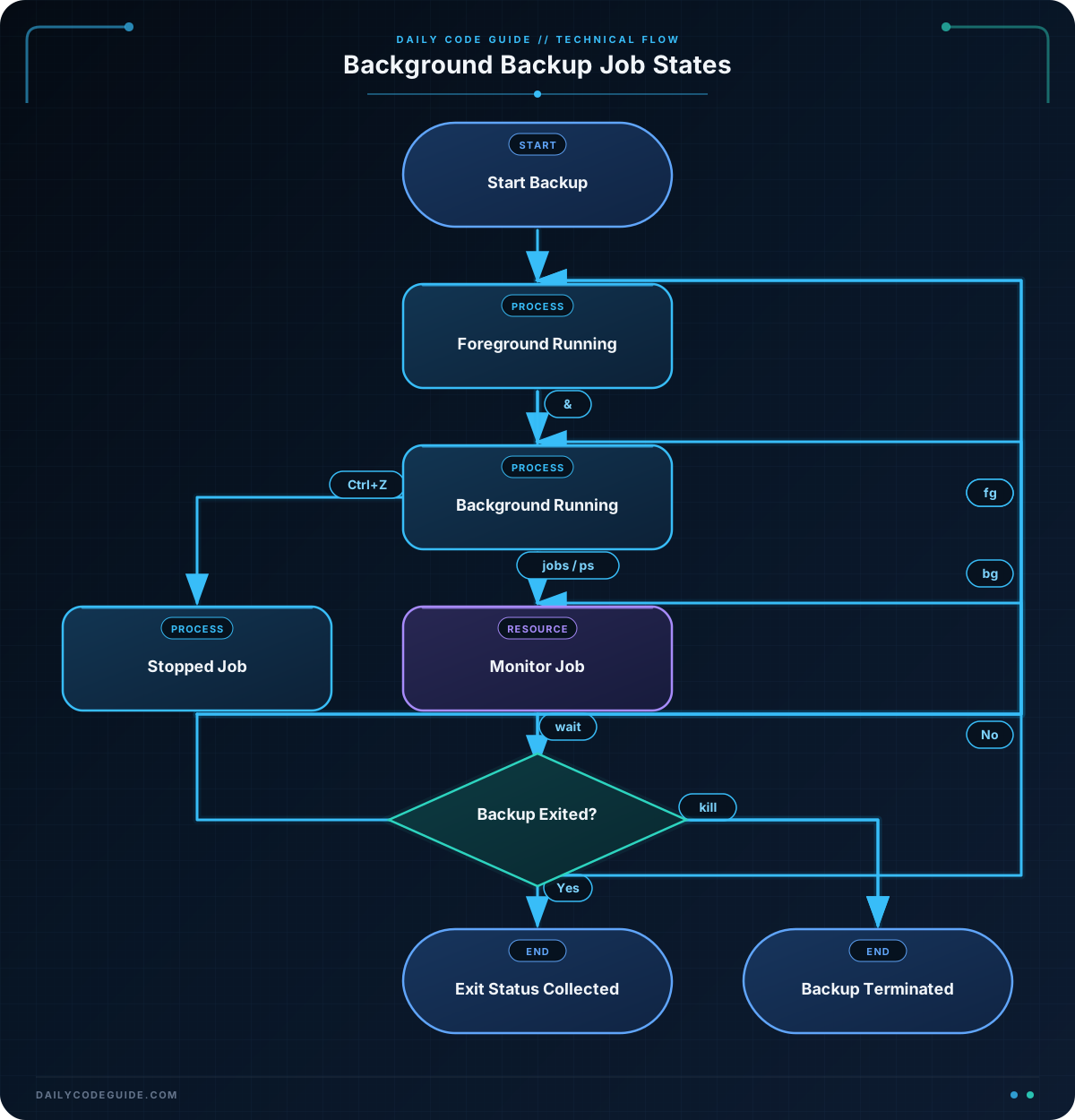
Appending & starts a command as a background job and immediately returns control of the terminal:
tar -czf nightly-backup.tar.gz project/ &Bash assigns the job a job number such as [1] and the operating system assigns it a process ID, or PID. The special variable $! contains the PID of the most recently started background process.
These identifiers serve different purposes:
jobslists jobs managed by the current interactive shell.fgandbguse job specifications such as%1.ps,kill, andwaitcan use a PID.
For a reliable script, save the PID immediately after starting a process. A later command may change the value of $!. Use wait "$pid" when the script must not continue until the backup finishes.
Basic Example
The following demonstration creates a small source directory, starts a delayed archive in the background, checks its status, and waits for completion. The delay makes the job easy to observe; a real tar backup may run for much longer.
#!/usr/bin/env bash

source_dir="/tmp/dcg-backup-source"
archive_path="/tmp/dcg-backup.tar.gz"

mkdir -p "$source_dir"
printf 'Application configuration backup\n' > "$source_dir/config.txt"

backup_directory() {
    local source="$1"
    local destination="$2"

    printf 'Backup started: %s\n' "$destination"
    sleep 3
    tar -czf "$destination" "$source"
    printf 'Backup finished: %s\n' "$destination"
}

backup_directory "$source_dir" "$archive_path" &
backup_pid=$!

printf 'Started background backup with PID %s\n' "$backup_pid"
jobs -l
ps -p "$backup_pid" -o pid=,stat=,cmd=

wait "$backup_pid"
backup_status=$?

if (( backup_status == 0 )); then
    printf 'Backup completed successfully.\n'
else
    printf 'Backup failed with status %s.\n' "$backup_status"
fi
Expected Output
The PID, job number, and process state vary between runs. The backup may finish before jobs or ps displays it, especially on a fast system. A typical run looks similar to this:
Started background backup with PID 28417
[1]+  28417 Running                 backup_directory "$source_dir" "$archive_path" &
  28417 S    bash
Backup started: /tmp/dcg-backup.tar.gz
Backup finished: /tmp/dcg-backup.tar.gz
Backup completed successfully.
How the Code Works
The function receives a source directory and an archive path as arguments. Quoting both variables prevents spaces or wildcard characters in their values from being interpreted incorrectly.
The & after the function call is important. It backgrounds the complete function invocation, not just one command inside the function. The next line stores $! in backup_pid before another background process can replace that value.
jobs -l reports jobs known to the current shell. Its job number, %1 in this example, is useful for interactive commands such as fg %1. The ps command asks the operating system for details about the saved PID, including its state and command.
wait "$backup_pid" blocks until that specific process exits. Its exit status becomes the status of wait, so the script saves it in backup_status and tests it. This is safer than merely assuming that starting the process means the backup succeeded.
In an interactive shell, you can suspend a foreground command with Ctrl+Z. Bash marks it as stopped rather than terminated. Use bg %1 to resume it in the background or fg %1 to resume it in the foreground. To request termination, use kill "$backup_pid". A normal kill sends SIGTERM, giving a well-behaved process an opportunity to clean up.
Another Example
A scheduled backup may need to archive two independent locations. Starting both tasks first can reduce total elapsed time, while waiting for each saved PID lets the script report failures individually.
#!/usr/bin/env bash

backup_root="/tmp/dcg-multi-backup"
mkdir -p "$backup_root/site-a" "$backup_root/site-b"

printf 'Site A database export\n' > "$backup_root/site-a/database.sql"
printf 'Site B uploaded media\n' > "$backup_root/site-b/media.txt"

make_archive() {
    local label="$1"
    local source="$2"
    local destination="$3"
    local log_file="$4"

    {
        printf '%s backup started\n' "$label"
        sleep 2
        tar -czf "$destination" "$source"
        printf '%s backup finished\n' "$label"
    } > "$log_file" 2>&1
}

make_archive "site-a" "$backup_root/site-a" "$backup_root/site-a.tar.gz" "$backup_root/site-a.log" &
site_a_pid=$!

make_archive "site-b" "$backup_root/site-b" "$backup_root/site-b.tar.gz" "$backup_root/site-b.log" &
site_b_pid=$!

printf 'Started site-a with PID %s\n' "$site_a_pid"
printf 'Started site-b with PID %s\n' "$site_b_pid"
ps -p "$site_a_pid,$site_b_pid" -o pid=,stat=,cmd=

wait "$site_a_pid"
site_a_status=$?

wait "$site_b_pid"
site_b_status=$?

printf '\nBackup results:\n'
printf 'site-a: status %s, log %s\n' "$site_a_status" "$backup_root/site-a.log"
printf 'site-b: status %s, log %s\n' "$site_b_status" "$backup_root/site-b.log"
Each function call runs independently in the background and has its own PID and log file. The script waits for both jobs before reporting results. Redirecting each task’s standard output and standard error to a separate log prevents interleaved messages from making the terminal output difficult to read.
Common Mistakes
- Forgetting the ampersand: Without
&, the shell waits for the backup and no background job is created. - Not saving
$!immediately: Start the process and assign its PID on adjacent lines. Starting another background command first changes which PID$!refers to. - Confusing job numbers and PIDs:
%1is a Bash job specification, while28417is an operating-system PID. They are not interchangeable in every command. - Closing the terminal unexpectedly: Jobs attached to an interactive shell may receive a hangup signal when the shell exits. For dependable unattended backups, use a scheduler or a service designed for long-running tasks rather than relying only on an interactive shell.
- Ignoring the exit status: A process can start successfully and still fail later because of permissions, missing files, or insufficient disk space. Use
waitand inspect the resulting status. - Using
kill -9immediately:SIGKILLcannot be handled, so cleanup code cannot run. Try the defaultkillfirst and escalate only when a process does not stop.
Try It Yourself
Start two different short-running background tasks using sleep. Save each PID, inspect them with jobs -l or ps, and use wait for both processes. Record each exit status and confirm that the shell prompt remains available while they run.
Challenge
Write a Bash script that launches two backup tasks in parallel:
- Archive
/etc/hostsas/tmp/hosts-backup.tar.gz. - Archive
/etc/servicesas/tmp/services-backup.tar.gz. - Save each task’s PID immediately after starting it.
- Write each task’s messages and errors to its own log file in
/tmp. - Wait for both tasks and print whether each one succeeded based on its exit status.
Use a function so the two tasks share the same backup logic, but do not make the second task wait for the first to finish.
Solution
#!/usr/bin/env bash

backup_file() {
    local label="$1"
    local source_file="$2"
    local archive_file="$3"
    local log_file="$4"

    {
        printf '%s backup started\n' "$label"
        tar -czf "$archive_file" "$source_file"
        printf '%s backup finished\n' "$label"
    } > "$log_file" 2>&1
}

backup_file "hosts" "/etc/hosts" "/tmp/hosts-backup.tar.gz" "/tmp/hosts-backup.log" &
hosts_pid=$!

backup_file "services" "/etc/services" "/tmp/services-backup.tar.gz" "/tmp/services-backup.log" &
services_pid=$!

printf 'Started hosts backup with PID %s\n' "$hosts_pid"
printf 'Started services backup with PID %s\n' "$services_pid"

wait "$hosts_pid"
hosts_status=$?

wait "$services_pid"
services_status=$?

if (( hosts_status == 0 )); then
    printf 'hosts backup succeeded\n'
else
    printf 'hosts backup failed with status %s\n' "$hosts_status"
fi

if (( services_status == 0 )); then
    printf 'services backup succeeded\n'
else
    printf 'services backup failed with status %s\n' "$services_status"
fi
The two function calls are started before either wait command, so both archives can run concurrently. Each PID is saved immediately, and each task has separate output and error logs. The script checks the status returned by each wait, allowing one backup to succeed while the other is reported as failed.
Key Takeaways
- Append
&to run a Bash command in the background. - Save
$!immediately when you need to monitor or wait for a background process. - Use
jobsfor shell-managed jobs andpsfor broader process inspection. - Use
fg,bg, andkillto control interactive tasks. - Use
waitto safely detect whether a long-running backup succeeded.

