


What You’ll Learn
In this lesson, you will learn how to use Python’s pathlib module to work with file-system paths in a portable way. Instead of manually joining strings with / or \, you will build paths that work across operating systems.
- Create a
Pathobject. - Join folders and filenames with the
/operator. - Inspect filenames, extensions, and parent folders.
- Use paths in a simple uploaded-file workflow.
The Concept
A file path tells your program where a file or folder is located. For example, an uploaded file might need to be stored in an uploads folder inside your application.
Many beginners build paths by joining strings:
"app_data/" + "uploads/" + filename
This can cause problems because different operating systems use different path separators. Windows commonly uses backslashes, while Linux and macOS commonly use forward slashes.
Python’s pathlib module provides the Path class for working with paths. The / operator joins path parts correctly for the operating system running your program.
A Path object represents a location. It does not necessarily mean that the file or folder already exists. You can use methods and properties such as .exists(), .name, .suffix, and .parent to inspect that location.
Basic Example
Suppose an application receives an uploaded file named profile-photo.png. We can build the destination path without manually writing operating-system-specific separators.
from pathlib import Path

application_folder = Path("file_processor")
upload_folder = application_folder / "uploads"
uploaded_filename = "profile-photo.png"
uploaded_file_path = upload_folder / uploaded_filename

print("Upload folder:", upload_folder)
print("File path:", uploaded_file_path)
print("Filename:", uploaded_file_path.name)
print("Extension:", uploaded_file_path.suffix)
print("Parent folder:", uploaded_file_path.parent)
Expected Output
The displayed path separator can vary by operating system. The following output shows the common Unix-style form:
Upload folder: file_processor/uploads
File path: file_processor/uploads/profile-photo.png
Filename: profile-photo.png
Extension: .png
Parent folder: file_processor/uploads
How the Code Works
from pathlib import Path imports the Path class. This class gives you useful operations for creating and inspecting paths.
This line creates a path for the main application folder:
application_folder = Path("file_processor")The path is relative, which means it starts from the program’s current working directory. It does not create the folder by itself.
Next, the / operator joins the application folder and the uploads folder:
upload_folder = application_folder / "uploads"With pathlib, this is path joining, not ordinary division. Python chooses the correct separator for the operating system.
The filename is then joined to the upload folder:
uploaded_file_path = upload_folder / uploaded_filenameThe result is a Path object. Important Path properties include:
.namereturns the final filename..suffixreturns the file extension, including the dot..parentreturns the folder containing the path..exists()checks whether the path currently exists.
For example, if you need to create the upload folder before saving a file, use mkdir():
upload_folder.mkdir(parents=True, exist_ok=True)parents=True allows Python to create missing parent folders, such as file_processor. exist_ok=True prevents an error if the folder already exists.
Another Example
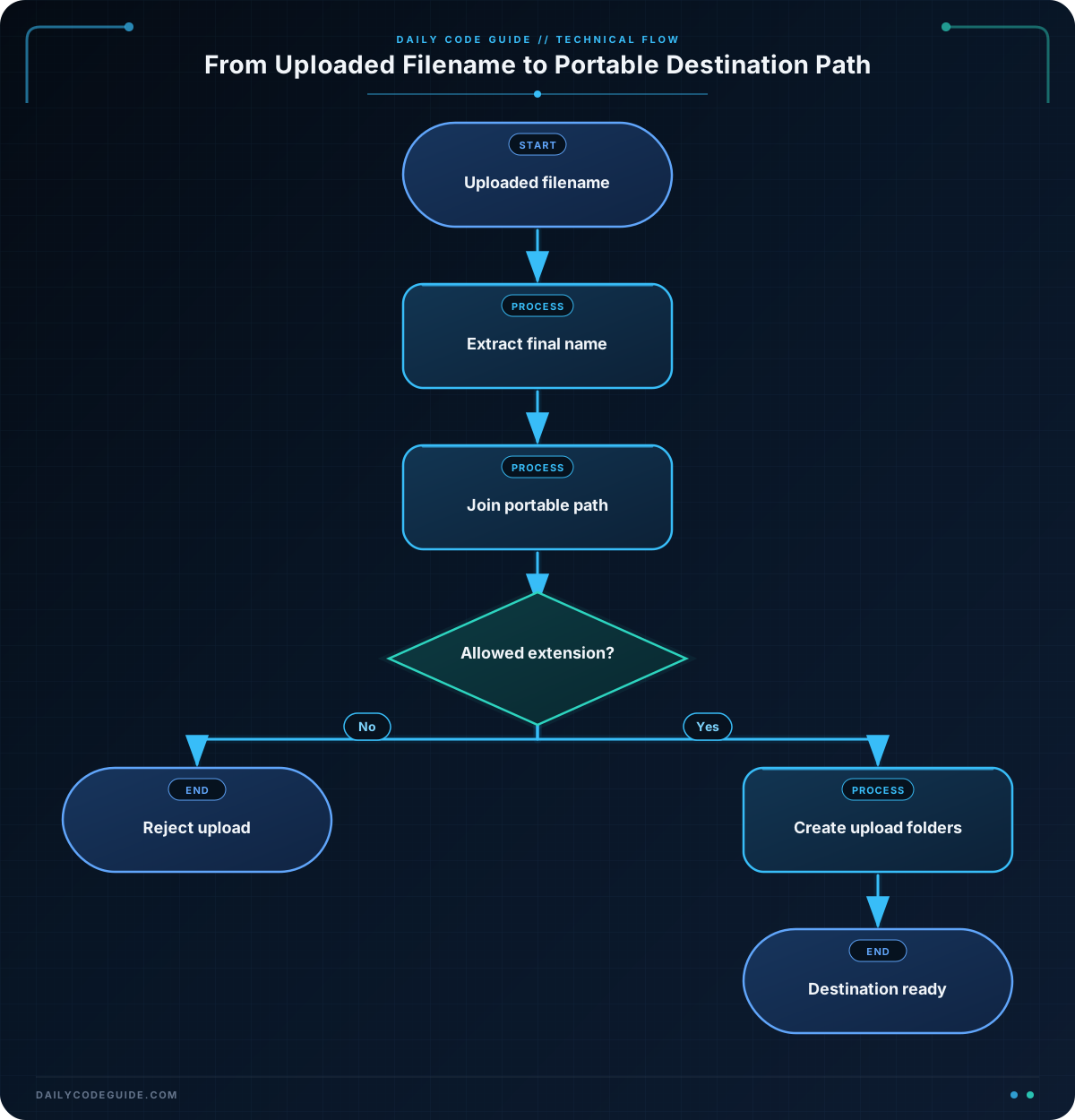
Uploaded filenames can sometimes contain directory information, such as temporary/photo.jpg. If your application only needs the final filename, Path(...).name can extract it before building the destination path.
This example also checks the file extension before accepting the upload. It does not save the file; it prepares and inspects the destination path.
from pathlib import Path

def prepare_image_upload(upload_folder, original_name):
    original_path = Path(original_name)
    clean_filename = original_path.name
    destination = upload_folder / clean_filename

    if destination.suffix.lower() not in {".jpg", ".jpeg", ".png"}:
        return None

    return destination


image_upload_folder = Path("file_processor") / "images"
destination_path = prepare_image_upload(
    image_upload_folder,
    "temporary/profile-photo.JPG"
)

if destination_path is None:
    print("Unsupported image type.")
else:
    print("Ready to save:", destination_path)
    print("Stored filename:", destination_path.name)
The function returns a Path when the extension is accepted. Calling .suffix.lower() means that .JPG and .jpg are treated the same way.
Extracting the final name is useful when you want to prevent an uploaded name from adding unexpected folders to your destination path. In a real application, you should also consider filename collisions and validate uploads according to your application’s security requirements.
Common Mistakes
- Joining paths with string concatenation: Avoid expressions such as
folder + "/" + filename. UsePath(folder) / filenameinstead. - Assuming a
Pathcreates something: Building a path only creates a Python object. Usemkdir()to create a directory or an appropriate file-writing operation to create a file. - Using
.suffixas the complete filename: Forreport.final.pdf,.suffixis".pdf", while.nameis"report.final.pdf". - Forgetting that relative paths depend on the current directory:
Path("uploads")refers to anuploadsfolder under wherever the program was started. Use an absolute base path when your application requires a fixed location. - Trusting uploaded names without inspection: Use
Path(uploaded_name).namewhen you need only the final name, and apply suitable validation before storing user-provided files.
Try It Yourself
Create a path for a text upload inside file_processor/text_uploads. Then print its filename, extension, and parent folder.
Start with this code and complete the missing lines:
from pathlib import Path

text_upload_folder = Path("file_processor") / "text_uploads"
uploaded_name = "meeting-notes.txt"
text_file_path = text_upload_folder / uploaded_name

print("Filename:", text_file_path.name)
print("Extension:", text_file_path.suffix)
print("Parent folder:", text_file_path.parent)
Challenge
Write a function named prepare_upload_path that prepares a destination path for an uploaded file.
- Accept an upload folder and an original filename as parameters.
- Keep only the final filename by using
.name. - Return
Nonefor files that do not end in.pdfor.txt, ignoring letter case. - Return the destination
Pathfor accepted files. - Use the function with
"incoming/notes/quarterly-report.PDF"and print the resulting path.
Solution
from pathlib import Path

def prepare_upload_path(upload_folder, original_name):
    original_path = Path(original_name)
    clean_filename = original_path.name
    destination = upload_folder / clean_filename

    if destination.suffix.lower() not in {".pdf", ".txt"}:
        return None

    return destination


upload_folder = Path("file_processor") / "documents"
destination_path = prepare_upload_path(
    upload_folder,
    "incoming/notes/quarterly-report.PDF"
)

if destination_path is None:
    print("Unsupported file type.")
else:
    print("Ready to save:", destination_path)
The function converts the incoming name to a Path, extracts only its final component, and joins that filename to the application’s document folder. The lowercase suffix check accepts the uppercase .PDF extension while still limiting the allowed types.
Key Takeaways
- Use
Pathto represent file and folder locations in Python. - Join path parts with the
/operator instead of manually writing separators. - Use properties such as
.name,.suffix, and.parentto inspect paths. - Use
mkdir(parents=True, exist_ok=True)when an upload directory needs to be created. - Inspect and validate uploaded filenames before using them in a file-storage workflow.

