


What You’ll Learn
In this lesson, you’ll learn how to use cron to run Bash scripts automatically on a repeating schedule. You will create a script that backs up application logs and removes log files that are no longer needed.
- Understand what cron and a crontab are.
- Read and write a cron schedule.
- Run a Bash maintenance script automatically.
- Handle important cron details such as absolute paths and output logging.
The Concept
cron is a Linux service that runs commands at scheduled times. A scheduled command is often called a cron job.
Each user can store scheduled commands in a file called a crontab. You edit your personal crontab with this command:
crontab -eA cron schedule has five time fields followed by the command to run:
- Minute: 0-59
- Hour: 0-23
- Day of the month: 1-31
- Month: 1-12
- Day of the week: 0-7, where Sunday is usually 0 or 7
For example, this schedule runs a command every day at 2:00 AM:
0 2 * * * /home/alex/bin/log-maintenance.shThe asterisks mean “every possible value” for those fields. Therefore, the line means minute 0, hour 2, every day of the month, every month, and every day of the week.
Cron is useful for repetitive tasks such as cleaning old logs, creating backups, checking files, and generating reports. The computer must be running for the scheduled job to run.
Basic Example
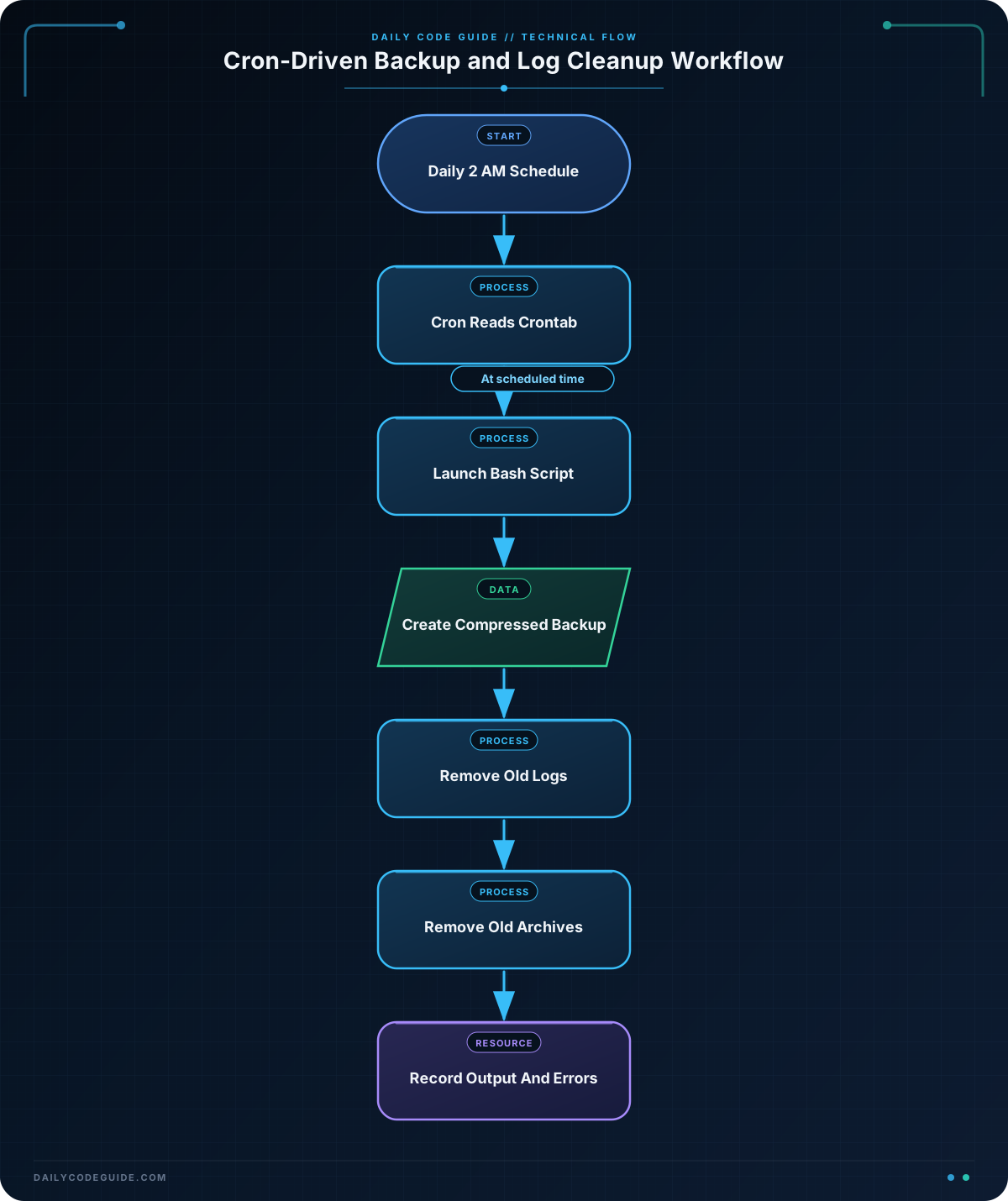
Suppose an application stores logs in /home/alex/app/logs. The following script creates a compressed backup every time it runs, then deletes log files older than seven days. It also removes backup archives older than 30 days.
Save the script as /home/alex/bin/log-maintenance.sh:
#!/usr/bin/env bash

set -e

LOG_DIR="/home/alex/app/logs"
BACKUP_DIR="/home/alex/app/backups"
TODAY=$(date +%F)
ARCHIVE="$BACKUP_DIR/logs-$TODAY.tar.gz"

mkdir -p "$BACKUP_DIR"

tar -czf "$ARCHIVE" -C "$LOG_DIR" .

printf 'Backup created: %s\n' "$ARCHIVE"

find "$LOG_DIR" -type f -name '*.log' -mtime +7 -print -delete
find "$BACKUP_DIR" -type f -name 'logs-*.tar.gz' -mtime +30 -print -delete

printf 'Cleanup complete.\n'
Make the script executable:
chmod u+x /home/alex/bin/log-maintenance.shTest it manually before scheduling it:
/home/alex/bin/log-maintenance.shExpected Output
The exact date and the list of deleted files will depend on your system. A representative run might look like this:
Backup created: /home/alex/app/backups/logs-2026-08-18.tar.gz
/home/alex/app/logs/application-2026-08-01.log
/home/alex/app/backups/logs-2026-07-10.tar.gz
Cleanup complete.
After testing, open your crontab:
crontab -eAdd this line to run the script every day at 2:00 AM:
0 2 * * * /home/alex/bin/log-maintenance.sh >> /home/alex/app/backups/maintenance.log 2>&1The two redirections save normal output and error output in maintenance.log. This gives you a file to inspect if the scheduled job does not behave as expected.
How the Code Works
Choosing the Bash interpreter
The first line is called a shebang:
#!/usr/bin/env bashIt tells the operating system to use Bash to run the script.
Defining locations
The variables store the log directory, backup directory, current date, and archive filename:
LOG_DIR="/home/alex/app/logs"
BACKUP_DIR="/home/alex/app/backups"
TODAY=$(date +%F)
ARCHIVE="$BACKUP_DIR/logs-$TODAY.tar.gz"
$(date +%F) runs the date command and produces a date such as 2026-08-18. Quoting the variables protects paths if they contain spaces.
Creating the backup
mkdir -p creates the backup directory if it does not already exist. The tar command creates a compressed archive:
mkdir -p "$BACKUP_DIR"
tar -czf "$ARCHIVE" -C "$LOG_DIR" .-ccreates an archive.-zcompresses it with gzip.-fspecifies the archive filename.-C "$LOG_DIR" .tellstarto archive the contents of the log directory.
Removing old files
The find commands locate files that match specific conditions:
find "$LOG_DIR" -type f -name '*.log' -mtime +7 -print -deleteThis searches for regular files, limits the results to names ending in .log, and selects files modified more than seven 24-hour periods ago. -print displays each file, while -delete removes it.
The second find command applies the same idea to compressed backups, deleting archives older than 30 days.
Adding the schedule
This cron line has the structure:
0 2 * * * command-to-runThe first two fields mean 2:00 AM. The remaining three asterisks mean every day, every month, and every day of the week.
Another Example
You can schedule different maintenance tasks at different times. For example, you might clean temporary application logs each morning and create a full log backup late at night. These entries assume that the two scripts already exist and are executable:
30 1 * * * /home/alex/bin/clean-app-logs.sh >> /home/alex/app/backups/cleanup.log 2>&1
15 23 * * * /home/alex/bin/backup-app-logs.sh >> /home/alex/app/backups/backup.log 2>&1
The first job runs at 1:30 AM every day. The second runs at 11:15 PM every day. Separating the jobs can make them easier to test and troubleshoot, especially when cleanup and backup operations need different schedules.
A few useful schedule patterns are:
0 * * * * command-to-run
0 3 * * 0 command-to-run
*/15 * * * * command-to-run
0 * * * *runs at the start of every hour.0 3 * * 0runs every Sunday at 3:00 AM.*/15 * * * *runs every 15 minutes.
Common Mistakes
Using relative paths
Cron does not necessarily run with the same current directory or environment as your interactive terminal. Use complete paths such as /home/alex/app/logs instead of relying on paths such as ./logs.
Forgetting executable permissions
A script scheduled directly by cron needs executable permission:
chmod u+x /home/alex/bin/log-maintenance.shYou can also explicitly invoke Bash in the cron entry, but the script still needs a valid path:
0 2 * * * /usr/bin/env bash /home/alex/bin/log-maintenance.shNot testing manually
Run the script from the terminal before adding it to cron. This helps you catch incorrect paths, missing permissions, and archive errors without waiting for the scheduled time.
Ignoring errors
Without output redirection, it may be difficult to discover why a job failed. Appending >> sends normal output to a log file, while 2>&1 sends error output to the same place.
Editing the wrong crontab
A user’s crontab belongs to that user. Run crontab -e as the account that should own and run the job. Jobs that need system-level permissions may require a system administrator, but avoid giving cleanup scripts more permissions than they need.
Try It Yourself
Create a Bash script that prints the current date and lists the files in a backup directory. Make it executable, run it manually, and then schedule it to run every hour. Use an absolute path for the script and redirect its output to a log file.
For an hourly schedule, the five time fields should be:
0 * * * *Challenge
Create a maintenance script for a project with these requirements:
- Back up the contents of
/home/alex/project/logs. - Store the archive in
/home/alex/project/backups. - Use the current date in the archive name.
- Delete
.logfiles older than 14 days. - Schedule the script to run every day at 1:45 AM.
- Write the script’s output and errors to
/home/alex/project/backups/maintenance.log.
Solution
Save this script as /home/alex/bin/project-maintenance.sh:
#!/usr/bin/env bash

set -e

LOG_DIR="/home/alex/project/logs"
BACKUP_DIR="/home/alex/project/backups"
TODAY=$(date +%F)
ARCHIVE="$BACKUP_DIR/project-logs-$TODAY.tar.gz"

mkdir -p "$BACKUP_DIR"

tar -czf "$ARCHIVE" -C "$LOG_DIR" .

printf 'Backup created: %s\n' "$ARCHIVE"

find "$LOG_DIR" -type f -name '*.log' -mtime +14 -print -delete

printf 'Project log cleanup complete.\n'
Make it executable:
chmod u+x /home/alex/bin/project-maintenance.shThen add this line to the crontab:
45 1 * * * /home/alex/bin/project-maintenance.sh >> /home/alex/project/backups/maintenance.log 2>&1The schedule uses minute 45 and hour 1, so cron runs the script at 1:45 AM every day. The script creates the backup before removing old log files, and the redirections preserve both normal messages and errors in the maintenance log.
Key Takeaways
- Cron runs commands automatically according to a five-field time schedule.
- Use
crontab -eto add scheduled jobs for your user account. - Use absolute paths because cron may not have your normal shell environment.
- Test a Bash script manually before scheduling it.
- Redirect output and errors to a log file so scheduled jobs are easier to troubleshoot.

