


What You’ll Learn
In this lesson, you will learn how to use SQL SELECT queries to read customer records from a database table.
- Understand the basic structure of a SELECT query.
- Choose which columns to display.
- Use the
FROMclause to select data from a table. - Use a simple
WHEREcondition to return matching records.
The Concept
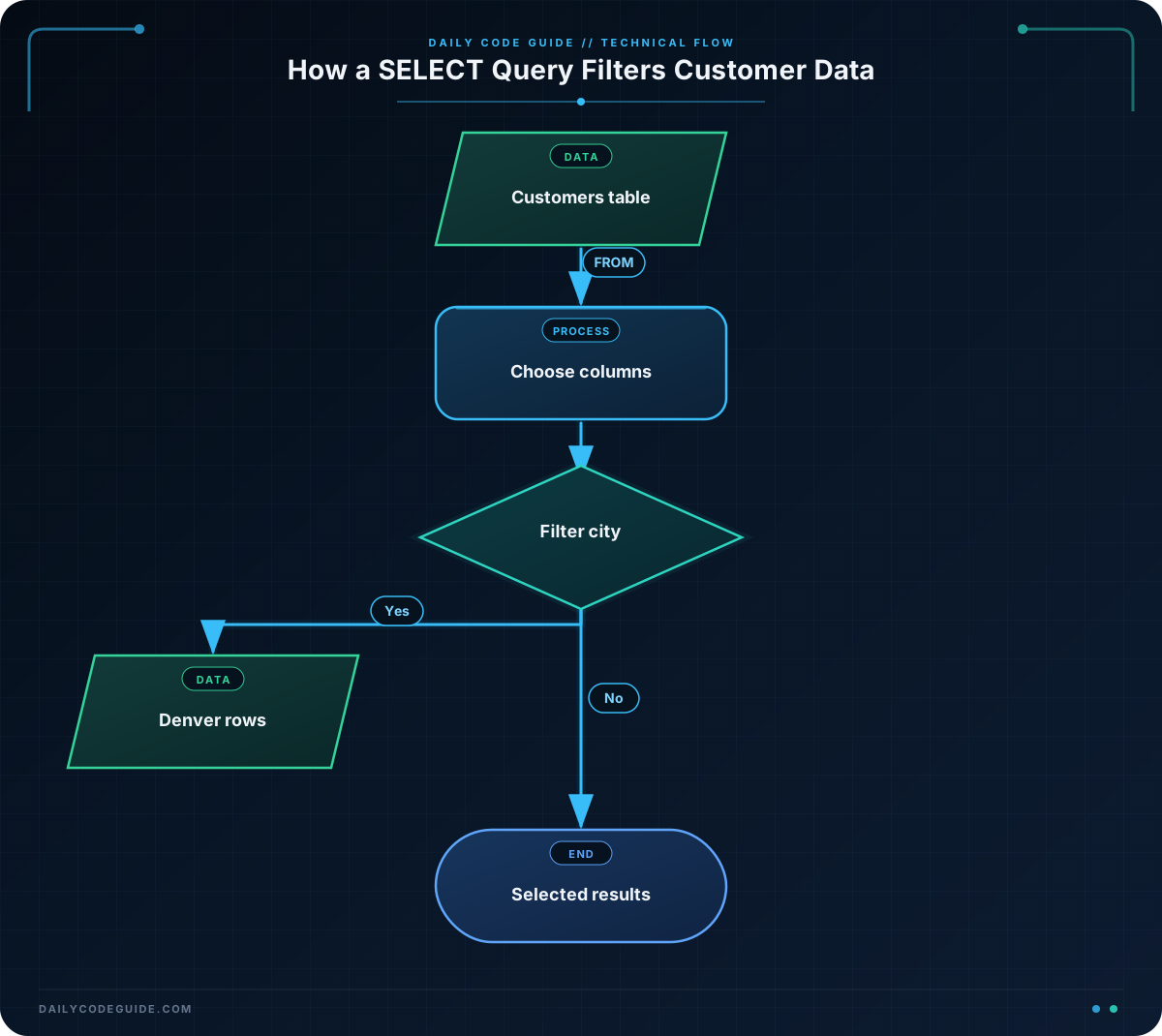
A SQL SELECT query reads data from one or more database tables. It does not change or delete the data. This makes SELECT queries useful whenever you need to view customer information, create a report, or find specific records.
The simplest form of a SELECT query is:
SELECT column_name
FROM table_name;
SELECT identifies the columns you want to see, while FROM identifies the table that contains those columns.
To select every column in a table, use an asterisk:
SELECT *
FROM customers;
The asterisk means “all columns.” It is convenient while learning or exploring a table. In applications and reports, selecting only the columns you need is often clearer.
You can also filter the results with a WHERE clause:
SELECT first_name, email
FROM customers
WHERE city = 'Denver';
This query returns only the first_name and email columns for customers whose city is Denver. Text values in SQL are usually written inside single quotation marks.
Basic Example
The following example creates a small customers table, adds sample customer records, and selects all customers who live in Denver. The table setup makes the example complete and runnable in a typical SQL database.
CREATE TABLE customers (
    customer_id INTEGER,
    first_name VARCHAR(50),
    last_name VARCHAR(50),
    email VARCHAR(100),
    city VARCHAR(50)
);

INSERT INTO customers (customer_id, first_name, last_name, email, city)
VALUES
    (1, 'Maya', 'Patel', 'maya.patel@example.com', 'Denver'),
    (2, 'Jon', 'Bell', 'jon.bell@example.com', 'Austin'),
    (3, 'Elena', 'Garcia', 'elena.garcia@example.com', 'Denver');

SELECT customer_id, first_name, last_name, email
FROM customers
WHERE city = 'Denver';
Expected Output
The query returns two rows because Maya and Elena have Denver as their city.
customer_id  first_name  last_name  email
1            Maya        Patel      maya.patel@example.com
3            Elena       Garcia     elena.garcia@example.com
How the Code Works
The CREATE TABLE statement defines the customer table and its columns. For example, first_name VARCHAR(50) creates a text column that can hold up to 50 characters.
The INSERT INTO statement adds three customer records. Each value is matched with a column listed after the table name:
customer_idstores the customer’s numeric identifier.first_nameandlast_namestore the customer’s name.emailstores the customer’s email address.citystores the customer’s city.
The SELECT query has three important parts:
SELECT customer_id, first_name, last_name, email
FROM customers
WHERE city = 'Denver';
SELECT customer_id, first_name, last_name, emailchooses four columns to display.FROM customerstells SQL to read those columns from thecustomerstable.WHERE city = 'Denver'keeps only rows where the city matches Denver.
The semicolon marks the end of the SQL statement. Many SQL tools allow a query without it when you run one statement at a time, but including it is a good habit.
Another Example
Sometimes a customer service report needs only contact details rather than every customer column. This query selects the customer’s full name fields and email address for Austin customers.
SELECT first_name, last_name, email
FROM customers
WHERE city = 'Austin';
This query returns Jon’s contact information. Notice that customer_id and city are not displayed because they were not included after SELECT. The table can contain a column without that column appearing in the result.
Common Mistakes
- Forgetting the FROM clause: SQL needs to know which table contains the requested columns.
- Using the wrong column name: Check the table definition before writing the query. For example,
first_nameandnameare not automatically the same column. - Using double quotes for text values: Use single quotes for a text value such as
'Denver'. Double quotes may have a different meaning depending on the database system. - Expecting WHERE to change the table: A SELECT query with WHERE only filters the displayed results. It does not remove nonmatching customers from the database.
- Selecting every column unnecessarily:
SELECT *is useful for exploration, but listing the needed columns makes results easier to understand.
Try It Yourself
Write a query that displays the first_name, last_name, and email columns for customers who live in Denver. Use the existing customers table from the examples.
Before checking the solution, remember that the column list belongs after SELECT, the table name belongs after FROM, and the city condition belongs after WHERE.
Challenge
Create a SELECT query that finds customers who live in Austin. Your result should display:
- The customer’s first name
- The customer’s last name
- The customer’s email address
- The customer’s city
Do not use SELECT *. Select each required column by name.
Solution
SELECT first_name, last_name, email, city
FROM customers
WHERE city = 'Austin';
This solution selects exactly the four requested columns from the customers table. The WHERE clause limits the result to customers whose city is Austin.
Key Takeaways
SELECTreads data from a database without changing it.- List column names after
SELECTwhen you need specific fields. - Use
FROMto identify the table being queried. - Use
WHEREto filter results based on a condition. - Use single quotes around text values such as
'Austin'.

