


What You’ll Learn
In this lesson, you will learn how to use arrays in PowerShell to store and work with multiple pieces of related information, such as the devices found in a computer inventory.
- Understand what an array is and why it is useful.
- Create an array in PowerShell.
- Read individual array items by their index.
- Count and display all items in an array.
The Concept
An array is a variable that stores multiple values. Instead of creating a separate variable for every device, you can place all the devices in one array.
For example, a computer inventory might contain several connected devices:
$devices = @("Keyboard", "Mouse", "Monitor")The @(...) syntax creates an array. Each value is separated by a comma.
PowerShell gives every array item an index, which is its position in the array. Indexes start at 0, not 1. Therefore, the first item has index 0, the second item has index 1, and so on.
Arrays are useful when you need to process a collection of related values. For example, you can store device names, software titles, IP addresses, or computer names in an array and then examine each value.
Basic Example
The following script stores connected devices in an array and displays information about the inventory.
$computerName = "OFFICE-07"

$devices = @(
    "Keyboard"
    "Mouse"
    "Monitor"
    "Webcam"
)

Write-Output "Computer: $computerName"
Write-Output "First device: $($devices[0])"
Write-Output "Total devices: $($devices.Count)"
Write-Output "All devices:"

foreach ($device in $devices) {
    Write-Output "- $device"
}
Expected Output
Computer: OFFICE-07
First device: Keyboard
Total devices: 4
All devices:
- Keyboard
- Mouse
- Monitor
- Webcam
How the Code Works
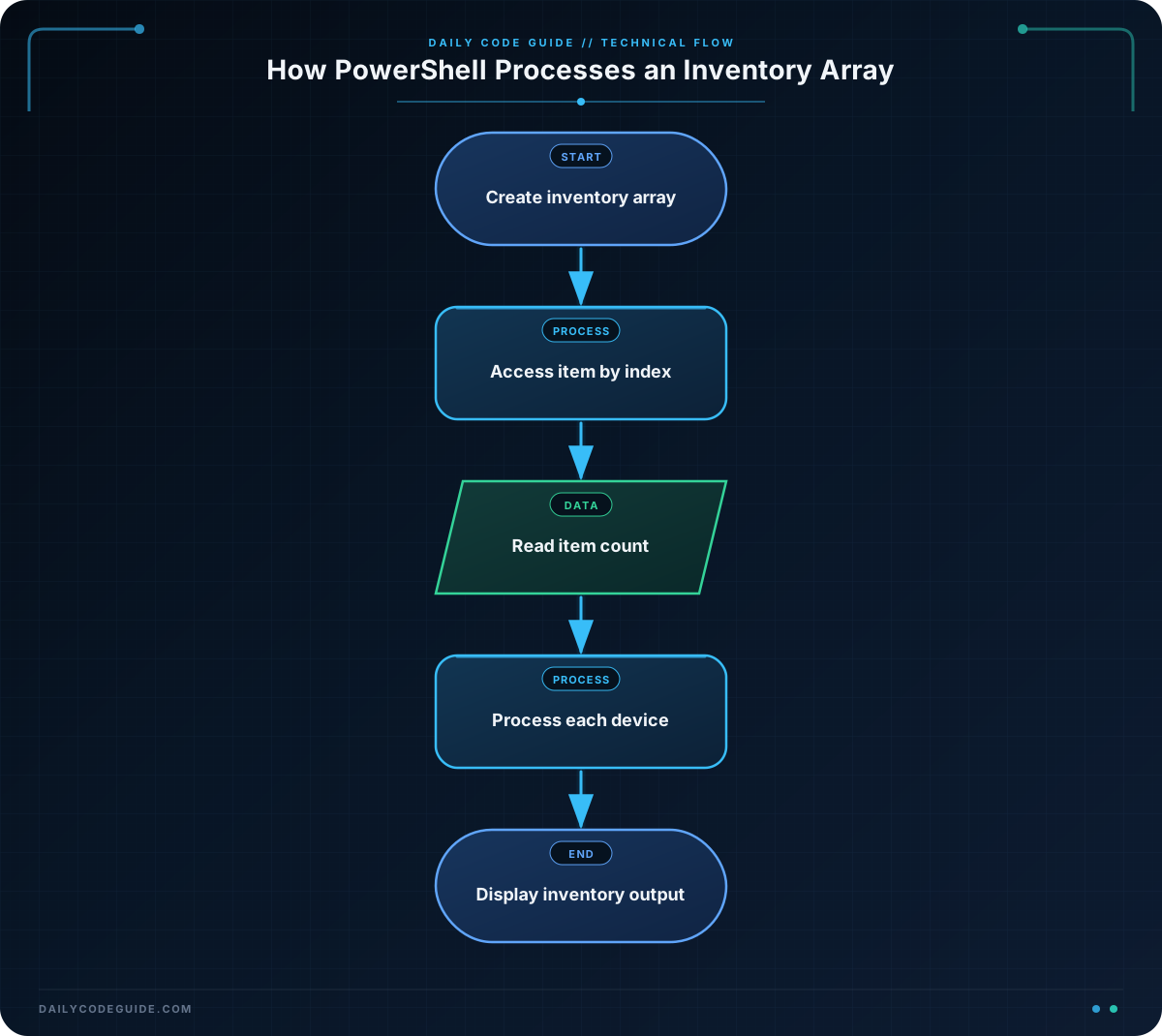
$computerName is a regular variable containing one value. The $devices variable contains four values, so it is an array.
The array is written across several lines to make it easier to read:
$devices = @(
    "Keyboard"
    "Mouse"
    "Monitor"
    "Webcam"
)
PowerShell allows array values on separate lines inside @(...). Commas are optional in this multiline form. You can also write the same values on one line with commas:
$devices = @("Keyboard", "Mouse", "Monitor", "Webcam")The expression $devices[0] gets the first item. Remember that the first index is 0, so the indexes in this example are:
- Index 0: Keyboard
- Index 1: Mouse
- Index 2: Monitor
- Index 3: Webcam
The Count property tells you how many items are in the array. In this example, $devices.Count is 4.
The foreach loop processes one item at a time. During each repetition, $device contains the current device name. This makes it easy to display or inspect every item in an inventory.
The syntax $($devices[0]) tells PowerShell to evaluate the expression inside the parentheses before placing it inside the larger string.
Another Example
An inventory can also store the names of logical drives on a computer. This example uses an array to display each drive and its position in the inventory.
$driveNames = @("System (C:)", "Data (D:)", "Backup (E:)")

Write-Output "Drives found: $($driveNames.Count)"

for ($index = 0; $index -lt $driveNames.Count; $index++) {
    Write-Output "Drive $($index + 1): $($driveNames[$index])"
}
The for loop uses an index variable so the script can display both a human-friendly drive number and the corresponding array item. The loop stops when the index reaches the array’s item count.
Common Mistakes
- Forgetting that indexes start at 0: Use
$devices[0]for the first item, not$devices[1]. - Using an index that does not exist: An array with four items has valid indexes from 0 through 3. Check
$devices.Countbefore using a numeric index. - Leaving out the array syntax: Assigning one string to a variable does not create a collection. Use
@(...)when you want to make the purpose clear. - Confusing the array with one item:
$devicesrepresents the collection, while$devices[2]represents only the third item.
Try It Yourself
Create an array named $softwareTitles containing three programs installed on a computer. Then display the total number of programs and the second program in the array.
Use index 1 for the second program because PowerShell starts counting at index 0.
Challenge
Create a PowerShell inventory for three computers. Your script should:
- Store the computer names in an array named
$computerNames. - Display how many computers are in the inventory.
- Display the first computer in the array.
- Use a
foreachloop to display every computer name with a dash before it.
Solution
$computerNames = @(
    "LAPTOP-01"
    "DESKTOP-02"
    "SERVER-03"
)

Write-Output "Computers in inventory: $($computerNames.Count)"
Write-Output "First computer: $($computerNames[0])"
Write-Output "Computer names:"

foreach ($computerName in $computerNames) {
    Write-Output "- $computerName"
}
The solution creates one array containing three computer names. It uses Count to find the number of computers, index 0 to read the first computer, and foreach to process every name.
Key Takeaways
- An array stores multiple related values in one variable.
- PowerShell arrays can be created with
@(...). - Array indexes start at 0, so the first item is accessed with index 0.
- The
Countproperty returns the number of items in an array. - A
foreachloop is useful for processing every item in an inventory array.

