


What You’ll Learn
In this lesson, you will learn how Terraform outputs let you display useful information after Terraform creates infrastructure. We will use an EC2 instance and expose values such as its instance ID, instance type, and public IP address.
- Understand what an output is in Terraform.
- Create outputs from an EC2 instance resource.
- Read output values with the
terraform outputcommand. - Recognize why outputs are useful when working with infrastructure.
The Concept
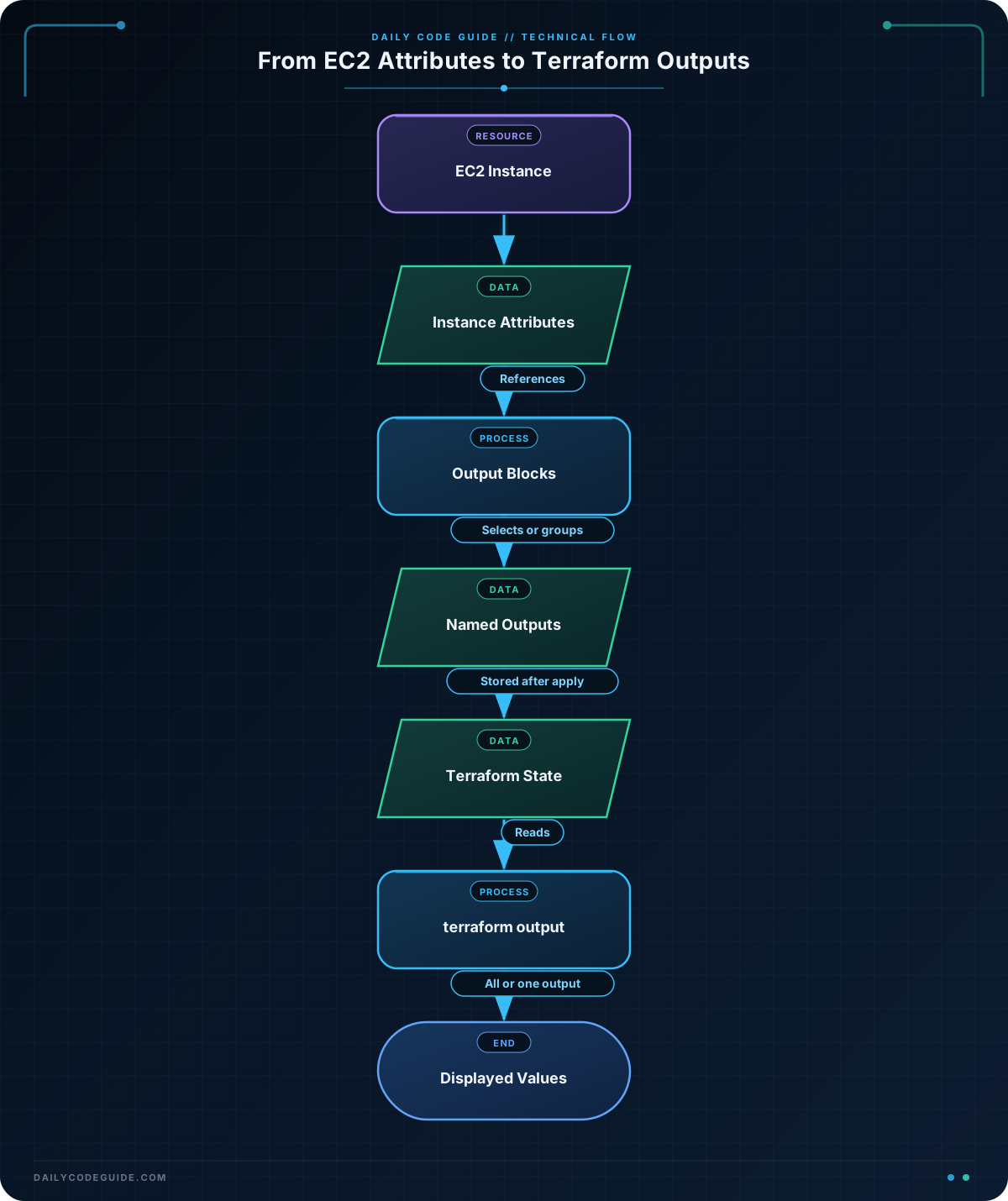
A Terraform output is a value that Terraform displays after it creates or updates infrastructure. Outputs are similar to a summary of important information from your configuration.
For example, an EC2 instance has several useful attributes:
- Its unique instance ID.
- The instance type used to run it.
- Its public IP address, if one was assigned.
- Its public DNS name, if one was assigned.
You define an output with an output block. The value argument tells Terraform which resource attribute to display.
Outputs are useful because resource attributes are often generated by AWS. You may not know an instance ID or IP address before running Terraform, but Terraform can show these values after the resource is created.
Basic Example
The following configuration creates an EC2 instance and defines outputs for several of its attributes. The AMI ID is supplied through a variable because AMI IDs are different in different AWS regions.
terraform {
  required_providers {
    aws = {
      source  = "hashicorp/aws"
      version = "~> 5.0"
    }
  }

  required_version = ">= 1.5.0"
}

provider "aws" {
  region = var.aws_region
}

variable "aws_region" {
  description = "AWS region where the EC2 instance will be created."
  type        = string
  default     = "us-east-1"
}

variable "ami_id" {
  description = "AMI ID for the EC2 instance."
  type        = string
}

variable "instance_type" {
  description = "EC2 instance type."
  type        = string
  default     = "t2.micro"
}

resource "aws_instance" "web" {
  ami           = var.ami_id
  instance_type = var.instance_type

  tags = {
    Name = "daily-code-guide-web"
  }
}

output "instance_id" {
  description = "The ID of the EC2 instance."
  value       = aws_instance.web.id
}

output "instance_type" {
  description = "The EC2 instance type."
  value       = aws_instance.web.instance_type
}

output "public_ip" {
  description = "The public IP address of the EC2 instance, if assigned."
  value       = aws_instance.web.public_ip
}
After saving the configuration, initialize Terraform and apply it. Replace the AMI ID with an AMI that exists in your selected AWS region.
terraform init
terraform apply -var="ami_id=ami-0123456789abcdef0"
Expected Output
The exact values depend on your AWS account and region. Terraform will display output values similar to these after a successful apply:
instance_id = "i-0123456789abcdef0"
instance_type = "t2.micro"
public_ip = "198.51.100.24"
The IP address shown above is an example. Your instance may receive a different address, or public_ip may be null if AWS does not assign a public IP in the selected subnet.
How the Code Works
Referencing a Resource Attribute
This line connects the output to the EC2 instance’s ID:
value = aws_instance.web.idThe reference has three parts:
aws_instanceis the resource type.webis the local name given to the resource.idis an attribute provided by the AWS provider.
Terraform understands that the output depends on the EC2 instance. It waits until the instance exists before it can display the instance ID.
The Output Name
In this block, instance_id is the output’s name:
output "instance_id" {
  description = "The ID of the EC2 instance."
  value       = aws_instance.web.id
}
The name is used when Terraform displays the value and when you request it from the command line.
Reading One Output
After applying the configuration, you can display one specific output with terraform output:
terraform output instance_idYou can also display all outputs by running terraform output without an output name.
Another Example
Sometimes several EC2 values belong together. Instead of creating a separate output for every value, you can create one output whose value is an object. Add this output block to the configuration from the previous example:
output "ec2_details" {
  description = "Important information about the web server."
  value = {
    id                = aws_instance.web.id
    availability_zone = aws_instance.web.availability_zone
    private_ip        = aws_instance.web.private_ip
    name              = aws_instance.web.tags["Name"]
  }
}
This produces a grouped result similar to the following:
ec2_details = {
  "availability_zone" = "us-east-1a"
  "id" = "i-0123456789abcdef0"
  "name" = "daily-code-guide-web"
  "private_ip" = "10.0.1.25"
}
The values are grouped under ec2_details, which can make the output easier to understand when an instance has several related attributes.
Common Mistakes
Using the Wrong Resource Name
The resource reference in an output must match the resource type and local name exactly. If the resource is named web, this is correct:
value = aws_instance.web.idChanging web to another name that does not exist will cause Terraform to report an invalid reference.
Confusing an Output Name with an AWS Attribute
instance_id is a name that you choose for the output. The EC2 attribute is id. Both are used in the following block, but they have different purposes:
output "instance_id" {
  value = aws_instance.web.id
}
The first name is how you refer to the output. The second name is the resource property Terraform reads.
Expecting a Public IP Every Time
An EC2 instance only has a public IP when its network settings assign one. An output referencing aws_instance.web.public_ip is valid, but its value may be null. Do not assume that every EC2 instance is reachable from the public internet.
Try It Yourself
Add an output named instance_name that displays the value of the EC2 instance’s Name tag. Then run terraform apply and check the result with:
terraform output instance_nameChallenge
Create an output named instance_location for the EC2 instance. It should contain an object with these three values:
- The instance ID.
- The availability zone.
- The private IP address.
Use the existing aws_instance.web resource from the examples. After applying the configuration, display the new output with:
terraform output instance_locationSolution
Define the output as an object containing the three requested resource attributes:
output "instance_location" {
  description = "Location information for the web server."
  value = {
    instance_id       = aws_instance.web.id
    availability_zone = aws_instance.web.availability_zone
    private_ip        = aws_instance.web.private_ip
  }
}
The solution works because each object value references an attribute of aws_instance.web. Terraform waits for the EC2 instance to be created, then displays the resulting values together under the instance_location output.
Key Takeaways
- Terraform outputs display useful values from managed resources.
- An output’s
valuecan reference an EC2 resource attribute such asidorpublic_ip. - Use
terraform outputto view all outputs or request one specific output. - You can group related EC2 attributes inside an object output.
- A public IP may be
nullwhen an instance does not receive a public address.

