


What You’ll Learn
In this lesson, you will learn how to use the AWS CLI describe-instances command to inspect Amazon EC2 instances. You will filter the results so that you can quickly find instances that are currently running.
- Understand what EC2 describe commands do.
- Filter EC2 instances by their current state.
- Select useful fields with the
--queryoption. - Format results as a readable table.
The Concept
AWS CLI describe commands retrieve information about resources in your AWS account. They do not create, start, stop, or delete resources. For EC2, the main command is aws ec2 describe-instances.
By itself, describe-instances can return a large amount of information, including instance IDs, networking details, security groups, tags, and state information. Filters and queries help you find only the details you need.
To find running instances, use the instance-state-name filter:
pendingrunningshutting-downterminatedstoppingstopped
Before running these commands, make sure the AWS CLI is installed, configured with credentials, and using the AWS Region where your instances exist. The command only describes instances in the selected Region.
Basic Example
The following command finds all running EC2 instances and displays each instance’s ID, instance type, and private IP address:
aws ec2 describe-instances \
    --filters "Name=instance-state-name,Values=running" \
    --query 'Reservations[].Instances[].[InstanceId,InstanceType,PrivateIpAddress]' \
    --output table
Expected Output
Your output depends on the instances in your AWS account. For example, the table may look like this:
-------------------------------------------------
|              DescribeInstances                 |
+----------------------+---------+--------------+
|  i-0123456789abcdef0 | t3.micro| 10.0.1.25    |
|  i-0fedcba9876543210 | t3.small| 10.0.2.18    |
+----------------------+---------+--------------+
How the Code Works
Each line is part of one AWS CLI command. The backslash at the end of a line lets you split a long Bash command across multiple lines. You can also write the command on one line.
aws ec2 describe-instances asks the EC2 service for information about instances in the current AWS Region.
--filters "Name=instance-state-name,Values=running" limits the results to instances whose state is running. The filter has a name and a value separated by a comma.
--query uses a JMESPath expression to select fields from the response. AWS returns instances inside a structure called reservations, so the query starts with Reservations[] and then moves into Instances[].
The final part of the query selects three values:
InstanceIdidentifies the EC2 instance.InstanceTypeshows its size, such ast3.micro.PrivateIpAddressshows its private address inside the VPC.
--output table changes the display format from the default JSON response to a table that is easier to read in a terminal. The command still only reads information; it does not change any EC2 resources.
Another Example
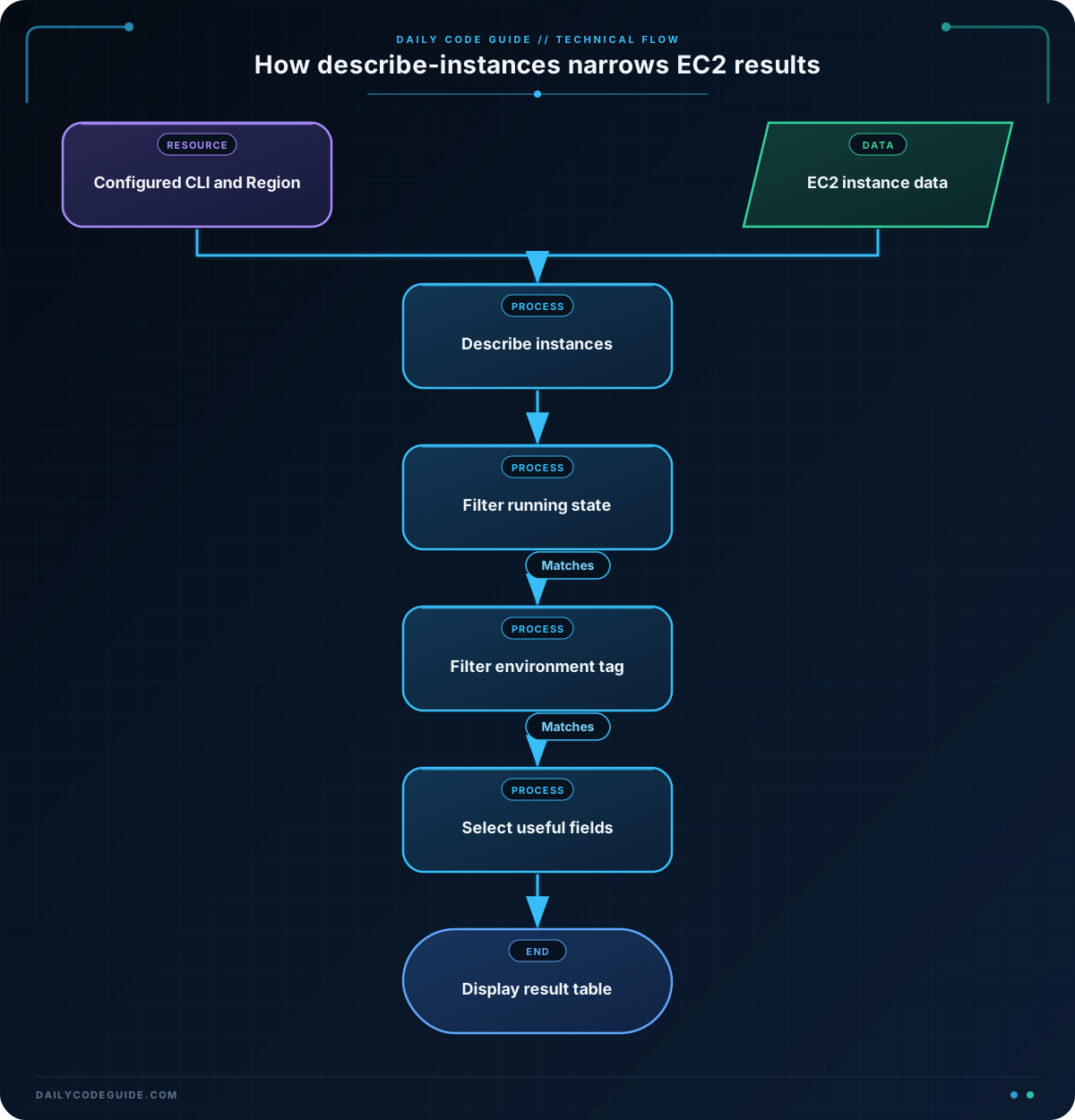
You can combine multiple filters. This command finds running instances that have an Environment tag set to Production. It also includes the value of each instance’s Name tag:
aws ec2 describe-instances \
    --filters "Name=instance-state-name,Values=running" \
             "Name=tag:Environment,Values=Production" \
    --query 'Reservations[].Instances[].{ID:InstanceId,Name:Tags[?Key==`Name`]|[0].Value,Type:InstanceType}' \
    --output table
The first filter checks the instance state. The second checks an EC2 tag. Both filters must match, so a stopped production instance or a running development instance will not appear.
The query creates a small object for each result. The table columns are named ID, Name, and Type. If an instance does not have a Name tag, its name column may be empty.
Common Mistakes
- Using the wrong Region: EC2 resources are Region-specific. Add
--regionwhen necessary, such as--region us-east-1. - Expecting stopped instances: The
runningfilter intentionally excludes stopped instances. Change the filter value tostoppedwhen you need those instances. - Forgetting quotation marks: Keep the filter argument in quotes. This makes the complete
Name=...,Values=...expression one command-line argument. - Assuming an empty result is an error: A successful command with no matching instances can return an empty list. Check the Region, filters, and account before troubleshooting further.
- Ignoring permissions: The AWS identity running the command needs permission to call
ec2:DescribeInstances.
Try It Yourself
Use describe-instances to find all stopped instances in your current Region. Display only their instance IDs and instance types in a table.
Start by adapting the running-instance command:
aws ec2 describe-instances \
    --filters "Name=instance-state-name,Values=stopped" \
    --query 'Reservations[].Instances[].[InstanceId,InstanceType]' \
    --output table
Challenge
Write a command that lists the instance ID, instance type, and private IP address for running instances with the tag Environment=Development.
Your command should:
- Use
aws ec2 describe-instances. - Apply both the running-state filter and the development-environment tag filter.
- Use
--queryto select only the three requested fields. - Display the result as a table.
Solution
aws ec2 describe-instances \
    --filters "Name=instance-state-name,Values=running" \
             "Name=tag:Environment,Values=Development" \
    --query 'Reservations[].Instances[].[InstanceId,InstanceType,PrivateIpAddress]' \
    --output table
This solution uses two filters, so only instances that are both running and tagged for the development environment are returned. The query removes the rest of the API response and keeps the instance ID, type, and private IP address.
Key Takeaways
aws ec2 describe-instancesreads information about EC2 instances without changing them.- Use
--filtersto find instances by state, tags, or other supported properties. - The
instance-state-namefilter can identify running, stopped, and other instance states. - Use
--queryto select only the fields you need. - Use
--output tablefor a readable terminal display.

