


What You’ll Learn
In this lesson, you’ll use AWS CLI IAM commands to audit the permission sources associated with a specific IAM user. You will inspect policies attached directly to the user, inline policies, group membership, group policies, and the user’s permissions boundary.
- List managed policies attached directly to an IAM user.
- Find inline policies attached directly to the user.
- Identify the IAM groups the user belongs to.
- Inspect managed and inline policies attached through those groups.
- Recognize why an IAM policy listing is not always the same as a complete effective-permissions analysis.
The Concept
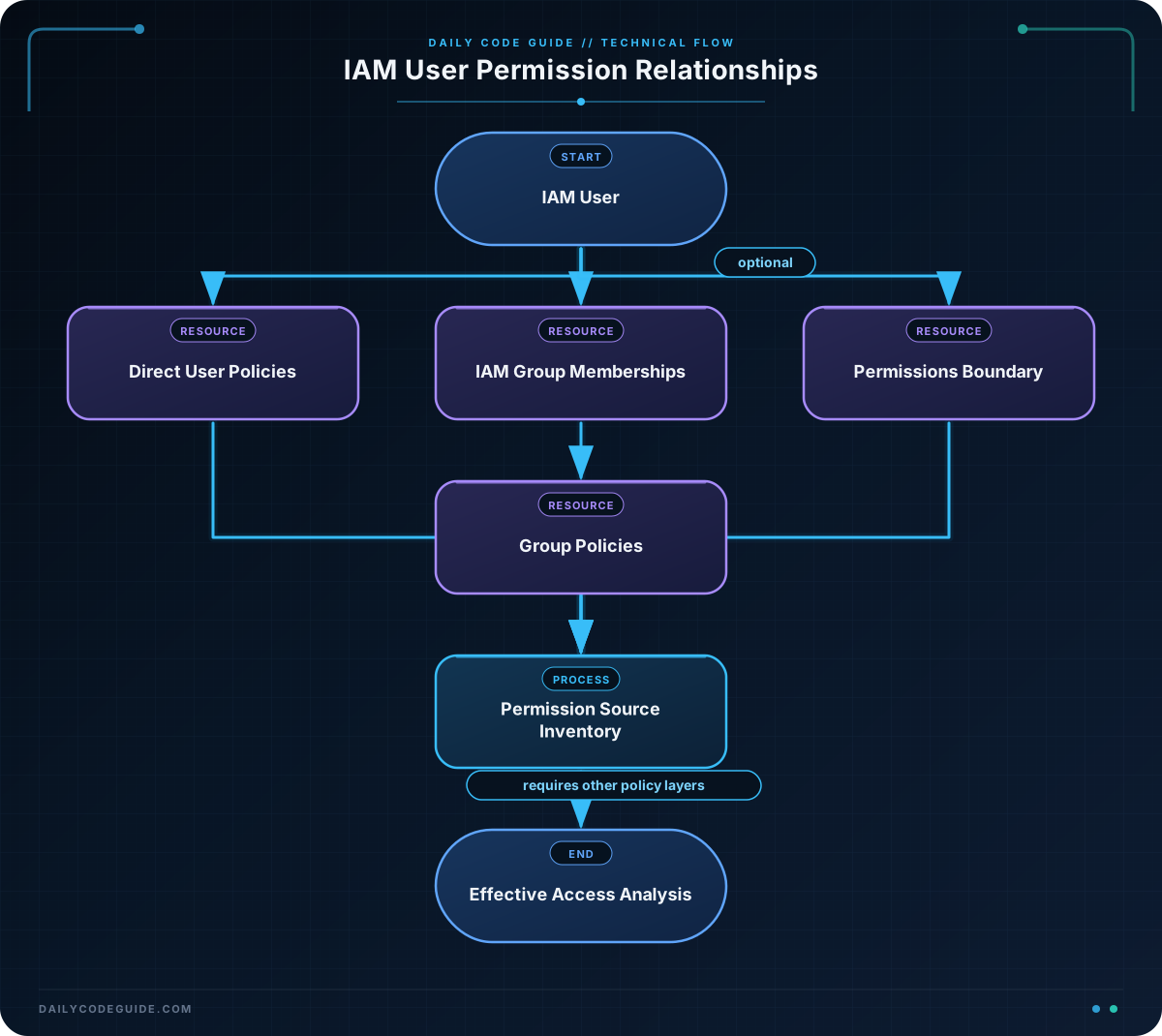
An IAM user’s permissions can come from several sources. The most visible sources are identity-based policies attached directly to the user and policies inherited through IAM groups.
A managed policy is a reusable policy object with its own ARN. An inline policy is embedded directly in a user or group. The following AWS CLI commands are especially useful during an audit:
- list-attached-user-policies lists managed policies attached directly to a user.
- list-user-policies lists inline policy names attached directly to a user.
- list-groups-for-user lists the groups containing the user.
- list-attached-group-policies lists managed policies attached to a group.
- list-group-policies lists inline policy names attached to a group.
- get-user can show whether a permissions boundary is configured.
This information is useful when investigating why a user can access a resource, reviewing access before removing an account, or checking whether a user’s permissions match an access-control design.
These commands show permission sources, not a final allow-or-deny decision for every possible request. Service control policies, resource policies, permission boundaries, session policies, explicit denies, and the requested resource can also affect the result. Treat this audit as an inventory of sources, and use policy simulation or service-specific testing when you need to evaluate a particular action.
Basic Example
The following commands audit a user named auditor@example.com. Replace the value of IAM_USER with the actual IAM user name in your account.
IAM_USER="auditor@example.com"

printf '%s\n' "--- Managed policies attached directly to the user ---"
aws iam list-attached-user-policies \
    --user-name "$IAM_USER" \
    --query 'AttachedPolicies[*].[PolicyName,PolicyArn]' \
    --output table

printf '%s\n' "--- Inline policies attached directly to the user ---"
aws iam list-user-policies \
    --user-name "$IAM_USER" \
    --output table

printf '%s\n' "--- Groups containing the user ---"
aws iam list-groups-for-user \
    --user-name "$IAM_USER" \
    --query 'Groups[*].[GroupName,Arn]' \
    --output table

printf '%s\n' "--- Permissions boundary ---"
aws iam get-user \
    --user-name "$IAM_USER" \
    --query 'User.PermissionsBoundary.PolicyArn' \
    --output text
Expected Output
The exact results depend on your AWS account. A user might produce output similar to this:
--- Managed policies attached directly to the user ---
--------------------------------------------------------------
|                 ListAttachedUserPolicies                   |
+----------------------+-------------------------------------+
|  ReadOnlyAccess      |  arn:aws:iam::aws:policy/ReadOnlyAccess |
+----------------------+-------------------------------------+

--- Inline policies attached directly to the user ---
---------------------------------
|       ListUserPolicies        |
+-------------------------------+
|  TemporaryAuditAccess         |
+-------------------------------+

--- Groups containing the user ---
--------------------------------------------------------------
|                   ListGroupsForUser                       |
+----------------------+-------------------------------------+
|  SecurityAuditors    |  arn:aws:iam::123456789012:group/SecurityAuditors |
+----------------------+-------------------------------------+

--- Permissions boundary ---
arn:aws:iam::123456789012:policy/AuditBoundary
If the user has no permissions boundary, the final command commonly returns None. Empty policy or group lists may display as an empty table.
How the Code Works
IAM_USER stores the name once so every command audits the same account. Quoting "$IAM_USER" prevents shell word-splitting and is a good habit in reusable scripts.
The --query option uses JMESPath to select only useful fields from the AWS response. For example, AttachedPolicies[*].[PolicyName,PolicyArn] displays each directly attached managed policy’s name and ARN instead of the entire response.
list-user-policies returns inline policy names, not their policy documents. To inspect an individual inline policy document, use get-user-policy:
aws iam get-user-policy \
    --user-name "$IAM_USER" \
    --policy-name "TemporaryAuditAccess"
Similarly, list-groups-for-user identifies membership but does not list the policies inherited through each group. You must query each group separately.
Another Example
This script expands the group portion of the audit. It lists direct policies, the permissions boundary, every group containing the user, and both managed and inline policies attached to each group.
#!/usr/bin/env bash

set -euo pipefail

IAM_USER="${1:-auditor@example.com}"

printf '%s\n' "--- Direct managed policies for $IAM_USER ---"
aws iam list-attached-user-policies \
    --user-name "$IAM_USER" \
    --query 'AttachedPolicies[*].[PolicyName,PolicyArn]' \
    --output table

printf '%s\n' "--- Direct inline policies for $IAM_USER ---"
aws iam list-user-policies \
    --user-name "$IAM_USER" \
    --output table

boundary_arn=$(aws iam get-user \
    --user-name "$IAM_USER" \
    --query 'User.PermissionsBoundary.PolicyArn' \
    --output text)

printf '\nPermissions boundary: %s\n' "$boundary_arn"

group_names=$(aws iam list-groups-for-user \
    --user-name "$IAM_USER" \
    --query 'Groups[].GroupName' \
    --output text | tr '\t' '\n')

if [ -z "$group_names" ]; then
    printf '%s\n' "The user is not a member of any IAM groups."
else
    while IFS= read -r group_name; do
        [ -z "$group_name" ] && continue

        printf '\nGroup: %s\n' "$group_name"

        printf '%s\n' "Managed policies:"
        aws iam list-attached-group-policies \
            --group-name "$group_name" \
            --query 'AttachedPolicies[*].[PolicyName,PolicyArn]' \
            --output table

        printf '%s\n' "Inline policies:"
        aws iam list-group-policies \
            --group-name "$group_name" \
            --output table
    done <<< "$group_names"
fi
Passing a user name as the first script argument makes the audit reusable:
./audit-iam-user.sh finance-reviewerThe script uses set -euo pipefail so failures, unset variables, and pipeline errors are less likely to go unnoticed. The tr command converts tab-separated AWS CLI text output into one group name per line, allowing the while loop to process each group independently.
Common Mistakes
- Checking only direct user policies: A user may inherit significant access from one or more groups. Always run
list-groups-for-userduring a user audit. - Confusing policy names with policy documents: The list commands identify policies but do not show their statements. Use
get-user-policyorget-group-policyfor inline documents. For managed policies, retrieve the default version withget-policyandget-policy-version. - Assuming listed permissions are automatically effective: A permissions boundary limits identity-based permissions; it does not grant permissions by itself. Explicit denies, SCPs, resource policies, and session policies can also change the result.
- Using the wrong identity or region context: IAM is generally a global service, but your AWS CLI profile and account still matter. Confirm the active identity with
aws sts get-caller-identitybefore auditing a production account. - Ignoring IAM paths: Policy ARNs and group ARNs can include paths. Prefer the ARN returned by AWS rather than reconstructing it manually.
Try It Yourself
Choose a test IAM user and run the basic audit commands. Then answer these questions:
- Does the user have any managed policies attached directly?
- Does the user have any inline policies?
- Which groups contain the user?
- Which policies come from those groups?
- Is a permissions boundary configured?
For any inline policy name you discover, use get-user-policy or get-group-policy to inspect its document. Perform this exercise with read-only IAM permissions and avoid changing policies while auditing.
Challenge
Write a Bash script named summarize-user-access.sh that accepts an IAM user name as its first argument and reports:
- The names of managed policies attached directly to the user.
- The names of inline policies attached directly to the user.
- The permissions boundary ARN, or a clear message when no boundary exists.
- Each group containing the user.
- The managed and inline policy names attached to each group.
Use AWS CLI queries to keep the output focused. Also make the script stop when an AWS CLI request fails.
Solution
The following solution meets all of the challenge requirements and prints policy names rather than large policy responses.
#!/usr/bin/env bash

set -euo pipefail

IAM_USER="${1:?Usage: $0 IAM_USER_NAME}"

printf '%s\n' "--- Direct managed policies ---"
aws iam list-attached-user-policies \
    --user-name "$IAM_USER" \
    --query 'AttachedPolicies[].PolicyName' \
    --output text

printf '%s\n' "--- Direct inline policies ---"
aws iam list-user-policies \
    --user-name "$IAM_USER" \
    --query 'PolicyNames[]' \
    --output text

boundary_arn=$(aws iam get-user \
    --user-name "$IAM_USER" \
    --query 'User.PermissionsBoundary.PolicyArn' \
    --output text)

if [ "$boundary_arn" = "None" ] || [ -z "$boundary_arn" ]; then
    printf '%s\n' "Permissions boundary: none"
else
    printf 'Permissions boundary: %s\n' "$boundary_arn"
fi

group_names=$(aws iam list-groups-for-user \
    --user-name "$IAM_USER" \
    --query 'Groups[].GroupName' \
    --output text | tr '\t' '\n')

if [ -z "$group_names" ]; then
    printf '%s\n' "Groups: none"
    exit 0
fi

while IFS= read -r group_name; do
    [ -z "$group_name" ] && continue

    printf '\nGroup: %s\n' "$group_name"

    printf '%s\n' "Managed policies:"
    aws iam list-attached-group-policies \
        --group-name "$group_name" \
        --query 'AttachedPolicies[].PolicyName' \
        --output text

    printf '%s\n' "Inline policies:"
    aws iam list-group-policies \
        --group-name "$group_name" \
        --query 'PolicyNames[]' \
        --output text
done <<< "$group_names"
The required argument syntax prevents the script from silently auditing an unintended user. The direct user commands run first, then the script checks the boundary and iterates through every group returned by IAM. Because each group is queried separately, the report includes permission sources that would be missed by inspecting only the user object.
Key Takeaways
list-attached-user-policiesandlist-user-policiesreveal managed and inline policies attached directly to a user.list-groups-for-useris essential because group membership can provide additional permissions.- Inspect each group with
list-attached-group-policiesandlist-group-policies. - Use
get-userto check for a permissions boundary, which limits identity-based permissions. - An inventory of attached policies is not a complete effective-permissions decision; explicit denies and other AWS policy layers also matter.

