


What You’ll Learn
In this lesson, you will use PowerShell remoting with Invoke-Command to run the same health-check script on multiple Windows servers from one administrative machine.
- How to target several computers with
Invoke-Command - How to collect useful properties from remote machines
- How to control concurrency with
-ThrottleLimit - How to recognize connection failures and service-related problems
The Concept
Invoke-Command sends a PowerShell script block to one or more remote computers and runs it there. The commands inside the script block execute in the remote session, while the resulting objects are returned to your administrative machine.
This makes it useful for centralized administration. Instead of signing in to each server individually, you can collect operating system information, service status, disk usage, or other health indicators in one command.
A typical pattern looks like this:
Invoke-Command -ComputerName "SERVER01", "SERVER02" -ScriptBlock {
    # Commands in this block run on each remote server.
}
The remote computers must be configured for PowerShell remoting, and your account must have permission to connect to them. In a Windows domain, this commonly means that WinRM, firewall rules, authentication, and permissions have already been configured by an administrator.
Basic Example
The following health check collects the last boot time, available physical memory, and the status of two important services from several Windows servers.
$servers = "APP01", "DB01", "WEB01"

$healthResults = Invoke-Command -ComputerName $servers -ScriptBlock {
    $operatingSystem = Get-CimInstance -ClassName Win32_OperatingSystem

    $services = Get-Service -Name "WinRM", "W32Time" -ErrorAction SilentlyContinue
    $stoppedServices = $services |
        Where-Object Status -ne "Running" |
        Select-Object -ExpandProperty Name

    [pscustomobject]@{
        Server              = $env:COMPUTERNAME
        LastBoot            = $operatingSystem.LastBootUpTime
        FreeMemoryGB        = [math]::Round($operatingSystem.FreePhysicalMemory / 1MB, 2)
        ServicesNotRunning  = $stoppedServices -join ", "
    }
}

$healthResults |
    Sort-Object Server |
    Format-Table -AutoSize
Expected Output
The exact boot times and memory values depend on your servers. The following is representative output. An empty ServicesNotRunning value means both requested services were running or were not found.
Server LastBoot              FreeMemoryGB ServicesNotRunning
------ --------              ------------ ------------------
APP01  3/18/2026 8:42:11 AM         6.84
DB01   3/17/2026 11:05:47 PM        12.31 W32Time
WEB01  3/19/2026 6:20:03 AM         3.76
How the Code Works
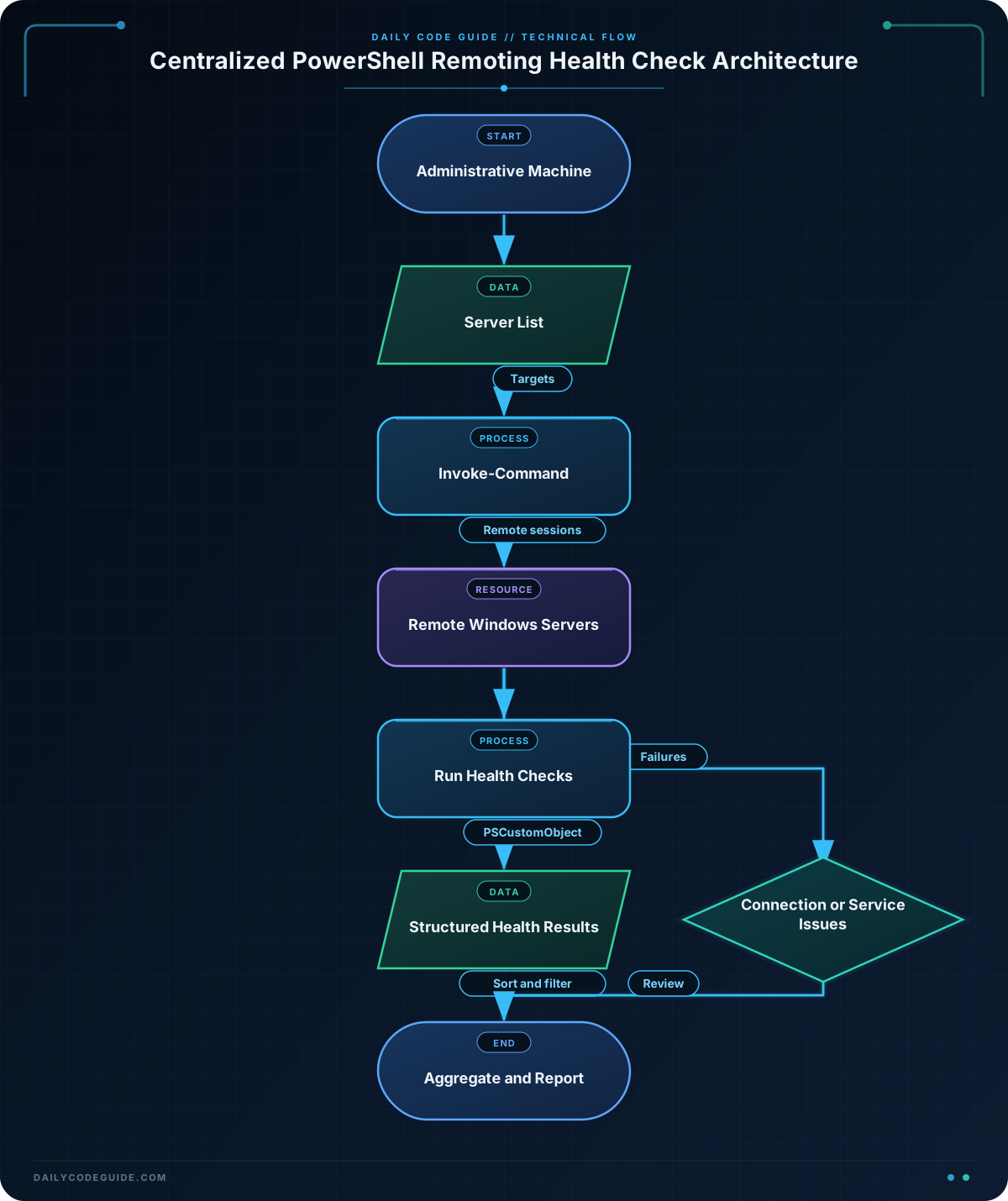
$servers is an array of computer names. Passing that array to -ComputerName causes the script block to run on each listed computer.
Everything inside the script block runs remotely. Get-CimInstance reads the Win32_OperatingSystem class on the current server. Its FreePhysicalMemory property is reported in kilobytes; dividing by the PowerShell 1MB constant converts the numeric value to an approximate number of gigabytes.
The service query uses -ErrorAction SilentlyContinue so that a server without one of the named services does not produce a noisy error. Where-Object keeps services that are not running, and Select-Object -ExpandProperty Name extracts only their names.
The PSCustomObject gives each server a consistent result shape. This is preferable to returning unstructured text because the results can later be sorted, filtered, exported, or processed in another function.
$env:COMPUTERNAME is evaluated on the remote server, so it identifies which machine produced each result. By contrast, ordinary local variables are not automatically available inside a remote script block. If you need to pass a local value into the block, use the $using: scope modifier or a parameterized remote script block.
Another Example
This example focuses on local fixed disks. It uses -ThrottleLimit to limit the number of simultaneous remote operations and returns a record for each disk so that low-space volumes can be reviewed centrally.
$servers = "APP01", "DB01", "WEB01"

$diskResults = Invoke-Command -ComputerName $servers -ThrottleLimit 4 -ScriptBlock {
    Get-CimInstance -ClassName Win32_LogicalDisk -Filter "DriveType = 3" |
        ForEach-Object {
            $freePercent = [math]::Round(
                ($_.FreeSpace / $_.Size) * 100,
                1
            )

            [pscustomobject]@{
                Server          = $env:COMPUTERNAME
                Drive           = $_.DeviceID
                FreePercent     = $freePercent
                FreeSpaceGB     = [math]::Round($_.FreeSpace / 1GB, 1)
                NeedsAttention  = $freePercent -lt 15
            }
        }
}

$diskResults |
    Where-Object NeedsAttention |
    Sort-Object FreePercent |
    Format-Table -AutoSize
Here, the filtering happens on the administrative machine after the remote objects are returned. That keeps the remote script focused on collecting data and lets you change the reporting rule without changing what is collected.
Common Mistakes
- Remoting is not enabled: A connection error usually means WinRM, firewall rules, DNS, authentication, or permissions need attention. Test a single server first with
Test-WSMan -ComputerName APP01. - Using local variables inside the script block: A variable such as
$serversis not automatically copied into the remote session. Pass required values explicitly or use$using:variableName. - Returning formatted text too early: Commands such as
Format-Tablecreate formatting data, not normal business objects. Format only after collecting and filtering results. - Assuming every server has the same services: A service name may be missing or may use a different configuration on another server. Use appropriate error handling and interpret missing services separately from stopped services.
- Ignoring failures in a multi-server call: Successful servers can return results even when another server cannot be contacted. Review error output and consider adding explicit error records when building an operational report.
Try It Yourself
Extend the basic health check so that it also reports the number of logical processors on each server. Add a ProcessorCount property to the returned object using (Get-CimInstance -ClassName Win32_ComputerSystem).NumberOfLogicalProcessors, then include that property in the table output.
Challenge
Create a centralized health report for the servers APP01, DB01, and WEB01 with these requirements:
- Run the check remotely with
Invoke-Command. - Report the server name, whether the
WinRMservice is running, and the percentage of free space on the system drive. - Set a
Statusproperty to"Healthy"when WinRM is running and free space is at least 15 percent; otherwise set it to"Needs attention". - Sort the final results by
Statusand thenServer.
Solution
$servers = "APP01", "DB01", "WEB01"

$healthReport = Invoke-Command -ComputerName $servers -ScriptBlock {
    $winRmService = Get-Service -Name "WinRM" -ErrorAction SilentlyContinue
    $systemDrive = Get-CimInstance -ClassName Win32_LogicalDisk -Filter "DeviceID = 'C:'"

    $freePercent = [math]::Round(
        ($systemDrive.FreeSpace / $systemDrive.Size) * 100,
        1
    )

    $winRmRunning = $winRmService.Status -eq "Running"
    $status = if ($winRmRunning -and $freePercent -ge 15) {
        "Healthy"
    }
    else {
        "Needs attention"
    }

    [pscustomobject]@{
        Server          = $env:COMPUTERNAME
        WinRMRunning    = $winRmRunning
        FreePercent     = $freePercent
        Status          = $status
    }
}

$healthReport |
    Sort-Object Status, Server |
    Format-Table -AutoSize
The script gathers both health signals on each remote server and creates one object per server. The conditional expression combines the two checks, while the final pipeline sorts and formats the returned objects on the administrative machine.
Key Takeaways
Invoke-Commandruns a script block on one or more remote Windows computers.- Return structured objects with
PSCustomObjectso results remain easy to filter and sort. - Use remote variables such as
$env:COMPUTERNAMEwhen identifying the machine that produced a result. - Apply formatting commands such as
Format-Tableonly after remote data has been collected. - For reliable administration, account for remoting configuration, missing services, connection failures, and concurrency limits.

