


What You’ll Learn
In this lesson, you will learn how Linux controls access to files and directories. You will use chmod to set permissions and chown to change ownership, using deployment scripts and application log files as practical examples.
- Read permission information with
ls -landstat. - Understand permissions for the owner, group, and other users.
- Set safe permissions with numeric and symbolic
chmodmodes. - Change file ownership with
chown.
The Concept
Linux stores two important access properties with each file:
- Permissions: What the owner, group, and other users may do.
- Ownership: Which user and group the file belongs to.
The three basic permissions are:
- Read (
r): View a file’s contents or list a directory. - Write (
w): Change a file or add and remove items in a directory. - Execute (
x): Run a file as a program or enter a directory.
Use ls -l to inspect a file. A permission string such as -rwxr-x--- has four parts:
- The first character describes the type. A hyphen means a regular file.
- The next three characters are the owner’s permissions:
rwx. - The next three are the group’s permissions:
r-x. - The final three are permissions for everyone else:
---.
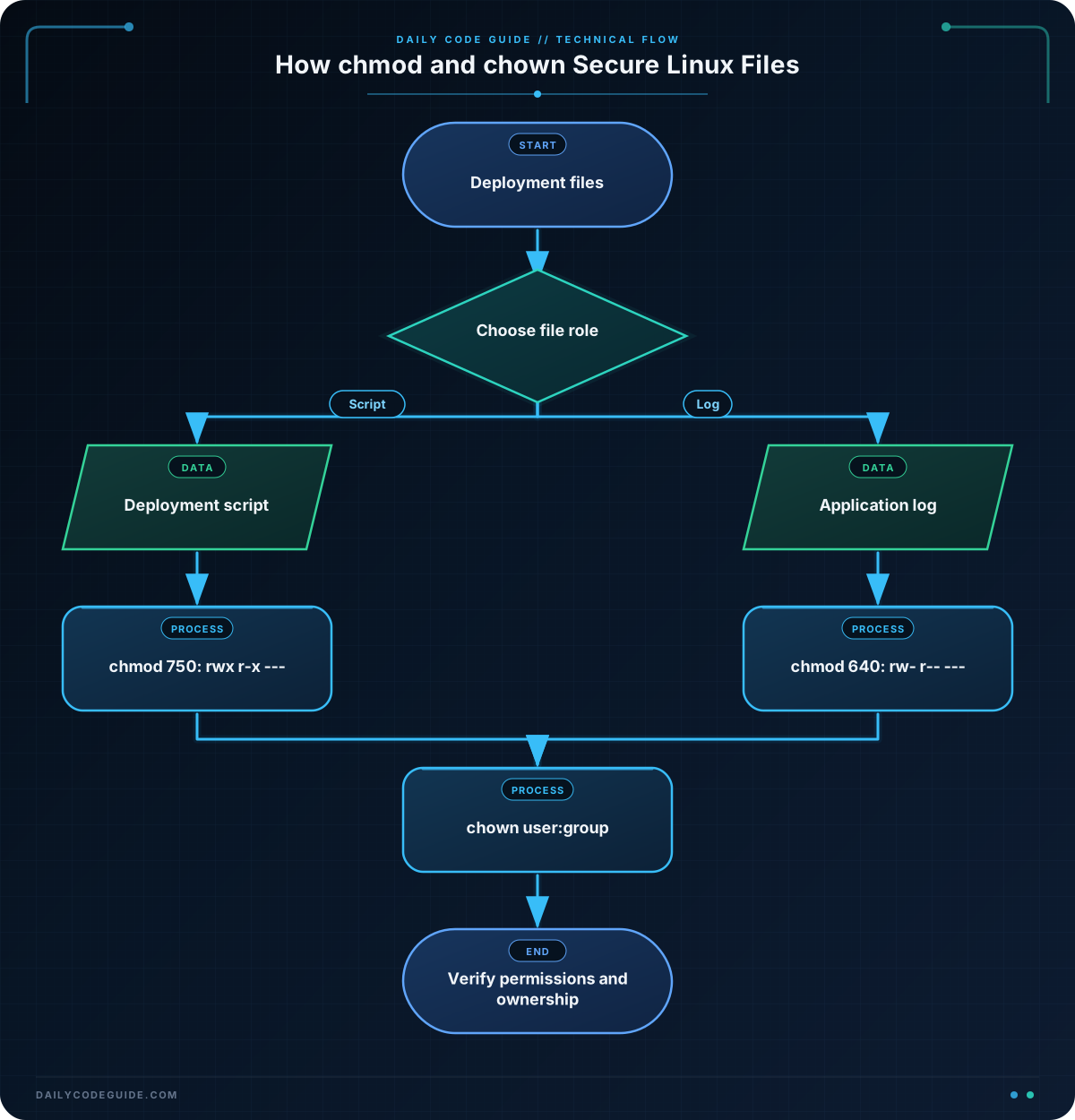
For a deployment script, the owner may need permission to run and edit it, while the group may only need to run it. For an application log, the application may need to write to it, but other users should not be able to read it.
chmod changes permissions. For example, chmod 750 deploy.sh gives the owner full access, gives the group read and execute access, and gives everyone else no access.
Numeric permissions use these values:
r = 4w = 2x = 1
Add the values in each permission group. Therefore, 7 means rwx, 5 means r-x, and 0 means no permissions.
chown changes ownership. The basic form is chown user:group file. Changing ownership to another user usually requires administrative privileges, so deployment commands commonly use sudo.
Basic Example
The following Bash commands create a small deployment directory. The script is executable by its owner and group, while the log is readable only by its owner and group. The final chown keeps the files owned by the current user and current primary group, so this demonstration does not require creating system accounts.
#!/usr/bin/env bash

set -e

demo_dir="$HOME/deployment-demo"
deploy_script="$demo_dir/deploy.sh"
log_file="$demo_dir/application.log"

mkdir -p "$demo_dir"

cat > "$deploy_script" <<'SCRIPT'
#!/usr/bin/env bash
printf 'Deployment started for application version 1.4.0\n'
SCRIPT

touch "$log_file"

chmod 750 "$deploy_script"
chmod 640 "$log_file"

chown "$(id -un):$(id -gn)" "$deploy_script" "$log_file"

printf 'Permissions and ownership:\n'
stat -c '%A %U:%G %n' "$deploy_script" "$log_file"
Expected Output
The username and group depend on your Linux account. The permission patterns should look like this:
Permissions and ownership:
-rwxr-x--- your-user:your-group /home/your-user/deployment-demo/deploy.sh
-rw-r----- your-user:your-group /home/your-user/deployment-demo/application.log
How the Code Works
set -emakes the script stop if a command fails. This helps prevent later permission commands from running after an unexpected error.demo_dir,deploy_script, andlog_filestore paths in variables. Quoting these variables protects paths that contain spaces.mkdir -pcreates the directory if it does not already exist.- The
cathere document writes a small deployment script to the file. The first line, called a shebang, tells Linux to use Bash to run the script. touchcreates the log file if it does not exist.chmod 750setsrwxfor the owner,r-xfor the group, and no permissions for other users. The deployment script can be run by its owner or group.chmod 640setsrw-for the owner,r--for the group, and no permissions for other users. The log is not executable.id -unprints the current username, andid -gnprints the current primary group. These values are passed tochown.stat -c '%A %U:%G %n'displays symbolic permissions, the owner, the group, and the path. The-cformat is available on typical GNU/Linux systems.
In a real deployment, a service account and application group might already exist. You could assign ownership with a command such as sudo chown deploy:app "$log_file", provided that the deploy user and app group exist on the server.
If these commands run on a remote deployment host, you can combine them with a workflow that lets you run secure remote commands with SSH. Always verify the target path before changing ownership.
Another Example
This example uses symbolic permission notation to secure a release directory. Symbolic modes can be easier to read when you want to change only one permission category.
#!/usr/bin/env bash

set -e

release_dir="/tmp/inventory-release"
config_file="$release_dir/app.env"
startup_script="$release_dir/start-app.sh"

mkdir -p "$release_dir"

printf 'APP_ENV=production\n' > "$config_file"
cat > "$startup_script" <<'SCRIPT'
#!/usr/bin/env bash
printf 'Starting inventory application\n'
SCRIPT

chmod u=rw,go= "$config_file"
chmod u=rwx,g=rx,o= "$startup_script"

printf 'Release files:\n'
ls -l "$release_dir"

printf '\nOwnership:\n'
sudo chown "$(id -un):$(id -gn)" "$config_file" "$startup_script"
stat -c '%A %U:%G %n' "$config_file" "$startup_script"
In u=rw,go=, u means user or owner, while g means group and o means others. The configuration file becomes readable and writable only by its owner. In u=rwx,g=rx,o=, the startup script can be run by its owner and group, but not by other users.
The sudo command may ask for your password. In this example, ownership is changed to your own account and group. In a real application deployment, you would normally use the service account that runs the application.
Common Mistakes
Making every file executable
A log file is data, not a program. Giving it execute permission is unnecessary. Use a mode such as 640 for a log when the owner should read and write it and the group should only read it.
Using 777 for convenience
chmod 777 gives read, write, and execute permissions to everyone. This can allow an unauthorized user or process to modify a deployment script or log. Choose the smallest permissions that the application needs.
Confusing a directory’s execute permission
For a directory, execute permission means a user may enter it and access known items inside it. A directory usually needs both read and execute permissions to list and access its contents.
Changing ownership without checking the target
A typo in a path combined with sudo chown can change the wrong file. Inspect the path with ls -l or stat before changing ownership.
Forgetting that permissions and ownership are different
chmod controls access rules. chown changes the user and group associated with a file. Changing one does not automatically change the other.
When a deployment script behaves unexpectedly, tracing the commands can help. For a safe test environment, you can debug Bash scripts with set -x to see which commands execute.
Try It Yourself
Create a directory named permission-practice in your home directory. Inside it, create:
deploy.sh, containing one line that prints a deployment message.application.log, containing one sample log entry.
Set deploy.sh to permission mode 750 and application.log to permission mode 640. Then use stat to verify the permission strings.
Challenge
Write a Bash script that prepares a directory named /tmp/orders-release for a small application:
- Create the directory.
- Create an executable
deploy.shfile inside it. - Create an
application.logfile inside it. - Set the deployment script to
750. - Set the log file to
640. - Make both files owned by the current user and current primary group.
- Display each file’s permissions and ownership.
Solution
#!/usr/bin/env bash

set -e

release_dir="/tmp/orders-release"
deploy_script="$release_dir/deploy.sh"
log_file="$release_dir/application.log"

mkdir -p "$release_dir"

cat > "$deploy_script" <<'SCRIPT'
#!/usr/bin/env bash
printf 'Deploying orders application\n'
SCRIPT

printf '2026-08-18 deployment completed\n' > "$log_file"

chmod 750 "$deploy_script"
chmod 640 "$log_file"

chown "$(id -un):$(id -gn)" "$deploy_script" "$log_file"

stat -c '%A %U:%G %n' "$deploy_script" "$log_file"
The solution creates both files, gives the script execute permission, protects the log from other users, and assigns both files to the current user and group. The final stat command verifies the result without depending on a particular username.
Key Takeaways
chmodchanges what the owner, group, and other users can do with a file.chownchanges a file’s user and group ownership.- Use restrictive permissions for deployment scripts and application logs.
750is useful for scripts that the owner can modify and the group can run.640is useful for logs that the owner can read and write while the group can only read.

