


What You’ll Learn
In this lesson, you will learn how to use Bash and SSH to run commands on remote Linux servers. You will check disk space, collect basic system-status information, use secure key-based authentication, and quote remote commands reliably.
- Understand how an SSH remote command works.
- Run disk-space and status commands without opening an interactive shell.
- Use SSH keys and non-interactive authentication safely.
- Quote commands so they execute on the remote server.
- Handle connection failures in a simple Bash script.
The Concept
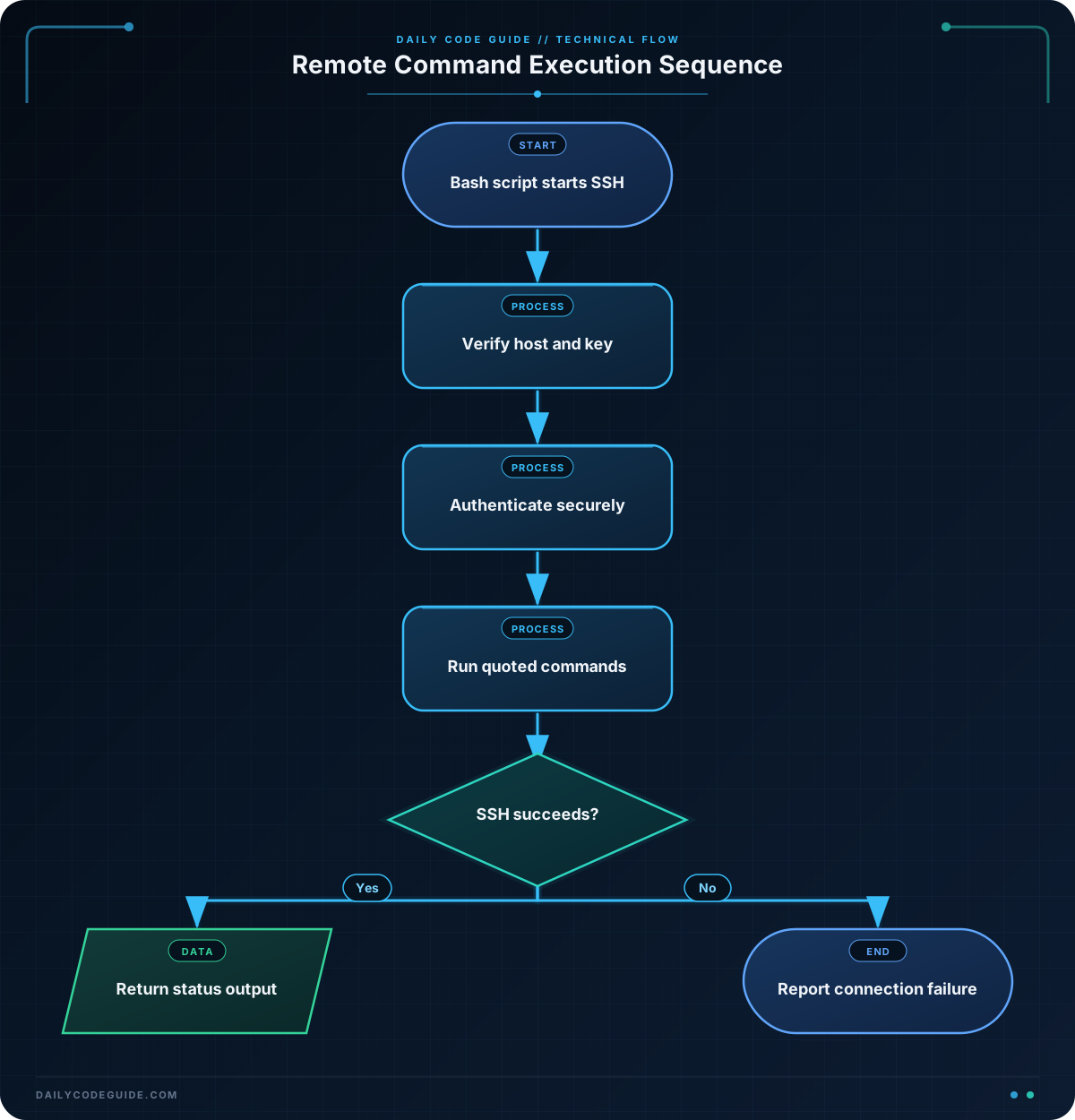
SSH, or Secure Shell, creates an encrypted connection between your computer and a remote Linux server. Although SSH is often used to open an interactive terminal, it can also run one command and then disconnect.
The basic form is:
ssh user@server "command"The command after the server address is sent to the remote machine. For example, a disk-space check can be run without starting a full remote shell.
ssh administrator@server.example.com "df -h /"SSH normally authenticates with a password or an SSH key. For scripts, an SSH key is preferred because the script should not contain a password. The key should be protected with a passphrase, and the server’s host key should be verified instead of disabling host-key checking.
When a command contains shell syntax such as pipelines, variables, or semicolons, quoting determines where that syntax is interpreted. A single-quoted command passed to SSH is sent as one argument and is interpreted by the remote shell. This is useful when you want a sequence of commands to run remotely.
Preparing key-based authentication
If you do not already have an SSH key, generate an Ed25519 key pair on your local computer. The command will ask for a file location and an optional passphrase.
ssh-keygen -t ed25519 -C "daily-status-check"After the key is created, copy the public key to an account on the server. Replace the example account and hostname with values for your environment.
ssh-copy-id administrator@server.example.comOn systems where ssh-copy-id is unavailable, an administrator can add the contents of your public key file to the account’s authorized keys. Test the connection interactively before using it in a script. The first connection may ask you to confirm the server’s host key. Verify that key through a trusted source before accepting it.
Basic Example
This script connects to one Linux server and collects its hostname, uptime, and disk usage for the root filesystem. It uses one SSH connection and sends a fixed command to the remote shell.
#!/usr/bin/env bash

set -euo pipefail

REMOTE_HOST="administrator@server.example.com"

printf 'Checking %s\n' "$REMOTE_HOST"
ssh -o BatchMode=yes "$REMOTE_HOST" 'hostname; uptime; df -h /'
Expected Output
The exact values depend on the remote server. A successful run will produce output with this general shape:
Checking administrator@server.example.com
server.example.com
 10:42:18 up 12 days,  3:17,  2 users,  load average: 0.08, 0.05, 0.01
Filesystem      Size  Used Avail Use% Mounted on
/dev/sda1        40G   18G   20G  48% /
How the Code Works
- The shebang: The first line asks the operating system to run the script with Bash.
- Strict mode: set -euo pipefail makes common script errors easier to notice. The script stops when a command fails, when an unset variable is used, or when a command in a pipeline fails.
- The host variable: REMOTE_HOST stores the account and server name. Quoting “$REMOTE_HOST” passes the complete value as one argument.
- BatchMode: -o BatchMode=yes prevents SSH from asking for a password or other interactive input. This makes a failed key-based login fail clearly instead of hanging while a script waits.
- Remote command quoting: The single quotes around hostname; uptime; df -h / keep the command together. The semicolons are interpreted by the remote shell, so all three commands run on the server.
- Disk usage: df -h / reports space for the filesystem containing the root directory. The -h option uses readable units such as gigabytes.
Do not add options that disable host-key verification just to avoid a prompt. Host keys help SSH detect an unexpected server and protect against connecting to the wrong machine.
If you need to extract only certain columns from the returned disk report, you can combine the result with familiar Bash text-processing pipelines. First make the SSH command work, then add filtering so connection problems are not hidden.
Another Example
A health-check script often needs to inspect several servers. This example loops through a small server list, collects each server’s hostname, root disk usage, and uptime, and reports a connection failure without stopping the checks for other servers.
#!/usr/bin/env bash

set -u

servers=(
    "administrator@web-1.example.com"
    "administrator@db-1.example.com"
)

for server in "${servers[@]}"; do
    printf '\n=== %s ===\n' "$server"

    if report=$(ssh -o BatchMode=yes -o ConnectTimeout=5 "$server" 'hostname; df -h /; uptime'); then
        printf '%s\n' "$report"
    else
        printf 'Unable to collect status from %s\n' "$server"
    fi
done
ConnectTimeout=5 prevents an unreachable server from delaying the script indefinitely during connection setup. The command substitution stores the remote output in report, and the if statement checks SSH’s exit status.
The server names in this example are placeholders. Replace them with hostnames or IP addresses that your SSH configuration can reach. If you run this check regularly, you can later review options for scheduling Bash scripts with cron.
Common Mistakes
- Running the command locally: A command before SSH runs on your computer. Only the command after the host argument runs remotely.
- Forgetting to quote the remote command: With several commands separated by semicolons, quote the complete remote command so it is passed as one argument.
- Using an interactive password prompt in automation: A script can hang when SSH waits for a password. Use a protected SSH key and BatchMode=yes for non-interactive checks.
- Disabling host-key checking: Avoid options that accept every host key. They remove an important protection against connecting to an impersonated server.
- Confusing local and remote variables: A variable inside a quoted remote command may be expanded by the remote shell, not by the local script. For beginner scripts, use fixed remote commands first and introduce variable expansion only when you understand which shell should expand it.
Try It Yourself
Modify the basic script so it checks a server you can access. Ask SSH to run hostname, free -h for memory information, and df -h / for root disk usage in one connection.
Keep key-based authentication enabled, use BatchMode=yes, and verify the server’s host key rather than disabling host-key checks.
Challenge
Write a Bash script that checks one remote server and produces a small status report.
- Store the SSH destination in a variable named REMOTE_HOST.
- Run hostname, free -h, and df -h / through one SSH connection.
- Use key-based, non-interactive authentication with BatchMode=yes.
- Use a five-second connection timeout.
- If SSH fails, print a useful error message instead of displaying an empty report.
Solution
#!/usr/bin/env bash

set -u

REMOTE_HOST="administrator@server.example.com"

printf 'System status for %s\n' "$REMOTE_HOST"

if status_report=$(ssh -o BatchMode=yes -o ConnectTimeout=5 "$REMOTE_HOST" 'hostname; free -h; df -h /'); then
    printf '%s\n' "$status_report"
else
    printf 'SSH status check failed for %s\n' "$REMOTE_HOST"
    exit 1
fi
The script stores the destination in REMOTE_HOST, sends all three fixed commands in one quoted remote command, and prevents password prompts with BatchMode=yes. The if statement tests whether SSH completed successfully. A failed connection produces an error message and a nonzero exit status, which helps another script or monitoring tool detect the failure.
Key Takeaways
- SSH can execute a command remotely and disconnect without opening an interactive session.
- Use protected SSH keys instead of putting passwords in Bash scripts.
- Quote a multi-command remote instruction so the remote shell interprets its semicolons and pipelines.
- Use BatchMode=yes and a connection timeout for reliable non-interactive checks.
- Never disable host-key verification merely to make automation easier.

