


What You’ll Learn
In this lesson, you’ll learn how to use a Bash for loop to repeat commands for multiple log files. By the end, you will be able to:
- Understand the basic structure of a Bash
forloop. - Process several files with the same commands.
- Use a loop to count messages in log files.
- Avoid common quoting and wildcard mistakes.
The Concept
A for loop repeats a block of commands once for each item in a list. In Bash, the general structure looks like this:
for item in item1 item2 item3; do
    command_using "$item"
done
Bash assigns the first item to the loop variable, runs the commands between do and done, then repeats the process for the next item. In the example above, item is the loop variable.
For loops are useful when the same task must be performed for many files, usernames, directories, or other values. When processing logs, a loop can inspect every log file and report how many errors each one contains.
Basic Example
The following script creates three sample log files and then uses a for loop to count lines containing the word ERROR in each file.
#!/usr/bin/env bash

work_dir=$(mktemp -d)
trap 'rm -rf "$work_dir"' EXIT

cat > "$work_dir/app.log" <<'EOF'
INFO Application started
ERROR Database connection failed
INFO Application stopped
EOF

cat > "$work_dir/api.log" <<'EOF'
INFO Request received
ERROR Request timed out
ERROR Request failed
EOF

cat > "$work_dir/worker.log" <<'EOF'
INFO Worker started
INFO Job completed
EOF

log_files=("$work_dir"/*.log)

for log_file in "${log_files[@]}"; do
    file_name=$(basename "$log_file")
    error_count=$(grep -c "ERROR" "$log_file")
    printf '%s: %s error(s)\n' "$file_name" "$error_count"
done
Expected Output
app.log: 1 error(s)
api.log: 2 error(s)
worker.log: 0 error(s)
How the Code Works
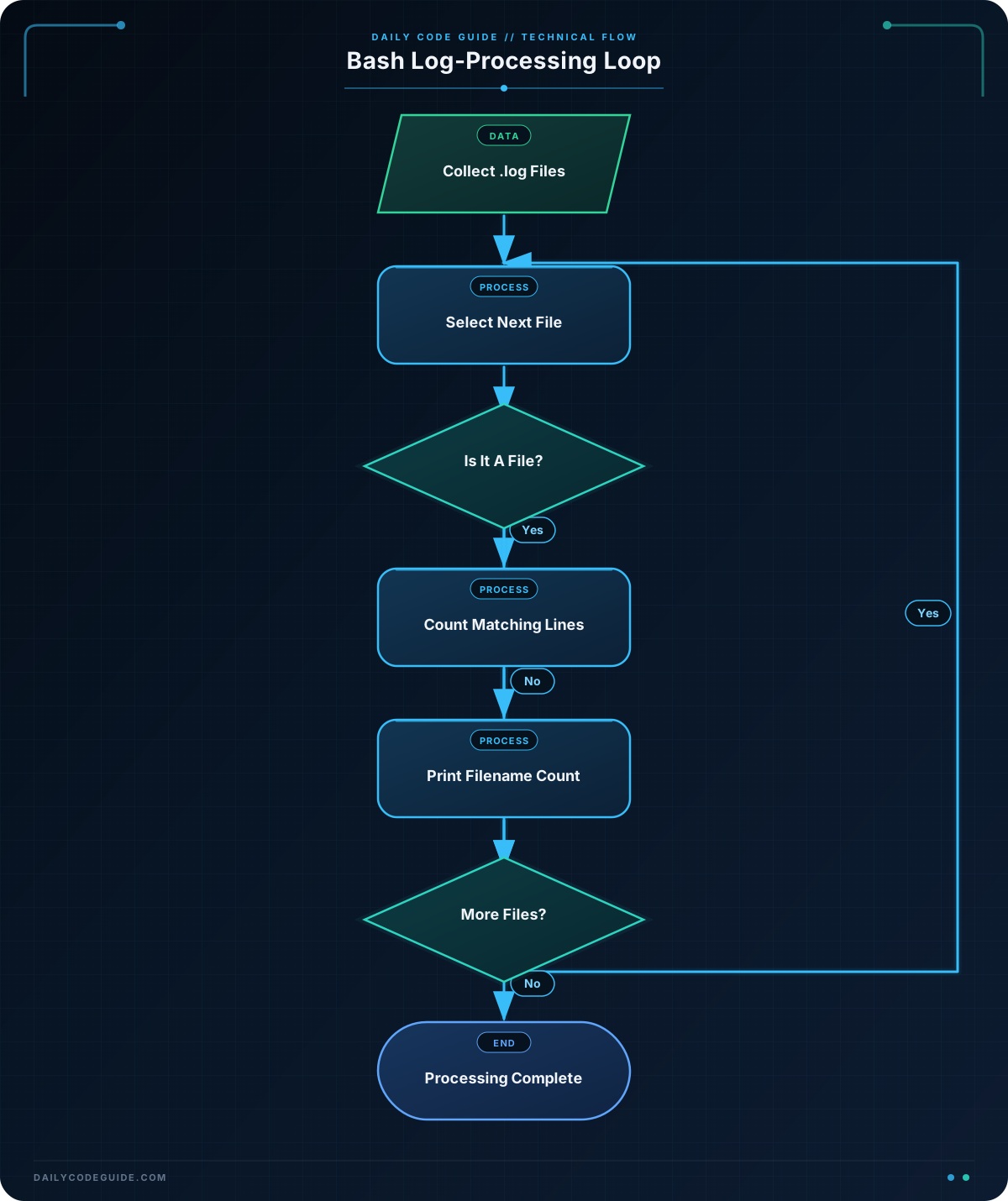
work_dir=$(mktemp -d) creates a temporary directory for the sample files. The trap command removes that directory when the script finishes, so the example does not leave files behind.
Each cat command writes sample content to a log file. The special <<'EOF' syntax starts a here document, which lets us provide several lines of input until the closing EOF.
This line creates a list of all log files in the temporary directory:
log_files=("$work_dir"/*.log)The *.log wildcard matches filenames that end in .log. The parentheses create a Bash array, which is a variable containing multiple values.
The loop begins here:
for log_file in "${log_files[@]}"; dolog_file receives one filename at a time. The expression "${log_files[@]}" expands to every item in the array. The quotes are important because a filename could contain spaces.
Inside the loop, basename removes the directory path so that only the filename is displayed. Then grep -c "ERROR" counts matching lines in the current log file.
Finally, printf displays the filename and its count. The loop repeats these commands for app.log, api.log, and worker.log.
Another Example
This script accepts an optional directory name and reports how many HTTP 404 responses appear in every log file in that directory. If no directory is provided, it searches the current directory.
#!/usr/bin/env bash

log_directory=${1:-.}

for log_file in "$log_directory"/*.log; do
    if [ -f "$log_file" ]; then
        file_name=$(basename "$log_file")
        not_found_count=$(grep -c " 404 " "$log_file")
        printf '%s: %s not-found response(s)\n' \
            "$file_name" "$not_found_count"
    fi
done
Run it with a directory argument such as ./count-not-found.sh logs, or run it without an argument to search the current directory.
The if statement checks that the wildcard produced an actual file. Without this check, Bash may leave the pattern unchanged when the directory contains no matching log files.
Common Mistakes
- Forgetting
doordone: Every Bash for loop needsdobefore its command block anddoneafter it. - Leaving filenames unquoted: Use
"$log_file"instead of$log_file. Quoting prevents spaces in filenames from being treated as separators. - Using the wrong loop variable: If the loop uses
for log_file in ..., commands inside the loop must use$log_file. - Assuming a wildcard always matches: A pattern such as
*.logmay match no files. A file check, like the one in the second example, prevents accidental processing of a literal pattern. - Counting text without considering the log format: Searching for
ERRORcounts lines containing that exact text. It will not recognize differently formatted messages unless the search pattern is changed.
Try It Yourself
Create two or more log files in a directory. Write a for loop that prints each filename and counts lines containing the word WARN. Use a variable for the directory and quote the filename when passing it to grep.
Challenge
Write a Bash script that processes log files in a directory:
- Use the first command-line argument as the directory name.
- Search every
.logfile in that directory. - Count lines containing
404. - Print the filename and the number of matching lines.
- If no directory argument is given, search the current directory.
Solution
#!/usr/bin/env bash

log_directory=${1:-.}

for log_file in "$log_directory"/*.log; do
    if [ -f "$log_file" ]; then
        file_name=$(basename "$log_file")
        not_found_count=$(grep -c "404" "$log_file")
        printf '%s: %s line(s) containing 404\n' \
            "$file_name" "$not_found_count"
    fi
done
The default value expression ${1:-.} uses the first command-line argument when one exists and uses the current directory, represented by ., otherwise. The for loop visits each matching log file, and the file check safely skips the wildcard when there are no matching files.
Key Takeaways
- A Bash for loop repeats commands for every item in a list.
- The loop variable stores the current item, such as the current log filename.
- Use
"$variable"when working with filenames to handle spaces safely. - Wildcards such as
*.logmake it easy to select multiple files. - Commands inside the loop can inspect, count, or report information from each log file.

