


What You’ll Learn
In this lesson, you will learn how to reduce the size of application log files from Bash. You will use gzip for compressing one file and zip for collecting one or more files into a portable archive.
- Compress and decompress a single log file with
gzip. - Create and extract a ZIP archive with
zipandunzip. - Choose between gzip and zip for common log-management tasks.
The Concept
Compression reduces the amount of disk space a file uses. This is useful for application logs because logs can grow quickly, especially when you store them for troubleshooting, compliance, or transfer to another system.
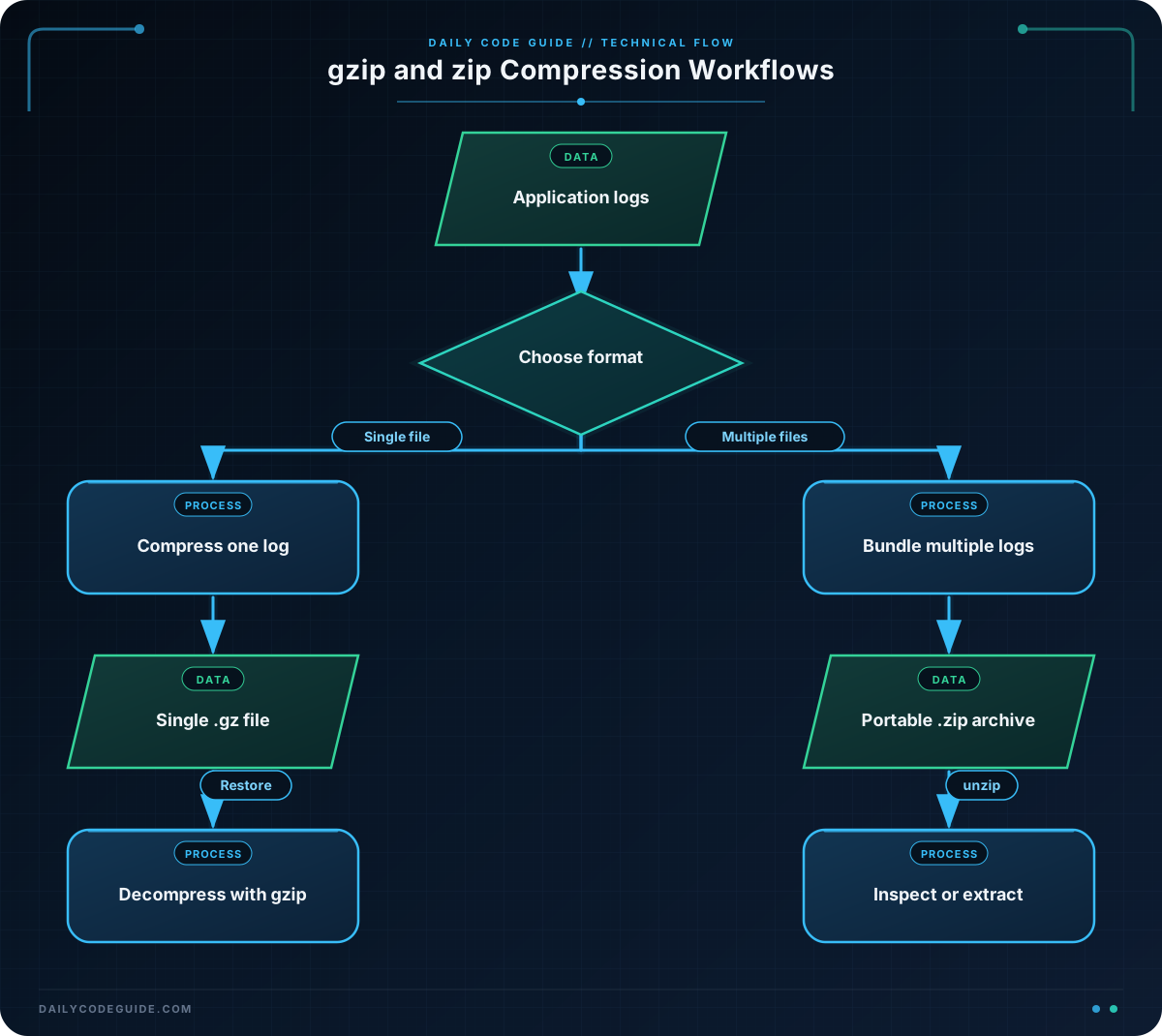
gzip compresses one file at a time. By default, a command such as gzip application.log creates application.log.gz and removes the uncompressed file. The .gz format is common on Linux and Unix systems.
zip creates an archive that can contain one or more files. It is useful when you want to package several related logs together. The matching unzip command extracts ZIP archives.
As a simple rule:
- Use
gzipwhen you are compressing one log file and want a straightforward Linux-friendly format. - Use
zipwhen you need to bundle multiple files into one archive that is widely supported across operating systems.
If you need to combine many files while using gzip compression, a common Linux approach is tar together with gzip. You can learn more about creating and extracting compressed archives with tar.
Basic Example
The following example creates a small application log, makes a gzip copy without deleting the original, creates a ZIP archive, and then demonstrates how to read the compressed data.
mkdir -p log-demo

printf '%s\n' \
    '2026-08-18 10:14:22 INFO  Server started' \
    '2026-08-18 10:15:07 WARN  Database response was slow' \
    '2026-08-18 10:16:31 ERROR Payment service returned HTTP 503' \
    > log-demo/application.log

gzip -c log-demo/application.log > log-demo/application.log.gz
zip -q log-demo/application-logs.zip log-demo/application.log

gzip -dc log-demo/application.log.gz > log-demo/restored-from-gzip.log
unzip -p log-demo/application-logs.zip log-demo/application.log \
    > log-demo/restored-from-zip.log

ls -lh log-demo
Expected Output
The exact file sizes depend on the gzip and ZIP versions on your system. The directory should contain the original log, both compressed files, and two restored copies.
application-logs.zip
application.log
application.log.gz
restored-from-gzip.log
restored-from-zip.log
How the Code Works
mkdir -p log-democreates a directory for the practice files. The-poption avoids an error if the directory already exists.- The
printfcommand writes sample log lines intolog-demo/application.log. The>operator sends the output into the file. gzip -cwrites compressed data to standard output instead of replacing the input file. The redirection operator saves that compressed data asapplication.log.gz. This lets the original log remain available.zip -qcreatesapplication-logs.zipand adds the application log to it. The-qoption means “quiet,” so ZIP does not print a line for every file it adds.gzip -dcdecompresses the gzip file and writes the original text to standard output. The-dmeans decompress, and-cmeans write the result to standard output.unzip -pprints a file from a ZIP archive without extracting it to the current directory. The command redirects that printed content intorestored-from-zip.log.ls -lhlists the results. The-hoption displays file sizes in a human-readable format.
For a normal gzip workflow, you can also use gunzip application.log.gz to decompress a file and restore the original filename. Unlike the -c approach above, this normally removes the compressed file after successful decompression.
Another Example
Suppose an application creates a current log and a rotated log from the previous day. You can keep the current log available for the application while creating a compressed copy of it, then package both original logs into a single ZIP file for transfer.
mkdir -p rotated-logs

printf '%s\n' \
    '2026-08-19 08:00:01 INFO  Worker queue started' \
    '2026-08-19 08:03:44 INFO  Processed 250 requests' \
    > rotated-logs/current.log

printf '%s\n' \
    '2026-08-18 23:58:12 INFO  Daily processing completed' \
    '2026-08-18 23:59:03 INFO  Worker queue stopped' \
    > rotated-logs/previous.log

gzip -c rotated-logs/current.log > rotated-logs/current.log.gz
zip -q rotated-logs/rotated-logs.zip \
    rotated-logs/current.log rotated-logs/previous.log

unzip -l rotated-logs/rotated-logs.zip
The gzip file is a compressed copy of only the current log. The ZIP file packages both uncompressed log files into one transferable archive. The unzip -l command lists the archive contents without extracting them.
When writing a script that performs log compression automatically, validate that the required files and commands exist before continuing. Bash strict mode can help scripts fail clearly instead of silently producing incomplete archives; see Bash strict mode for a safer scripting approach.
Common Mistakes
- Expecting gzip to combine several files: gzip compresses individual files. To create one gzip-compressed package from several files, use an archive tool such as
tarwith gzip compression, or usezip. - Accidentally deleting the original:
gzip application.lognormally replaces the original withapplication.log.gz. Usegzip -c application.log > application.log.gzwhen you want to keep the original. - Trying to use unzip on a gzip file: A file ending in
.gzshould be handled bygunziporgzip -d. A file ending in.zipshould be handled byunzip. - Overwriting an existing output file: Redirection with
>replaces an existing destination file. Check the destination name before running a command if the existing file matters. - Assuming every system has zip installed:
gzipis commonly present on Linux systems, butzipandunzipmay need to be installed separately.
Try It Yourself
Create a file named service.log containing two or three realistic log lines. Then create service.log.gz while keeping service.log. Finally, use gzip -dc to restore the compressed contents into a file named service-restored.log.
Compare the original and restored files with diff. If the command produces no output, the files have the same contents.
Challenge
Create a directory named practice-logs containing current.log and previous.log. Your solution should:
- Keep
current.logunchanged while creatingcurrent.log.gz. - Create
weekly-logs.zipcontaining both original log files. - List the contents of the ZIP archive without extracting it.
Use printf to create a few sample log lines so the challenge is self-contained.
Solution
mkdir -p practice-logs

printf '%s\n' \
    '2026-08-20 09:00:00 INFO  API service started' \
    '2026-08-20 09:04:18 INFO  Health check passed' \
    > practice-logs/current.log

printf '%s\n' \
    '2026-08-19 17:45:10 INFO  API service stopped' \
    '2026-08-19 17:45:12 INFO  Log rotation completed' \
    > practice-logs/previous.log

gzip -c practice-logs/current.log > practice-logs/current.log.gz
zip -q practice-logs/weekly-logs.zip \
    practice-logs/current.log practice-logs/previous.log

unzip -l practice-logs/weekly-logs.zip
The gzip -c command creates a compressed copy and preserves current.log. The zip command adds both original logs to one archive, and unzip -l verifies the archive contents without extracting the files.
Key Takeaways
gzipcompresses individual files and commonly creates files ending in.gz.- Use
gzip -cwhen you want to keep the original log while creating a compressed copy. zippackages one or more files into a single archive, andunzipextracts or inspects that archive.- Choose gzip for simple single-file compression and ZIP when bundling files for convenient transfer.